
1. Introduction and Overview
This manual provides comprehensive instructions for the installation, operation, and maintenance of your PEMP 8.8" Linux Screen, designed for BMW E60 and E90 vehicles equipped with the CCC infotainment system (model years 2005-2010). This unit integrates modern features such as wired and wireless CarPlay, Android Auto, and Mirror Link, enhancing your vehicle's multimedia capabilities while retaining original car functions.
The PEMP 8.8" Linux Screen features an 8.8-inch HD IPS display with a resolution of 1280x480 pixels and a multi-point capacitive touch screen. It supports the display of the car's original reversing camera and radar information, as well as aftermarket CVBS format cameras.
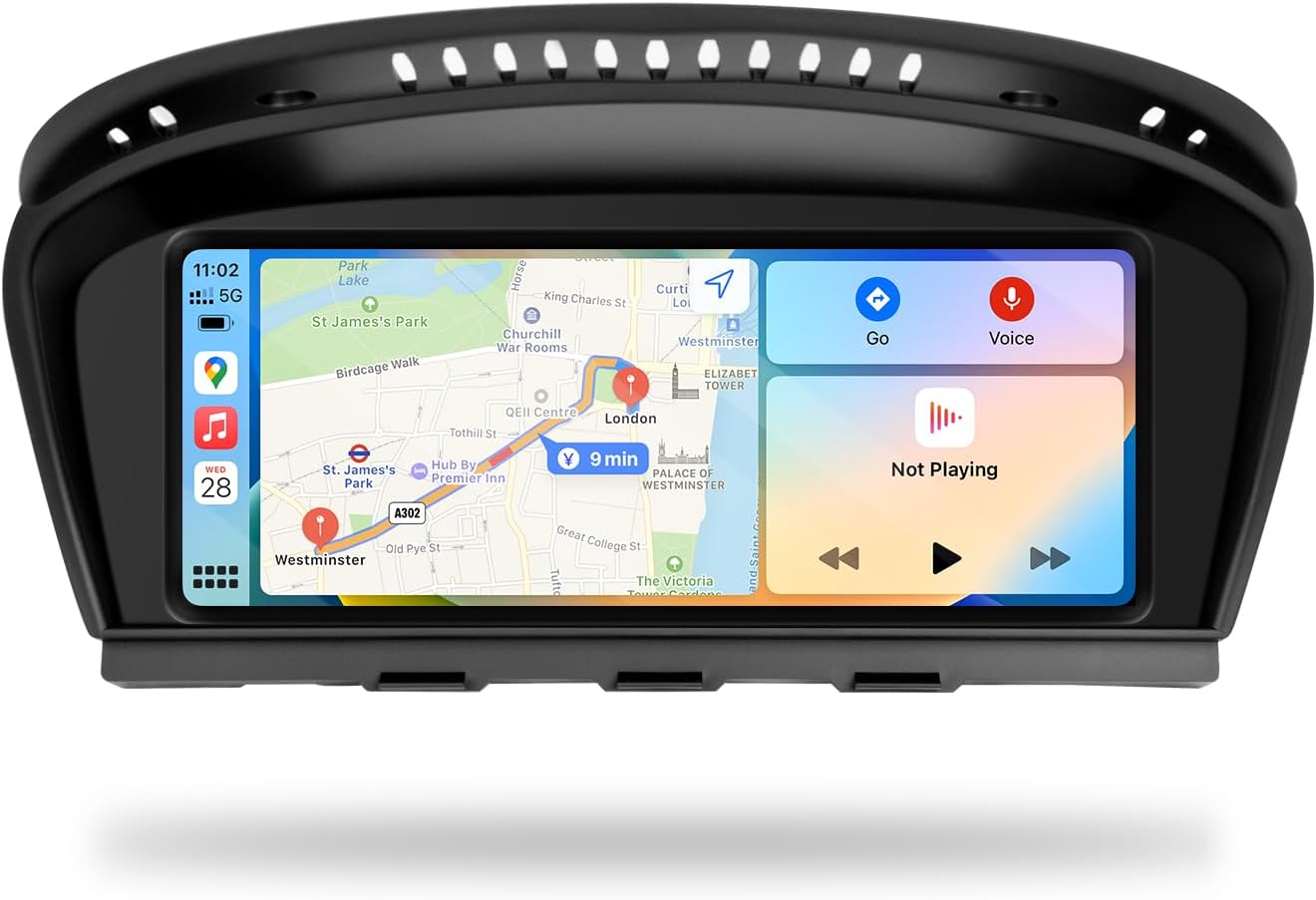
Image 1.1: PEMP 8.8" Linux Screen with CarPlay interface.
2. Package Contents
Verify that all items listed below are present in your package:
- 1 x PEMP 8.8" Linux Screen Unit
- 1 x ISO Wiring Harness
- 1 x USB Cable
- 1 x Audio Cable
- 1 x Installation Manual (this document)
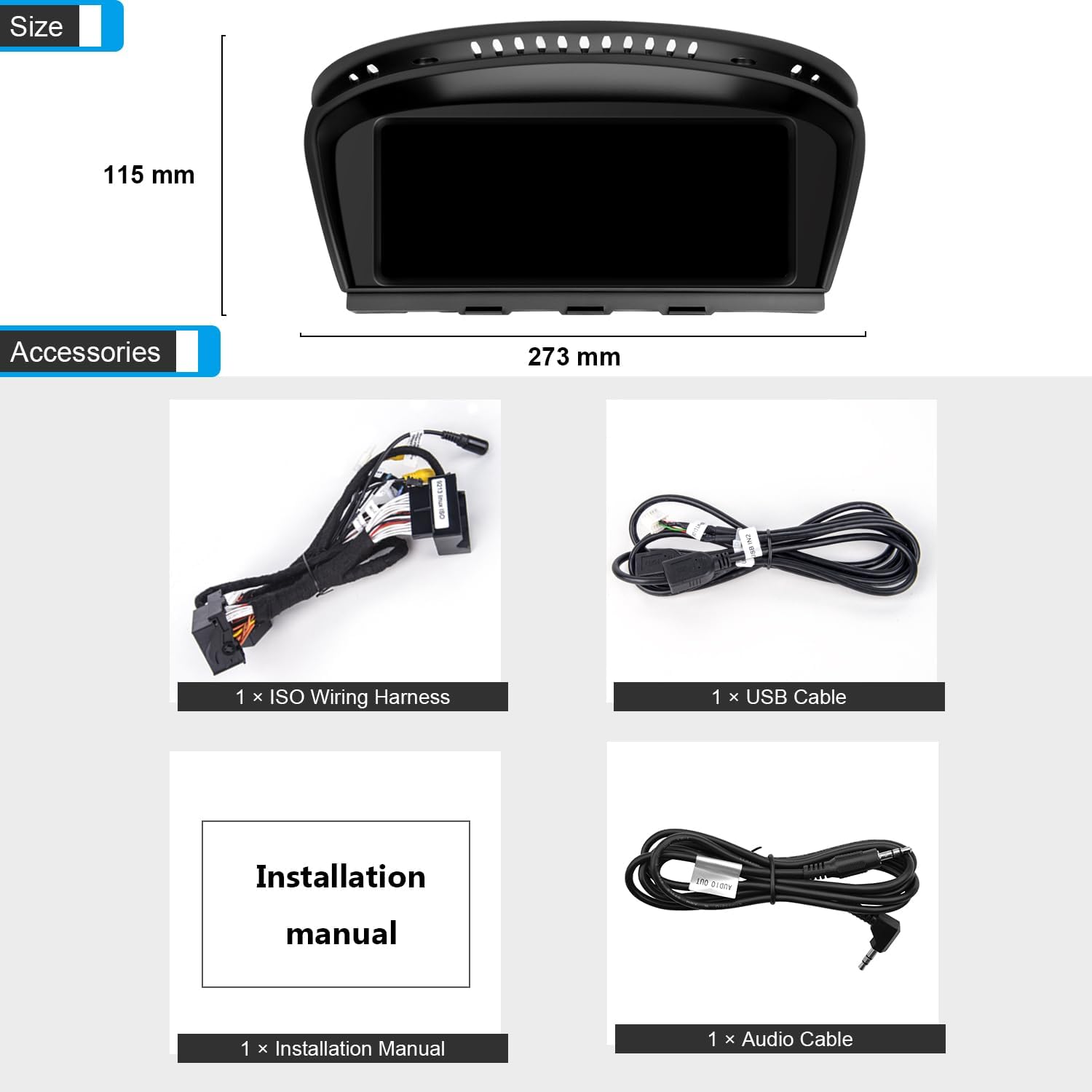
Image 2.1: Included accessories and screen dimensions.
3. Product Features
- Wired and Wireless CarPlay & Android Auto: Seamless integration with your smartphone for navigation, music, calls, and messages.
- Linux System: Provides quick boot-up times and fast access to CarPlay or Android Auto interfaces.
- High-Resolution Display: 8.8-inch HD IPS screen with 1280x480 resolution for clear visuals.
- OEM System Integration: Supports switching between the factory OEM interface and the new Linux system.
- Reverse Camera Support: Displays original car's reversing camera and radar information. Compatible with aftermarket CVBS format cameras (AHD 1080P cameras are not supported).
- Bluetooth 5.0: For stable audio streaming and hands-free calling.
- Mirror Link: Allows mirroring your smartphone screen to the unit.
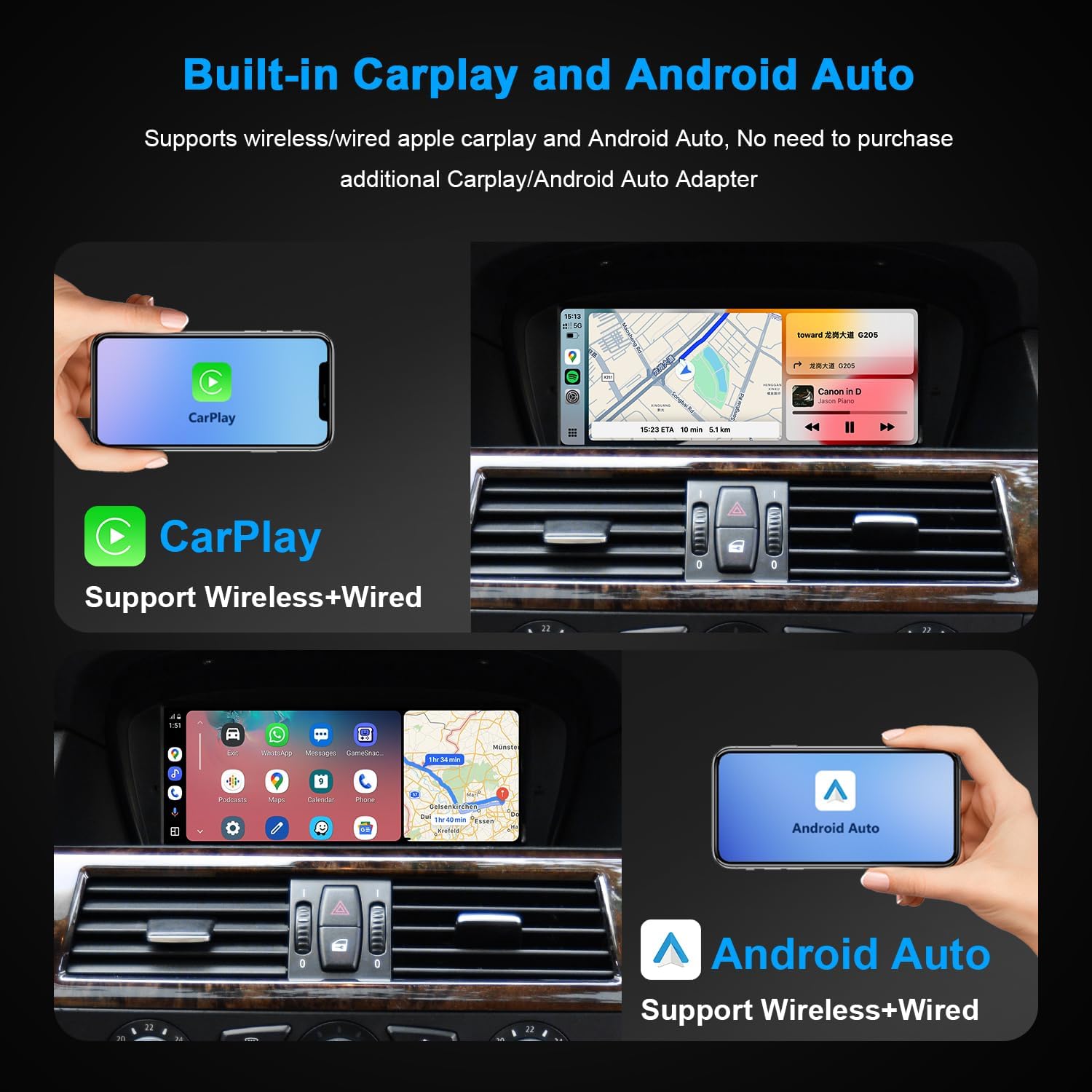
Image 3.1: Built-in CarPlay and Android Auto features.

Image 3.2: Key features and the ability to switch between OEM and new system interfaces.
4. Setup and Installation
4.1 Pre-installation Check: AUX Audio Menu
Before installation, verify that your OEM display has an AUX Audio menu. If not, you will need to activate AUX audio first. An AUX activator (ASIN: B08XXF2T5Q) may be required.
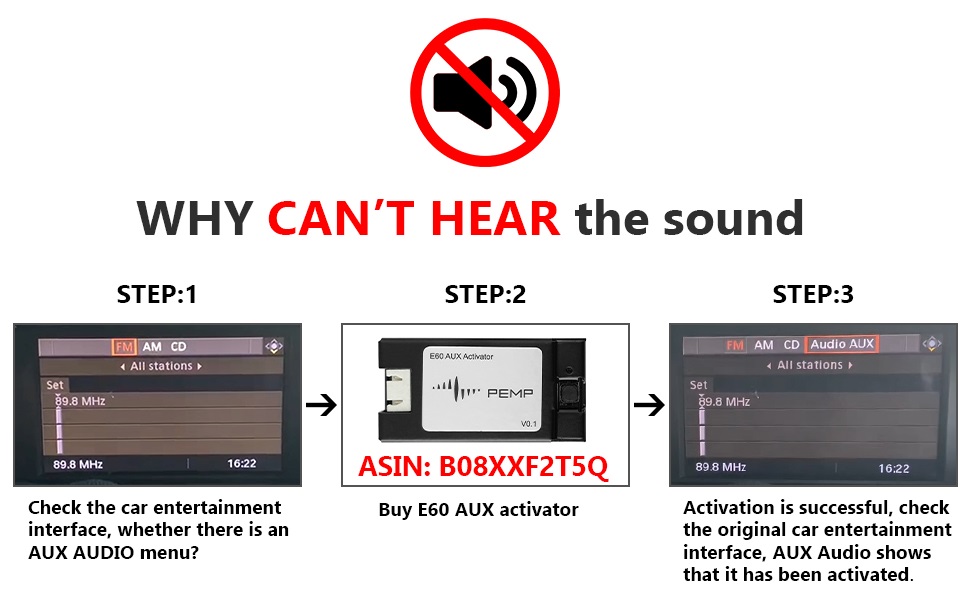
Image 4.1: Steps for AUX audio activation.
4.2 Wiring and Fiber Optic Cable Transfer
Carefully follow the wiring diagram provided with your unit. A critical step involves correctly transferring the 2-pin green optical fiber cable from the original vehicle's ISO plug to the new Linux harness. This ensures proper audio signal transmission.
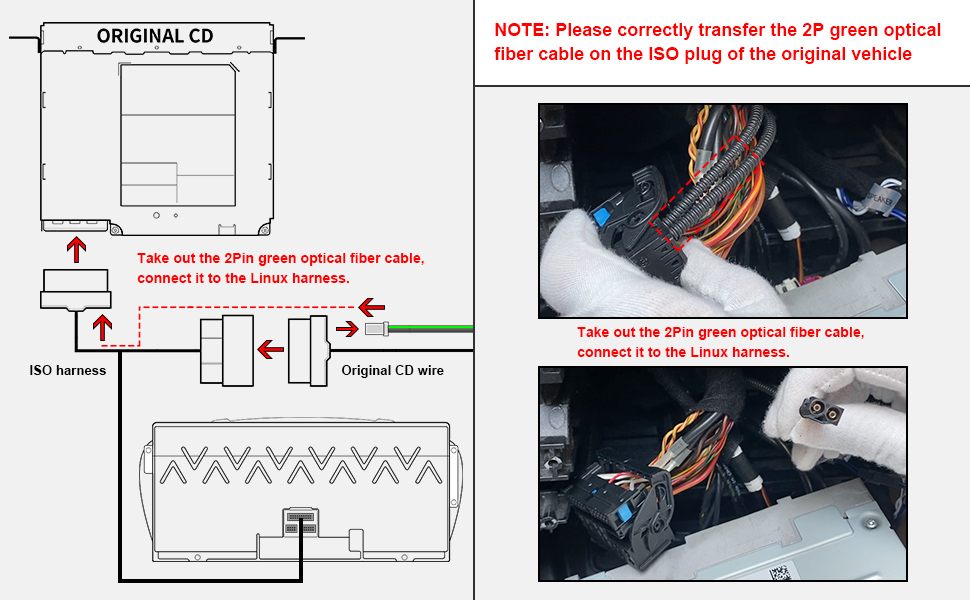
Image 4.2: Instructions for transferring the fiber optic cable.
4.3 Initial Sound Check and Resolution Setting
If you experience no sound or incorrect display after installation, perform the following checks:
- Sound Check: Press the FM/AM button on your OEM radio to confirm if the original radio has sound.
- Resolution Setting: If the OEM radio has sound, navigate to Setup > Car Settings > Original Car's Screen Resolution and select the appropriate resolution for your vehicle.
- No OEM Sound: If there is no sound from the OEM radio, you may need to reconnect the socket on the back of the OEM radio. Refer to the wiring diagram for correct connections.

Image 4.3: Troubleshooting steps for sound and OEM info display.

Image 4.4: Setting the screen resolution.
5. Operating Instructions
5.1 Switching Between OEM and Linux Interfaces
To switch between your factory OEM interface and the new Linux system interface, long-press the Menu button on your vehicle's iDrive controller. This allows you to seamlessly access both systems.
5.2 CarPlay and Android Auto Connection
The unit supports both wired and wireless CarPlay and Android Auto. For wired connections, ensure you use USB IN 1.
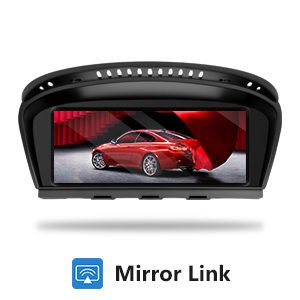
Image 5.1: USB input for wired CarPlay/Android Auto.
5.3 Automatic and Manual AUX Switching
For audio output, the unit can automatically switch to AUX or be manually set.
- Automatic Switch to AUX: Navigate to Car Settings in the setup menu and find "Automatically switch to AUX." You can then choose "Harman Head Unit" or "Alpine Head Unit" based on your car's configuration.
- Manual AUX Setting:
- Go to the "Main menu" and select "Multimedia."
- Select "External devices."
- Long press the number key "8." When you hear a tone, the setting is complete.
- Press "8" eight times before entering the new system to ensure CarPlay sound.
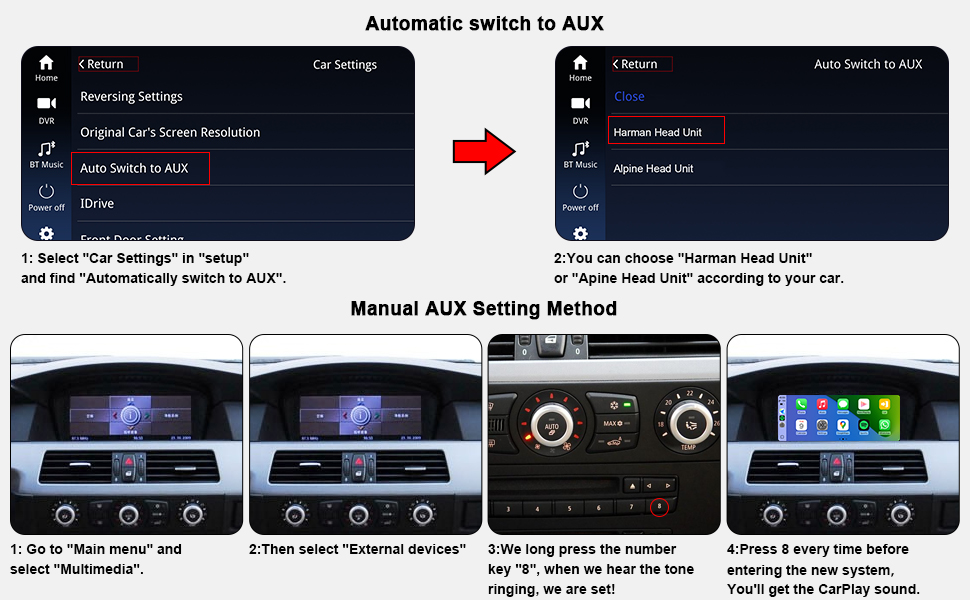
Image 5.2: Automatic and manual AUX switching methods.
5.4 Camera Settings
The unit supports both the car's original reversing camera and aftermarket CVBS format cameras. To configure camera settings, navigate to Setup > Car Settings > Reversing Settings > Camera Type. Note that AHD 1080P rear view cameras are not supported; only CVBS cameras are compatible.

Image 5.3: Camera support and settings.

Image 5.4: Navigating to camera type settings.
6. Maintenance
To ensure the longevity and optimal performance of your PEMP 8.8" Linux Screen, follow these maintenance guidelines:
- Cleaning: Use a soft, lint-free cloth to clean the screen. For stubborn smudges, slightly dampen the cloth with water or a screen-safe cleaner. Avoid abrasive materials or harsh chemicals.
- Software Updates: Periodically check the manufacturer's website or contact support for available software updates. Keeping the software updated can improve performance and add new features.
- Environmental Conditions: Avoid exposing the unit to extreme temperatures, direct sunlight for prolonged periods, or excessive moisture.
7. Troubleshooting
This section addresses common issues you might encounter with your PEMP 8.8" Linux Screen.
7.1 No Sound from the Unit
- Check AUX Activation: Ensure the AUX audio menu is activated in your OEM system. If not, refer to Section 4.1 for activation steps.
- Verify Fiber Optic Cable: Confirm that the 2-pin green optical fiber cable is correctly transferred to the Linux harness as described in Section 4.2. Incorrect connection can lead to no sound.
- AUX Switching Method: Ensure the correct AUX switching method (automatic or manual) is configured as per Section 5.3.
- OEM Radio Sound: Check if your OEM radio produces sound. If not, there might be an issue with the OEM radio's connection, requiring reconnection of its socket.
7.2 Display Issues (e.g., incorrect resolution, blank screen)
- Screen Resolution: Verify that the screen resolution is correctly set in Setup > Car Settings > Original Car's Screen Resolution (refer to Section 4.3).
- Wiring Connections: Recheck all wiring connections, especially the main harness, to ensure they are secure and correctly seated.
7.3 CarPlay/Android Auto Not Connecting
- USB Port for Wired Connection: For wired CarPlay/Android Auto, ensure your device is connected to USB IN 1 (refer to Section 5.2).
- Bluetooth/Wi-Fi: For wireless connections, ensure Bluetooth is enabled on your phone and paired with the unit, and Wi-Fi is active for data transfer.
- Phone Compatibility: Ensure your smartphone's operating system is up-to-date and compatible with CarPlay or Android Auto.
7.4 Reversing Camera Not Displaying
- Camera Type Setting: Confirm the correct camera type (Original Camera or Aftermarket Camera) is selected in Setup > Car Settings > Reversing Settings > Camera Type (refer to Section 5.4).
- Camera Format: Ensure aftermarket cameras are in CVBS format. AHD 1080P cameras are not supported.
- Camera Wiring: Check the physical connection of the camera to the unit.
8. Specifications
| Feature | Specification |
|---|---|
| Display Size | 8.8 inches |
| Product Dimensions | 10.75 x 4.53 x 1.18 inches |
| Item Weight | 4.69 pounds |
| Resolution | 1280 x 480 |
| Operating System | Linux |
| Connectivity Technology | Bluetooth, Wi-Fi |
| Special Features | Wired/Wireless CarPlay, Android Auto, Mirror Link, Bluetooth 5.0, Touchscreen |
| Compatible Vehicle Service Type | Car (BMW E60 E90 CCC 2005-2010) |
| Audio Output Mode | Stereo |
| Included Components | Harness |
9. Warranty and Support
9.1 Warranty Policy
PEMP offers the following warranty for this product:
- Within 1 Month: Free returns (contact Amazon Customer Service).
- Within 1 Year: Warranty for non-artificial reasons. The customer is responsible for shipping costs for sending the unit back and forth within the United States.
- After 1 Year: Repair services are provided. In addition to postage costs within the United States, additional parts replacement costs and labor costs will apply.
9.2 Customer Support
For technical assistance, troubleshooting, or warranty claims, please contact PEMP customer support through the Amazon platform or refer to the contact information provided with your purchase documentation.


