
YQSAVIOR YQYQ10S
YQSAVIOR YQYQ10S Android 14 Tablet User Manual
Model: YQYQ10S | Brand: YQSAVIOR
1. Introduction
This manual provides essential instructions for setting up, operating, maintaining, and troubleshooting your YQSAVIOR YQYQ10S Android 14 Tablet. Please read this manual thoroughly before using your device to ensure proper function and longevity.
2. Safety Information
- Do not expose the tablet to extreme temperatures, direct sunlight, or high humidity.
- Avoid dropping or subjecting the tablet to strong impacts.
- Use only the charger provided or a certified compatible charger.
- Keep the tablet away from water and other liquids.
- Do not attempt to disassemble or repair the tablet yourself. Contact customer support for assistance.
- Dispose of the battery and device according to local regulations.
3. Package Contents
Verify that all items are present in the package:
- 1x YQ10S Tablet
- 1x Charger
- 1x Type-C Cable
- 1x User Manual (this document)
4. Device Layout
Familiarize yourself with the physical components of your YQSAVIOR YQYQ10S tablet.

Figure 4.1: Front and back view of the YQSAVIOR YQYQ10S Tablet.
This image displays the YQSAVIOR YQYQ10S tablet from both the front and back. The front shows the display with "Android 14 8GB+64GB" text, while the back features a textured gray finish.

Figure 4.2: Rear view of the YQSAVIOR YQYQ10S Tablet.
The rear view of the tablet, highlighting the textured gray back panel and a label indicating the model number YQYQ10S.

Figure 4.3: Tablet camera specifications.
This image illustrates the tablet's camera capabilities, featuring an 8MP rear camera and a 2MP front camera, alongside example photos taken with the device.
4.1. Ports and Buttons
- Power Button: Press and hold to turn the tablet on or off. Press briefly to sleep or wake the screen.
- Volume Buttons: Adjust the audio volume.
- USB Type-C Port: For charging and data transfer.
- MicroSD Card Slot: Insert a MicroSD card for expanded storage.
- Front Camera: Located above the screen, used for video calls and selfies.
- Rear Camera: Located on the back of the tablet, used for taking photos and videos.
- Speakers: Output audio.
5. Setup
5.1. Charging the Battery
Before first use, fully charge the tablet's battery. Connect the provided Type-C cable to the tablet's USB Type-C port and the other end to the charger. Plug the charger into a power outlet. The charging indicator will show the charging status.
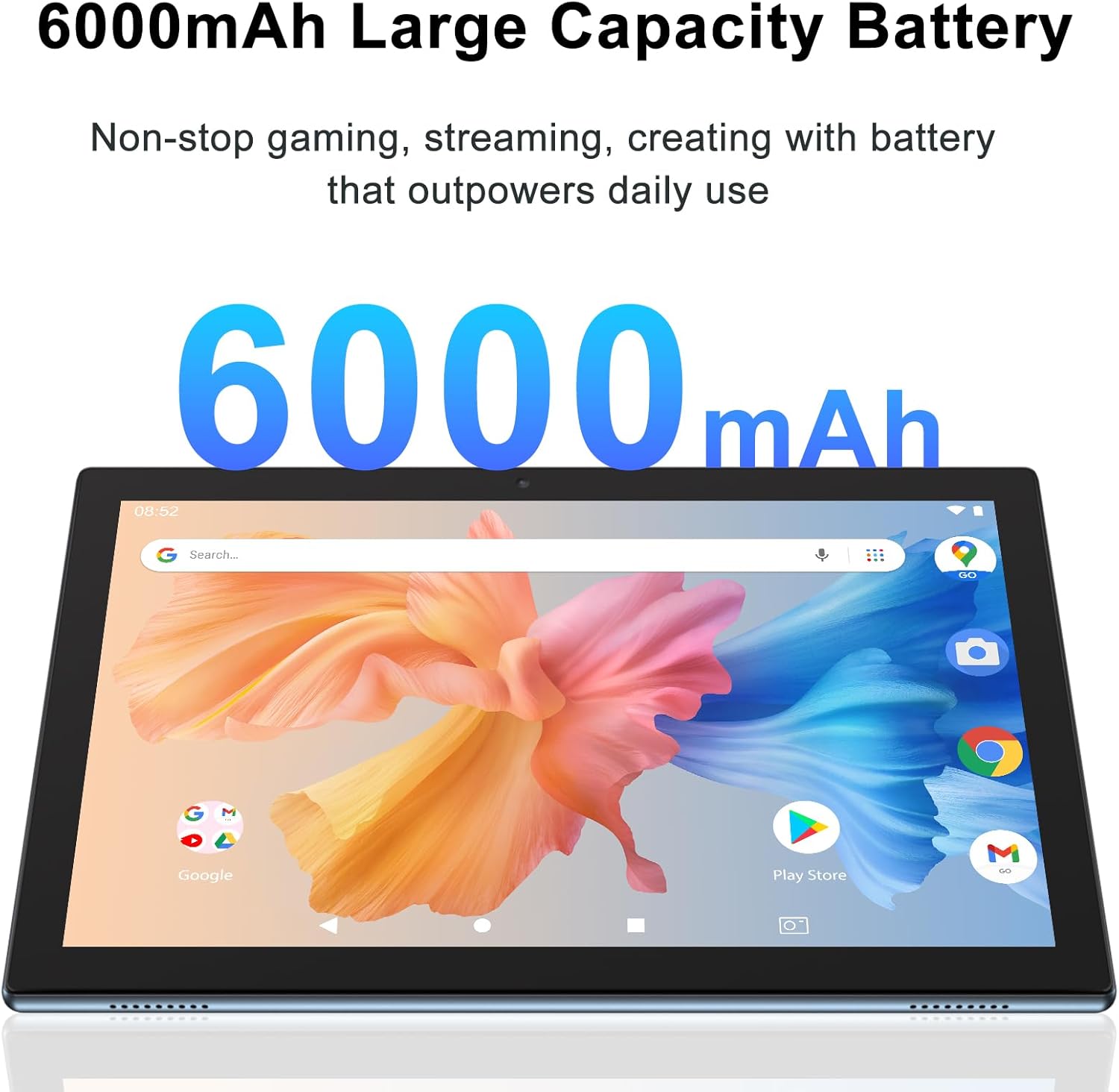
Figure 5.1: Tablet displaying its 6000mAh battery capacity.
This image highlights the tablet's 6000mAh battery, indicating its large capacity for extended use.
5.2. Powering On/Off
- To Power On: Press and hold the Power button until the screen lights up.
- To Power Off: Press and hold the Power button until a menu appears, then select "Power off".
- To Restart: Press and hold the Power button until a menu appears, then select "Restart".
5.3. Initial Setup
Upon first power-on, the tablet will guide you through the initial setup process:
- Select your preferred language.
- Connect to a Wi-Fi network.
- Sign in with your Google account or create a new one. This is necessary to download apps from the Google Play Store.
- Follow the on-screen prompts to complete the setup, including setting up screen lock and other preferences.
5.4. Inserting a MicroSD Card
To expand storage, you can insert a MicroSD card (up to 1TB, not included).
- Locate the MicroSD card slot on the side of the tablet.
- Carefully insert the MicroSD card into the slot until it clicks into place.
- The tablet will detect the card and may prompt you to format it for internal or portable storage. Follow the on-screen instructions.
6. Operating Instructions
6.1. Basic Navigation
- Tap: Select an item or open an app.
- Tap and Hold: Access contextual menus or move icons.
- Swipe: Scroll through screens or lists.
- Pinch: Zoom in or out on images and web pages.
6.2. Connecting to Wi-Fi
- Go to Settings > Network & internet > Wi-Fi.
- Turn on Wi-Fi. The tablet will scan for available networks.
- Select your desired network and enter the password if prompted.
6.3. Bluetooth Pairing
- Go to Settings > Connected devices > Bluetooth.
- Turn on Bluetooth.
- Ensure the device you want to pair is in pairing mode.
- Select the device from the list and follow any on-screen prompts to complete pairing.
6.4. Camera Usage
Open the Camera app to take photos or record videos.
- Tap the shutter button to take a photo.
- Switch between front and rear cameras using the camera toggle icon.
- Access settings within the app to adjust modes, resolution, and other parameters.
6.5. Managing Applications
Download new applications from the Google Play Store. To manage installed apps, go to Settings > Apps.

Figure 6.1: Tablet running a graphically intensive game.
This image demonstrates the tablet's capability to handle demanding applications, such as games, due to its high performance specifications.
7. Maintenance
7.1. Cleaning
- Use a soft, lint-free cloth to clean the screen and body of the tablet.
- Do not use harsh chemicals, abrasive cleaners, or aerosol sprays.
- If necessary, slightly dampen the cloth with water or a screen cleaner designed for electronics.
7.2. Software Updates
Regularly check for and install software updates to ensure optimal performance and security. Go to Settings > System > System update.
7.3. Battery Care
- Avoid fully discharging the battery frequently.
- Do not leave the tablet charging for extended periods after it is fully charged.
- Store the tablet in a cool, dry place if not used for a long time, with the battery charged to about 50%.
7.4. Storage Management
To optimize performance, regularly manage your tablet's storage. Go to Settings > Storage to view usage and free up space by uninstalling unused apps or deleting unnecessary files.
8. Troubleshooting
| Problem | Possible Solution |
|---|---|
| Tablet does not turn on. | Ensure the battery is charged. Connect the charger and try again. If unresponsive, perform a forced restart by holding the power button for 10-15 seconds. |
| Cannot connect to Wi-Fi. | Check if Wi-Fi is enabled in Settings. Ensure the password is correct. Restart your Wi-Fi router and the tablet. |
| Apps are crashing or freezing. | Close and reopen the app. Clear the app's cache (Settings > Apps > [App Name] > Storage & cache). Ensure the app and tablet software are up to date. Free up storage space if it's low. |
| Battery drains quickly. | Reduce screen brightness. Close unused apps running in the background. Disable Wi-Fi/Bluetooth when not in use. Check battery usage in Settings to identify power-hungry apps. |
| Tablet is slow or unresponsive. | Restart the tablet. Clear cache and data of frequently used apps. Uninstall unnecessary apps. Ensure sufficient free storage space. |
9. Specifications
| Feature | Detail |
|---|---|
| Brand | YQSAVIOR |
| Model Name | YQYQ10S |
| Operating System | Android 14 |
| Screen Size | 10.1 Inches |
| Screen Resolution | 1280 x 800 Pixels (IPS) |
| Processor | 1.5 GHz Quad-core (Rockchip) |
| RAM | 8GB |
| Internal Storage (ROM) | 64 GB |
| Expandable Storage | Up to 1TB via MicroSD card |
| Rear Webcam Resolution | 8 MP |
| Front Camera Resolution | 2 MP |
| Wireless Type | 802.11g (2.4G WiFi) |
| Bluetooth | Yes |
| Battery Capacity | 6000mAh |
| Average Battery Life | 6-10 Hours (mixed use) |
| Item Weight | 14.1 ounces (approx. 400g) |
| Product Dimensions (LxWxH) | 10 x 5 x 0.3 inches |
10. Warranty and Support
For warranty information, technical support, or service inquiries, please contact YQSAVIOR customer support through the retailer where you purchased the product or visit the official YQSAVIOR website. Keep your purchase receipt as proof of purchase.
Manufacturer: YQSAVIOR
Website: YQSAVIOR Store on Amazon
11. Environmental Disposal Information
This product contains electronic components and a lithium-ion battery. Do not dispose of it with household waste. Please follow local regulations for the proper disposal of electronic devices and batteries to prevent potential harm to the environment and human health.
Ask a question about this manual
Ask about setup, troubleshooting, compatibility, parts, safety, or missing instructions. Manuals+ will review the question and use this page’s manual context to help answer it.