
YQSAVIOR YQ10S
YQSAVIOR 10" Android 14 Tablet User Manual
Model: YQ10S | Brand: YQSAVIOR
1. Introduction
This user manual provides comprehensive instructions for the YQSAVIOR 10" Android 14 Tablet (Model: YQ10S). It covers essential information regarding product setup, operation, maintenance, and troubleshooting. Please read this manual thoroughly before using your tablet to ensure proper functionality and to maximize your user experience.
2. Safety Information
- Battery Safety: Do not attempt to replace the battery yourself. Use only the provided charger and cable. Avoid exposing the tablet to extreme temperatures or direct sunlight.
- Water Resistance: This tablet is not water-resistant. Avoid exposure to liquids.
- Cleaning: Disconnect the tablet from power before cleaning. Use a soft, dry cloth. Avoid abrasive cleaners or solvents.
- Disposal: Dispose of the tablet and its accessories responsibly according to local regulations. Do not dispose of electronic waste in household trash.
- Children: Keep small parts and packaging materials away from children to prevent choking hazards.
3. Package Contents
Verify that all items are present in your package:
- 1x YQ10S tablet
- 1x Charger
- 1x Type C Cable
- 1x User Manual (this document)
4. Product Overview
Familiarize yourself with the physical features and components of your YQSAVIOR 10" Android 14 Tablet.

Figure 4.1: Front and back view of the YQSAVIOR 10" Android 14 Tablet in Pink. The tablet features a sleek design with a textured pink back panel and a black front display.
4.1. Key Components
- Display: 10-inch IPS Touch Screen with 1280x800 resolution for vibrant colors and clear visuals.
- Front Camera: 2.0MP camera, typically located above the screen for video calls and selfies.
- Rear Camera: 8.0MP camera, located on the back panel for capturing photos and videos.
- Power Button: Usually on the side, used to turn the tablet on/off or put it to sleep/wake.
- Volume Buttons: Typically located near the power button, used to adjust audio volume.
- USB Type-C Port: For charging and data transfer.
- MicroSD Card Slot: Allows for storage expansion up to 1TB.
- Dual Speakers: Located on the sides or bottom for audio output.

Figure 4.2: The tablet supports 5G/2.4G WiFi and Wi-Fi 6, ensuring fast and stable network connectivity for browsing and streaming.
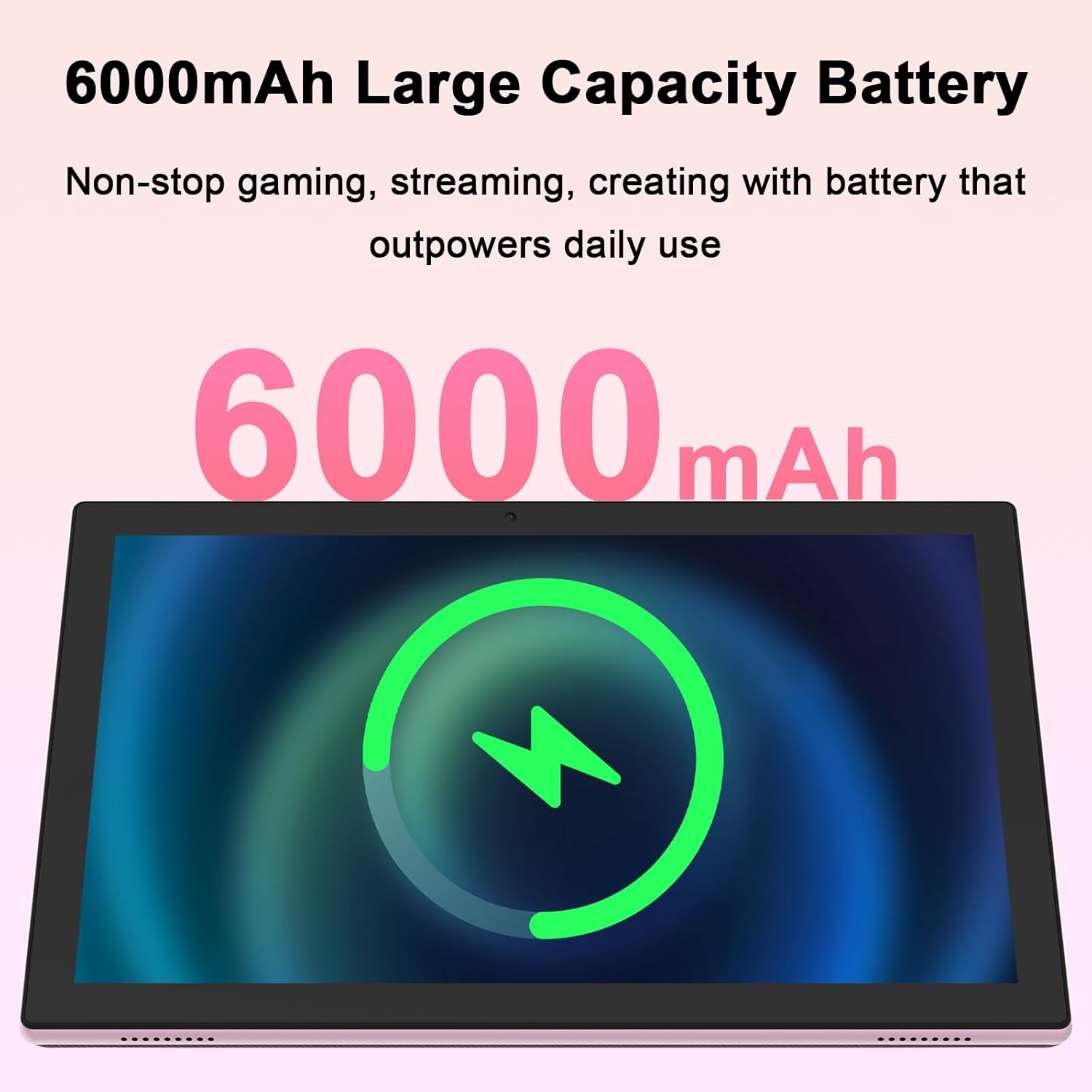
Figure 4.3: Equipped with a 6000mAh large capacity battery, the tablet provides extended usage time for various activities.
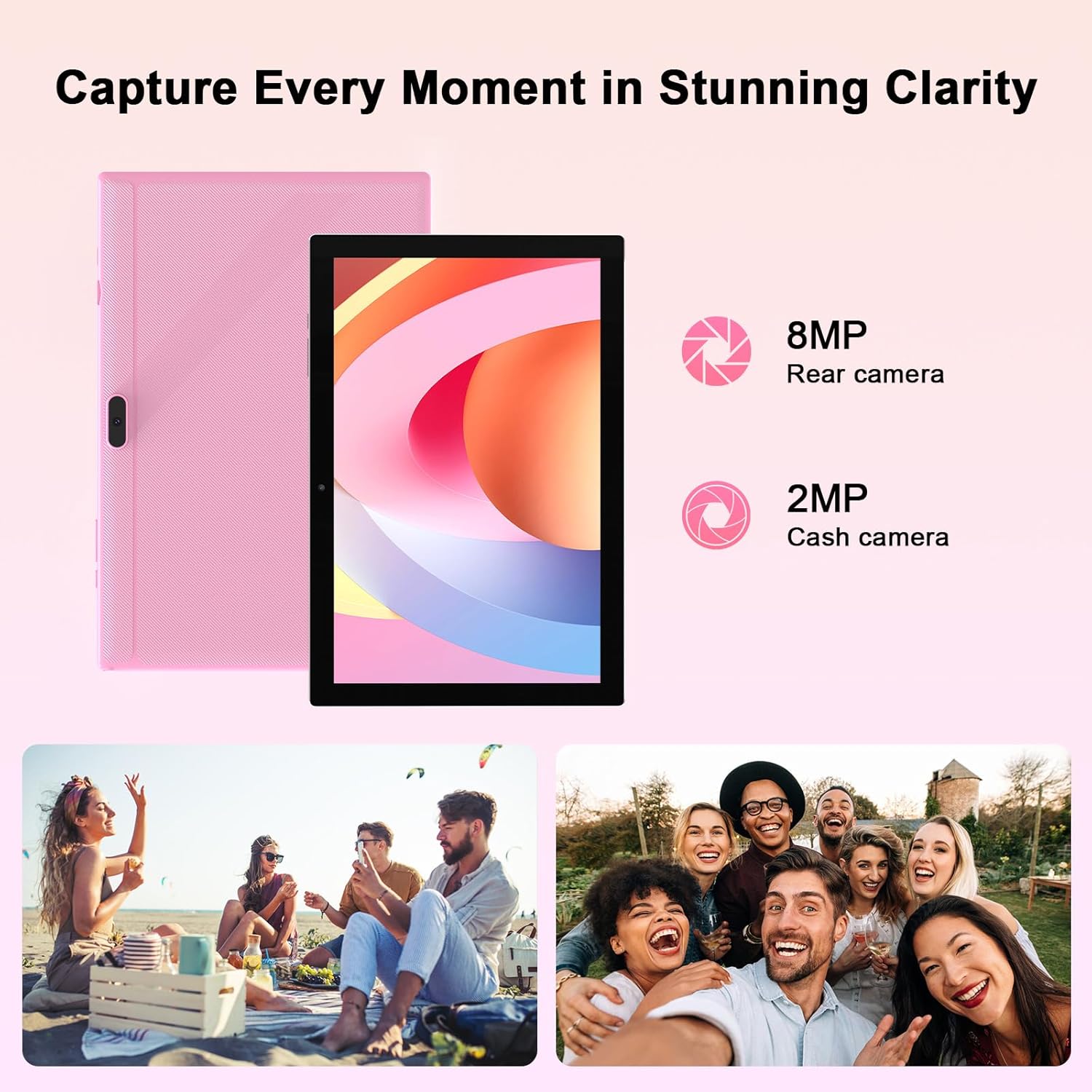
Figure 4.4: The tablet features an 8MP rear camera and a 2MP front camera, suitable for capturing moments and video calls.

Figure 4.5: The tablet's powerful quad-core processor and 8GB RAM (4+4GB) ensure smooth performance for gaming and multimedia consumption.

Figure 4.6: With 64GB ROM and support for up to 1TB expandable storage via TF card, the tablet offers ample space for apps, photos, and videos.
Video 4.1: An official product video showcasing the YQSAVIOR 10-inch tablet's features, including its display, speakers, and overall design. This video highlights the tablet's suitability for various uses.
5. Setup
5.1. Charging the Tablet
Before first use, fully charge your tablet. Connect the provided Type-C cable to the tablet's charging port and the other end to the charger. Plug the charger into a power outlet. The battery indicator on the screen will show charging status. A full charge typically takes several hours.
5.2. Powering On/Off
- To Power On: Press and hold the Power button until the YQSAVIOR logo appears on the screen.
- To Power Off: Press and hold the Power button until a power-off menu appears. Select "Power off" and confirm.
- To Sleep/Wake: Briefly press the Power button to put the tablet to sleep or wake it from sleep mode.
5.3. Initial Setup
Upon first power-on, the tablet will guide you through an initial setup process. Follow the on-screen prompts to:
- Select your language.
- Connect to a Wi-Fi network.
- Sign in with your Google account (or create one).
- Set up screen lock (PIN, pattern, password).
- Review and accept terms and conditions.
5.4. Connecting to Wi-Fi
To connect to a Wi-Fi network:
- Go to Settings > Network & internet > Wi-Fi.
- Turn on Wi-Fi.
- Select your desired network from the list.
- Enter the password if prompted and tap Connect.
6. Operating Instructions
6.1. Basic Navigation
The YQSAVIOR tablet uses a touch-sensitive screen for navigation:
- Tap: To select an item or open an application.
- Touch & Hold: To access contextual menus or move items.
- Swipe: To scroll through screens or lists.
- Pinch-to-Zoom: To zoom in or out on images and web pages.
6.2. App Management
As a GMS Certified Tablet, you can download and install a wide variety of applications from the Google Play Store.
- Installing Apps: Open the Play Store app, search for your desired app, and tap Install.
- Uninstalling Apps: Touch and hold the app icon on the home screen or app drawer, then drag it to "Uninstall" or select "App info" and choose "Uninstall".
6.3. Storage Management
Your tablet comes with 64GB of internal storage. You can expand this by inserting a MicroSD card (up to 1TB).
- Inserting MicroSD Card: Locate the MicroSD card slot, gently insert the card until it clicks into place.
- Managing Storage: Go to Settings > Storage to view storage usage and manage files.
6.4. Camera Usage
Use the built-in cameras to capture photos and videos.
- Open the Camera app.
- Switch between front (2MP) and rear (8MP) cameras using the camera switch icon.
- Tap the shutter button to take a photo or start/stop video recording.
6.5. Bluetooth Connectivity
Connect your tablet to Bluetooth devices like headphones or speakers.
- Go to Settings > Connected devices > Bluetooth.
- Turn on Bluetooth.
- Select your device from the list of available devices to pair.
7. Maintenance
7.1. Cleaning Your Tablet
To keep your tablet in optimal condition:
- Use a soft, lint-free cloth to wipe the screen and body.
- For stubborn smudges, slightly dampen the cloth with water or a screen cleaner designed for electronics.
- Avoid spraying liquids directly onto the tablet.
7.2. Software Updates
Regularly check for and install software updates to ensure your tablet has the latest features, security patches, and performance improvements.
- Ensure your tablet is connected to Wi-Fi.
- Go to Settings > System > System update.
- Follow the on-screen instructions to check for and install any available updates.
8. Troubleshooting
This section addresses common issues you might encounter with your YQSAVIOR tablet.
| Problem | Possible Cause | Solution |
|---|---|---|
| Tablet does not turn on. | Low battery; software crash. | Charge the tablet for at least 30 minutes. Perform a forced restart by holding the Power button for 10-15 seconds. |
| Tablet is slow or freezes. | Too many apps running; low storage; outdated software. | Close unused apps. Clear cache. Free up storage space. Check for system updates. Restart the tablet. |
| Cannot connect to Wi-Fi. | Incorrect password; router issue; Wi-Fi disabled. | Ensure correct password. Restart your Wi-Fi router. Toggle Wi-Fi off and on in tablet settings. |
| Battery drains quickly. | High screen brightness; background apps; poor signal. | Reduce screen brightness. Close background apps. Disable unused features like Bluetooth/GPS. |
| Apps crashing or not installing. | Insufficient storage; app incompatibility; corrupted data. | Clear app cache/data. Free up storage. Ensure app is compatible with Android 14. Reinstall the app. |
If problems persist, consider performing a factory data reset (Settings > System > Reset options > Erase all data (factory reset)). Note: This will erase all data on your tablet, so back up important files first.
9. Specifications
| Feature | Detail |
|---|---|
| Brand | YQSAVIOR |
| Model Name | YQ10S |
| Operating System | Android 14 |
| Screen Size | 10 Inches |
| Screen Resolution | 1280x800 IPS |
| Processor | 1.6 GHz Quad-core (ARM Rockchip) |
| RAM | 8GB (4+4GB) |
| Internal Storage (ROM) | 64 GB |
| Expandable Storage | Up to 1TB MicroSD |
| Rear Camera | 8 MP |
| Front Camera | 2 MP |
| Wireless Type | 802.11n (2.4G WiFi), Bluetooth |
| Battery Capacity | 6000mAh |
| Average Battery Life | 10 Hours (mixed use) |
| Item Weight | 14.1 ounces (approx. 400g) |
| Product Dimensions (LxWxH) | 10 x 4.6 x 0.3 inches |
| Color | Pink |
10. Warranty and Support
YQSAVIOR products are designed and manufactured to the highest quality standards. For information regarding warranty coverage, technical support, or service inquiries, please refer to the warranty card included with your product or visit the official YQSAVIOR website. Please have your product model number (YQ10S) and purchase details ready when contacting support.
Ask a question about this manual
Ask about setup, troubleshooting, compatibility, parts, safety, or missing instructions. Manuals+ will review the question and use this page’s manual context to help answer it.