1. Introduction
Thank you for choosing the HXSJ X50 Wireless Game Mouse. This manual provides detailed instructions for setting up, operating, and maintaining your new wireless mouse. Please read this manual thoroughly before use to ensure optimal performance and longevity of your device.
Package Contents:
- HXSJ X50 Wireless Game Mouse
- USB Receiver

Image 1.1: The HXSJ X50 Wireless Game Mouse and its USB receiver.
2. Safety Information
- Do not expose the mouse to water or excessive moisture.
- Avoid dropping or subjecting the mouse to strong impacts.
- Keep the device away from extreme temperatures.
- Do not attempt to disassemble or repair the mouse yourself. Contact qualified service personnel if needed.
- Dispose of batteries according to local regulations.
3. Setup
3.1 Battery Installation
The HXSJ X50 Wireless Game Mouse requires batteries for operation. Please ensure you have the necessary batteries (typically 1x AA battery, not included) before proceeding.
- Locate the battery compartment on the underside of the mouse.
- Open the battery compartment cover.
- Insert the battery, ensuring correct polarity (+/-).
- Close the battery compartment cover securely.
3.2 Connecting the USB Receiver
- Locate an available USB port on your computer.
- Insert the USB receiver into the USB port. Your computer should automatically detect and install the necessary drivers.
3.3 Powering On
Slide the power switch, located on the underside of the mouse, to the 'ON' position. The mouse is now ready for use.
4. Operating Instructions
4.1 Button Functions
The HXSJ X50 mouse features 6 buttons for enhanced functionality:
- Left Click Button: Primary function, selection.
- Right Click Button: Secondary function, context menus.
- Scroll Wheel: Scroll up/down, middle click.
- DPI Adjustment Button: Cycles through DPI settings.
- Page Forward Button: Navigates forward in web browsers or file explorers.
- Page Backward Button: Navigates backward in web browsers or file explorers.

Image 4.1: Side view showing the ergonomic design and side buttons.
4.2 DPI Adjustment
Press the DPI adjustment button (located behind the scroll wheel) to cycle through the available sensitivity settings: 1000DPI, 1200DPI, 1600DPI, and 2400DPI. Select the DPI that best suits your preference and task.
4.3 Power Saving
The mouse features a power switch on its underside. To conserve battery life, slide the switch to the 'OFF' position when the mouse is not in use for extended periods.
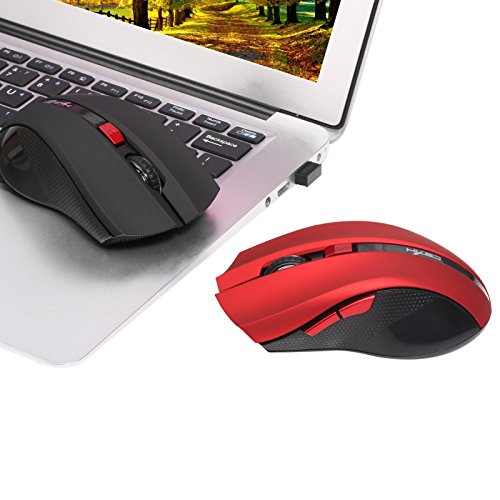
Image 4.2: The HXSJ X50 mouse in use with a laptop.
5. Maintenance
5.1 Cleaning
To clean the mouse, gently wipe its surface with a soft, dry cloth. For stubborn dirt, slightly dampen the cloth with water. Avoid using harsh chemicals or abrasive cleaners.
5.2 Storage
When not in use, store the mouse and USB receiver in a dry, cool place, away from direct sunlight and extreme temperatures. If storing for an extended period, it is recommended to remove the battery.
6. Troubleshooting
- Mouse not responding:
Ensure the mouse is powered on. Check if the USB receiver is securely plugged into a working USB port. Replace the battery if it is low or depleted. - Erratic cursor movement:
Clean the optical sensor on the underside of the mouse. Ensure the surface you are using the mouse on is clean and non-reflective. - Connection issues:
Try plugging the USB receiver into a different USB port. Move the mouse closer to the receiver to rule out interference. - Side buttons not working:
Ensure your operating system and applications support the forward/backward functions. Some software may require specific drivers or settings.
7. Specifications
| Feature | Detail |
|---|---|
| Brand | HXSJ |
| Model | X50 |
| Connectivity | Wireless (USB Receiver) |
| Wireless Range | Up to 10-15 meters |
| Movement Detection | Optical |
| DPI Settings | 1000, 1200, 1600, 2400 (Adjustable) |
| Number of Buttons | 6 (Left, Right, Scroll Wheel, DPI, Forward, Backward) |
| Power Source | Battery (1x AA, not included) |
| Battery Life (Average) | 6 Months |
| Hand Orientation | Ambidextrous |
| Material | Plastic |
| Item Weight | 80 g |
| Compatible OS | Windows 98/ME/2000/XP/Vista/7/8, Linux |
8. Warranty and Support
For warranty information or technical support, please refer to the documentation provided with your purchase or contact the retailer/manufacturer directly. Keep your proof of purchase for warranty claims.


