1. Introduction
Thank you for choosing the Mars Gaming MMW3W Wireless Gaming Mouse. This manual provides detailed instructions for setting up, operating, maintaining, and troubleshooting your new gaming mouse. The MMW3W combines advanced gaming features with 2.4G wireless technology, an internal rechargeable battery, and a lightweight design to offer superior performance and mobility.

Figure 1: Mars Gaming MMW3W Wireless Gaming Mouse. This image displays the top-down view of the white MMW3W mouse, highlighting its honeycomb shell design and vibrant RGB lighting.
2. Product Features
- Ultralight Hive Design: Weighing only 79 grams, the MMW3W features an ultra-light honeycomb shell for enhanced agility and comfort during extended gaming sessions.
- 2.4G Wireless Technology: Provides stable and responsive wireless connectivity, ensuring maximum freedom of movement without cable interference.
- High-Precision Optical Sensor: Equipped with a professional optical sensor offering up to 3200 DPI, with adjustable profiles (800, 1600, 3200 DPI) for precise control.
- Professional Mechanical Switches: Integrated HUANO mechanical switches deliver optimal keystroke response, ensuring fast and direct command execution.
- RGB Flow Lighting: Features a spectacular RGB flow LED lighting system with automatic color changing, adding aesthetic appeal to your setup.
- Rechargeable Internal Battery: Long-life internal battery with a built-in standby function to conserve power when the mouse is not in use.
- Integrated USB Receiver: The 2.4GHz wireless USB receiver is conveniently housed within the mouse for secure storage and easy transport.

Figure 2: Extreme Lightness. This image shows three MMW3W mice (white, pink, and black) on a gaming mat, emphasizing their ultra-lightweight hive design at only 79g.

Figure 3: Total Freedom of Movement. A side view of the MMW3W mouse, illustrating its wireless capability via 2.4G technology.
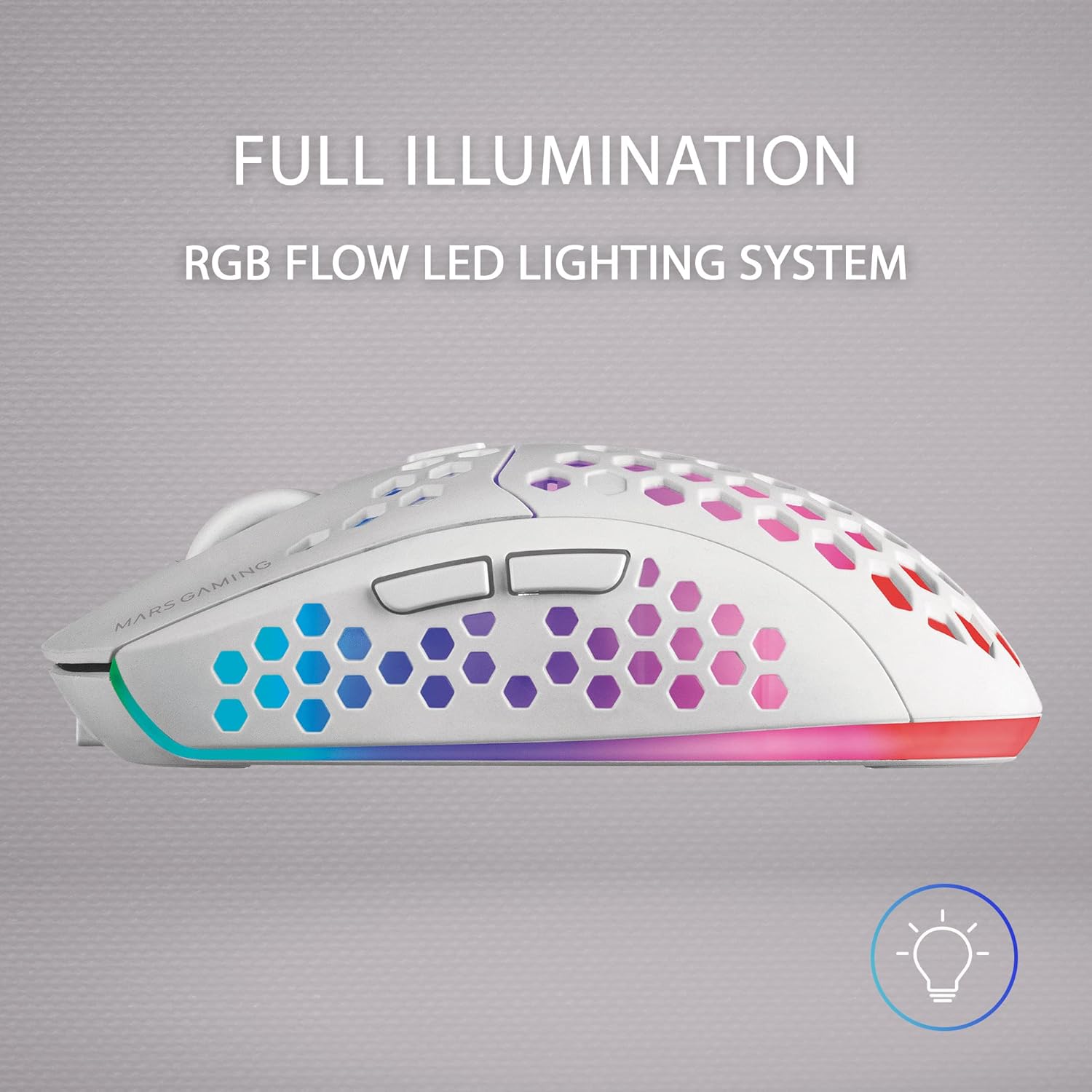
Figure 4: Full Illumination. This image highlights the vibrant RGB flow LED lighting system of the MMW3W mouse.
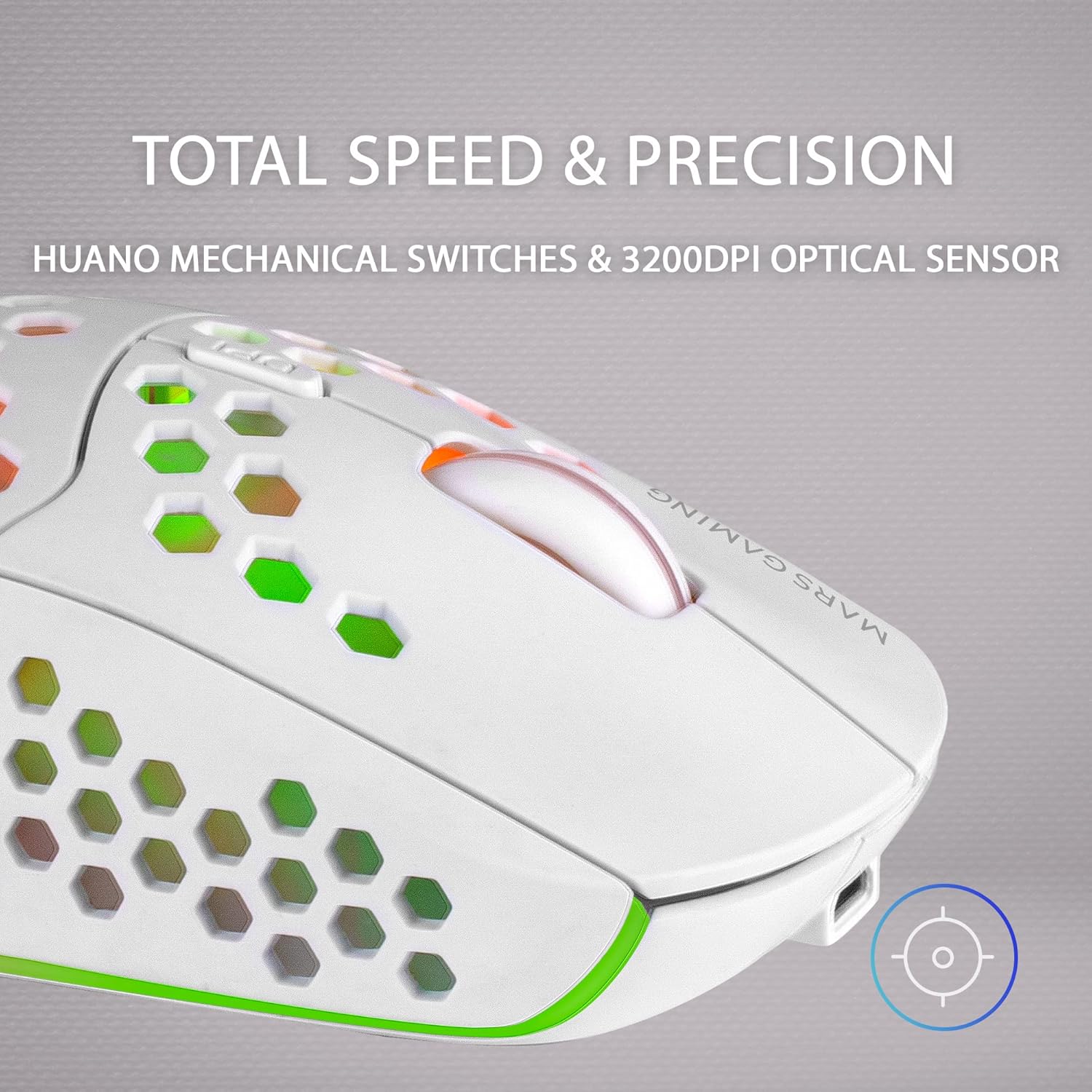
Figure 5: Total Speed & Precision. A close-up view of the MMW3W mouse, focusing on the Huano mechanical switches and the DPI adjustment button.
3. Setup Guide
3.1 Unpacking
Carefully remove the Mars Gaming MMW3W mouse and its accessories from the packaging. Ensure all components are present: the MMW3W mouse, the 2.4GHz USB wireless receiver, and the charging cable.
3.2 Connecting the USB Receiver
- Locate the integrated USB wireless receiver at the bottom of the MMW3W mouse. It is typically stored in a small compartment.
- Gently pull out the USB receiver from its storage slot.
- Insert the USB receiver into an available USB port on your computer (PC, Mac, or Linux system).
- Your operating system should automatically detect and install the necessary drivers. This may take a few moments.

Figure 6: Integrated USB Receiver. A detailed view of the underside of the MMW3W mouse, showing the compartment where the wireless USB receiver is stored.
3.3 Charging the Mouse
The MMW3W mouse comes with an internal rechargeable battery. Before first use, or when the battery is low, connect the provided charging cable to the mouse's charging port and to a USB power source (e.g., computer USB port, USB wall adapter). The mouse can be used while charging.
3.4 Initial Power On
Once the USB receiver is connected and the mouse has sufficient charge, the mouse should automatically power on and connect. If not, check for a power switch on the underside of the mouse and ensure it is in the 'ON' position.
4. Operating Instructions
4.1 DPI Adjustment
The MMW3W mouse features a dedicated DPI button, usually located behind the scroll wheel. Press this button to cycle through the available DPI settings:
- 800 DPI: For precise, slower movements.
- 1600 DPI: A balanced setting for general use.
- 3200 DPI: For fast, responsive movements, ideal for gaming.
The RGB lighting may change color briefly to indicate the current DPI setting, depending on the specific model's implementation.
4.2 RGB Lighting Modes
The mouse features an RGB flow LED lighting system that automatically cycles through various colors. There are no user-configurable lighting modes directly on the mouse itself; the lighting operates in a continuous flow pattern.
4.3 Power Saving System
To extend battery life, the MMW3W mouse incorporates an intelligent power-saving system. If the mouse is inactive for a period, it will enter a standby mode, turning off the optical sensor and RGB lighting. To reactivate the mouse, simply move it or click any button.
4.4 Compatibility
The Mars Gaming MMW3W Wireless Gaming Mouse is compatible with the following operating systems and hardware platforms:
- Operating Systems: Windows, macOS, Linux
- Hardware Platforms: PC, Linux, Mac
5. Maintenance
5.1 Cleaning the Mouse
To maintain optimal performance and appearance, regularly clean your MMW3W mouse.
- Use a soft, dry, lint-free cloth to wipe the surface of the mouse.
- For stubborn dirt, slightly dampen the cloth with water or a mild, non-abrasive cleaner. Avoid excessive moisture.
- Use compressed air to clear dust and debris from the honeycomb holes and around the buttons and scroll wheel.
- Do not use harsh chemicals, abrasive cleaners, or solvents, as these can damage the mouse's finish.
5.2 Battery Care
To prolong the life of the internal rechargeable battery:
- Avoid fully discharging the battery frequently.
- Charge the mouse when the battery indicator (if present) shows low power.
- Store the mouse in a cool, dry place when not in use for extended periods.
6. Troubleshooting
6.1 Mouse Not Responding
- Check Power: Ensure the mouse is powered on and has sufficient battery charge. Connect the charging cable to verify.
- Receiver Connection: Make sure the USB wireless receiver is securely plugged into a working USB port on your computer. Try a different USB port.
- Distance: Ensure the mouse is within the effective range of the USB receiver (typically up to 10 meters).
- Interference: Move the mouse away from other wireless devices or large metal objects that might cause interference.
- Re-pair: In rare cases, you might need to re-pair the mouse with its receiver. Consult the manufacturer's website for specific instructions if this option is available.
6.2 DPI Adjustment Not Working
- Ensure you are pressing the correct DPI button.
- Verify the mouse is powered on and connected.
6.3 RGB Lighting Issues
- No Light: Check if the mouse is in power-saving mode. Move or click the mouse to wake it up. Ensure the battery is charged.
- Inconsistent Light: This is typically part of the "RGB Flow" design. If the lighting is completely off or flickering unusually, try recharging the mouse.
6.4 Charging Problems
- Cable Check: Ensure the charging cable is securely connected to both the mouse and the power source. Try a different USB port or charging adapter.
- Indicator: Observe if any charging indicator lights on the mouse are behaving as expected (e.g., solid light while charging, off when full).
7. Specifications
| Feature | Detail |
|---|---|
| Brand | Mars Gaming |
| Model | MMW3W |
| Connectivity Technology | 2.4GHz Wireless (USB Receiver) |
| Movement Detection Technology | Optical |
| DPI Settings | 800 / 1600 / 3200 DPI |
| Switches | HUANO Mechanical Switches |
| Lighting | RGB Flow LED Lighting |
| Power Source | Rechargeable Internal Battery |
| Weight | 79 grams |
| Product Dimensions (L x W x H) | 12.5 x 6.4 x 0.1 cm |
| Color | White |
| Compatible Operating Systems | Windows, macOS, Linux |
| Compatible Hardware Platforms | PC, Linux, Mac |

Figure 7: Product Dimensions. This image provides a top-down view of the MMW3W mouse with its length (12.5cm) and width (6.4cm) clearly indicated.
8. Warranty and Support
For warranty information and technical support, please refer to the official Mars Gaming website or contact their customer service directly. Keep your proof of purchase for any warranty claims.
Mars Gaming Official Website: www.marsgaming.eu


