
1. Product Overview
The ProtoArc EK01 is a backlit wireless ergonomic split keyboard designed for comfortable and efficient typing across multiple devices. It features a scientific-based ergonomic design with a pillowed wrist rest, adjustable backlighting, and versatile connectivity options.

Figure 1.1: ProtoArc EK01 Ergonomic Split Keyboard
2. Setup Instructions
2.1. Package Contents
- ProtoArc EK01 Ergonomic Keyboard
- USB Receiver (2.4G)
- Type-C Charging Cable
- User Manual
2.2. Powering On/Off
Locate the power switch on the underside of the keyboard. Slide the switch to the 'ON' position to power on the device. Slide to 'OFF' to power it down.
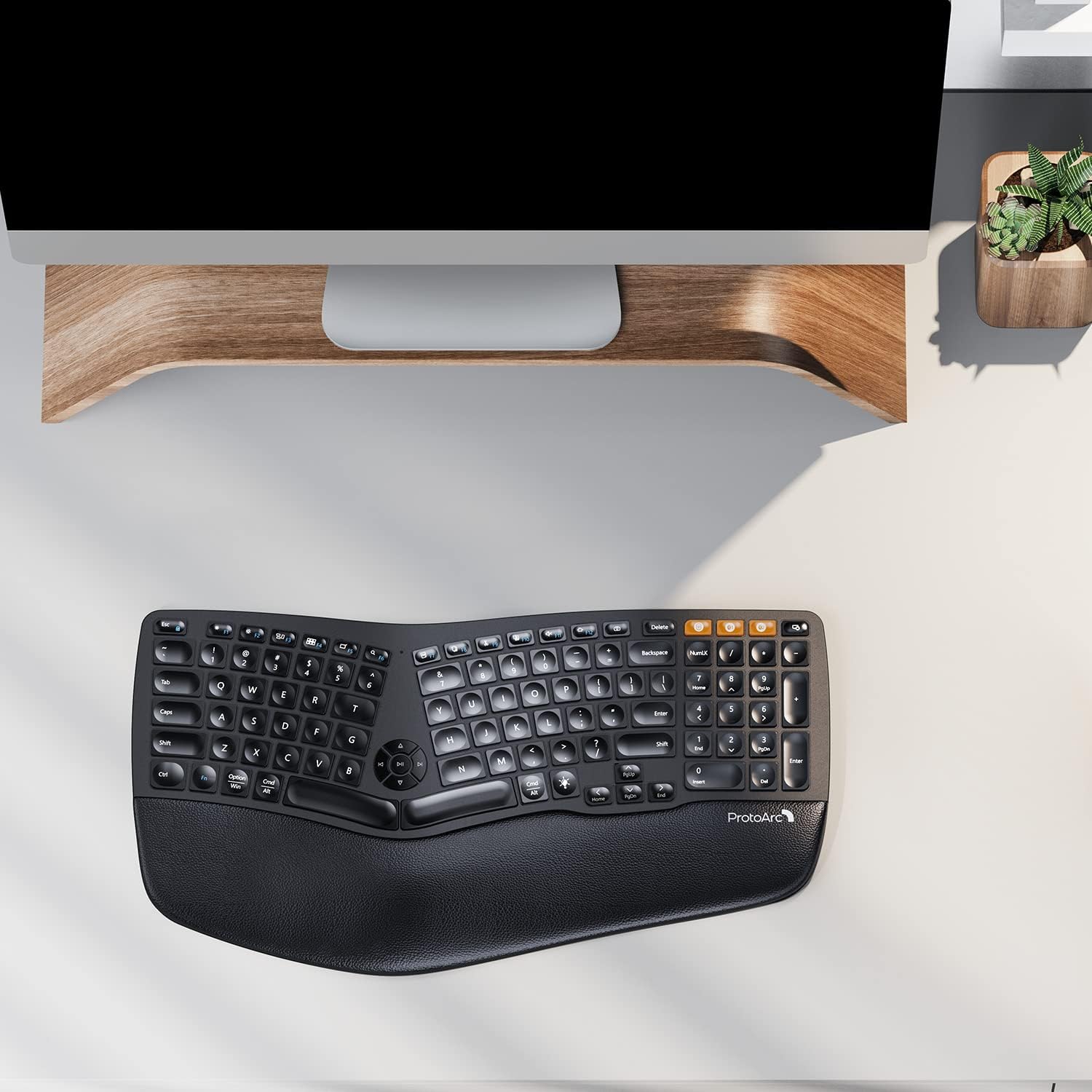
Figure 2.1: Underside of the keyboard with power switch and USB receiver slot.
2.3. Connecting to Devices
The EK01 keyboard supports connection to up to three devices simultaneously via 2.4G wireless (USB receiver) or Bluetooth (BT1, BT2).
2.3.1. 2.4G Wireless Connection
- Locate the USB receiver stored magnetically on the underside of the keyboard.
- Plug the USB receiver into an available USB port on your computer.
- Turn on the keyboard.
- Press the dedicated 2.4G button (often marked with a wireless icon) on the keyboard. The indicator light will flash slowly, then remain solid once connected.
2.3.2. Bluetooth Connection (BT1 / BT2)
- Turn on the keyboard.
- Press either the BT1 or BT2 button on the keyboard. The corresponding indicator light will flash slowly.
- Long-press the selected BT button (BT1 or BT2) for 3-5 seconds until the indicator light flashes quickly, indicating pairing mode.
- On your device (computer, tablet, or smartphone), enable Bluetooth and search for available devices.
- Select "ProtoArc EK01" from the list of found devices to complete the pairing process. The indicator light will become solid once connected.
Video 2.1: Official guide on connecting the ProtoArc EK01 keyboard via 2.4G and Bluetooth.
3. Operating Instructions
3.1. Switching Between Devices
Once paired with multiple devices, you can switch between them by simply pressing the corresponding connection button (2.4G, BT1, or BT2). The keyboard will automatically connect to the last paired device on that channel.

Figure 3.1: The EK01 keyboard supports multi-device connectivity.
3.2. Backlight Adjustment
The keyboard features a white LED backlight with three adjustable brightness levels (low, mid, high) and an off setting. To adjust the backlight, press the dedicated backlight key (often marked with a sun or lightbulb icon). Each press cycles through the brightness levels.

Figure 3.2: White adjustable backlight with multiple brightness levels.
3.3. Special Function Keys
- Multimedia Controls: Dedicated keys for play/pause, volume up/down, and track navigation are integrated into the keyboard layout.
- PgUp, PgDn, Home, End: These functions are accessible via the 'Direction Keys' by pressing the 'FN' key simultaneously. A single press of the 'Direction Keys' performs their standard directional function.
- Operating System Compatibility: The keyboard includes keys labeled for both Windows (Win/Alt) and Mac (Option/Cmd) operating systems, ensuring full functionality across different platforms.
3.4. Ergonomic Design Features
- Split Key-frame: The curved, split design promotes a more natural hand and wrist posture, reducing strain.
- Pillowed Wrist Rest: An integrated wrist rest provides support and comfort during extended typing sessions.
- Adjustable Tilt Legs: The keyboard features adjustable tilt legs on the underside, allowing you to customize the typing angle for optimal comfort.

Figure 3.3: Adjustable tilt legs for customized typing angle.
4. Maintenance
4.1. Cleaning
To clean the keyboard, power it off and disconnect any cables. Use a soft, lint-free cloth slightly dampened with water or a mild cleaning solution. Avoid harsh chemicals or abrasive materials. For the keys, a soft brush or compressed air can remove dust and debris.
4.2. Battery Care
The keyboard is equipped with a rechargeable Lithium (1100 mAh) battery. To prolong battery life, avoid fully discharging the battery frequently. Charge the keyboard using the provided Type-C cable when the low battery indicator flashes. Charging typically takes 2-3 hours for a full charge.

Figure 4.1: The keyboard features a long-lasting rechargeable battery.
5. Troubleshooting
5.1. Keyboard Not Connecting
- Ensure the keyboard is powered on.
- For 2.4G connection, verify the USB receiver is securely plugged into your device.
- For Bluetooth connection, ensure Bluetooth is enabled on your device and the keyboard is in pairing mode (rapidly flashing indicator light).
- Try re-pairing the keyboard with your device.
- Ensure the keyboard is charged.
5.2. Keys Not Responding or Lagging
- Check the battery level; a low battery can cause performance issues.
- Ensure the keyboard is within the effective range of your device (typically up to 10 meters for wireless connections).
- Interference from other wireless devices can affect performance. Try moving closer to your device or away from other wireless sources.
- Restart the keyboard and your connected device.
5.3. Backlight Not Working
- Ensure the keyboard is powered on.
- Press the backlight adjustment key to cycle through brightness levels.
- Check the battery level; backlighting may be disabled or dimmed when the battery is low.
6. Product Specifications
| Feature | Detail |
|---|---|
| Model Number | EK01 |
| Product Dimensions | 16.5 x 9 x 1.09 inches |
| Item Weight | 1.5 pounds |
| Connectivity Technology | 2.4GHz Wireless, Bluetooth |
| Compatible Devices | Windows 7/8/10, Mac OS X 10.12+, Android 4.3+, Tablets |
| Battery Type | Rechargeable Lithium Polymer |
| Battery Capacity | 1100 mAh |
| Usage Time (Single Charge) | Up to 100 hours (light off) |
| Backlight Color | White (3 adjustable levels) |
| Key Switch Type | Scissor Switch |
| Special Features | Split Keyset Design, Pillowed Wrist Rest, Adjustable Tilt Legs |
7. Warranty & Support
7.1. Warranty Information
The ProtoArc EK01 keyboard typically comes with a 1-year limited warranty from the date of purchase, covering manufacturing defects. Please retain your proof of purchase for warranty claims. For specific warranty terms and conditions, refer to the official ProtoArc website or contact customer support.
7.2. Customer Support
For further assistance, technical support, or inquiries regarding your ProtoArc EK01 keyboard, please visit the official ProtoArc website or contact their customer service team. Contact information can usually be found in the included user manual or on the product packaging.


