Introduction
The Hyperkin X91 Ice Wired Controller is designed for use with Xbox Series X|S, Xbox One systems, and Windows 10/11 PCs. It features a classic 90s-style design combined with modern controller functionalities, offering a comfortable and responsive gaming experience.

Image: Hyperkin X91 Ice Wired Controller (Ruby Red) and its retail packaging.
Key Features:
- Retro Design with Modern Ergonomics: Combines a classic aesthetic with comfortable handling for extended play sessions.
- Precision Analog Triggers: Provides accurate and responsive input for gaming.
- 3.5 mm Headset Jack: Allows connection of a compatible headset for audio and communication.
- Share Button: Dedicated button for capturing and sharing gameplay moments on Xbox Series X|S.
- Premium Build: Constructed for durability and reliable performance.
Setup Instructions
The Hyperkin X91 Ice Wired Controller is a plug-and-play device. Follow these steps to connect it to your system:
- For Xbox Series X|S or Xbox One:
- Ensure your Xbox console is powered on.
- Locate an available USB port on your console.
- Plug the USB connector of the Hyperkin X91 controller into the USB port.
- The controller will automatically be detected and configured by the console.
- For Windows 10/11 PC:
- Ensure your PC is powered on.
- Locate an available USB port on your PC.
- Plug the USB connector of the Hyperkin X91 controller into the USB port.
- Your PC should automatically install the necessary drivers. This may take a few moments.
- Once drivers are installed, the controller is ready for use with compatible games.
No additional software or batteries are required for operation.
Operating the Controller
Familiarize yourself with the controller's layout and functions:
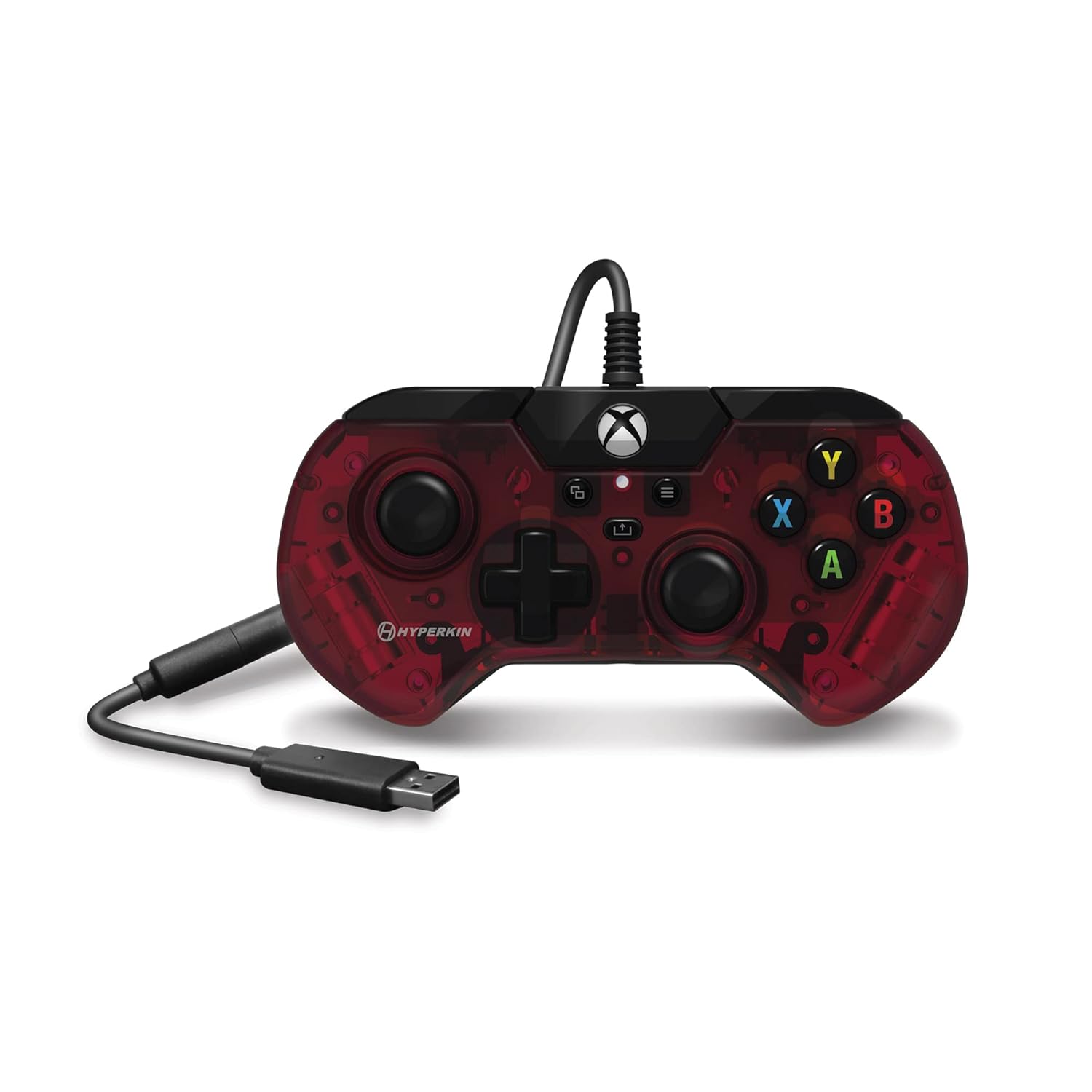
Image: Top view of the Hyperkin X91 Ice Wired Controller, highlighting button placement.
- Left/Right Analog Sticks: Used for movement and camera control in games.
- D-Pad (Directional Pad): For precise directional input, often used in menus or for specific game actions.
- A, B, X, Y Buttons: Standard action buttons, typically color-coded and labeled.
- Menu Button: Accesses in-game menus or system settings.
- View Button: Provides additional in-game options or system functions.
- Xbox Button: Powers on the console (if off), opens the Xbox Guide, or returns to the home screen.
- Share Button: (Xbox Series X|S only) Press to capture screenshots or record game clips.

Image: Detail of the Share button, located near the center of the controller.
- Left/Right Bumpers (LB/RB): Located on the top edge, typically used for secondary actions.
- Left/Right Triggers (LT/RT): Analog triggers on the underside of the top edge, providing pressure-sensitive input for actions like acceleration or shooting.

Image: View of the Left and Right Triggers (LT/RT) on the controller's top edge.
- 3.5 mm Headset Jack: Located on the bottom edge of the controller. Plug in a compatible headset for game audio and voice chat.

Image: Detail of the 3.5 mm headset jack on the bottom of the controller.
Maintenance and Care
To ensure the longevity and optimal performance of your Hyperkin X91 controller, follow these maintenance guidelines:
- Cleaning: Use a soft, dry cloth to wipe down the controller. For stubborn dirt, slightly dampen the cloth with water or a mild cleaning solution. Avoid harsh chemicals or abrasive materials.
- Storage: Store the controller in a clean, dry place away from direct sunlight, extreme temperatures, and excessive dust.
- Cable Care: Avoid sharply bending or twisting the USB cable. Do not pull the controller by its cable. Always grasp the USB connector when plugging or unplugging.
- Avoid Drops: Protect the controller from drops or impacts, as this can damage internal components or affect button responsiveness.
Troubleshooting
If you encounter issues with your Hyperkin X91 controller, refer to the following common solutions:
- Controller Not Responding:
- Ensure the USB cable is securely plugged into both the controller and the console/PC.
- Try plugging the controller into a different USB port.
- Restart your console or PC.
- Test the controller on another compatible device if possible to determine if the issue is with the controller or the system.
- Buttons or Analog Sticks Not Working Correctly:
- Check for any physical obstructions or debris around the buttons or analog sticks.
- Gently press and release the affected buttons multiple times.
- If an analog stick exhibits "drift" (input without touching), ensure the controller's firmware is up to date (if applicable, check Hyperkin's official support website).
- No Audio from Headset Jack:
- Ensure your headset is fully plugged into the 3.5 mm jack on the controller.
- Check your console/PC audio settings to ensure output is directed to the headset.
- Test the headset with another device to confirm it is functioning correctly.
- Adjust volume levels on both the headset and the system.
If problems persist, contact Hyperkin customer support for further assistance.
Specifications
| Model Number | X91 |
| Compatibility | Xbox Series X|S, Xbox One, Windows 10/11 PCs |
| Connectivity | Wired USB |
| Audio Port | 3.5 mm Headset Jack |
| Dimensions (Approx.) | 7.05 x 5.43 x 3.23 inches (Package Dimensions) |
| Weight (Approx.) | 12 ounces |
| Manufacturer | Hyperkin |
Warranty and Support
For warranty information, product registration, or technical support, please visit the official Hyperkin website or contact their customer service department. Details regarding specific warranty periods and support procedures are typically provided with your product purchase or on the manufacturer's website.
Hyperkin Official Website: www.hyperkin.com


