

Introduction
Welcome
Thank you for choosing the iLovBee i61 Mechanical Keyboard. This manual provides essential information for setting up, operating, and maintaining your new keyboard. Please read it thoroughly to ensure optimal performance and longevity of your device.
Key Features
- 60 Percent Compact Layout: Space-saving design with full functionality and all-key anti-ghosting.
- Hot-Swappable Red Switches: Smooth, silent linear red switches that can be easily changed without soldering.
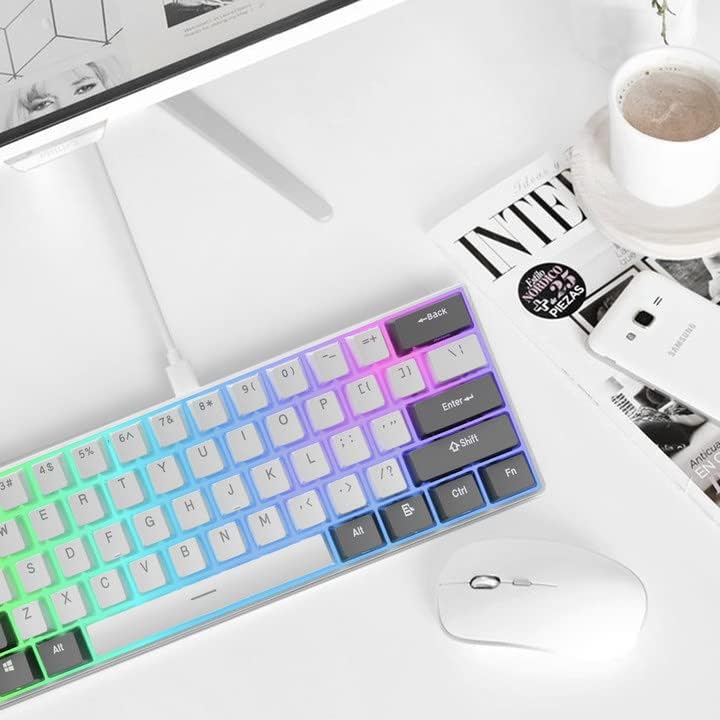
- Vibrant RGB Backlighting: Multiple lighting effects and full-color backlight for enhanced aesthetics.
- Wide Compatibility: Compatible with Windows and macOS via wired high-speed USB-C connection.
- Professional Software Support: Customize backlit colors, set macros, and redefine keys using the iLovBee driver.
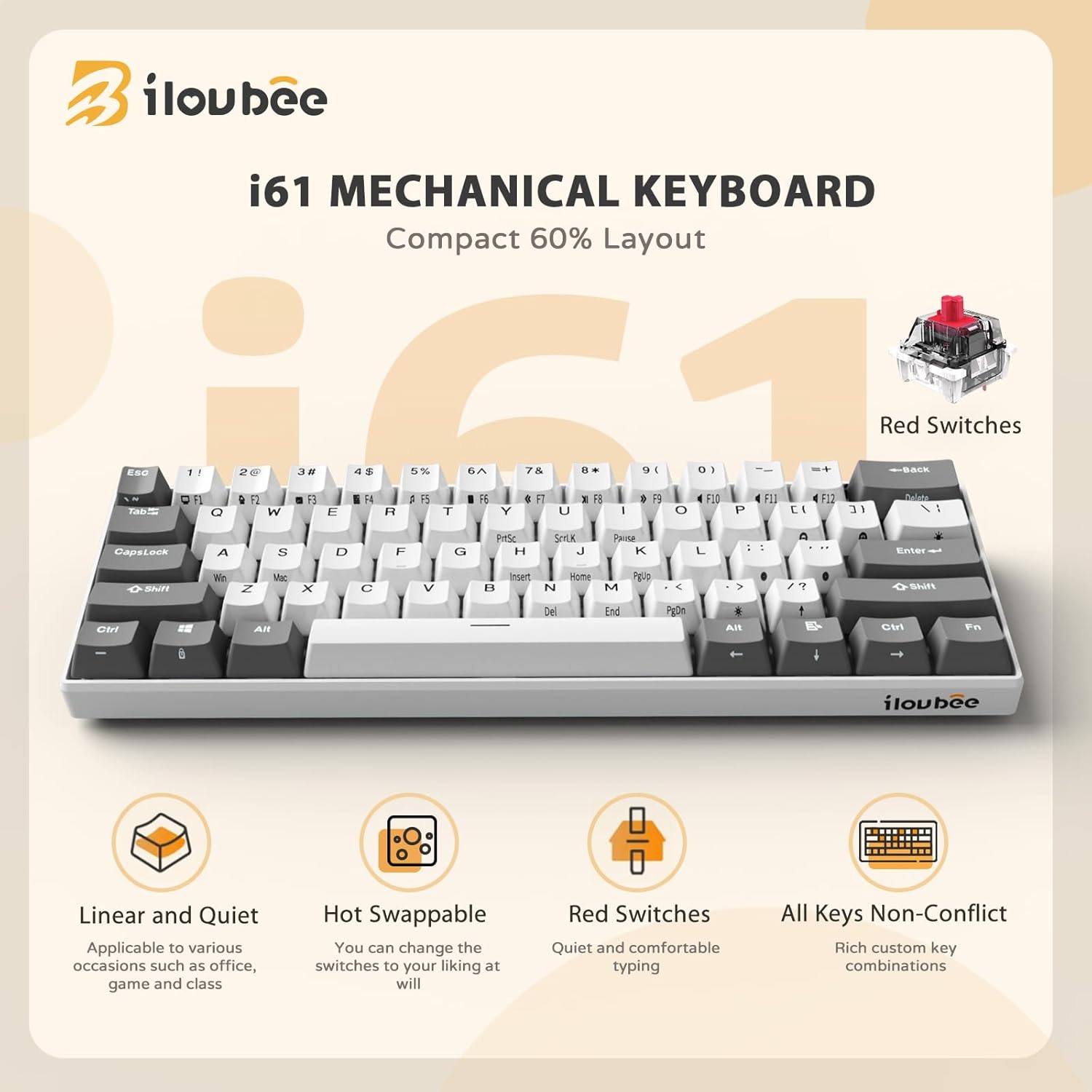
Overview of the iLovBee i61 Mechanical Keyboard's core features.
Package Contents
Ensure all items are present in your package:
- iLovBee i61 Keyboard x1
- Keycap Puller x1
- USB-C Cable x1
- Switches x4 (extra)
- User Manual x1

All components included with your iLovBee i61 Mechanical Keyboard.
Setup Guide
Connecting Your Keyboard
- Locate the USB-C port on the back of your iLovBee i61 keyboard.
- Insert the smaller USB-C end of the provided cable into the keyboard's port.
- Connect the larger USB-A end of the cable to an available USB port on your computer (PC or Mac).
- The keyboard should automatically be recognized by your operating system.
Connecting the USB-C cable to the iLovBee i61 keyboard.
Operating Instructions
Keyboard Layout and Functions
The iLovBee i61 features a compact 60% layout with 61 keys. Many functions are accessed via the 'Fn' (Function) key in combination with other keys. Refer to the diagram below for common Fn key combinations.

Multifunction side keys and Fn key combinations for the iLovBee i61 keyboard.
RGB Lighting Control
The keyboard offers vibrant RGB backlighting with over 20 backlit effects. Use the following Fn key combinations to control the lighting:
- Fn + \|: Turn ON/OFF the light.
- Fn + >: Switch between different light modes.
- Fn + [ or ]: Adjust backlight brightness (Low/Up).
- Fn + ; or ': Adjust light speed (Low/Up).

Explore various RGB lighting options and controls on your iLovBee i61 keyboard.
Customization Software
For advanced customization, download the iLovBee driver software (compatible with Windows). The software allows you to:
- Redefine key functions and set macros.
- Choose your own light mode and speed.
- Set up custom keyboard typing profiles.

The iLovBee software provides extensive customization options for your keyboard.
Maintenance and Care
Cleaning Your Keyboard
To keep your keyboard in optimal condition, regularly clean dust and debris from between the keycaps. You may use a soft brush or compressed air. For deeper cleaning, remove the keycaps using the provided keycap puller.
Hot-Swappable Switches
The iLovBee i61 features hot-swappable switches, allowing you to easily change them without soldering. This keyboard supports 3/5-pin mechanical switches.
- Gently remove the keycap using the keycap puller.
- Use the switch puller (often integrated with the keycap puller) to carefully grip the switch and pull it straight up.
- Align the pins of the new switch with the sockets on the PCB and press firmly until it clicks into place.
- Replace the keycap.

The hot-swappable design allows for easy switch replacement and customization.
Troubleshooting
- Keyboard not responding:
- Ensure the USB-C cable is securely connected to both the keyboard and the computer.
- Try connecting the keyboard to a different USB port on your computer.
- Restart your computer.
- RGB lighting not working or stuck:
- Press Fn + \| to ensure the lighting is turned ON.
- Try cycling through different light modes using Fn + >.
- Adjust brightness using Fn + [ or ].
- If issues persist, reinstall the iLovBee driver software.
- Specific keys not working:
- Since the keyboard is hot-swappable, carefully remove the problematic keycap and switch.
- Inspect the switch pins for any bends or damage. Straighten gently if bent.
- Try replacing the switch with one of the extra switches provided in the package.
Specifications
| Brand | iLovBee |
| Model Number | i61 |
| Product Dimensions | 11.5 x 4.02 x 1.57 inches |
| Item Weight | 1.23 pounds |
| Number of Keys | 61 |
| Switch Type | Linear Red Switch (Hot-Swappable) |
| Connectivity Technology | USB-C (Wired) |
| Backlighting | RGB |
| Compatible Devices | Laptop, PC, Tablet, Mac |
Warranty and Support
The iLovBee i61 Mechanical Keyboard comes with a manufacturer's warranty. For specific warranty details, please refer to the warranty card included in your package or visit the official iLovBee website.
For further assistance, technical support, or to download the latest software, please visit the iLovBee Official Store on Amazon or consult the comprehensive PDF User Manual available online.
You can also find the PDF User Manual directly at: User Manual (PDF)


