1. Introduction
The GALAYOU Indoor Security Camera 2K, Model G2, is designed to provide comprehensive home surveillance with advanced features for monitoring pets, babies, elders, or general home security. It offers 2K super HD live streaming, 360-degree coverage, intelligent motion detection, enhanced night vision, and two-way audio communication. This manual will guide you through the setup, operation, and maintenance of your G2 camera.
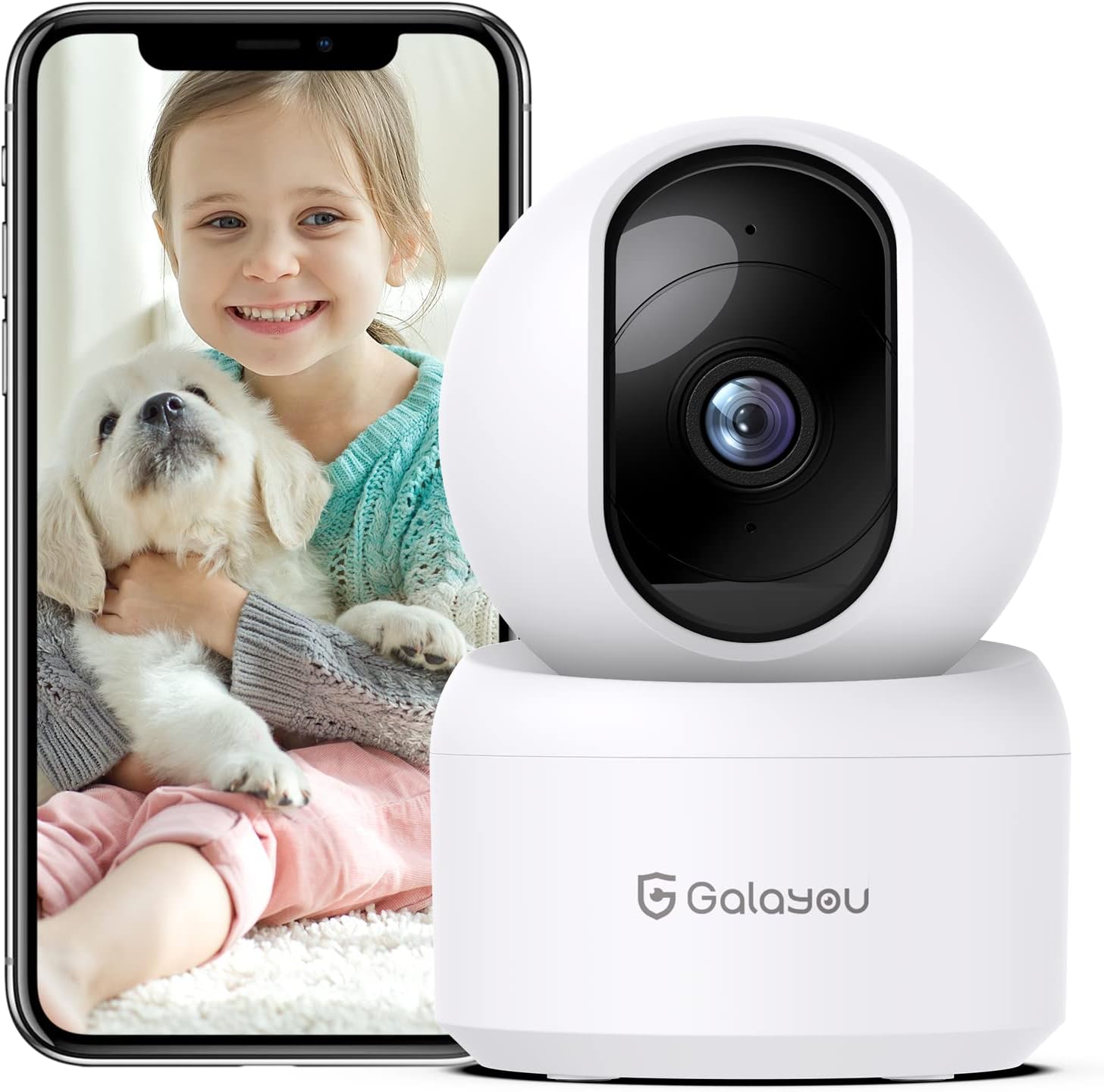
Image: The GALAYOU G2 Indoor Security Camera, a white dome-shaped device, shown next to a smartphone displaying a live feed of a child holding a puppy, illustrating its use for pet and baby monitoring.
2. Package Contents
Please verify that all items are present in your package:
- Camera body (GALAYOU G2)
- Type-C Cable + USB Adapter
- Mounting Screws
- Installation Guide
3. Product Overview
The GALAYOU G2 camera features a compact design with advanced functionalities for indoor security.
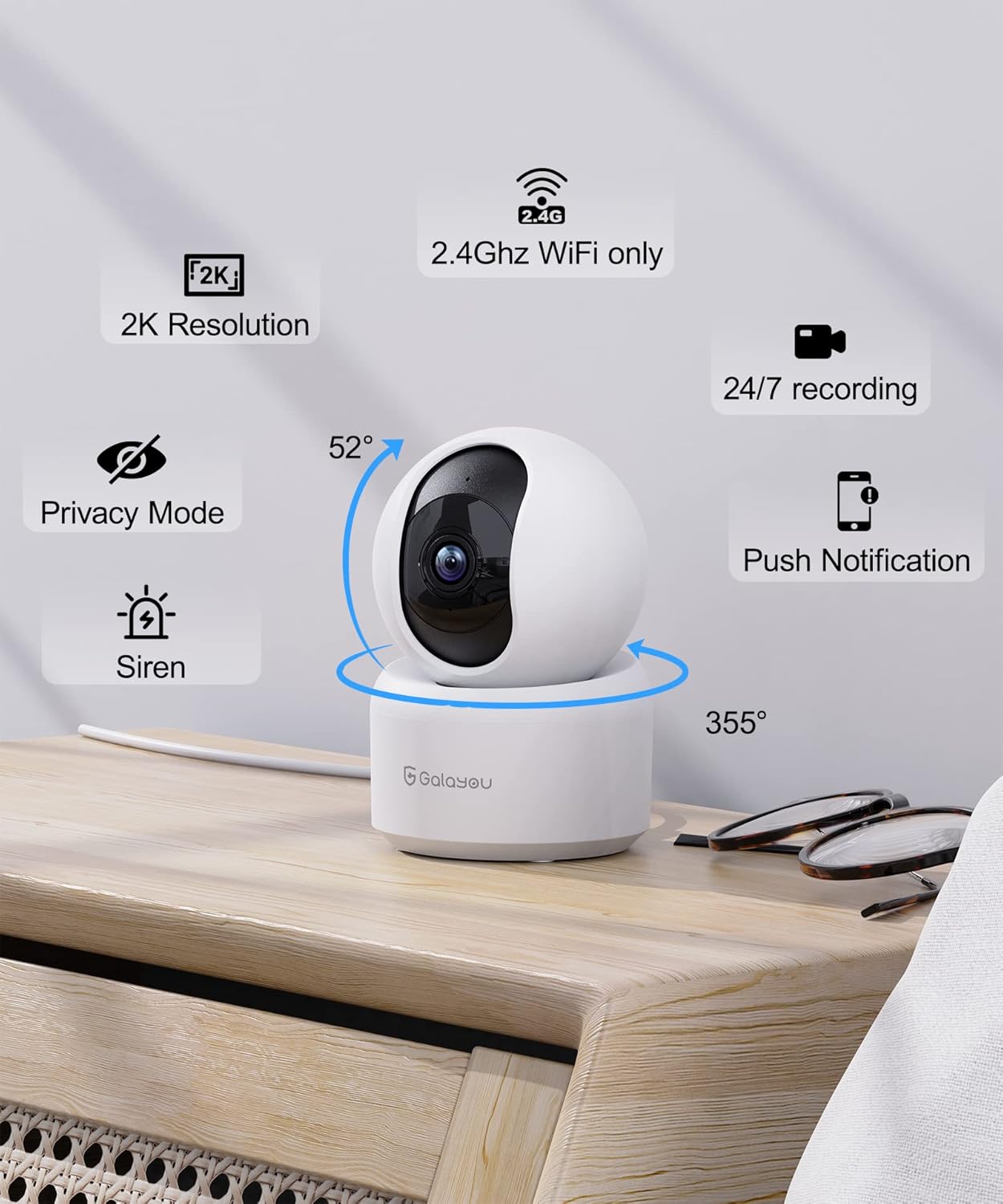
Image: A detailed view of the GALAYOU G2 camera on a wooden surface, with icons illustrating its key features: 2K Resolution, 2.4GHz WiFi compatibility, 24/7 recording, Privacy Mode, Siren, Push Notifications, and its 355° horizontal and 52° vertical rotation capabilities.
Key Features:
- 2K Resolution & 360° Coverage: Provides super HD live stream with 355° horizontal and 52° vertical rotation for full room coverage.
- Intelligent Motion Detection & Siren Alarm: Sends instant alerts and records 10-second video clips upon motion detection, with an optional siren to deter intruders.
- Enhanced Night Vision & Two-Way Audio: Equipped with 4pcs 940nm infrared lights for clear night vision up to 32ft, and a built-in microphone and speaker for two-way communication.
- Optional Cloud & 24/7 SD Card Storage: Supports local storage via SD card (up to 128GB, not included) and a 30-day trial cloud storage for continuous recording and data safety.
- Multi-device Viewing & Sharing: Allows adding multiple cameras to the app and viewing up to 4 live feeds simultaneously. Share access with up to 3 other devices.
- Voice Assistant Integration: Compatible with Amazon Alexa and Google Assistant for convenient voice control.
4. Specifications
| Feature | Detail |
|---|---|
| Model Name | G2 |
| Indoor/Outdoor Usage | Indoor |
| Power Source | Corded Electric (5 Volts, 2.5 watts) |
| Connectivity Protocol | Wi-Fi (2.4GHz only) |
| Controller Type | Amazon Alexa/Google Assistant |
| Mounting Type | Wall Mount |
| Video Capture Resolution | 1296p (2K) |
| Color | White |
| Dimensions (L x W x H) | 2.83 x 2.83 x 4.29 inches |
| Item Weight | 10.8 ounces (0.31 Kilograms) |
| Viewing Angle (Lens) | 95 Degrees |
| Field of View (Pan/Tilt) | 360 Degrees |
| Night Vision Range | 10 Meters (32ft) |
| Frame Rate | 15fps/s |
| Water Resistance Level | Not Water Resistant |
| Photo Sensor Technology | CMOS |
| Video Capture Format | MPEG-4 |
| Control Method | App |
| Special Feature | Siren |
5. Setup Guide
Follow these steps to set up your GALAYOU G2 camera and connect it to your Wi-Fi network.
5.1 Download the Wansview Cloud App
- Scan the QR code provided in the Quick Installation Guide or search for "Wansview Cloud" in the Google Play Store (for Android) or Apple App Store (for iOS).
- Download and install the "Wansview Cloud" application on your smartphone.

Image: A visual guide demonstrating the steps for quick installation, including downloading the Wansview Cloud app, registering an account, plugging in the camera, and completing Wi-Fi configuration.
5.2 Register and Log In to Your Account
- Open the Wansview Cloud app.
- Tap on "Sign up" to create a new account.
- Enter your email address and create a strong password (8-16 characters, including digits, uppercase letters, lowercase letters, and special characters).
- You will receive a verification code via email. Enter this code into the app to complete registration.
- Once registered, log in to your new Wansview Cloud account.
Video: A tutorial demonstrating how to download the Wansview Cloud App, register an account, and log in. This video guides users through the initial setup process for the camera's accompanying application.
5.3 Connect to Wi-Fi
- Plug in your GALAYOU G2 camera using the provided Type-C cable and USB adapter. The camera will power on.
- Ensure your smartphone is connected to a 2.4GHz Wi-Fi network. The G2 camera does not support 5GHz Wi-Fi.
- In the Wansview Cloud app, tap the "+" icon to add a new device.
- Follow the on-screen instructions in the app to complete the Wi-Fi configuration. This typically involves scanning a QR code displayed on your phone with the camera lens.
6. Operating Instructions
Once your camera is set up, you can utilize its various features through the Wansview Cloud app.
6.1 Live View and Pan/Tilt Control
- Open the Wansview Cloud app and select your G2 camera from the device list to access the live view.
- Use the directional controls within the app to remotely pan (355° horizontal) and tilt (52° vertical) the camera lens, allowing you to view different areas of your room.
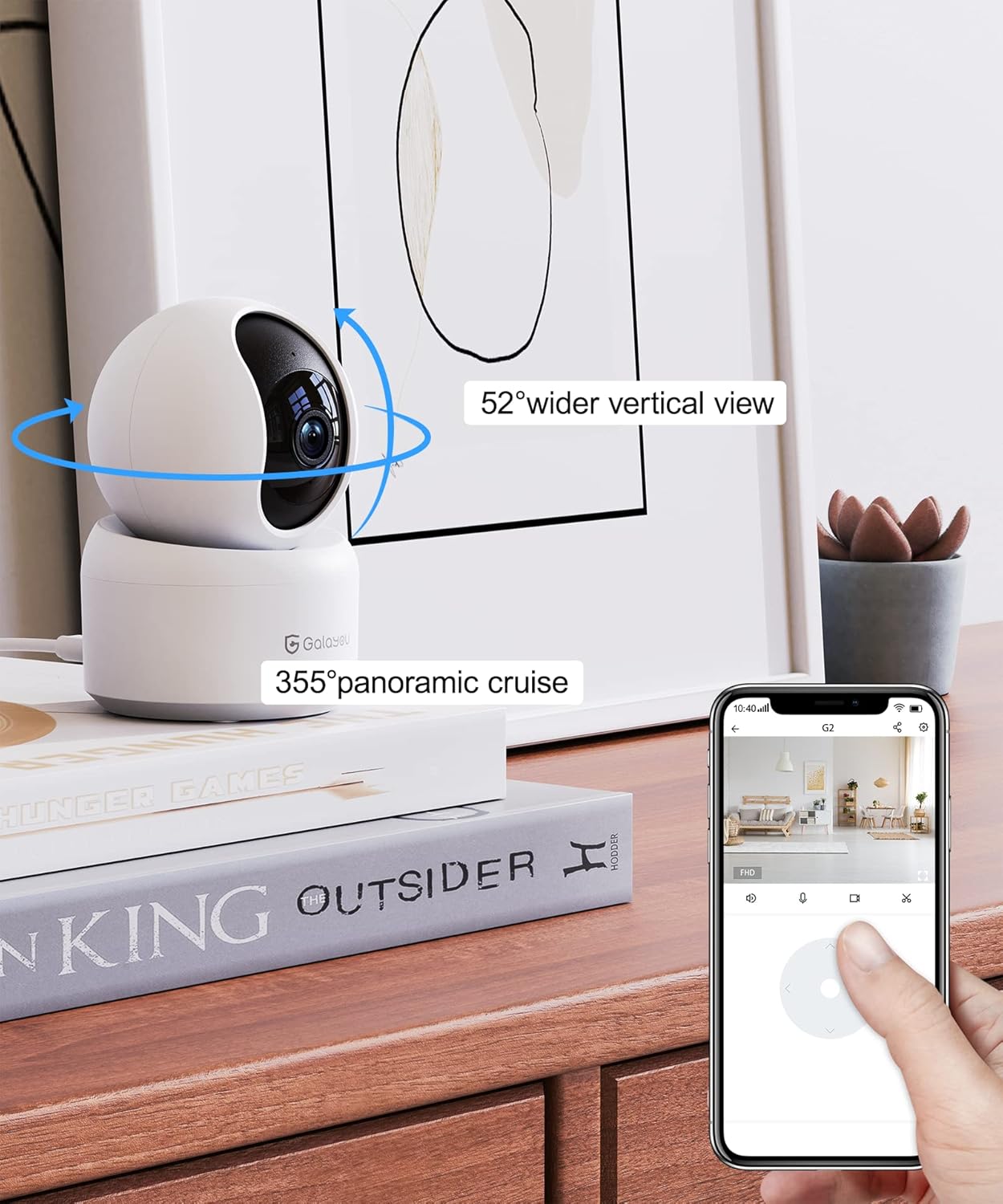
Image: A smartphone screen displaying the Wansview Cloud app's controls for the GALAYOU G2 camera, demonstrating its 355° panoramic cruise and 52° wider vertical view capabilities.
Image: A panoramic view of a modern living space, illustrating the extensive coverage provided by the GALAYOU G2 camera's 355° pan and 52° tilt viewing capabilities.
6.2 Motion Detection and Siren Alarm
- Enable motion detection in the app settings to receive instant alert notifications on your phone when movement is detected.
- The camera will automatically record 10-second video clips of detected motion and save them to the app.
- Activate the siren feature through the app to emit an audible alarm when motion is detected, serving as a deterrent.

Image: A smartphone screen displaying a "Motion alarm" notification from the Wansview Cloud app, overlaid on a scene of a child in a crib, indicating real-time alerts for motion in customized areas.

Image: An illustration of the camera's siren feature, showing an intruder being startled by the camera's alarm, highlighting its deterrent capability.
6.3 Enhanced Night Vision
- The camera automatically switches to night vision mode in low-light conditions, providing clear black and white images up to 32 feet (10 meters).

Image: A dark room scene with a child sleeping, demonstrating the camera's enhanced night vision capabilities and two-way audio feature, allowing communication even in low light.
Image: A clear, black and white image of a baby sleeping in a crib at night, demonstrating the camera's ability to provide clear visuals in low-light conditions.
6.4 Two-Way Audio
- Use the built-in microphone and speaker to communicate with family members or pets through the camera from anywhere.

Image: A scene depicting a puppy in a living room, with speech bubbles indicating two-way audio communication between a user and the pet via the camera.
6.5 Storage Options
- SD Card Storage: Insert a Micro SD card (up to 128GB, not included) into the camera's slot for 24/7 continuous recording.
- Cloud Storage: Utilize the 30-day trial cloud storage service to securely save alert videos and access them anytime, anywhere.

Image: The GALAYOU G2 camera positioned with a hand inserting an SD card, illustrating local storage. Above, a cloud icon with an arrow points upwards, representing the encrypted 30-day trial cloud storage option.

Image: A graphic illustrating the flow of video data from the camera to both local SD card storage (up to 128GB) and cloud storage, emphasizing the 30-day trial experience.
6.6 Multi-Device Viewing and Sharing
- Add multiple GALAYOU cameras to your Wansview Cloud app to monitor different areas simultaneously. The app supports displaying up to 4 live video feeds at once.
- Share access to your camera's live feed and recordings with up to 3 other devices, allowing family members to view.
Image: A smartphone screen showing the Wansview Cloud app interface with multiple camera feeds displayed simultaneously, demonstrating the multi-device viewing capability.

Image: A visual representation of the device sharing feature within the Wansview Cloud app, showing how users can invite others to view the camera feed, enabling shared monitoring.
6.7 Voice Assistant Integration
- Connect your GALAYOU G2 camera with Amazon Alexa or Google Assistant for hands-free control.
- Use voice commands such as "Alexa, show me the living room camera" to view the live feed on compatible smart displays.

Image: The GALAYOU G2 camera positioned next to an Amazon Echo Show, demonstrating its compatibility with Alexa. A speech bubble shows a user asking Alexa to display the living room camera.

Image: A woman in a kitchen interacting with an Amazon Echo Show, which displays the camera feed, illustrating the convenience of voice control with Alexa for monitoring.
7. Maintenance
- Cleaning: Gently wipe the camera lens and body with a soft, dry cloth. Avoid using liquid cleaners or abrasive materials.
- Firmware Updates: Regularly check the Wansview Cloud app for available firmware updates to ensure optimal performance and security.
- Placement: Ensure the camera is placed in a stable, dry indoor environment, away from direct sunlight, heat sources, and strong electromagnetic fields.
- Power Supply: Use only the provided power adapter to prevent damage to the camera.
8. Troubleshooting
Common Issues and Solutions:
- Camera Offline:
- Check if the camera is powered on and the power adapter is securely connected.
- Ensure your Wi-Fi router is working correctly and the camera is within range.
- Verify that your Wi-Fi network is 2.4GHz. The camera does not support 5GHz networks.
- Restart the camera and your router.
- Unable to Connect to Wi-Fi:
- Confirm you are connecting to a 2.4GHz Wi-Fi network.
- Ensure the Wi-Fi password entered in the app is correct.
- Place the camera closer to the router during initial setup.
- Reset the camera (refer to the Installation Guide for reset instructions) and try the setup process again.
- Poor Video Quality:
- Check your internet connection speed. A stable and fast connection is required for 2K streaming.
- Ensure the camera lens is clean and free from dust or smudges.
- Adjust the camera's position to optimize lighting conditions.
- Motion Detection Not Working:
- Verify that motion detection is enabled in the Wansview Cloud app settings.
- Adjust the motion detection sensitivity settings.
- Ensure there are no obstructions blocking the camera's view in the detection zone.
9. Warranty and Support
GALAYOU products typically come with a manufacturer's warranty. Please refer to the original packaging or the official GALAYOU website for specific warranty terms and conditions.
For technical support, troubleshooting assistance, or any inquiries regarding your GALAYOU G2 camera, please contact GALAYOU customer service through their official channels. You may find contact information on the product packaging, the Wansview Cloud app, or the GALAYOU brand website.
Manufacturer: GALAYOU
Brand Website: Visit the GALAYOU Store on Amazon


