
Cuifati
Mini 3-Key Macro Mechanical Keyboard with Knob User Manual
Model: Cuifatinxqzw13gr28289
1. Introduction
This manual provides detailed instructions for the setup, operation, and maintenance of your new Cuifati Mini 3-Key Macro Mechanical Keyboard with Knob. This versatile device is designed to enhance productivity and control across various applications, including office work, gaming, music production, media control, industrial automation, laboratory tasks, and production line testing.
The keyboard features three programmable keys and a multi-functional rotary knob, offering a compact and efficient solution for complex shortcut commands and media control. Its plug-and-play design ensures ease of use across supported operating systems.

Figure 1: Cuifati Mini 3-Key Macro Mechanical Keyboard with Knob.
2. Product Features
- Customizable Functions: Three fully programmable keys allow assignment of standard keyboard functions, complex shortcuts, or macro commands.
- Multi-functional Rotary Knob: The knob supports various operations such as screen zoom in/out, track switching, volume adjustment (increase/decrease), and play/pause control.
- RGB Lighting: Integrated RGB backlighting provides visual feedback and aesthetic appeal.
- Plug-and-Play: Connects via Type-C to USB interface, requiring no additional driver installation.
- Storage Function: Configuration settings are stored on the device, allowing use across different USB protocol-supported systems without re-programming.
- Durable Design: Features dust-proof blue switches with a key life of up to 50 million presses.
- Compact and Portable: Small dimensions (approx. 100mm x 25mm x 38mm) make it easy to carry and use in various environments.

Figure 2: Key features including 3-key design, RGB lighting, and adjustment knob.
3. Package Contents
- 1 x Cuifati Mini 3-Key Macro Mechanical Keyboard with Knob
- 1 x USB Type-C Cable

Figure 3: Contents of the package, including the keyboard and USB cable.
4. Specifications
| Attribute | Detail |
|---|---|
| Product Type | Mini Shortcut Keyboard |
| Materials | Acrylic, PCB |
| Lighting | RGB |
| Supported Systems | Windows, Vista, Linux, OS X |
| Key Life | Up to 50 million presses |
| Switch Type | Dust-proof Blue Switch |
| Number of Keys | 3 |
| Product Dimensions (L x W x H) | Approx. 100mm x 25mm x 38mm (3.94in x 0.98in x 1.5in) |
| Operating Voltage | DC 5V/1A |
| Operating Temperature | -10°C to 50°C |
| Connectivity | USB Type-C |
5. Setup
- Connect the Keyboard: Use the provided USB Type-C cable to connect the mini keyboard to an available USB port on your computer. The Type-C end connects to the keyboard, and the USB-A end connects to your computer.
- Automatic Recognition: The keyboard is plug-and-play. Your operating system (Windows, Vista, Linux, OS X) should automatically recognize the device without requiring manual driver installation.
- Software Installation (for Customization): To program the keys and knob with custom functions or macros, you will need to download and install the dedicated software.
- Download Link 1: https://1drv.ms/u/s!Aja2uUIxpjcwacFgtI6ovYnRpnE?e=q0xIz5
- Download Link 2 (Official Website): http://www.videyt.com
Note: Ensure you download the correct software version for your operating system. If one link does not work, try the other. Some users have reported issues with software availability or functionality on certain operating systems, particularly macOS. Programming is typically done on a Windows PC, and the settings are then stored on the device for use on other compatible systems.

Figure 4: Plug-and-play functionality of the keyboard.
6. Operating Instructions
6.1 Key Customization
The three keys on the keyboard are fully programmable. Using the dedicated software (see Section 5. Setup), you can assign various functions to each key:
- Standard Key Functions: Assign any single key press (e.g., A, B, C, Enter, Space).
- Shortcut Combinations: Program common shortcuts (e.g., Ctrl+C for Copy, Ctrl+V for Paste, Alt+Tab for switching applications). The keyboard can store complex and large shortcut key combinations.
- Macros: Create sequences of key presses and delays to automate repetitive tasks.
Once programmed, the settings are saved directly to the keyboard's internal memory. This allows the customized functions to work on any compatible system without needing the software installed on that specific machine.
6.2 Knob Functions
The rotary knob provides intuitive control over several common media and system functions. Its functions can also be customized via the software.
- Rotate Clockwise/Counter-clockwise:
- Zoom In/Out (e.g., in image editors or web browsers)
- Volume Up/Down
- Switch Tracks (Next/Previous song in media players)
- Press Down (Click):
- Play/Pause Media
- Mute/Unmute Volume

Figure 5: The keyboard's versatility for various tasks.
7. Maintenance
To ensure the longevity and optimal performance of your mini keyboard, follow these maintenance guidelines:
- Cleaning: Use a soft, dry cloth to wipe down the surface of the keyboard. For stubborn dirt, slightly dampen the cloth with water or a mild, non-abrasive cleaner. Avoid excessive moisture.
- Dust Removal: Use compressed air to remove dust and debris from between the keys and around the knob.
- Avoid Liquids: Do not spill liquids on the keyboard. If a spill occurs, immediately disconnect the keyboard from your computer and allow it to dry completely before reconnecting.
- Storage: Store the keyboard in a cool, dry place away from direct sunlight and extreme temperatures when not in use.
- Handling: Handle the keyboard with care. Avoid dropping it or subjecting it to strong impacts.
8. Troubleshooting
| Problem | Possible Cause | Solution |
|---|---|---|
| Keyboard not recognized by computer. | Loose USB connection, faulty USB port, incompatible system. |
|
| Keys or knob do not perform assigned functions. | Incorrect programming, software issue, conflict with other software. |
|
| RGB lighting is not working or is incorrect. | Software setting, power issue. |
|
| Programming software links do not work. | Outdated links, server issues. |
|
9. Safety Warnings
Please read and adhere to the following safety warnings to prevent personal injury or damage to the product:
- Do not attempt to disassemble, modify, or repair the product yourself. Unauthorized modifications can lead to personal injury, electric shock, or equipment damage, and will void the warranty.
- Keep the device away from water, moisture, and other liquids.
- Avoid exposing the device to extreme temperatures, direct sunlight, or high humidity.
- Do not use abrasive cleaners or solvents on the product.
- Ensure the product is used within the specified operating voltage (DC 5V/1A).
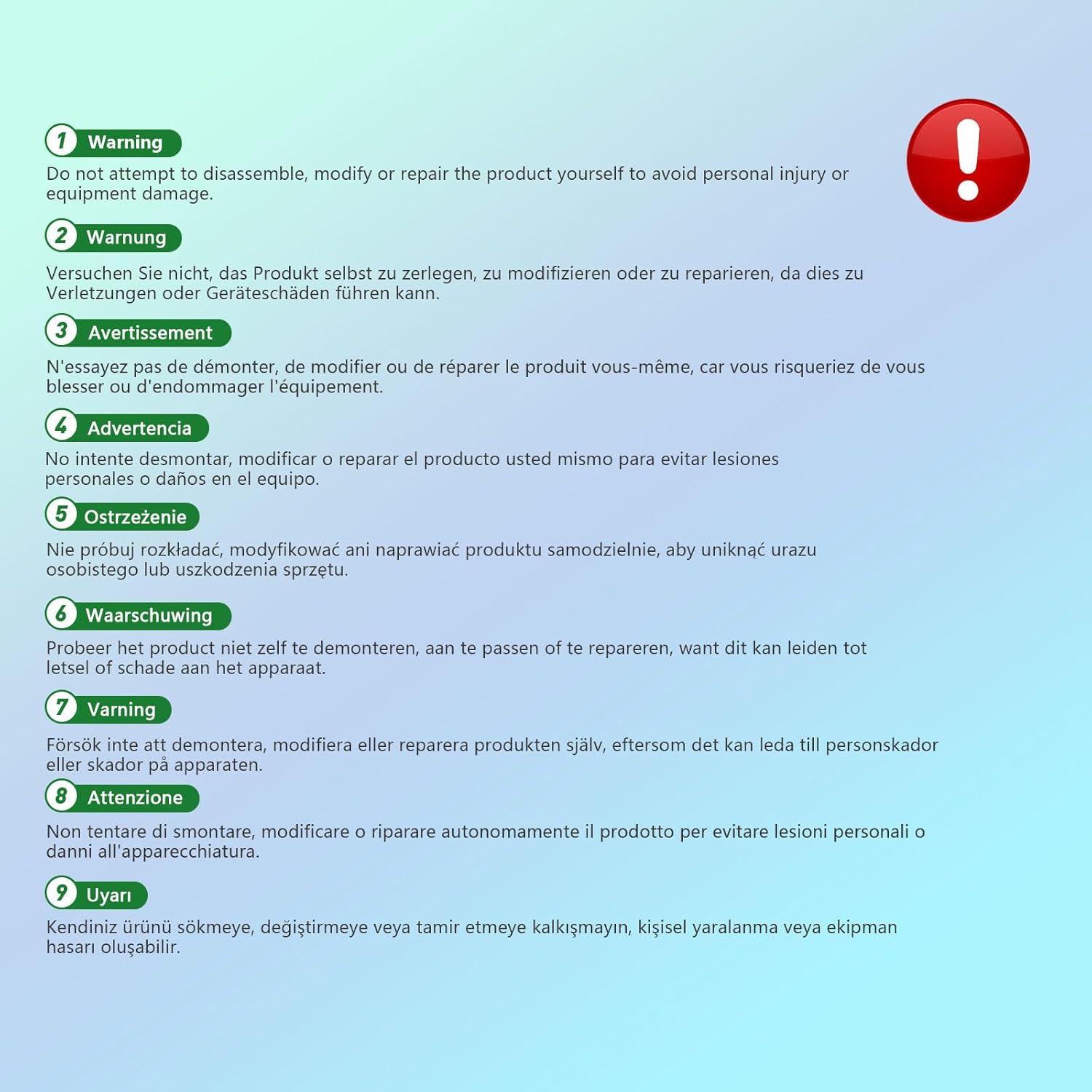
Figure 6: Important safety warning regarding product modification.
10. Warranty and Support
For warranty information, technical support, or further assistance, please contact your retailer or the manufacturer directly. Refer to the product packaging or the official Cuifati website for contact details.
Official Website for Software Downloads and Support: http://www.videyt.com
Ask a question about this manual
Ask about setup, troubleshooting, compatibility, parts, safety, or missing instructions. Manuals+ will review the question and use this page’s manual context to help answer it.