1. Introduction
Thank you for choosing the ASHATA DB25 Parallel PCIe Card. This instruction manual provides detailed guidance on the installation, operation, maintenance, and troubleshooting of your new PCI Express to Parallel DB25 Adapter Card. Please read this manual thoroughly before installation and use to ensure proper functionality and to prevent damage to the product or your system.
This card is designed to add a parallel port to your computer, enabling compatibility with various legacy devices such as printers, scanners, POS machines, and label machines that require an IEEE 1284 compliant parallel interface.
2. Product Overview
The ASHATA DB25 Parallel PCIe Card is a single-channel (X1) PCI Express endpoint controller with an integrated PHY, compliant with PCI Express 2.0 Gen 1 and PCI Express card specifications. It supports IEEE 1284 SPP/Byte ECP mode and ASPM power management.
2.1 Key Features
- IEEE 1284 compliant parallel port for high performance.
- PCI Express x1 interface, compatible with x1, x4, x8, x16 slots.
- Supports SPP/Byte ECP mode.
- Supports ASPM power management.
- Compatible with various operating systems including Windows (2003 Server, Vista, 7, 8, 10, 11) and Linux Kernel 2.6.15 and later.
2.2 Package Contents
- ASHATA DB25 Parallel PCIe Card
- (Note: Driver CD may not be included. Drivers are typically available for download from the manufacturer's website.)

Figure 1: Overview of the ASHATA DB25 Parallel PCIe Card. This image shows the full card with its PCIe connector and DB25 parallel port.
3. Setup and Installation
Follow these steps carefully to install the ASHATA DB25 Parallel PCIe Card into your computer system.
3.1 System Requirements
- Available PCI Express x1 slot (compatible with x4, x8, x16 slots).
- Compatible operating system (Windows 2003 Server/Vista/7/8/10/11, Linux Kernel 2.6.15+).
- Basic computer hardware knowledge for installation.
3.2 Hardware Installation
- Power Off and Disconnect: Completely shut down your computer and disconnect the power cord and all peripheral cables.
- Open Computer Case: Remove the side panel of your computer case to access the motherboard.
- Locate PCIe Slot: Identify an available PCI Express x1 slot on your motherboard. This card is compatible with larger PCIe slots (x4, x8, x16) as well.
- Remove Slot Cover: Carefully remove the metal slot cover corresponding to the chosen PCIe slot on the back of your computer case.
- Insert PCIe Card: Align the ASHATA DB25 Parallel PCIe Card with the chosen slot. Apply even, firm pressure to both ends of the card until it is securely seated in the slot. Ensure the metal bracket is flush with the back of the case.
- Secure Card: Use a screw to secure the card's metal bracket to the computer case.
- Close Case and Reconnect: Replace the computer case side panel and reconnect all power and peripheral cables.
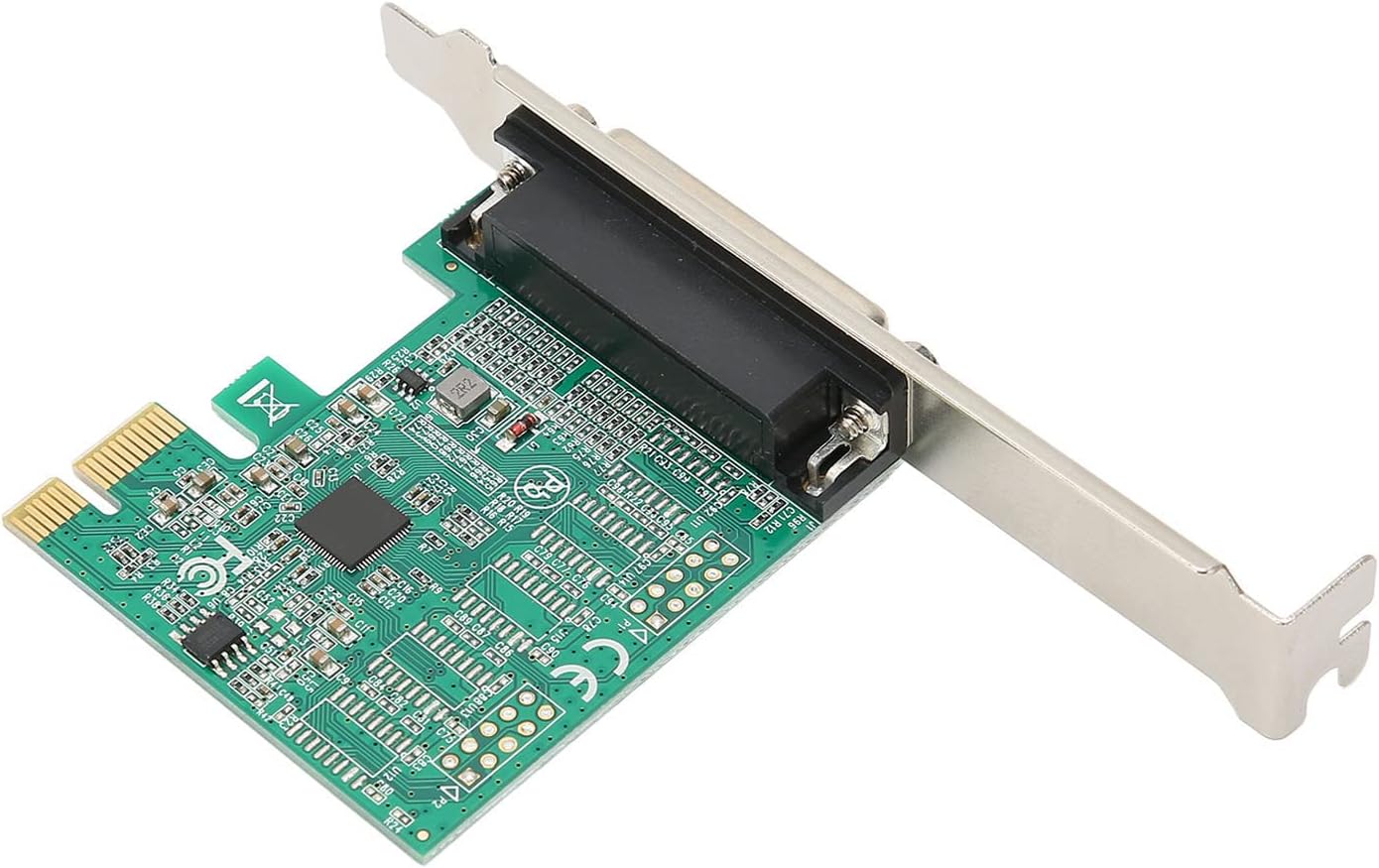
Figure 2: Angled view of the ASHATA DB25 Parallel PCIe Card, showing the PCIe connector and the DB25 port. This illustrates the card's physical form factor for installation.
3.3 Driver Installation
After hardware installation, you will need to install the appropriate drivers for your operating system. If a driver CD was not included, please visit the ASHATA official website or the product support page to download the latest drivers for model ASHATA9e6bhc71mt554.
- Boot Computer: Power on your computer. The operating system may automatically detect new hardware and attempt to install generic drivers.
- Install Drivers: If automatic installation fails or if you need specific features, locate the downloaded driver file (usually an executable or a ZIP archive). Follow the on-screen instructions to install the drivers.
- Verify Installation: After installation, open Device Manager (Windows) or use relevant system tools (Linux) to confirm that the "Parallel Port (LPT1)" or similar device is recognized and functioning correctly without any error symbols.
4. Operating Instructions
Once the ASHATA DB25 Parallel PCIe Card is successfully installed and its drivers are loaded, you can connect your parallel devices.
4.1 Connecting Devices
- Power Off Device: Ensure the peripheral device (printer, scanner, etc.) you intend to connect is powered off.
- Connect Cable: Connect one end of the DB25 parallel cable to the parallel port on the ASHATA PCIe card and the other end to your peripheral device. Secure the cable with the thumbscrews if available.
- Power On: Power on your peripheral device, then power on your computer.

Figure 3: Close-up view of the DB25 parallel port on the ASHATA PCIe card, showing the connector pins and securing nuts. This is where the parallel cable connects.
4.2 Configuring Devices
Most operating systems will detect the connected parallel device and prompt for driver installation. Follow the manufacturer's instructions for your specific peripheral device to install its drivers and configure it for use with the newly added parallel port.
- For printers, add a new printer through your operating system's printer settings, selecting the LPT port associated with the ASHATA card.
- For other devices, refer to their specific software or driver documentation for configuration details.
5. Maintenance
The ASHATA DB25 Parallel PCIe Card requires minimal maintenance. Follow these guidelines to ensure its longevity:
- Keep Clean: Ensure the inside of your computer case is free from excessive dust, which can hinder airflow and cause overheating.
- Secure Connections: Periodically check that the card is securely seated in its PCIe slot and that all cables are firmly connected.
- Driver Updates: Check the ASHATA website periodically for updated drivers, which may offer improved performance or compatibility.
6. Troubleshooting
If you encounter issues with your ASHATA DB25 Parallel PCIe Card, refer to the following troubleshooting steps:
6.1 Common Issues and Solutions
- Card Not Detected:
- Ensure the card is fully seated in the PCIe slot.
- Try installing the card in a different PCIe slot if available.
- Verify that your motherboard's BIOS/UEFI settings are configured to allow PCIe devices.
- Device Not Recognized (e.g., Printer):
- Confirm that the correct drivers for the ASHATA card are installed and appear without errors in Device Manager.
- Ensure the peripheral device is powered on and connected correctly.
- Install the specific drivers for your peripheral device.
- Check the peripheral device's settings to ensure it is configured to use the parallel port.
- "Driver Not Found" or "Missing Driver" Error:
- Download the latest drivers for model ASHATA9e6bhc71mt554 from the ASHATA official website.
- Ensure you are installing the correct driver version for your operating system (32-bit or 64-bit).
- Slow Performance:
- Verify that the peripheral device is configured to use ECP (Extended Capabilities Port) mode if supported, as this offers faster data transfer.
- Ensure your system meets the minimum requirements for the peripheral device.
If these steps do not resolve your issue, please contact ASHATA customer support for further assistance.
7. Specifications
| Feature | Description |
|---|---|
| Brand | ASHATA |
| Model Number | ASHATA9e6bhc71mt554 |
| Hardware Interface | PCI Express x1 (compatible with x4, x8, x16 slots) |
| Parallel Port Standard | IEEE 1284 (SPP/Byte ECP Mode) |
| Operating System Support | Windows 2003 Server, Vista, 7, 8, 10, 11; Linux Kernel 2.6.15 and later |
| Compatible Devices | Printers, Scanners, POS Machines, Label Machines |
| Item Weight | 3.87 ounces (0.11 Kilograms) |
| Package Dimensions | 5.87 x 4.41 x 1.02 inches |
8. Warranty and Support
ASHATA products are designed for reliability and performance. For warranty information, please refer to the documentation included with your purchase or visit the official ASHATA website. If you require technical assistance or have questions regarding your ASHATA DB25 Parallel PCIe Card, please contact ASHATA customer support.
ASHATA Customer Support: Please visit the ASHATA official website for contact information and support resources.
