1. Introduction
This manual provides instructions for the proper setup, operation, and maintenance of your Luqeeg 5890K Thermal Printer. Please read this manual thoroughly before using the printer to ensure optimal performance and longevity.
Package Contents
Verify that all items are present in the package:
- 1 x Luqeeg 5890K Thermal Printer
- 1 x Power Cable (US Plug)
- 1 x USB Cable
- 1 x Driver CD
- 1 x User Manual
- 1 x Thermal Printing Paper Roll
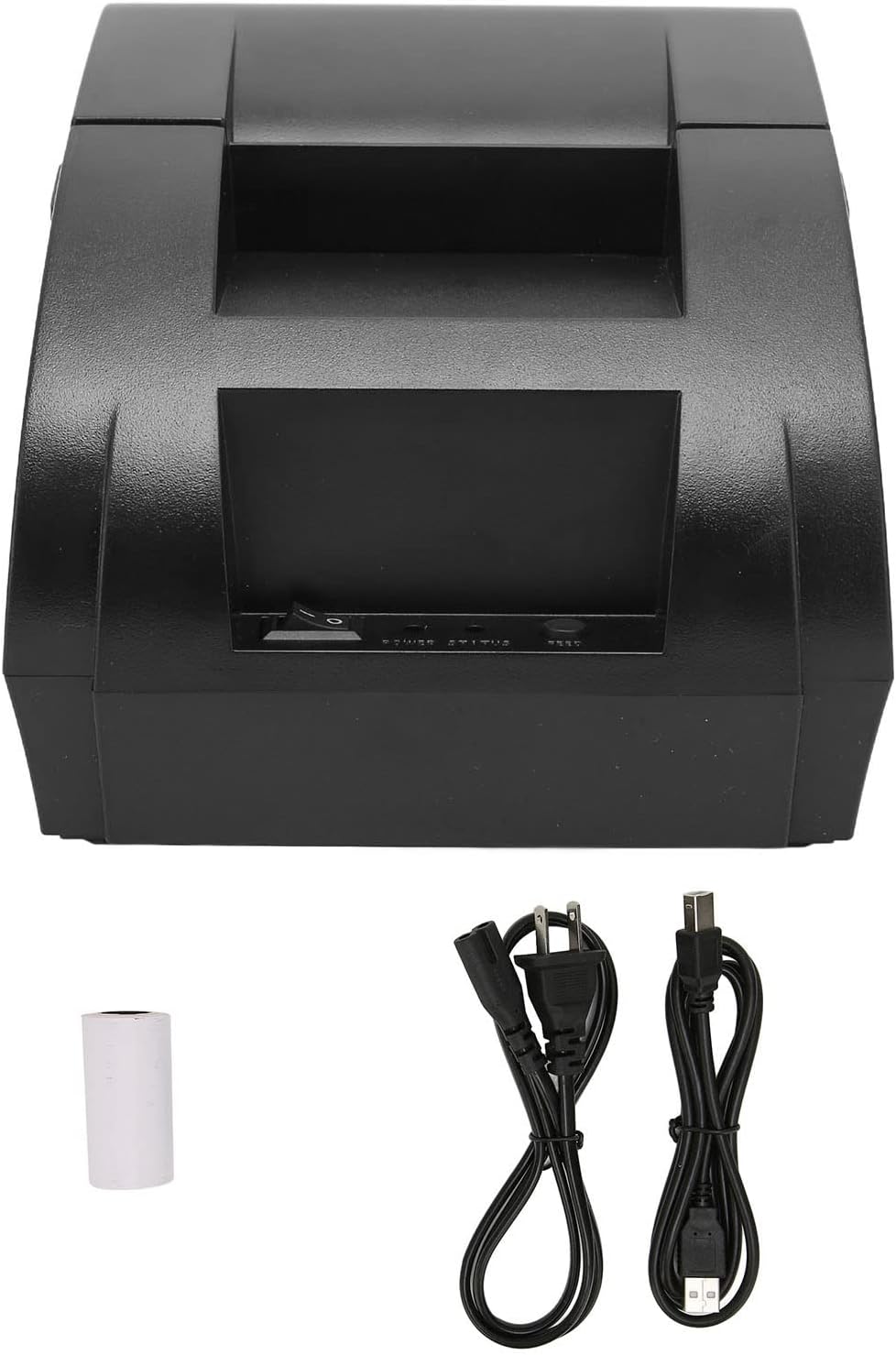
Image: The Luqeeg 5890K Thermal Printer shown with its power cable, USB cable, and a roll of thermal paper, illustrating the complete package contents.
2. Setup
2.1 Unpacking and Placement
Carefully remove the printer from its packaging. Place the printer on a stable, flat surface with adequate ventilation. Ensure there is enough space around the printer for cable connections and paper loading.
2.2 Connecting Power
- Connect the power cable to the printer's power input port.
- Plug the other end of the power cable into a suitable power outlet (100-240V AC).
2.3 Connecting to a Computer (USB)
For wired connection:
- Ensure the printer is powered off.
- Connect one end of the USB cable to the printer's USB port.
- Connect the other end of the USB cable to an available USB port on your computer.
2.4 Connecting to a Mobile Device (Bluetooth)
The Luqeeg 5890K printer supports Bluetooth connectivity for mobile devices. Refer to your device's operating system (e.g., Android) and the printer's specific application for detailed pairing instructions. Typically, this involves:
- Ensure the printer is powered on and discoverable.
- On your mobile device, go to Bluetooth settings and search for available devices.
- Select the printer from the list (e.g., "5890K Printer") and pair.
- Install the appropriate printing application for your device to manage print jobs.
2.5 Loading Thermal Paper
- Gently press the cover open button or latch to open the printer's top cover.
- Insert a roll of 58mm thermal paper into the paper compartment, ensuring the paper feeds from the bottom and the leading edge extends slightly out of the printer.
- Close the top cover firmly until it clicks into place. Ensure the paper is taut and aligned.

Image: The Luqeeg 5890K Thermal Printer with its top cover open, revealing the internal compartment where the thermal paper roll is loaded.
2.6 Driver Installation
For computer use, drivers are required:
- Insert the provided Driver CD into your computer's CD-ROM drive.
- Follow the on-screen instructions to install the printer drivers for your operating system (Windows 2000, XP, Vista, 7, 8).
- If you do not have a CD-ROM drive or lose the CD, drivers can be downloaded from the official Luqeeg website.
3. Operating Instructions
3.1 Powering On/Off
- To Power On: Flip the power switch to the 'On' position. The 'Power' indicator light will illuminate.
- To Power Off: Flip the power switch to the 'Off' position. The 'Power' indicator light will turn off.

Image: A close-up view of the printer's front panel, showing the power switch, power indicator, status indicator, and the 'FEED' button.
3.2 Printing a Test Page
After driver installation and connection, you can print a test page to confirm proper setup. Refer to your operating system's printer settings for the option to print a test page.
3.3 Basic Printing
Once the printer is connected and drivers are installed, you can print receipts or small labels from your computer or mobile application. Select the Luqeeg 5890K as your printer in your software's print dialogue.

Image: The Luqeeg 5890K Thermal Printer in operation, with a shopping cart filled with printed receipts in the background, demonstrating its use for receipt printing.
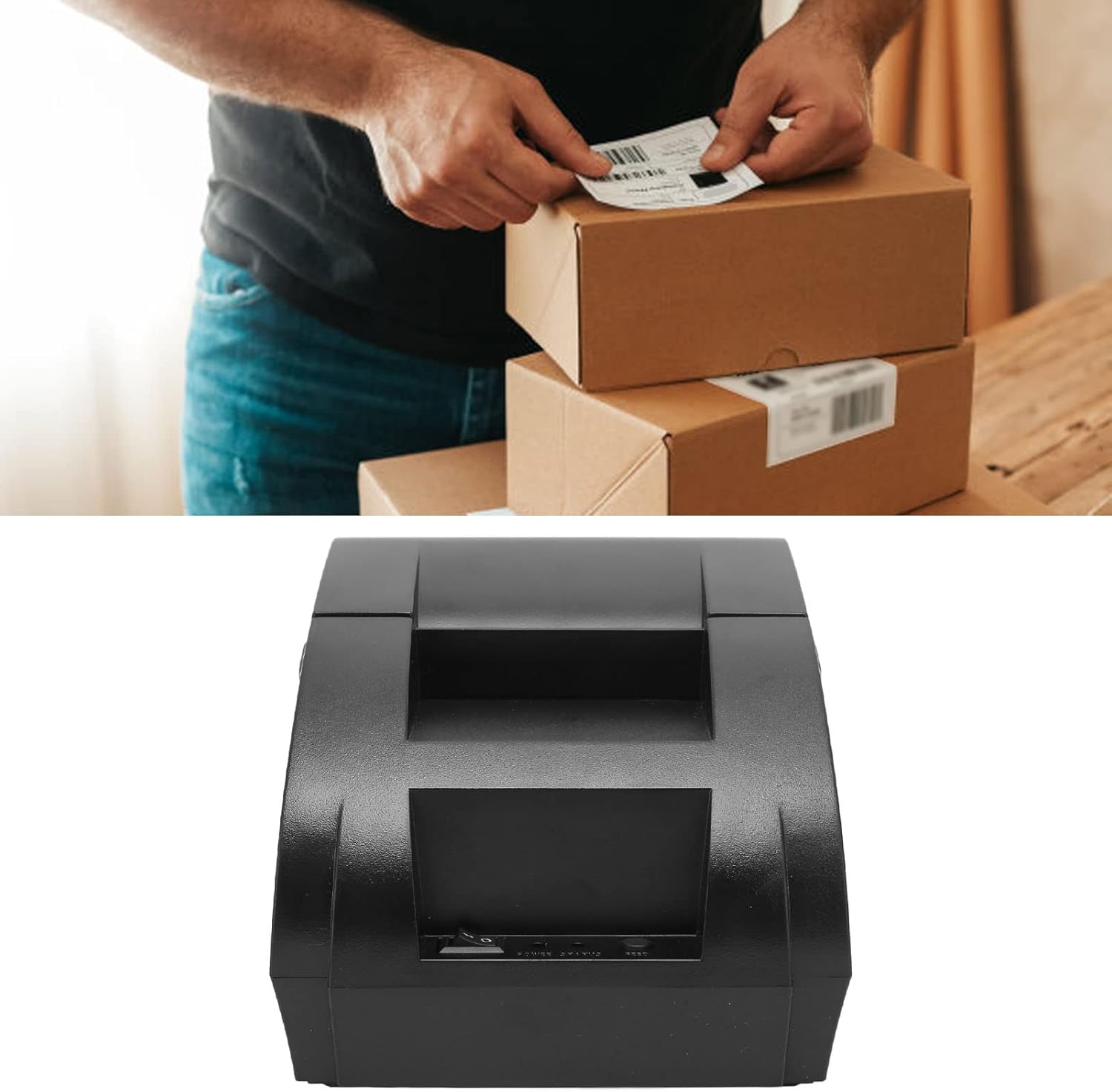
Image: The Luqeeg 5890K Thermal Printer in the foreground, with a person applying a small label to a package in the background, illustrating its capability for printing small labels.
3.4 Using the Feed Button
Press the 'FEED' button on the front panel to advance the thermal paper manually. This is useful for checking paper alignment or advancing paper after loading.
4. Maintenance
4.1 Cleaning the Print Head
To maintain print quality, clean the thermal print head regularly (e.g., once a month or after every few rolls of paper). Use a soft cloth dampened with isopropyl alcohol. Gently wipe the print head surface. Ensure the printer is powered off and cooled down before cleaning.
4.2 General Care
- Keep the printer free from dust and debris.
- Avoid exposing the printer to direct sunlight, high temperatures, or excessive humidity.
- Use only high-quality thermal paper to prevent damage to the print head and ensure clear prints.
5. Troubleshooting
5.1 Common Issues and Solutions
- Printer not responding:
- Check if the power cable is securely connected and the printer is powered on.
- Verify the USB or Bluetooth connection.
- Ensure drivers are correctly installed.
- Poor print quality:
- Clean the print head (refer to Section 4.1).
- Ensure you are using thermal paper, not regular paper.
- Check if the thermal paper roll is inserted correctly.
- Paper jam:
- Power off the printer.
- Open the top cover and carefully remove any jammed paper.
- Re-insert the paper roll correctly and close the cover.
- Printer not recognized by computer/app:
- Reinstall drivers.
- Try a different USB port or re-pair Bluetooth.
- Restart both the printer and the computer/mobile device.
5.2 Indicator Lights
- Power Light: Indicates the printer is powered on.
- Status Light: Indicates printer status (e.g., ready, error, out of paper). Refer to the full user manual (if provided separately) for specific light patterns and their meanings.
6. Specifications
| Model | 5890K |
| Printing Technology | Thermal |
| Printing Speed | 90 mm/sec |
| Printing Width | Approx. 58 ± 0.5 mm (2.3 inches) |
| Roll Diameter | Approx. 50 mm (2.0 inches) |
| Printing Thickness | Approx. 0.06 - 0.08 mm |
| Interface | USB, Bluetooth (App Control for Android) |
| Power Input | DC 12V/3A |
| Control Cash Drawer | DC 12V/1A |
| Print Order | Compatible with ESC/POS |
| Barcode Types | UPC-A/E, JAN13(EAN13)/8(EAN8), ITF, Codebar, Code39/93/128 |
| Operating Temperature | 0-45 °C |
| Operating Humidity | 10-80% |
| Compatible OS | Windows 2000/XP/Vista/7/8, OS X, Linux, Android |
| Dimensions | Approx. 7.87 x 6.3 x 5.12 inches |
| Item Weight | Approx. 1.64 pounds |

Image: Front and rear views of the Luqeeg 5890K Thermal Printer. The rear view displays a label with model number PDS-5890K, paper width 58mm, USB interface, power input DC12V/3A, and cash drawer control DC12V/1A.
7. Warranty and Support
Luqeeg products are designed for reliability and performance. For warranty information, please refer to the documentation included with your purchase or visit the official Luqeeg website. If you encounter any issues not covered in this manual, please contact Luqeeg customer support for assistance.
For further support, you may visit the Luqeeg Store on Amazon.