1. Introduction
Thank you for choosing the FunFlix Native 1080P Portable Projector. This device is designed to provide a high-quality visual experience with its native 1080P resolution, 5G WiFi, and Bluetooth connectivity. This manual will guide you through the setup, operation, and maintenance of your projector to ensure optimal performance.
2. What's in the Box
Please check the package contents to ensure all items are present:
- 1 × Portable Projector
- 1 × Remote Control (Batteries not included)
- 1 × Power Cord
- 1 × AV Cable
- 1 × HDMI Cable
- 1 × User Manual
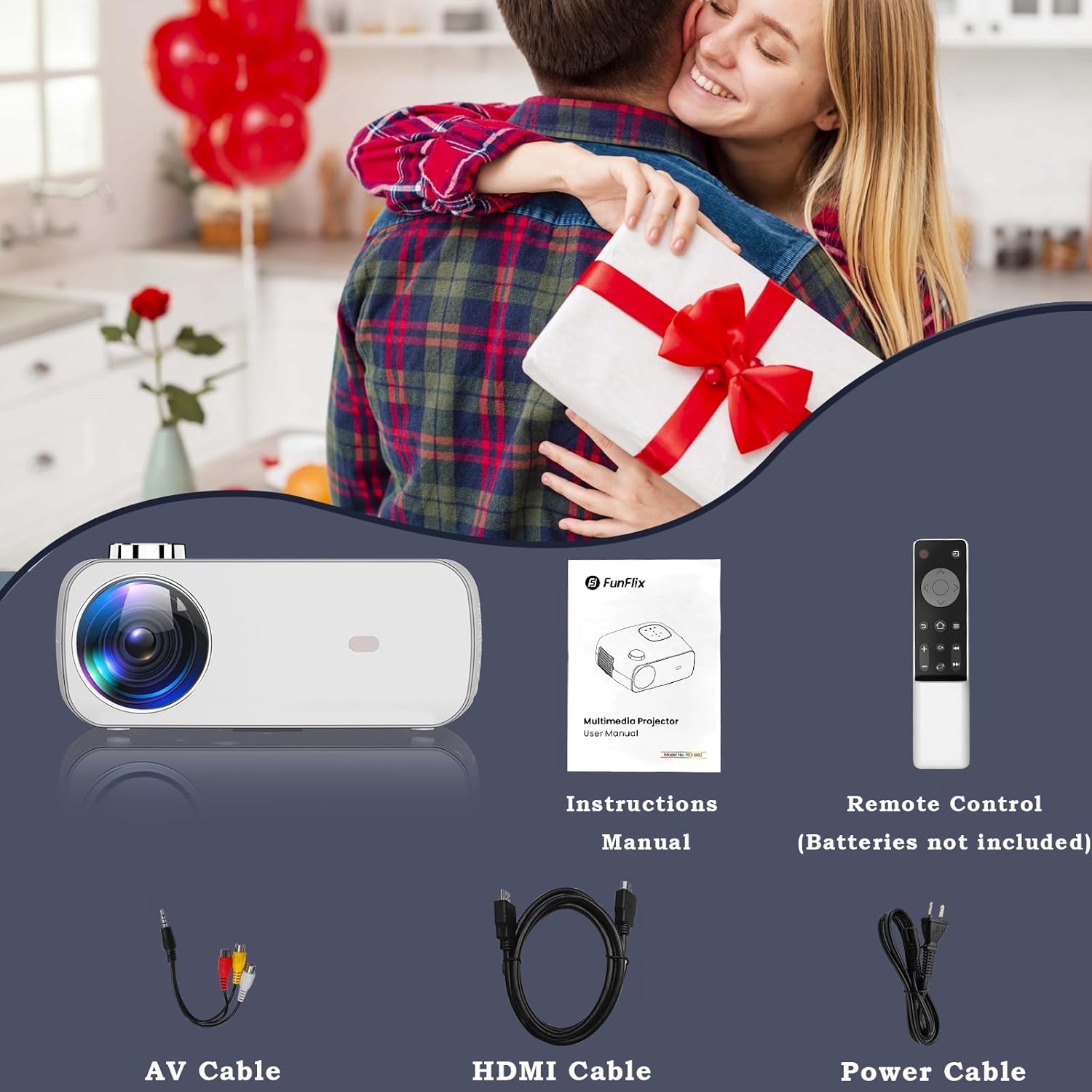
Figure 2.1: Package Contents
3. Product Overview
The FunFlix RD-882 projector offers a versatile entertainment solution with its advanced features:
- Native 1080P Resolution: Delivers crisp and clear images.
- 9500L Brightness: Provides vibrant visuals in various lighting conditions.
- 5G WiFi Connectivity: Enables fast and stable wireless screen mirroring.
- Bluetooth 5.2: For seamless audio connection to external speakers or headphones.
- Large Display: Projects screen sizes from 50 to 300 inches.
- Built-in Speaker: Integrated 5W speaker for convenient audio.
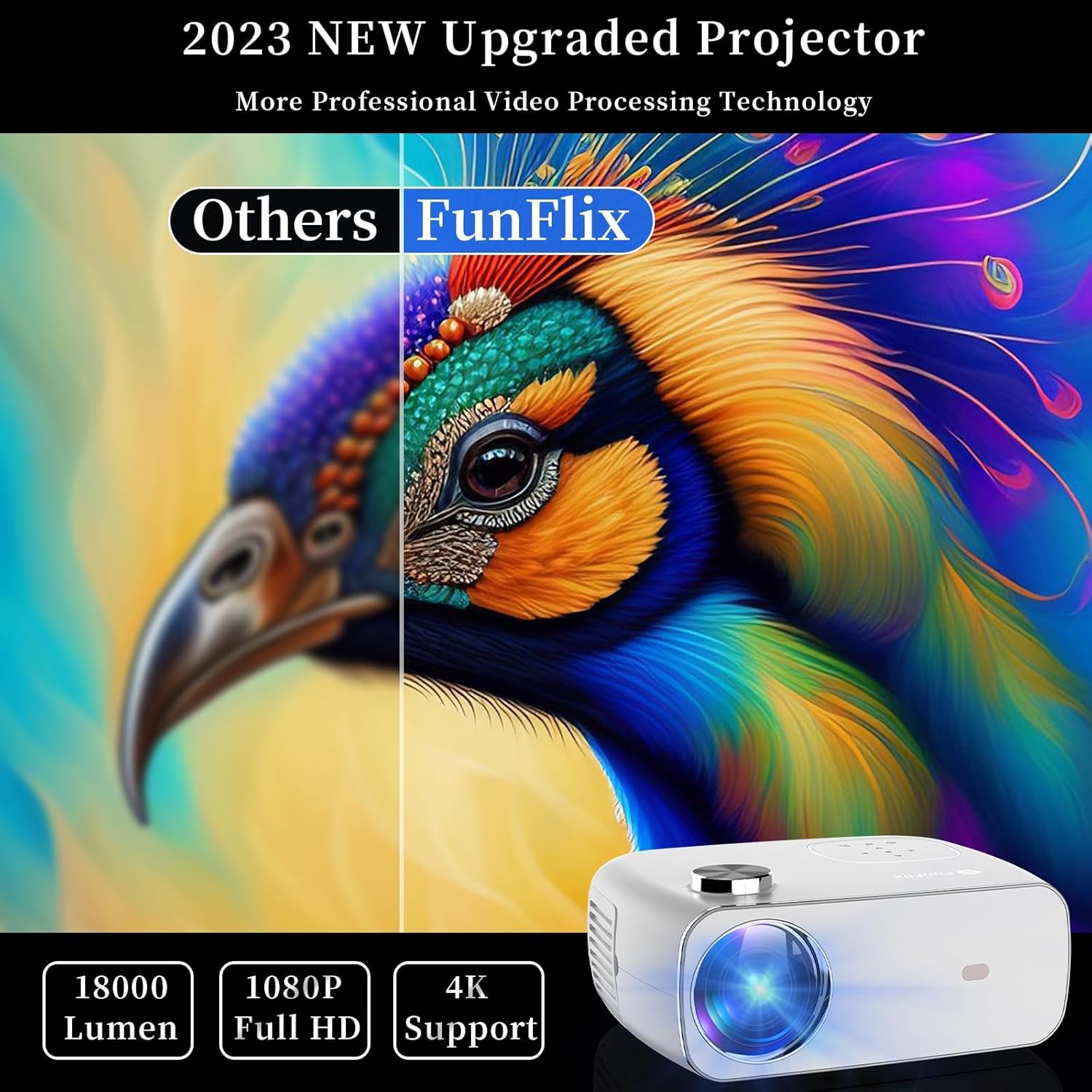
Figure 3.1: FunFlix Projector Front View

Figure 3.2: 5G WiFi Wireless Connectivity

Figure 3.3: Bluetooth 5.2 Connection
4. Setup
4.1 Placement
Place the projector on a stable, flat surface. Ensure there are no obstructions around the ventilation vents. For optimal viewing, position the projector perpendicular to the projection surface.
4.2 Power Connection
Connect the provided power cord to the projector's power input port and then plug it into a power outlet.
4.3 Focus and Keystone Correction
Adjust the focus ring on the top of the projector until the image is clear. Use the keystone correction slider on the side of the projector to correct trapezoidal distortion if the projector is not perfectly aligned with the screen.

Figure 4.1: Focus and Keystone Adjustment
4.4 Projection Size Adjustment
The projector supports screen sizes from 50 to 300 inches. Adjust the distance between the projector and the screen to achieve your desired projection size.

Figure 4.2: Projection Size Options
5. Operating Instructions
5.1 Power On/Off
Press the power button on the projector or the remote control to turn the device on or off. The power indicator light will change accordingly.
5.2 Menu Navigation
Use the arrow keys on the projector's control panel or the remote control to navigate through the menu options. Press the 'OK' button to confirm selections.
5.3 Input Source Selection
Press the 'Source' button on the remote or the projector to select the desired input source (HDMI1, HDMI2, USB, AV).
5.4 Wireless Connectivity (Screen Mirroring)
The projector supports 5G WiFi for seamless screen mirroring from iOS and Android devices.
- Connect to WiFi: Navigate to Network Settings in the projector menu and connect to your desired 2.4G or 5G WiFi network. Ensure your mobile device is connected to the same network.
- iOS Screen Mirroring: Select 'iOS Cast' from the home screen. On your iOS device, open Control Center and tap 'Screen Mirroring'. Select the projector from the list.
- Android Screen Mirroring: Select 'Miracast' from the home screen. On your Android device, enable 'Smart View' or 'Wireless Display' and select the projector from the detected devices.
5.5 Bluetooth Audio Connection
To connect external Bluetooth speakers or headphones:
- Enable Bluetooth on your external audio device and set it to pairing mode.
- On the projector, navigate to System Settings and select 'Bluetooth'.
- Select 'Search Device' and choose your audio device from the list to pair.
5.6 Media Playback from USB
Insert a USB drive into the USB port. Select 'Multimedia' from the home screen to browse and play supported media files (videos, photos, music).
5.7 Video Demonstrations
Watch these official seller videos for visual guidance on using your FunFlix projector:
Video 5.1: FunFlix Mini Projector Overview and Features
Video 5.2: FunFlix Portable Projector Setup and Usage
6. Specifications
| Feature | Detail |
|---|---|
| Brand | FunFlix |
| Model Number | RD-882 |
| Display Resolution | 1920 x 1080 (Native 1080P) |
| Brightness | 9500L |
| Connectivity Technology | Bluetooth, HDMI, USB, Wi-Fi (5G) |
| Special Feature | Speakers |
| Recommended Uses | Gaming, Home Entertainment |
| Item Weight | 3.52 pounds |
| Product Dimensions | 9.57 x 7.87 x 3.98 inches |
| Lamp Life | Up to 150,000 Hours |
7. Maintenance
7.1 Lens Cleaning
Gently clean the projector lens with a soft, lint-free cloth. Avoid using abrasive cleaners or excessive force, as this may scratch the lens.
7.2 Ventilation
Ensure the projector's ventilation vents are clear of dust and debris to prevent overheating. Regular cleaning with a soft brush or compressed air is recommended.
7.3 Storage
When not in use, store the projector in a cool, dry place away from direct sunlight and extreme temperatures. Use the original packaging or a protective case to prevent damage.
7.4 Lamp Life
The projector's LED lamp has an estimated lifespan of up to 150,000 hours, providing long-lasting performance.
8. Troubleshooting
8.1 No Picture or Blurry Image
- Check the focus ring and keystone correction slider.
- Ensure the correct input source is selected.
- Verify all cables are securely connected.
8.2 No Sound
- Adjust the volume on the projector and your source device.
- Check if the projector or source device is muted.
- If using external speakers, ensure they are properly connected via Bluetooth or audio cable.
8.3 Remote Control Not Working
- Replace the batteries in the remote control.
- Ensure there are no obstructions between the remote and the projector's IR receiver.
8.4 Wireless Connection Issues
- Ensure both the projector and your mobile device are connected to the same 2.4G or 5G WiFi network.
- Restart both the projector and your mobile device.
- For Bluetooth, ensure the audio device is in pairing mode and within range.
9. Warranty and Support
Your FunFlix projector comes with a standard manufacturer's warranty. For detailed warranty information, technical support, or service inquiries, please refer to the contact information provided on the FunFlix official website or your purchase documentation.


