
1. Introduction
Thank you for choosing the Intex Multimedia Trolley Speaker T-300 Pro. This portable Bluetooth speaker is designed to deliver powerful audio with versatile connectivity options. This manual provides essential information for setting up, operating, and maintaining your speaker to ensure optimal performance and longevity. Please read this manual thoroughly before use and retain it for future reference.
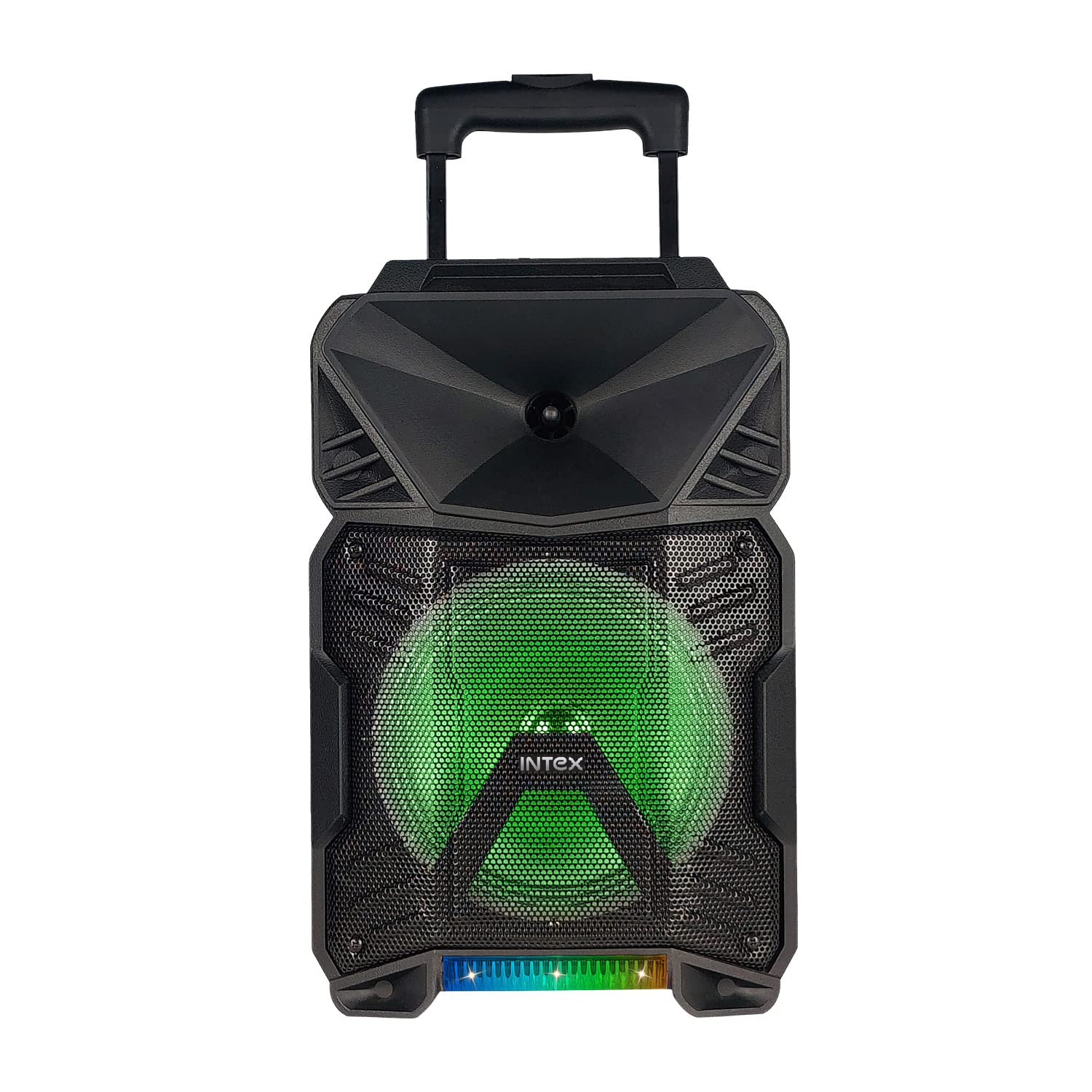
Figure 1.1: The Intex T-300 Pro Multimedia Trolley Speaker. This image shows the front view of the speaker with its extendable handle, main speaker grille, and decorative dancing woofer light at the bottom.
2. Package Contents
Please check the box for the following items:
- Intex T-300 Pro Speaker Unit
- Wireless Microphone
- Remote Control
- Remote Control Battery
- User Manual (this document)
3. Product Features
The Intex T-300 Pro Multimedia Trolley Speaker offers a range of features for an enhanced audio experience:
- Powerful Audio Output: 30W sound output with an 8-inch woofer for deep bass.
- Bluetooth 5.0 Connectivity: Seamless wireless audio streaming from compatible devices.
- Multiple Playback Modes: Inbuilt FM radio, USB playback, and Auxiliary input.
- Recording Feature: Record audio directly to a USB drive.
- Wireless Microphone: Included for karaoke or public address functions.
- Dancing Woofer Light: Integrated decorative lights that synchronize with music.
- Portable Design: Trolley handle and wheels for easy transportation.

Figure 3.1: Versatile usage scenarios for the Intex T-300 Pro speaker, including karaoke, outdoor picnics, exercise sessions, and educational activities.

Figure 3.2: The Intex T-300 Pro speaker being easily transported by a person, demonstrating its portable trolley design.
4. Setup
4.1 Initial Charging
The speaker contains a built-in rechargeable Lithium Metal battery. Before first use, it is recommended to fully charge the speaker for approximately 4-6 hours. Connect the power cable to the speaker's charging port and plug it into a standard power outlet. The charging indicator will illuminate during charging and turn off or change color when fully charged.
4.2 Powering On/Off
Locate the Power button on the speaker's control panel. Press and hold the Power button for a few seconds to turn the speaker ON or OFF. A voice prompt or indicator light will confirm the status.
4.3 Connecting the Wireless Microphone
Insert the provided battery into the wireless microphone. Turn on the microphone using its power switch. The microphone will automatically pair with the speaker. Adjust the microphone volume using the dedicated control on the speaker's panel.
5. Operating Instructions
5.1 Mode Selection
Press the 'MODE' button on the speaker's control panel or the remote control to switch between available input modes: Bluetooth, FM Radio, USB, and AUX.
5.2 Bluetooth Mode
- Turn on the speaker and switch to Bluetooth mode. A voice prompt will indicate 'Bluetooth Mode' and the speaker will enter pairing mode.
- Enable Bluetooth on your mobile phone or other Bluetooth-enabled device.
- Search for 'Intex T-300 Pro' in the list of available devices and select it to pair.
- Once paired, a voice prompt will confirm the connection. You can now play audio from your device through the speaker.
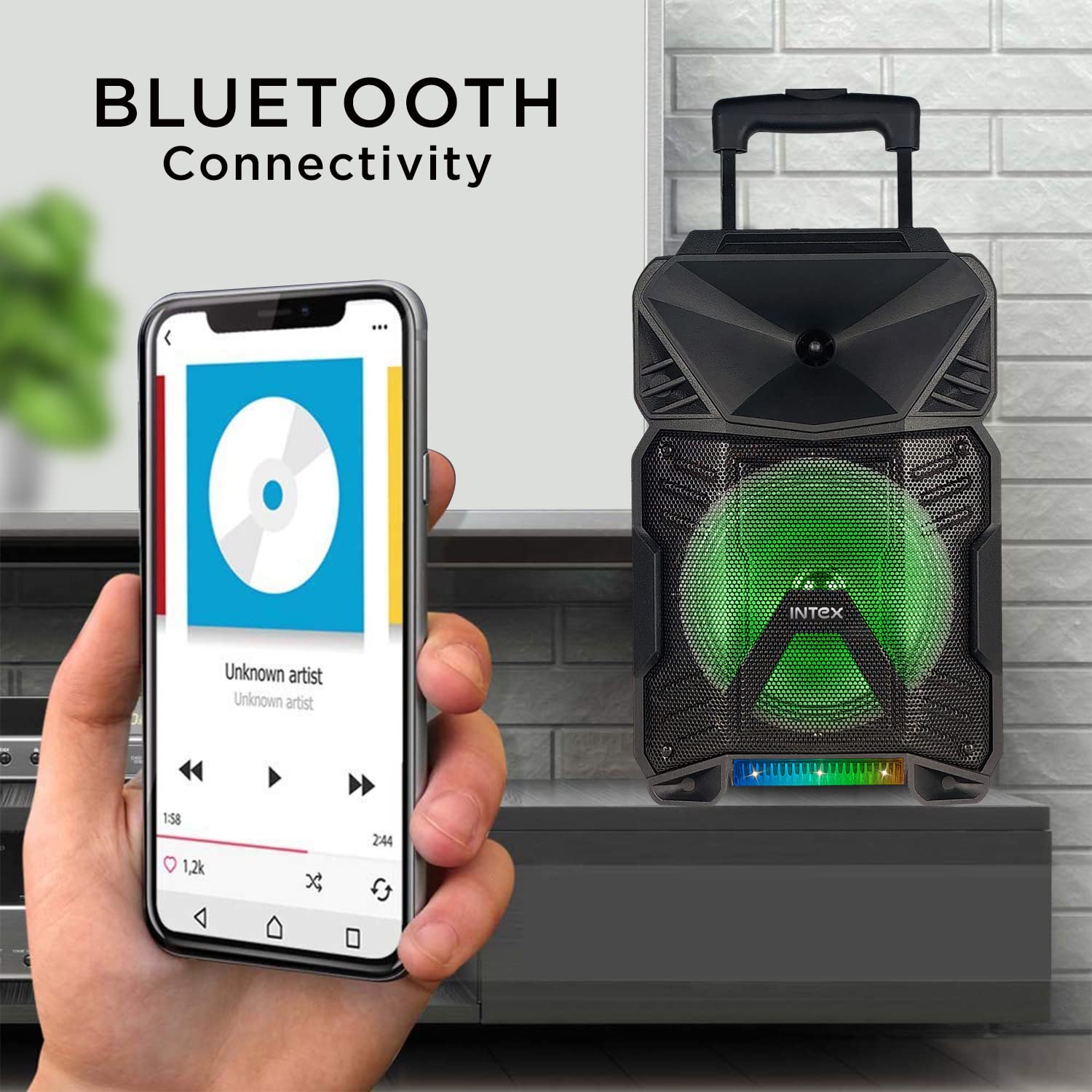
Figure 5.1: A smartphone connected to the Intex T-300 Pro speaker via Bluetooth, illustrating wireless music playback.
5.3 FM Radio Mode
- Switch the speaker to FM Radio mode using the 'MODE' button.
- Press the 'SCAN' button (or equivalent on remote) to automatically scan and save available FM stations.
- Use the 'Previous/Next' buttons to navigate between saved stations.
5.4 USB Playback
- Insert a USB flash drive into the designated USB port on the speaker.
- The speaker will automatically switch to USB mode and begin playing audio files (MP3, WAV, etc.) from the drive.
- Use the 'Play/Pause', 'Previous/Next' buttons on the speaker or remote to control playback.
5.5 Recording Feature
To use the recording function, ensure a USB drive is inserted. Connect the wireless microphone. Press the 'REC' button on the speaker or remote control to start recording. Press it again to stop recording. The recorded audio will be saved on the USB drive.
5.6 Remote Control
The included remote control provides convenient access to all speaker functions from a distance. Ensure the remote control battery is correctly inserted. Point the remote control towards the speaker's IR receiver.
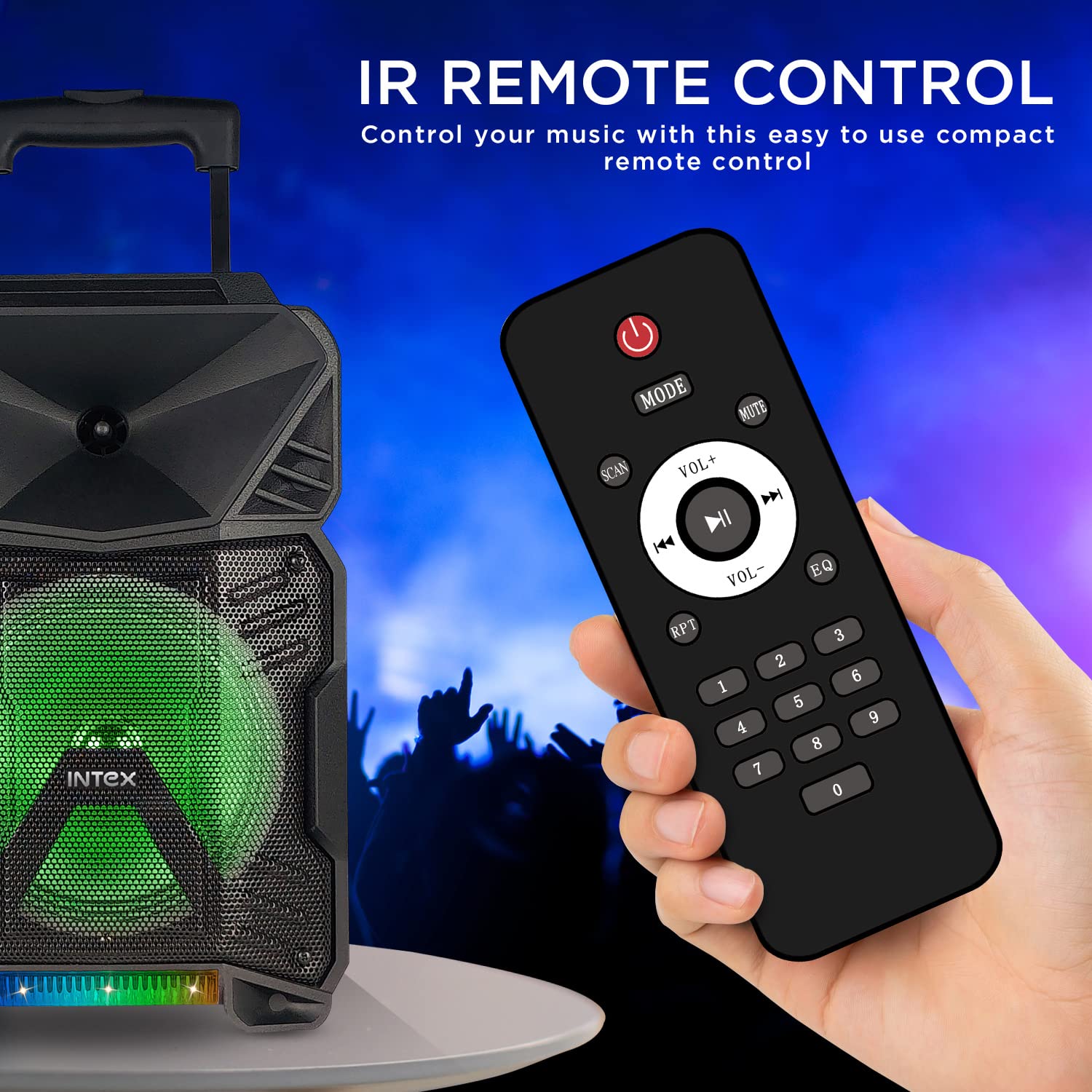
Figure 5.2: A hand holding the infrared remote control for the Intex T-300 Pro speaker, showing its various buttons for mode selection, volume, playback, and other functions.
5.7 Dancing Woofer Light
The speaker features a decorative light system around the woofer that can pulse with the music. This feature is typically activated automatically or can be toggled using a dedicated button on the speaker or remote control (refer to the specific button labeled 'Light' or 'LED').
6. Maintenance
6.1 Cleaning
Wipe the speaker's exterior with a soft, dry cloth. Do not use abrasive cleaners, waxes, or solvents as they may damage the finish. Avoid spraying liquids directly onto the speaker.
6.2 Storage
When not in use for extended periods, store the speaker in a cool, dry place away from direct sunlight and extreme temperatures. It is advisable to partially charge the battery every few months to maintain its health.
6.3 Battery Care
To prolong battery life, avoid fully discharging the speaker frequently. Charge the speaker regularly, even if not in constant use. Do not expose the battery to high temperatures or attempt to disassemble it.
Important: This product is NOT water resistant. Avoid exposure to water or moisture to prevent damage.
7. Troubleshooting
If you encounter any issues with your Intex T-300 Pro speaker, please refer to the following common problems and solutions:
- No Power:
- Ensure the speaker is charged. Connect it to a power source and allow it to charge for some time.
- Check if the power cable is securely connected to both the speaker and the power outlet.
- No Sound:
- Increase the volume on both the speaker and the connected audio source (e.g., phone, USB).
- Ensure the correct input mode (Bluetooth, USB, FM, AUX) is selected.
- If using Bluetooth, ensure the device is properly paired and connected.
- If using USB, check if the audio files are in a supported format and not corrupted.
- Bluetooth Disconnection/Cannot Pair:
- Ensure the speaker is in Bluetooth pairing mode.
- Move your Bluetooth device closer to the speaker.
- Turn off Bluetooth on your device and the speaker, then turn them back on and try pairing again.
- Clear the speaker from your device's Bluetooth history and re-pair.
- Microphone Not Working:
- Ensure the microphone is turned ON and has a working battery.
- Adjust the microphone volume control on the speaker.
- Remote Control Not Responding:
- Ensure the remote control battery is correctly inserted and not depleted. Replace if necessary.
- Point the remote directly at the speaker's IR receiver.
- Ensure there are no obstructions between the remote and the speaker.
8. Specifications
| Feature | Specification |
|---|---|
| Model Name | Multimedia Trolly Speaker T-300 Pro |
| Model Number | 1112-3000-028 |
| Brand | Intex |
| Speaker Type | Tower |
| Mounting Type | Floor Standing |
| Material | Plastic |
| Speaker Nominal Output Power | 30 Watts |
| Woofer Diameter | 8 Inches |
| Tweeter Diameter | 2.28 Inches |
| Impedance | 4 Ohm |
| Signal-to-Noise Ratio | 60 dB |
| Frequency Response | 20 KHz |
| Wireless Communication Technology | Bluetooth 5.0 |
| Connectivity Technology | USB, Bluetooth, Auxiliary |
| Power Source | Battery Powered |
| Battery Type | Lithium Metal (1 included) |
| Control Method | Remote, On-device controls |
| Product Dimensions (D x W x H) | 21D x 26W x 41.5H Centimeters |
| Item Weight | 4.8 kg (4800 Grams) |
| Water Resistance Level | Not Water Resistant |
9. Warranty Information
The Intex Multimedia Trolley Speaker T-300 Pro comes with a 1-year limited warranty from the date of purchase. This warranty covers manufacturing defects and workmanship under normal use. It does not cover damage caused by misuse, accidents, unauthorized modifications, or normal wear and tear. Please retain your purchase receipt as proof of purchase for warranty claims.
10. Customer Support
For any queries, technical assistance, or warranty claims, please contact Intex Customer Care:
- Manufacturer: Intex Technologies (India) Ltd
- Address: A-61, Okhla Industrial Area, Phase-2, Okhla, New Delhi-110020, India
- Customer Care No.: 0120 4895555
- Email: care@intex.in


