
Douk Audio VU4
Douk Audio VU4 4-Channel Analog VU Meter & Audio Switcher Instruction Manual
Model: VU4
1. Introduction
The Douk Audio VU4 is a versatile 4-channel analog VU meter and audio switcher designed for professional sound level monitoring and EQ analysis. It features both RCA and XLR inputs and outputs, offering flexible connectivity for various audio setups. This manual provides detailed instructions for setup, operation, and maintenance of your VU4 unit.
2. Key Features
- VU Mode: Real-time stereo audio input level monitoring with two groups of VU meters. Each channel corresponds to a meter for easy music level monitoring.
- EQ Mode: Four VU meters display specific frequency values (100Hz, 1KHz, 3.3KHz, 10KHz), functioning as a music spectrum analyzer.
- Versatile Connectivity: Includes two groups of RCA and balanced XLR inputs and outputs, alongside MIC pickup. All channels operate independently.
- Dynamic Design: Pointers respond to audio rhythm, complemented by an orange backlight.
- Advanced Controls: Independent GAIN adjustment, input selector, and remote control. Settings are retained after power-off. Gold-plated interfaces ensure secure connections.
3. Package Contents
Please verify that all items are present in the package:
- 1x Douk Audio VU4 VU Meter
- 1x Remote Control (batteries not included)
- 1x DC 12V Power Adapter (US/EU/AU/UK Optional)

Image: Contents of the Douk Audio VU4 package, showing the VU meter unit, remote control, and power adapter.
4. Product Overview
4.1 Front Panel Controls

Image: Front panel of the Douk Audio VU4, highlighting controls such as Gain, Source selection, VU meter ON/OFF, Working Mode (VU/EQ), and EQ input signal selection.
- VU-I / VU-II Gain Control: Adjusts the signal gain for the respective VU meter group.
- VU-I / VU-II Source Switch: Selects the input source for the respective VU meter group (valid only in VU Mode).
- VU-I / VU-II ON/OFF: Toggles the display for each VU meter group.
- MODE (VU/EQ) Button: Switches between VU Mode and EQ Mode.
- SOURCE (EQ) Button: Selects the input signal for EQ Mode (M=MIC, 1=Group 1 Audio Input, 2=Group 2 Audio Input).
- Power Button: Short press to turn on, long press (3 seconds) to turn off.
- Infrared (IR) Receiver: For remote control signals.
4.2 Rear Panel Connections

Image: Rear panel of the Douk Audio VU4, showing RCA and XLR input/output ports for Group 1 and Group 2, VU input level adjust screws, and the DC 12V power input.
- INPUT 1 (RCA/XLR): Audio input for Group 1.
- OUTPUT 1 (RCA/XLR): Audio output for Group 1.
- INPUT 2 (RCA/XLR): Audio input for Group 2.
- OUTPUT 2 (RCA/XLR): Audio output for Group 2.
- VU Input Level Adjust (VR): Screws for fine-tuning the VU meter sensitivity for each group.
- DC 12V/1A: Power input port.
5. Setup Instructions
5.1 Connecting Audio Sources and Outputs
- Identify your audio source (e.g., PC, CD player, tablet) and your audio output device (e.g., amplifier, preamp, active speakers).
- Connect your audio source to either INPUT 1 or INPUT 2 on the rear panel using appropriate RCA or XLR cables.
- Connect your audio output device to the corresponding OUTPUT 1 or OUTPUT 2 using RCA or XLR cables.
- Ensure all connections are secure.

Image: Rear panel of the Douk Audio VU4 with RCA and XLR cables connected to input and output ports, demonstrating typical audio signal flow.
5.2 Power Connection
- Connect the provided DC 12V power adapter to the DC 12V/1A port on the rear panel.
- Plug the power adapter into a suitable wall outlet.
Video: This video demonstrates the connection process for the Douk Audio VU4, including connecting audio sources via RCA/XLR and plugging in the power adapter. It also shows the unit's operation in both VU and EQ modes, gain adjustment, and backlight control.
6. Operating Instructions
6.1 Power On/Off
- To turn on the unit, short press the Power Button on the front panel.
- To turn off the unit, long press the Power Button for approximately 3 seconds.
6.2 VU Mode Operation
In VU Mode, the meters display the real-time stereo audio input levels (Left/Right channels).
- Press the MODE (VU/EQ) Button until the VU indicator light is illuminated.
- Use the VU-I Source Switch and VU-II Source Switch to select the desired input group (Input 1 or Input 2) for each pair of meters.
- The meters will now display the audio levels of the selected input.
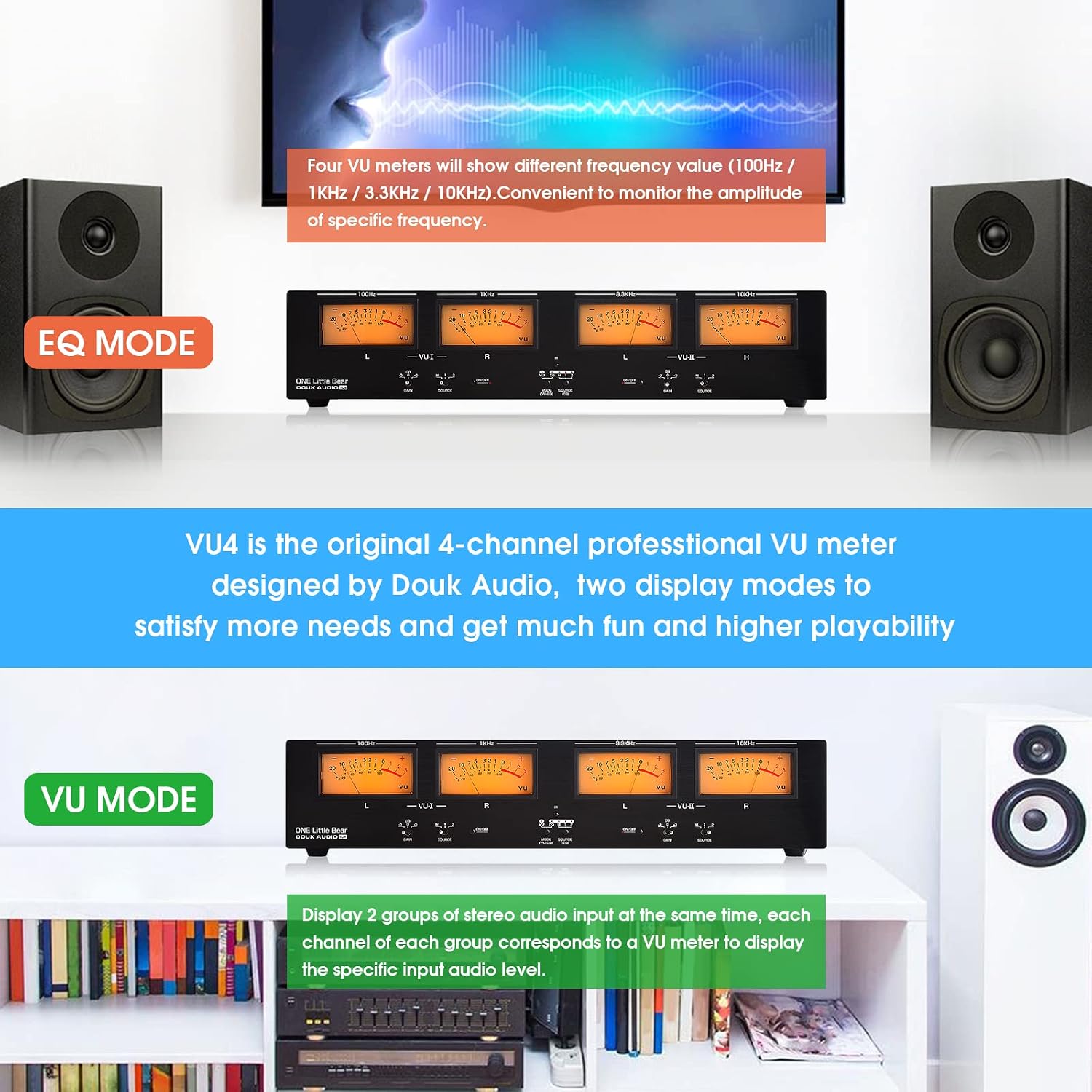
Image: Comparison of EQ Mode and VU Mode on the Douk Audio VU4. In VU Mode, the meters show stereo audio input levels.

Image: Examples of different working statuses in VU Mode, showing various combinations of active VU meter groups and gain settings.
6.3 EQ Mode Operation
In EQ Mode, the four meters display the amplitude of specific frequency bands (100Hz, 1KHz, 3.3KHz, 10KHz).
- Press the MODE (VU/EQ) Button until the EQ indicator light is illuminated.
- Use the SOURCE (EQ) Button to select the input source for frequency analysis: 'M' for MIC, '1' for Group 1 Audio Input, or '2' for Group 2 Audio Input.
- The meters will now display the frequency spectrum of the selected input.
6.4 Gain Adjustment
The GAIN switches for VU-I and VU-II allow you to adjust the sensitivity of the VU meters. Available settings are -3dB, 0dB, and +3dB. This controls the needle movement range.

Image: Close-up of the Douk Audio VU4 front panel, showing the Gain switch with -3dB, 0dB, and +3dB settings.
6.5 VU Meter ON/OFF
Each pair of VU meters (VU-I and VU-II) can be individually turned on or off using their respective ON/OFF buttons on the front panel.
6.6 Backlight Adjustment
The backlight level can be adjusted using the remote control. Options typically include 100%, 80%, 50%, and OFF.
6.7 Remote Control
The included remote control allows for convenient adjustment of various settings from a distance, including mode selection, input source, and backlight level. Ensure batteries are installed correctly.
7. Maintenance
- Keep the unit clean by wiping with a soft, dry cloth. Avoid using liquid cleaners or solvents.
- Ensure proper ventilation around the unit to prevent overheating.
- Store the unit in a cool, dry place when not in use for extended periods.
8. Troubleshooting
| Problem | Possible Cause | Solution |
|---|---|---|
| No power | Power adapter not connected or faulty; unit not turned on. | Check power connections. Ensure the power button is pressed correctly. Try a different outlet. |
| No meter movement | No audio input; incorrect input selected; VU meter group turned off. | Verify audio source is playing. Select the correct input group. Ensure the VU meter ON/OFF switch is engaged. Adjust input level (VR screws on rear). |
| Meters not responding accurately | Incorrect gain setting; input level too low/high. | Adjust the GAIN switch (-3dB, 0dB, +3dB). Use the VU Input Level Adjust (VR) screws on the rear panel for fine-tuning. |
| Remote control not working | Batteries depleted or incorrectly inserted; obstruction between remote and unit. | Replace remote batteries. Ensure line of sight to the IR receiver. |
9. Specifications
| Feature | Detail |
|---|---|
| Model | VU4 |
| Input/Output | RCA, XLR (2 groups each) |
| VU Modes | Stereo Audio Level (L/R), Frequency Spectrum (100Hz, 1KHz, 3.3KHz, 10KHz) |
| Gain Adjustment | -3dB, 0dB, +3dB |
| Power Supply | DC 12V/1A |
| Package Dimensions | 22.83 x 6.46 x 4.88 inches |
| Item Weight | 4.99 pounds |
| Manufacturer | Douk Audio |
10. Safety Information
- Do not expose the unit to water or excessive moisture.
- Avoid placing the unit near heat sources or in direct sunlight.
- Do not attempt to open or repair the unit yourself. Refer all servicing to qualified personnel.
- Use only the provided power adapter or a compatible replacement.
11. Warranty and Support
For warranty information and technical support, please refer to the official Douk Audio website or contact your retailer. Keep your purchase receipt for warranty claims.
Related documentsVU4


Ask a question about this manual
Ask about setup, troubleshooting, compatibility, parts, safety, or missing instructions. Manuals+ will review the question and use this page’s manual context to help answer it.