
1. Introduction
This manual provides essential information for the setup, operation, and maintenance of your Arducam 12.3MP IMX477 Motorized Focus High-Quality Camera Module. This camera module is designed for use with various Raspberry Pi models, offering advanced imaging capabilities with software-controlled focus.
Key features include:
- High Resolution: Features a 12.3MP IMX477 sensor, supporting 4056 x 3040 pixel still images and various video modes.
- Motorized Focus: Integrated motor allows for precise, software-controlled focusing, eliminating manual lens adjustment.
- Wide Compatibility: Compatible with Raspberry Pi 5, 4 Model B, Pi 3/3B+, and Pi Zero 2W.
- M12 Lens: Equipped with a 75°(H) M12 lens.
2. Product Overview
The Arducam IMX477 Motorized Focus HQ Camera Module package includes:
- Arducam 12.3MP IMX477 Camera Module with M12 Lens
- One 300mm 15-22 pin FPC cable for Raspberry Pi 1-4 connection
- One 300mm 22-22 pin FPC cable for Raspberry Pi Zero and Compute Module connection

Image 2.1: Arducam IMX477 Camera Module with a ribbon cable.

Image 2.2: The camera module packaged with two different FPC cables for various Raspberry Pi models.
3. Setup
Follow these steps to set up your Arducam IMX477 camera module with your Raspberry Pi:
- Hardware Connection:
- Connect the appropriate FPC cable (15-22 pin for Pi 1-4, 22-22 pin for Pi Zero/Compute Module) to the camera module's CSI port.
- Connect the other end of the FPC cable to the CSI camera port on your Raspberry Pi. Ensure the silver contacts on the cable face the correct direction (typically towards the Ethernet port on Pi 4, or away from the USB ports on Pi Zero).

Image 3.1: Camera module connected to a Raspberry Pi Zero.

Image 3.2: Camera module connected to a Raspberry Pi 4.
- Software Configuration (Raspberry Pi OS Bookworm on Pi 5):
For Raspberry Pi Bookworm users running on Pi 5, the following modifications to
config.txtare required:- Open the configuration file:
sudo nano /boot/firmware/config.txt - Locate the line:
camera_auto_detect=1and change it to:camera_auto_detect=0 - Under the
[all]section, add the following line:dtoverlay=imx477 - If enabling the camera on the
cam0port of Pi 5, replacedtoverlay=imx477with:dtoverlay=imx477,cam0 - Save the changes and exit the editor.
- Open the configuration file:
- Software Configuration (Raspberry Pi OS Bookworm/Bullseye on Pi 4, Pi 0-3):
For these models, refer to the specific instructions provided with your product parcel for detailed configuration steps. Ensure you are using the latest Bullseye (released Jan 28th, 2022) or newer Raspberry Pi OS and the
libcamerastack. - Reboot: After any configuration changes, a system reboot is necessary for the changes to take effect. Use:
sudo reboot
4. Operating Instructions
The Arducam IMX477 camera module features a motorized focus lens, allowing for software-controlled focus adjustments. This eliminates the need for manual rotation of the lens.
- Focus Control: With a simple script configuration, you can use keyboard inputs (e.g., up/down arrow keys) to remotely and precisely adjust the focus of objects. Advanced users can integrate focus control into applications using libraries like OpenCV.
- Image and Video Capture: Utilize the
libcameratools (e.g.,libcamera-stillfor photos,libcamera-vidfor video) to capture images and video from the camera module. Refer to the official Raspberry Pi documentation for detailed usage of these commands.
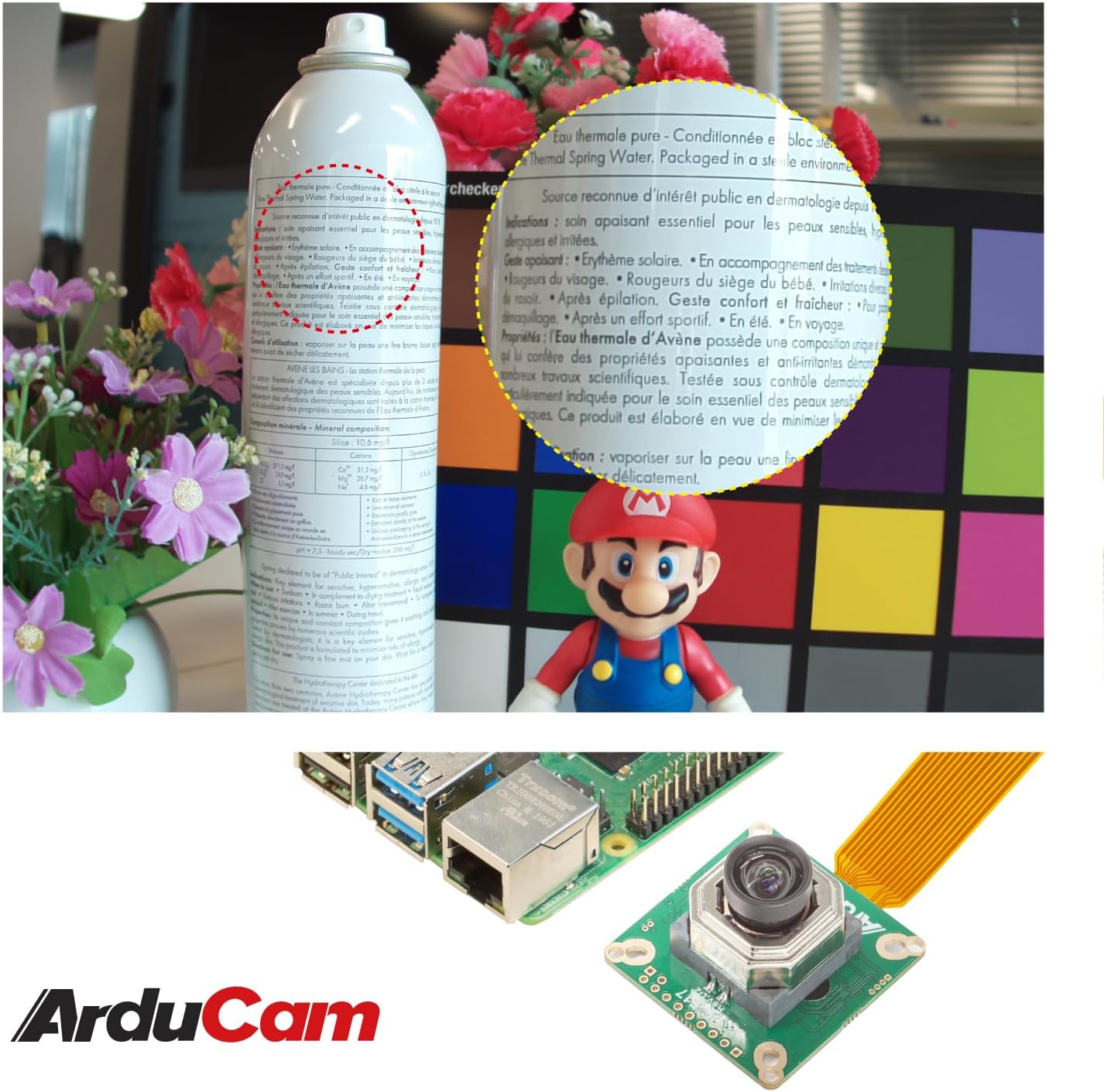
Image 4.1: Example of the camera's focusing capability, showing clear text on a distant object.
5. Maintenance
Proper maintenance ensures the longevity and optimal performance of your camera module:
- Lens Cleaning: Use a soft, lint-free cloth or a specialized lens cleaning solution to gently clean the lens surface. Avoid abrasive materials or harsh chemicals.
- Dust Protection: When not in use, store the camera module in a clean, dust-free environment. Consider using a lens cap if available.
- Handling: Handle the camera module by its edges to avoid touching the sensor or lens directly. Static electricity can damage electronic components.
- Environmental Conditions: Operate and store the camera within recommended temperature and humidity ranges to prevent damage.
6. Troubleshooting
If you encounter issues with your Arducam IMX477 camera module, consider the following troubleshooting steps:
- Camera Not Detected:
- Verify that the FPC cable is securely connected at both the camera module and Raspberry Pi ends. Ensure the cable is inserted with the silver contacts facing the correct direction.
- Check your
config.txtfile for correct configuration lines as detailed in the Setup section (e.g.,camera_auto_detect=0,dtoverlay=imx477). - Ensure you have rebooted your Raspberry Pi after making any software configuration changes.
- Confirm your Raspberry Pi OS version is Bullseye (released Jan 28th, 2022) or newer, and you are using the
libcamerastack. This module is not compatible with older (Legacy) camera drivers.
- Focus Issues:
- Ensure your focus control script is running correctly and sending the appropriate commands to the camera module.
- Check for any physical obstructions or damage to the lens or motorized focus mechanism.
- Image Quality Problems:
- Clean the lens surface as described in the Maintenance section.
- Adjust lighting conditions.
- Verify camera settings (e.g., exposure, white balance) in your capture application.
7. Specifications
| Sensor | 1/2.3" IMX477 |
| Resolution | 12.3 Megapixels (4056 x 3040) |
| Lens Type | M12 Motorized Focus Lens |
| Field of View (FOV) | 75° (Horizontal) |
| Photo Sensor Technology | CMOS |
| Maximum Focal Length | 300 Millimeters |
| Maximum Aperture | f/4 |
| Video Capture Resolution | 4056 x 3040 |
| Compatibility | Raspberry Pi 5, 4 Model B, 3/3B+, Zero 2W |
| Operating System | Raspberry Pi OS (or other Linux distribution) |
| Item Model Number | Arducam_RPi_HQ_Camera |
| Item Weight | 1.13 ounces |
| Package Dimensions | 1.73 x 1.65 x 1.57 inches |
8. Warranty and Support
For warranty information and technical support, please refer to the official Arducam website or contact Arducam customer service directly. Keep your purchase receipt for any warranty claims.
You can find additional resources and community support through the Raspberry Pi forums and Arducam's online documentation.


