
Epson ET-2803
Epson EcoTank ET-2803 All-in-One Printer User Manual
Model: ET-2803
Introduction
This manual provides comprehensive instructions for the setup, operation, and maintenance of your Epson EcoTank ET-2803 All-in-One Color Inkjet Printer. The ET-2803 is designed for home and small office use, offering print, scan, and copy functionalities with a cartridge-free ink tank system for significant cost savings.

Image: The Epson EcoTank ET-2803 printer, shown in white, with its accompanying ink bottles (black, cyan, magenta, yellow) and a USB printer cable. The printer features a front paper tray and an LCD display.
Product Features
- Cartridge-Free EcoTank System: High-capacity ink tanks eliminate the need for traditional ink cartridges, offering substantial savings on replacement ink.
- All-in-One Functionality: Print, scan, and copy capabilities for versatile document handling.
- Wireless Connectivity: Easily print from computers, smartphones, and tablets via Wi-Fi and Apple AirPrint.
- High-Resolution Printing: Achieve sharp text and vibrant color photos with up to 5760 x 1440 dpi resolution.
- Borderless Photo Printing: Print professional-looking photos without white margins.
- LCD Display: A color LCD display for intuitive navigation and operation.
- Micro Piezo Heat-Free Technology: Ensures reliable performance and high-quality output.

Image: An infographic highlighting key features of the EcoTank ET-2803, including print speeds (10 black ISO ppm, 5 color ISO ppm), Wi-Fi connectivity, 100-sheet paper capacity, 1.44-inch color display, and mobile printing capabilities, with a smartphone displaying the Epson Smart Panel app.
What's in the Box
Upon opening the package, ensure all the following items are present:
- Epson EcoTank ET-2803 All-in-One Printer
- Set of 4 EcoTank Ink Bottles (Black, Cyan, Magenta, Yellow)
- Power Cord
- USB Printer Cable (if bundled)
- Setup Guide
- CD-ROM for printer software (Windows only)
Setup Guide
1. Unpacking and Initial Preparation
- Remove the printer from its packaging and remove all protective materials, tapes, and stickers from the exterior and interior of the printer.
- Place the printer on a flat, stable surface near a power outlet.
2. Filling the Ink Tanks
The EcoTank system uses ink bottles for refilling. Follow these steps carefully to avoid spills.
- Open the ink tank unit cover on the right side of the printer.
- Open the cap for the black ink tank.
- Uncap the black ink bottle. The bottles are keyed to fit only the correct color tank.
- Insert the ink bottle into the filling port. The ink will automatically start to fill the tank. Do not squeeze the bottle.
- Once the tank is full, the ink will stop flowing. Remove the bottle and securely close the ink tank cap.
- Repeat this process for the Cyan, Magenta, and Yellow ink tanks.
- Close the ink tank unit cover.

Image: A hand holding an Epson ink bottle, inserting it into the designated ink tank port on the side of the EcoTank printer. The ink tanks are clearly visible with their respective color labels (Yellow, Magenta, Cyan).
3. Power On and Initial Ink Charging
- Connect the power cord to the printer and then to a power outlet.
- Press the power button to turn on the printer.
- Follow the on-screen instructions on the LCD panel to select your language and initiate the ink charging process. This process can take approximately 10-15 minutes. Do not turn off the printer or disconnect power during this time.
4. Loading Paper
- Pull out the paper cassette from the front of the printer.
- Adjust the paper guides to the size of your paper.
- Load up to 100 sheets of plain paper or appropriate photo paper into the cassette, print side down.
- Slide the paper cassette back into the printer.
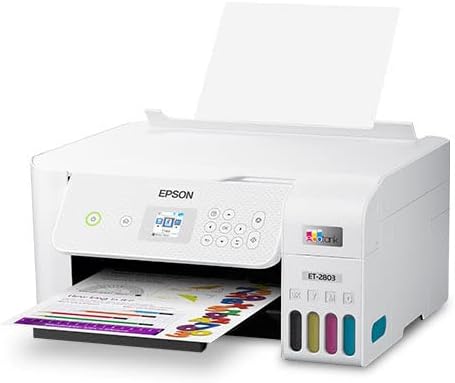
Image: The Epson EcoTank ET-2803 printer from a slight angle, showing paper loaded in the front paper tray, ready for printing. The printer's control panel and ink tanks are visible.
5. Software Installation
- For Windows: Insert the provided CD-ROM into your computer's CD/DVD drive and follow the on-screen instructions. If your computer does not have a CD/DVD drive, or for the latest drivers, proceed to the next step.
- For Windows/macOS: Visit the official Epson support website (support.epson.com) and search for "ET-2803". Download and run the latest driver and software package.
- Follow the installer prompts to connect your printer to your computer via USB or set up wireless connectivity.
Operating the Printer
Control Panel Overview

Image: A close-up view of the Epson EcoTank ET-2803's control panel, featuring a small color LCD screen displaying menu options, power button, home button, directional arrows, OK button, back button, and start buttons for black and white or color operations.
The control panel features a 1.44-inch color LCD screen and various buttons for navigating menus and initiating functions:
- Power Button: Turns the printer on or off.
- Home Button: Returns to the main menu.
- Directional Arrows (Up, Down, Left, Right): Navigate through menu options.
- OK Button: Confirms selections.
- Back Button: Returns to the previous screen.
- Start Buttons (Black & White / Color): Initiate copy or scan operations.
Printing from a Computer
- Ensure the printer is connected to your computer via USB or Wi-Fi.
- Open the document or image you wish to print.
- Select "Print" from the application's File menu.
- Choose "Epson ET-2803 Series" as your printer.
- Adjust print settings (paper size, type, quality, color/grayscale) as needed.
- Click "Print".
Wireless Printing (Epson Smart Panel App)
The Epson Smart Panel app allows you to print, scan, and copy directly from your smartphone or tablet.
- Download the Epson Smart Panel app from your device's app store (Google Play Store for Android, Apple App Store for iOS).
- Ensure your mobile device is connected to the same Wi-Fi network as your printer.
- Open the app and follow the on-screen instructions to connect to your ET-2803 printer.
- Select the desired function (Print Documents, Print Photos, Scan, Copy) and follow the prompts.

Image: A smartphone displaying the Epson Smart Panel app interface, with Wi-Fi signals indicating wireless connection to the Epson EcoTank ET-2803 printer, which is actively printing a document.
Copying Documents
- Lift the scanner lid.
- Place the document face-down on the scanner glass, aligning it with the corner mark.
- Close the scanner lid gently.
- On the printer's control panel, select "Copy".
- Adjust settings such as number of copies, paper size, and quality.
- Press the Black & White or Color Start button to begin copying.
Scanning Documents
- Place the document on the scanner glass as described for copying.
- From your computer, open the Epson ScanSmart software (or a similar scanning application).
- Select your ET-2803 printer.
- Choose scan settings (document type, resolution, destination folder).
- Click "Scan". The scanned image will be saved to your computer.
Maintenance
Checking Ink Levels
You can visually check the ink levels through the transparent ink tanks on the front of the printer. The printer's LCD display also provides an approximate indication of ink levels.
Refilling Ink Tanks
When an ink tank is low, refill it using genuine Epson 522 series ink bottles. Refer to the "Filling the Ink Tanks" section in the Setup Guide for detailed instructions. Always use the correct color ink bottle for each tank.
Print Head Cleaning
If print quality declines (e.g., missing lines, streaks), perform a print head cleaning. This can be done from the printer's control panel or through the printer driver software on your computer.
- From Printer: Navigate to Setup > Maintenance > Print Head Cleaning on the LCD panel.
- From Computer: Open your printer's utility software (Epson Printer Utility for macOS, Epson Printer Properties for Windows) and select "Head Cleaning" from the Maintenance tab.
Run a nozzle check pattern after cleaning to verify improvement. If print quality does not improve after 2-3 cleanings, perform a Power Ink Flushing.
Power Ink Flushing
This function uses a significant amount of ink and should only be performed if print quality issues persist after multiple head cleanings. It can be initiated from the printer's control panel under Setup > Maintenance > Power Ink Flushing.
Cleaning the Scanner Glass
If scanned images have streaks or smudges, clean the scanner glass with a soft, lint-free cloth moistened with a mild glass cleaner. Do not spray cleaner directly onto the glass.
Troubleshooting
| Problem | Possible Cause / Solution |
|---|---|
| Printer does not turn on. | Ensure the power cord is securely connected to the printer and a working electrical outlet. Check the power button. |
| Printer is offline or not found. | Check USB cable connection. For wireless, ensure printer and computer/device are on the same network. Restart printer and router. Reinstall printer drivers. |
| Poor print quality (streaks, faded colors). | Check ink levels and refill if necessary. Perform Print Head Cleaning. If issue persists, perform Power Ink Flushing. Ensure correct paper type is selected in print settings. |
| Paper jams. | Remove jammed paper carefully, following instructions on the LCD screen. Ensure paper is loaded correctly and not creased or torn. Do not overload the paper tray. |
| Cannot scan. | Ensure the printer is connected and drivers are installed. Check scanner glass for dirt or smudges. Restart scanning software. |
For more detailed troubleshooting, refer to the Epson support website or contact Epson customer support.
Specifications
| Feature | Detail |
|---|---|
| Model Number | ET-2803 |
| Functions | Print, Scan, Copy |
| Printing Technology | 4-color (CMYK) drop-on-demand Micro Piezo inkjet |
| Maximum Print Resolution | 5760 x 1440 optimized dpi |
| Black Print Speed | 10 ISO ppm |
| Color Print Speed | 5 ISO ppm |
| Scanner Type | Color flatbed |
| Maximum Scan Resolution | 1200 x 2400 dpi |
| Paper Capacity | 100 sheets plain paper, 20 sheets photo paper |
| Connectivity | Wi-Fi, USB |
| Operating System Compatibility | Windows, macOS |
| Dimensions (W x D x H) | 14.8" x 22.8" x 10" (Printing) |
| Weight | 8.8 lbs |
| Compatible Ink | Epson 522 Series EcoTank Ink Bottles |
Warranty and Support
Epson provides a limited warranty for the EcoTank ET-2803 printer. For specific warranty terms and conditions, please refer to the documentation included with your product or visit the official Epson support website.
For technical assistance, driver downloads, FAQs, and additional support resources, please visit:
Epson Official Support Website
When contacting support, please have your printer's serial number and proof of purchase readily available.
Ask a question about this manual
Ask about setup, troubleshooting, compatibility, parts, safety, or missing instructions. Manuals+ will review the question and use this page’s manual context to help answer it.