1. Introduction
The BEITONG Bat 2 Wired PC Game Controller is designed to provide a responsive and immersive gaming experience across various compatible platforms. This manual contains essential information regarding the controller's setup, operation, maintenance, and troubleshooting.
2. Product Features
- Advanced Chip Technology: Equipped with BEITONG's eighth-generation upgraded chip, ensuring ultra-low latency of less than 0.008 seconds for smooth and responsive performance.
- Broad Compatibility: Designed for use with Windows 7, 8, 10, and 11 (driver-free installation), PC 360, PC Steam, PC Simulator, Android TV, Android TV Box, Steam Deck, and specific Tesla models (Model 3 and Model Y manufactured before November 2021). Note: This controller is not compatible with Xbox, PS4, PS5, or Nintendo Switch consoles.
- High-Precision Joysticks: Features joysticks with a lower profile than traditional sticks, combined with BEITONG's intelligent algorithm for 360° flexible and accurate positioning, beneficial for precise movements in games.
- Dual Vibration Motors: Built-in asymmetrical motors provide varied vibration feedback according to in-game events, enhancing immersion. Vibration effects are active only when supported by the game.
- Turbo Function: Includes a dedicated Turbo button for one-touch burst commands, allowing for rapid repetition of button presses to simplify complex actions or combos in games.

Image: The BEITONG 8th Generation Chip provides ultra-low latency for optimal performance.

Image: High-precision joysticks offer 360-degree flexible positioning for accurate control.
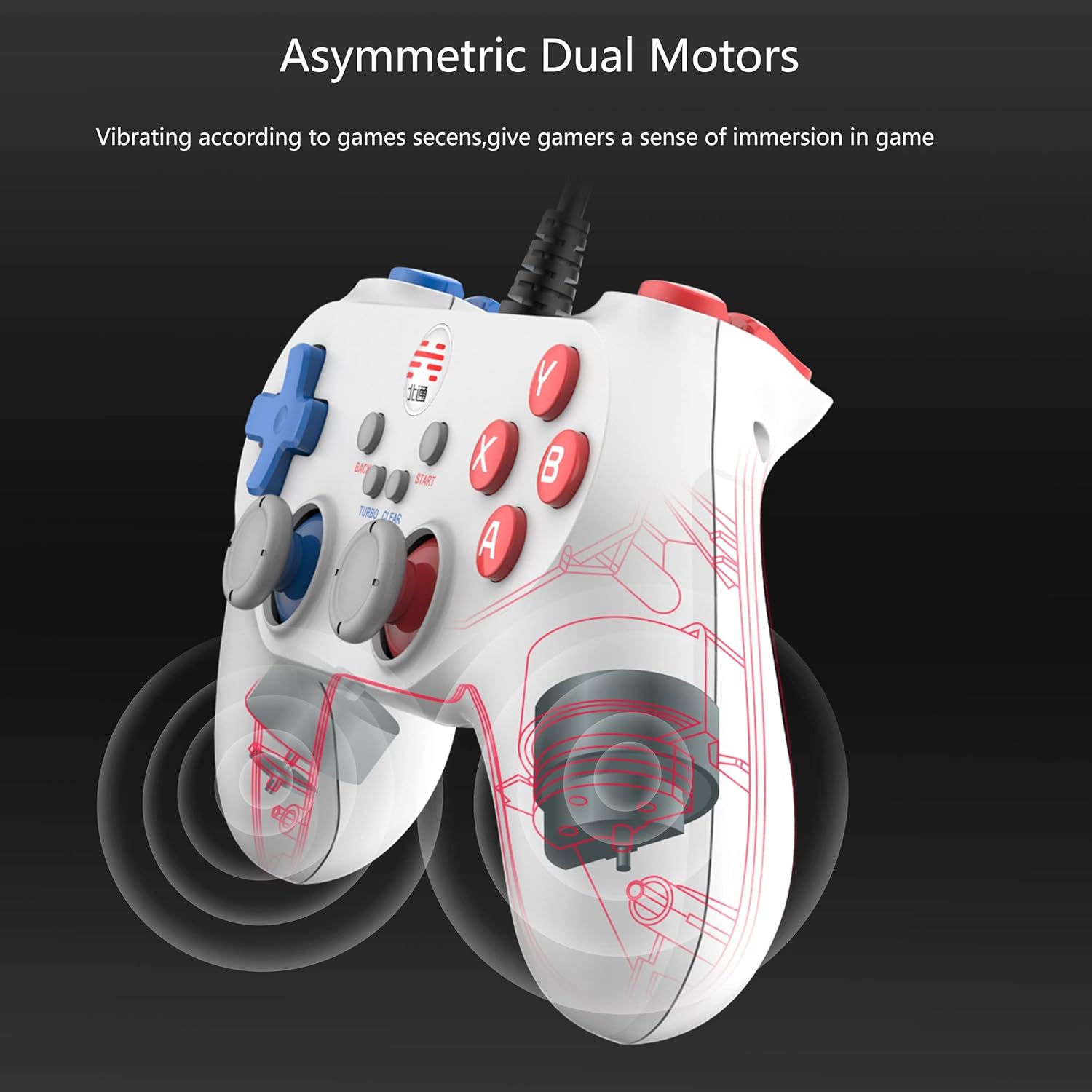
Image: Asymmetric dual motors provide immersive vibration feedback during gameplay.
3. Compatible Devices
The BEITONG Bat 2 Wired PC Game Controller supports a variety of platforms via its USB wired connection:
- Windows PCs and Laptops (Windows 7, 8, 10, 11)
- PC 360, PC Steam, PC Simulator
- Android TV and Android TV Boxes (requires an OTG adapter, not included)
- Steam Deck (requires an OTG adapter, not included)
- Tesla Model 3 and Model Y (vehicles manufactured before November 2021)
Important: This controller is not compatible with game consoles such as Xbox, PlayStation (PS4, PS5), or Nintendo Switch.

Image: The BEITONG Bat 2 controller is compatible with a range of devices via USB wired connection.

Image: Enjoy gaming in compatible Tesla models with the BEITONG controller.
4. Setup and Installation
The BEITONG Bat 2 controller is designed for simple plug-and-play functionality.
- Connect the Controller: Insert the USB cable of the BEITONG Bat 2 controller into an available USB port on your computer, laptop, Android TV, Steam Deck, or compatible Tesla vehicle.
- Driver Installation: For Windows 7, 8, 10, and 11, no additional drivers are required. The system will automatically recognize and configure the controller.
- Adapter Requirement: For Android TV, Android TV Boxes, and Steam Deck, an OTG (On-The-Go) adapter may be necessary to connect the controller. This adapter is not included with the product.
Once connected, the controller should be ready for use in compatible games and applications.

Image: The controller features a durable 2-meter wired connection for reliable performance.
5. Operating Instructions
Basic Controls
The controller features a standard layout with two analog joysticks, a D-pad, four action buttons (A, B, X, Y), shoulder buttons (L1, R1), triggers (L2, R2), and central function buttons (Back, Start, Turbo, Clear).
- Analog Joysticks: Used for precise 360-degree movement and camera control in games.
- D-Pad: Primarily used for directional input, menu navigation, or specific game actions.
- Action Buttons (A, B, X, Y): Perform in-game actions such as jumping, attacking, interacting, or confirming selections.
- Shoulder Buttons (L1, R1) & Triggers (L2, R2): Used for various in-game functions like aiming, firing, or special abilities. Note that L2 and R2 are digital buttons, not analog.
- Back Button: Typically used for accessing menus or returning to previous screens.
- Start Button: Often used to pause games, open menus, or confirm selections.
Turbo Function
The Turbo function allows for rapid, automatic repetition of a button press when held down.
- Activate Turbo: Press and hold the Turbo button, then press the desired action button (A, B, X, Y, L1, R1, L2, R2). The selected button will now activate its Turbo function.
- Deactivate Turbo: To disable Turbo for a specific button, press and hold the Clear button, then press the button for which Turbo is active.
Vibration Feedback
The controller's dual vibration motors provide tactile feedback during gameplay. This feature is automatically enabled and controlled by games that support vibration effects. If a game does not support vibration, the controller will not vibrate.
6. Maintenance
Proper care and maintenance will extend the lifespan of your BEITONG Bat 2 controller.
- Cleaning: Use a soft, dry cloth to clean the controller's surface. Avoid using abrasive cleaners, solvents, or harsh chemicals, as these can damage the finish and internal components.
- Storage: Store the controller in a cool, dry place away from direct sunlight, extreme temperatures, and high humidity.
- Cable Care: Do not pull the USB cable forcefully or wrap it too tightly around the controller, as this can cause internal wire damage.
- Avoid Drops: Protect the controller from drops and impacts, which can damage internal circuitry and external casing.
7. Troubleshooting
- Controller Not Recognized:
- Ensure the USB cable is securely plugged into both the controller and the device.
- Try connecting the controller to a different USB port on your device.
- Restart your computer or gaming device.
- Verify that your operating system is compatible (Windows 7/8/10/11, Android 4.0+).
- No Vibration Feedback:
- Confirm that the game you are playing supports vibration effects.
- Check the in-game settings to ensure vibration or rumble is enabled.
- Buttons or Joysticks Unresponsive:
- Ensure the controller is properly connected and recognized by your device.
- Test the controller on another compatible device or game to isolate the issue.
- If the issue persists, contact customer support.
8. Specifications
| Model Number | BTP-BD2E |
| Connectivity | Wired USB |
| Latency | ≤ 0.008 seconds |
| Dimensions | 5.91 x 4.33 x 1.97 inches |
| Weight | 9.6 ounces |
| Compatibility | Windows 7/8/10/11, PC 360, PC Steam, PC Simulator, Android TV, Steam Deck, Tesla (pre-Nov 2021 Model 3 & Y) |
9. Warranty and Support
For detailed warranty information, product registration, and further technical assistance, please visit the official BEITONG website. You can also find additional resources and contact customer support through their online portal.
Video: Instructions on how to view and download manuals from the official BEITONG website.


