
1. Introduction
The Sierra Wireless AirLink ES450 is an enterprise-grade 4G LTE gateway and terminal server designed for robust and reliable connectivity. This manual provides essential information for the proper installation, configuration, and operation of your ES450 device, ensuring optimal performance and network stability.
2. Product Overview
The AirLink ES450 is a compact and powerful device. Familiarize yourself with its physical components and indicators.

Figure 2.1: Front view of the Sierra Wireless AirLink ES450. This image shows the top casing with the Sierra Wireless logo and the general shape of the device.
2.1. Front Panel Indicators and Controls
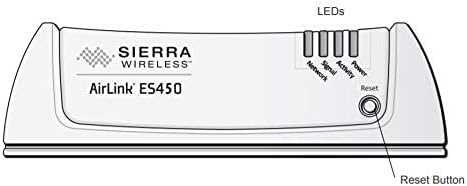
Figure 2.2: Detailed front panel of the AirLink ES450, highlighting the LED indicators and the Reset button.
The front panel of the ES450 features several LED indicators and a reset button:
- Power LED: Indicates the power status of the device.
- Activity LED: Shows data transmission activity.
- Signal LED: Displays the strength of the cellular signal.
- Network LED: Indicates connection status to the cellular network.
- Reset Button: Used to restart the device or restore factory settings (press and hold for a specific duration).
2.2. Rear Panel Ports
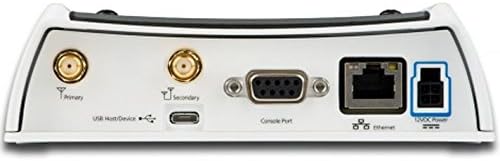
Figure 2.3: Rear view of the AirLink ES450, showing the various connectivity ports.

Figure 2.4: Labeled diagram of the AirLink ES450 rear panel, identifying each port.
The rear panel provides all necessary connection points:
- Primary LTE Antenna Connector: For connecting the main cellular antenna.
- Secondary LTE Antenna Connector: For connecting the diversity cellular antenna.
- USB Host/Device Port: For connecting USB devices or for device configuration.
- Console Port (Serial Port): For direct serial connection for configuration and diagnostics.
- Ethernet Connector: For wired network connection to local devices or a network switch.
- 12VDC Power Connector: For connecting the power adapter.
3. Setup
Follow these steps for initial setup of your AirLink ES450 gateway.
- Insert SIM Card: Ensure the device is powered off. Locate the SIM card slot (typically on the side or under a cover) and insert your activated 4G LTE SIM card.
- Connect Antennas: Attach the primary and secondary LTE antennas to their respective connectors on the rear panel. Ensure they are securely tightened.
- Connect Ethernet: Connect an Ethernet cable from the ES450's Ethernet port to your local network device (e.g., a computer or switch).
- Connect Power: Connect the provided 12VDC power adapter to the power connector on the rear panel, then plug the adapter into a power outlet.
- Power On: The device will power on automatically. Observe the front panel LEDs to confirm power and network status.
- Initial Configuration: Access the device's web interface or use the console port for initial configuration, including APN settings, security protocols, and network preferences. Refer to the Sierra Wireless documentation for detailed configuration instructions.
4. Operating the Device
Once configured, the AirLink ES450 operates as a reliable 4G LTE gateway, providing internet connectivity to your connected devices. The device is designed for continuous operation.
- Network Connectivity: The ES450 will automatically connect to the cellular network using the inserted SIM card. The Network and Signal LEDs will indicate connection status and signal strength.
- Data Transmission: Data traffic will flow through the ES450, indicated by the Activity LED.
- Remote Management: The ES450 supports remote management capabilities, allowing administrators to monitor and configure the device from a central location.
5. Maintenance
Regular maintenance ensures the longevity and optimal performance of your ES450 gateway.
- Firmware Updates: Periodically check the Sierra Wireless support website for firmware updates. Keeping the firmware current ensures access to the latest features, security patches, and performance improvements.
- Physical Cleaning: Keep the device clean and free from dust. Use a soft, dry cloth to wipe the exterior. Do not use liquid cleaners.
- Environmental Conditions: Ensure the device is operated within its specified temperature and humidity ranges to prevent damage.
- Cable Connections: Periodically check all cable connections (antennas, Ethernet, power) to ensure they are secure.
6. Troubleshooting
This section addresses common issues you might encounter with your AirLink ES450.
| Problem | Possible Cause | Solution |
|---|---|---|
| No Power LED indication | Power adapter not connected or faulty; power outlet issue. | Check power cable connection. Try a different power outlet. Ensure the power adapter is functioning correctly. |
| No Network connectivity (Network LED off/red) | No SIM card; inactive SIM; poor cellular signal; incorrect APN settings. | Ensure SIM card is properly inserted and active. Check antenna connections. Relocate device for better signal. Verify APN settings in the device configuration. |
| Slow data speeds | Weak cellular signal; network congestion; data plan limitations. | Check Signal LED for strength. Try repositioning antennas or the device. Contact your cellular provider regarding network congestion or data plan. |
| Cannot access web interface | Incorrect IP address; network configuration issue; firewall. | Verify the device's IP address and ensure your computer is on the same subnet. Check local firewall settings. Try connecting via the console port. |
7. Specifications
Key technical specifications for the Sierra Wireless AirLink ES450.
| Feature | Detail |
|---|---|
| Brand | Sierra Wireless |
| Model Name | ES450 |
| Connectivity Technology | Wireless |
| Wireless Communication Standard | 802.11a |
| Frequency Band Class | Quad-Band |
| Security Protocol | WPA2-Enterprise, WPA-Enterprise |
| Item Weight | 0.01 Pounds (approx. 0.16 ounces) |
| Package Dimensions | 9.17 x 7.72 x 2.56 inches |
| Manufacturer | Sierra Wireless |
| Date First Available | May 17, 2022 |
Note: The "Wireless Communication Standard: 802.11a" listed in some specifications may refer to internal components or specific configurations. The primary function of the AirLink ES450 is as a 4G LTE cellular gateway.
8. Warranty and Support
For warranty information and technical support, please refer to the official Sierra Wireless website or contact their customer service directly. Details regarding specific warranty periods and support options are typically provided with your purchase or can be found on the manufacturer's support pages.
For renewed products, warranty terms may differ. Please consult the seller or the Amazon Renewed program details for specific coverage.


