
Caliber RCD238DAB-BT
Caliber RCD238DAB-BT Car Radio User Manual
Model: RCD238DAB-BT
Introduction
The Caliber RCD238DAB-BT car radio offers a comprehensive in-car audio experience, combining modern connectivity with traditional media playback. Featuring DAB+ digital radio for superior sound quality, Bluetooth technology for wireless audio streaming and hands-free calling, and multiple input options including CD, USB, SD, and AUX, this unit is designed to meet diverse listening preferences. Its intuitive controls and customizable illumination ensure ease of use and integration into your vehicle's interior.
Safety Information
- Always operate the device in a safe manner, ensuring it does not distract you from driving.
- Do not attempt to disassemble or modify the unit. This may cause damage, electric shock, or fire.
- Ensure proper ventilation around the unit to prevent overheating.
- Keep the unit away from water, moisture, and extreme temperatures.
- Consult a professional for installation if you are unsure about the wiring or mounting procedures.
- Use only the specified power supply and accessories.
Package Contents
Please check that all items are present in the package:
- Caliber RCD238DAB-BT Car Radio Unit
- External Microphone
- DAB Antenna (typically included for DAB+ functionality)
- ISO Connector Cable
- Mounting Hardware (screws, mounting frame, release keys)
- User Manual (this document)
Product Overview
Front Panel

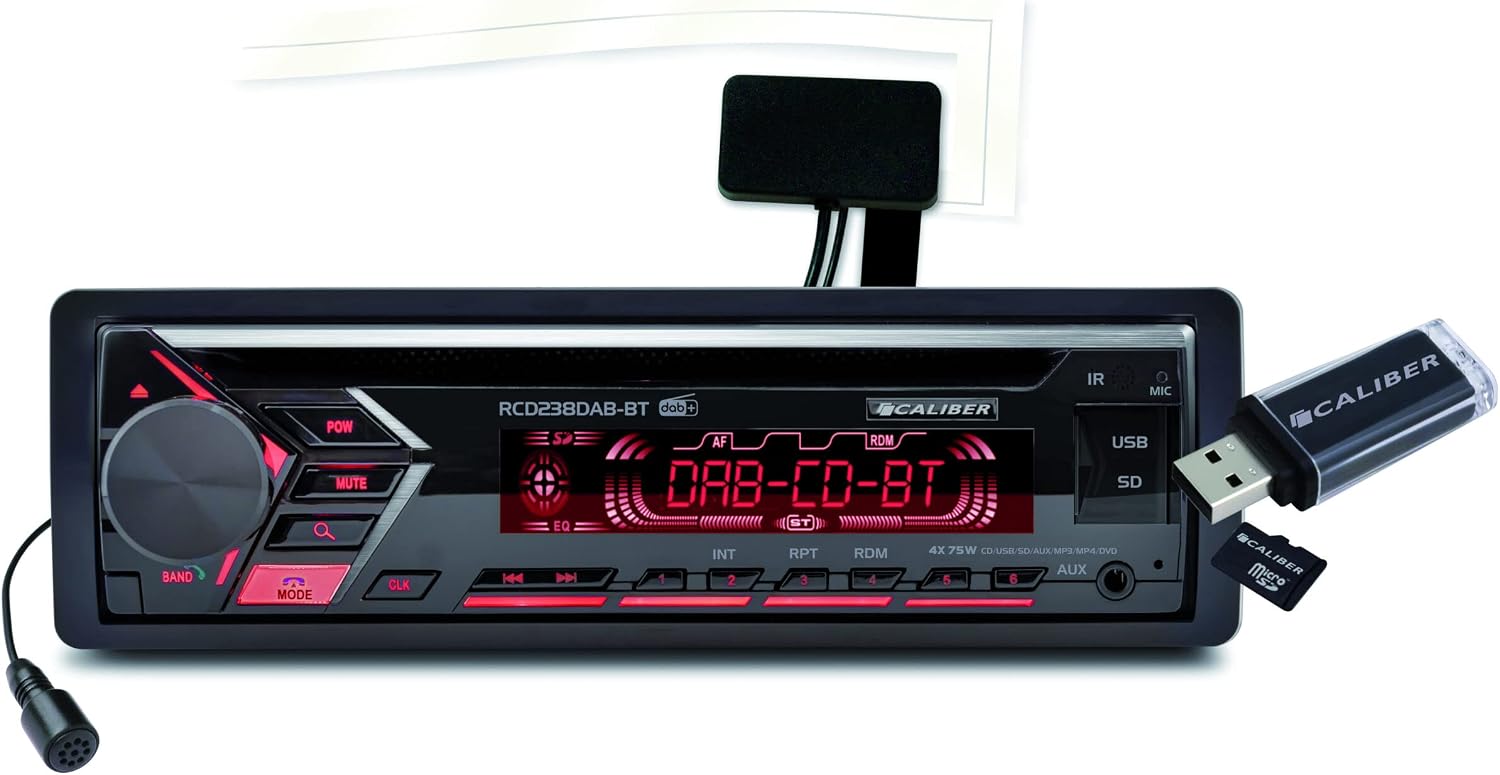
Figure 1: Front view of the Caliber RCD238DAB-BT car radio, showing the main unit with a USB stick inserted into the USB port and the external microphone connected. The display shows "DAB-CD-BT" indicating various modes.
The front panel features the main controls and input ports:
- Power/Volume Knob: Turn on/off, adjust volume.
- MODE Button: Cycle through audio sources (Radio, CD, USB, SD, AUX, Bluetooth).
- BAND Button: Select radio band (FM1, FM2, FM3, DAB1, DAB2, DAB3).
- MUTE Button: Mute/unmute audio.
- Display: Shows current mode, track information, radio frequency, etc. Illumination color is adjustable.
- USB Port: For connecting USB flash drives.
- SD Card Slot: For inserting SD memory cards.
- AUX Input (3.5mm): For connecting external audio devices.
- CD Slot: For inserting audio CDs.
- Preset Buttons (1-6): Store and recall radio stations, control playback (play/pause, skip).
- IR Sensor: For remote control (if included).
- MIC Input: For connecting the external microphone.
Rear Connections

Figure 2: Rear view of the Caliber RCD238DAB-BT car radio, displaying the various connection ports including the DAB antenna input, RCA outputs for amplifiers/subwoofers, microphone input, and the main ISO connector.
The rear panel provides essential connections for power, speakers, and external audio components:
- ISO Connector: Standard connector for power, ground, and speaker wiring.
- DAB Antenna Input: Dedicated input for the DAB+ antenna.
- RCA Outputs (Front/Rear/Subwoofer): For connecting external amplifiers and subwoofers.
- External Microphone Input: For the included hands-free microphone.
Setup and Installation
Installation Steps
The RCD238DAB-BT is designed for 1-DIN installation. Ensure your vehicle has a compatible opening. It features an ISO connector for plug-and-play installation if your vehicle is equipped with an ISO connection.
- Disconnect Battery: Before starting, disconnect the negative terminal of your vehicle's battery to prevent electrical shorts.
- Remove Old Unit: Carefully remove your existing car radio.
- Install Mounting Sleeve: Insert the supplied mounting sleeve into the dashboard opening and bend the tabs outwards to secure it.
- Connect Wiring:
- Connect the vehicle's ISO harness to the radio's ISO connector.
- Connect the DAB antenna to the dedicated DAB input on the rear of the radio. Position the DAB antenna for optimal reception, typically on the windshield.
- Connect the external microphone to the MIC input on the rear or front panel. Route the microphone cable to a suitable location (e.g., sun visor, A-pillar) for clear voice pickup during calls.
- If using external amplifiers, connect the RCA cables from the radio's RCA outputs to your amplifier's inputs.
- Slide in Unit: Carefully slide the RCD238DAB-BT unit into the mounting sleeve until it clicks into place.
- Reconnect Battery: Reconnect the negative terminal of your vehicle's battery.
- Test Functionality: Turn on the unit and test all functions (radio, CD, USB, Bluetooth, microphone) to ensure proper installation.

Figure 3: The Caliber RCD238DAB-BT car radio seamlessly integrated into a vehicle's dashboard, demonstrating a typical installation.
Operating Instructions
Power On/Off and Volume
- Power On: Press the POW button (volume knob) to turn the unit on.
- Power Off: Press and hold the POW button for a few seconds to turn the unit off.
- Volume Control: Rotate the POW knob clockwise to increase volume, counter-clockwise to decrease.
- Mute: Press the MUTE button to instantly mute the audio. Press again to unmute.
Source Selection
Press the MODE button repeatedly to cycle through available audio sources:
- Radio (FM/DAB+): Listen to FM or DAB+ digital radio stations.
- CD: Play audio CDs inserted into the CD slot.
- USB: Play audio files from a connected USB flash drive.
- SD: Play audio files from an inserted SD card.
- AUX: Play audio from an external device connected to the 3.5mm AUX input.
- Bluetooth (BT): Stream audio wirelessly from a paired Bluetooth device or make hands-free calls.
Radio Operation (FM/DAB+)
- Band Selection: Press the BAND button to switch between FM1, FM2, FM3, DAB1, DAB2, and DAB3 bands.
- Automatic Tuning: In radio mode, press and hold the >>| or |<< buttons to automatically scan for the next/previous strong station.
- Manual Tuning: Briefly press the >>| or |<< buttons to manually adjust the frequency step by step.
- Storing Presets: Tune to your desired station. Press and hold one of the preset buttons (1-6) until you hear a beep. The station is now stored.
- Recalling Presets: Briefly press the desired preset button (1-6) to recall a stored station.
- DAB+ Specifics: DAB+ offers digital radio with improved sound quality and more stations. Ensure your DAB antenna is properly installed for optimal reception. The unit will display station names and program information (ID3-Tag).
Bluetooth Operation
The RCD238DAB-BT supports Bluetooth for audio streaming (A2DP, AVRCP) and hands-free calling.
- Pairing:
- Ensure the radio is in Bluetooth mode (select via MODE button).
- On your mobile device, enable Bluetooth and search for available devices.
- Select "RCD238DAB-BT" from the list. If prompted for a password, enter "0000".
- Once paired, the display will indicate a successful connection.
- Audio Streaming: Play music on your paired device, and it will stream wirelessly to the car radio. Use the radio's playback controls (>>|, |<<, preset buttons) to control playback.
- Hands-Free Calling:
- When a call comes in, the radio display will show the caller ID (if available).
- Press the Answer button (often the green phone icon or a specific preset button) to answer the call.
- Speak into the external microphone for clear communication.
- Press the End Call button (often the red phone icon or a specific preset button) to end the call.
CD/USB/SD Playback
- CD Playback: Insert an audio CD into the CD slot. The unit will automatically switch to CD mode and begin playback.
- USB/SD Playback: Insert a USB flash drive into the USB port or an SD card into the SD slot. The unit will automatically switch to the respective mode and begin playing compatible audio files (e.g., MP3, WMA).
- Playback Controls:
- Press Play/Pause (often preset button 1) to pause or resume playback.
- Press >>| to skip to the next track/file.
- Press |<< to skip to the beginning of the current track or the previous track/file.
- Use INT (Intro Scan), RPT (Repeat), and RDM (Random) functions for enhanced playback control.
AUX Input
Connect any external audio device (e.g., MP3 player, smartphone) to the 3.5mm AUX input on the front panel using an audio cable. Select AUX mode via the MODE button. Audio will play through the car speakers, and volume can be controlled by the radio.
Audio Settings
- Equalizer: The unit features a 4-band pre-set equalizer. Access EQ settings (often by pressing the volume knob or a dedicated EQ button) to select different sound profiles (e.g., Pop, Rock, Classic, Flat).
- Bassboost: Activate the Bassboost function (if available via a menu option or dedicated button) to enhance low-frequency audio output.
Display Illumination
The RCD238DAB-BT features graduable key illumination. You can often change the color or brightness of the buttons and display through the unit's menu settings. Refer to the on-screen menu for specific options.

Blue Illumination

Green Illumination
Red Illumination
Maintenance
- Cleaning the Unit: Use a soft, dry cloth to wipe the front panel. For stubborn dirt, dampen the cloth slightly with water. Do not use abrasive cleaners or solvents.
- CD Slot: Avoid inserting foreign objects into the CD slot. If a CD gets stuck, refer to the troubleshooting section or contact support.
- Temperature: Avoid exposing the unit to extreme temperatures, direct sunlight for prolonged periods, or high humidity.
- Connections: Periodically check all connections (power, speaker, antenna, microphone) to ensure they are secure.
Troubleshooting
| Problem | Possible Cause | Solution |
|---|---|---|
| No power / Unit does not turn on. | Loose power connection; Blown fuse; Vehicle battery low. | Check power wiring and connections. Inspect and replace fuse if necessary. Check vehicle battery. |
| No sound from speakers. | Speaker wires disconnected; Mute function active; Volume too low; Incorrect source selected. | Check speaker wiring. Press MUTE button. Increase volume. Select correct audio source. |
| "No Service" displayed in DAB+ mode. | Poor DAB antenna connection; Weak DAB signal in area; Antenna not properly installed. | Check DAB antenna connection. Try moving to an area with better DAB coverage. Ensure antenna is correctly installed and positioned. |
| Bluetooth pairing fails. | Bluetooth not enabled on device; Device too far; Incorrect pairing code; Unit already paired with another device. | Ensure Bluetooth is on and discoverable on your device. Keep device within 10 meters. Enter "0000" if prompted. Disconnect from other Bluetooth devices. |
| CD/USB/SD not playing. | Incompatible file format; Damaged media; Media not inserted correctly. | Ensure files are compatible (MP3/WMA). Try a different CD/USB/SD. Reinsert media correctly. |
| Poor radio reception (FM). | Antenna not connected; Weak signal; Interference. | Check car antenna connection. Try tuning to a stronger station. Avoid areas with high electrical interference. |
Specifications
| Feature | Detail |
|---|---|
| Model Number | RCD238DAB-BT |
| Brand | Caliber |
| Type | 1-DIN Car Radio |
| Power Output | 4 x 75 Watts (300 Watts total) |
| Connectivity | Bluetooth, USB, SD, AUX (3.5mm), DAB+ Antenna Input, RCA Outputs |
| Bluetooth Profiles | A2DP (Audio Streaming), AVRCP (Remote Control), HFP (Hands-Free Profile) |
| Radio Tuner | FM, DAB+ Digital Radio |
| Media Playback | CD, USB (Flash Drive), SD Card (Audio files like MP3, WMA) |
| Audio Features | 4-band Pre-set Equalizer, Bassboost, ID3-Tag Display |
| Hands-Free | External Microphone Included |
| Display | Adjustable/Graduable Key Illumination |
| Dimensions (W x D x H) | 19 cm x 18.5 cm x 5.5 cm (approximate, based on product dimensions) |
| Weight | 1355 Grams |
Warranty and Support
This Caliber RCD238DAB-BT car radio comes with a manufacturer's warranty of 2 years from the date of purchase. This warranty covers defects in materials and workmanship under normal use.
The warranty does not cover:
- Damage caused by improper installation, accident, misuse, abuse, neglect, or unauthorized modification.
- Normal wear and tear.
- Damage caused by power surges or incorrect voltage.
For warranty claims, technical support, or service inquiries, please contact Caliber Europe customer service. You may find contact information on the official Caliber website or through your point of purchase. Please have your proof of purchase and the product model number ready when contacting support.
Related documentsRCD238DAB-BT


Ask a question about this manual
Ask about setup, troubleshooting, compatibility, parts, safety, or missing instructions. Manuals+ will review the question and use this page’s manual context to help answer it.