
Introduction
This manual provides detailed instructions for the setup, operation, and maintenance of your typecase Touch Keyboard Case. Designed for enhanced productivity and protection, this keyboard case features a multi-touch trackpad, 11-color backlit keys, and a 360° rotatable hinge, transforming your iPad into a versatile workstation.
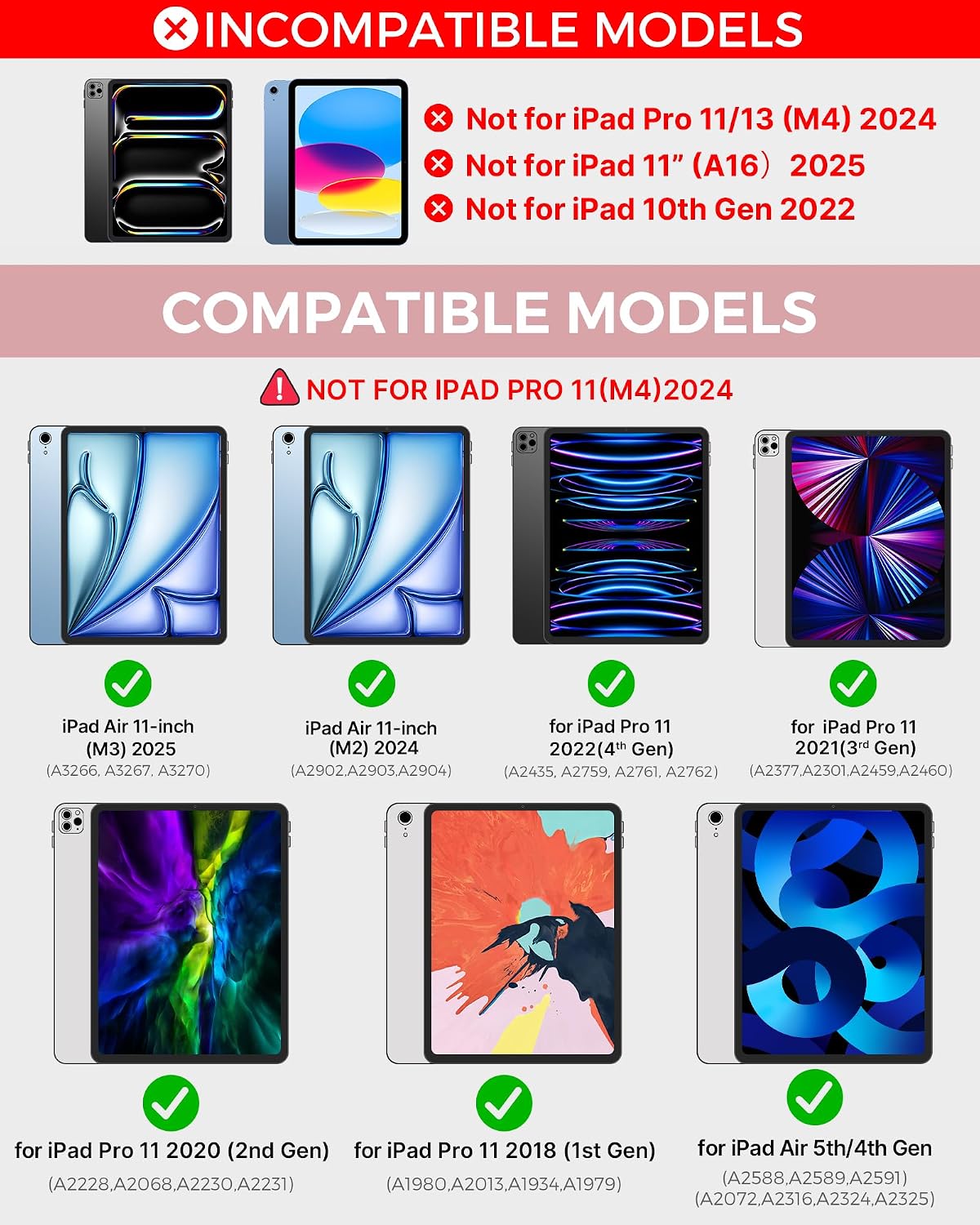
Image: The typecase Touch Keyboard Case in Rose Gold, presented with an iPad, illustrating its design and functionality as a laptop-style setup.
Compatibility
The typecase Touch Keyboard Case is compatible with the following iPad models:
- iPad Air 11-inch (M3 2025 / M2 2024)
- iPad Pro 11-inch (4th Gen 2022, 3rd Gen 2021, 2nd Gen 2020, 1st Gen 2018)
- iPad Air 10.9-inch (5th Gen 2022, 4th Gen 2020)
Note: This keyboard case is NOT compatible with iPad Pro 11 (M4) 2024, iPad 11" (A16) 2025, or iPad 10th Gen 2022.

Image: A visual guide detailing compatible iPad models (iPad Air 11-inch M3/M2, iPad Pro 11-inch 1st-4th Gen, iPad Air 5th/4th Gen) and explicitly listing incompatible models.
Package Contents
Verify that all items are present in your package:
- typecase Touch Keyboard Case
- USB-C Charging Cable
- User Manual

Image: An illustration of the package contents, including the keyboard case, a charging cable, and the user manual.
Setup
1. Charging the Keyboard
Before initial use, fully charge the keyboard. Connect the provided USB-C charging cable to the keyboard's charging port and a USB power adapter (not included).
- Standby: Up to 1 year
- Daytime use: Up to 3 months (2 hours/day with backlight off)
- Nighttime use: Up to 2 weeks (2 hours/day with backlight on)

Image: A detailed view of the keyboard case's Type-C charging port with a charging cable inserted, illustrating the charging process.
2. Installing Your iPad
- Align your iPad with the protective shell of the case.
- Gently press the iPad into the case, ensuring all edges are securely seated.
- Ensure the camera cutout and ports align correctly.
3. Bluetooth Pairing
- Turn on the keyboard by sliding the power switch. The indicator light will flash.
- On your iPad, go to Settings > Bluetooth.
- Turn on Bluetooth. Your iPad will search for available devices.
- Select "typecase Keyboard" from the list of devices.
- Once paired, the indicator light on the keyboard will turn off, and your iPad will show the keyboard as connected.
Operating Instructions
Keyboard Functions
The keyboard features a standard 78-key layout with dedicated iPadOS shortcuts for efficient operation.
- Backlight Control: Press the Light Bulb key to cycle through 11 different backlight colors. Press Fn + Light Bulb to adjust backlight brightness (3 levels).
- iPadOS Shortcuts: Utilize the top row of keys for quick access to functions like Home, Search, Brightness, Media Controls, and Volume.

Image: A close-up view of the keyboard demonstrating the 11-color backlighting feature, illuminating the keys.
Multi-Touch Trackpad
The integrated precision trackpad supports multi-touch gestures for seamless navigation of your iPadOS. Refer to your iPad's settings for trackpad customization options (e.g., Tap to Click).

Image: A hand demonstrating interaction with the multi-touch trackpad, highlighting its responsive design.
7 Use Modes and 360° Rotation
The dual-axis rotatable 360° hinge allows for 7 distinct viewing and usage modes:
- Laptop Mode: Traditional laptop setup for typing.
- Stand Mode: iPad propped up for viewing content.
- Tent Mode: Ideal for presentations or watching videos.
- Tablet Mode: Keyboard folded back for handheld tablet use.
- Corner Mode: Specific angle for comfortable interaction.
- Share Mode: Screen facing away for collaborative viewing.
- Protect Mode: Case fully closed to protect the iPad.

Image: A comprehensive diagram showcasing the seven versatile modes (Laptop, Stand, Tent, Tablet, Corner, Share, Protect) achievable with the 360° rotatable hinge.
Apple Pencil Holder
The case includes a dedicated holder for your Apple Pencil, ensuring it is secure and readily available. The design allows for Apple Pencil charging when placed in the holder.

Image: A close-up of the keyboard case featuring the integrated Apple Pencil holder, demonstrating how the pencil is securely stored and charged.
Automatic Sleep/Wake Function
The case supports automatic sleep/wake functionality. Opening the case will wake your iPad, and closing it will put your iPad to sleep, conserving battery life.
Maintenance
To ensure the longevity and optimal performance of your keyboard case, follow these maintenance guidelines:
- Cleaning: Use a soft, damp cloth to wipe the exterior of the case. Avoid harsh chemicals or abrasive cleaners.
- Keyboard Cleaning: Use a soft brush or compressed air to remove dust and debris from between the keys.
- Storage: When not in use for extended periods, ensure the keyboard is turned off and stored in a cool, dry place.
- Avoid Scratches: While the case offers protection, metallic finishes can show wear over time. Handle with care to minimize cosmetic scratches.
Troubleshooting
If you encounter issues with your typecase Touch Keyboard Case, refer to the following common solutions:
- Keyboard Not Connecting:
- Ensure the keyboard is charged and powered on.
- Check your iPad's Bluetooth settings to confirm Bluetooth is enabled and the keyboard is paired. If previously paired, try forgetting the device and re-pairing.
- Restart both your iPad and the keyboard.
- Keys Not Responding:
- Ensure the keyboard is properly connected via Bluetooth.
- Check for low battery on the keyboard.
- Trackpad Not Working:
- Verify Bluetooth connection.
- Check iPadOS settings for trackpad functionality and gestures.
- Ensure the trackpad is clean and free of obstructions.
- Backlight Not Functioning:
- Ensure the keyboard has sufficient battery charge.
- Press the Light Bulb key to activate or change backlight settings.
Specifications
| Feature | Detail |
|---|---|
| Brand | typecase |
| Model Number | KB201T1101 |
| Connectivity Technology | Bluetooth |
| Keyboard Description | Multi Functional |
| Special Features | Backlit, Ergonomic, Hotkeys and Media Keys, Rechargeable, Trackpad |
| Color | Rose Gold |
| Keyboard Backlighting | RGB (11 Colors) |
| Product Dimensions | 9.84"L x 7.48"W x 0.79"H |
| Power Source | Battery Powered |
| Switch Type | Scissor-Switch |
| Keyboard Layout | QWERTY |
| Number of Keys | 78 |
| Item Weight | 750 g |
| Enclosure Material | Plastic |
Warranty and Support
Your typecase Touch Keyboard Case is backed by comprehensive support:
- 1-Year Warranty: Enjoy peace of mind with a 1-year limited warranty covering manufacturing defects.
- 30-Day Money Back Guarantee: If you are not satisfied with your purchase, you may return it within 30 days for a full refund.
- 24/7 Fast Support: For any questions or assistance, please contact typecase customer support. Refer to the product packaging or typecase official website for contact details.
Safety Information
Please read and follow these safety guidelines to prevent damage to your device or injury:
- Keep the device away from water and other liquids.
- Do not expose to extreme temperatures.
- Avoid dropping or subjecting the device to strong impacts.
- Do not attempt to disassemble or repair the device yourself. This will void the warranty.
- Use only the provided charging cable or a certified equivalent.
Product Video Overview
Video: An official overview of the typecase Touch Keyboard Case, demonstrating its features and compatibility with various iPad models.


