
Introduction
This manual provides detailed instructions for the installation, operation, and maintenance of your Fodsports F2 Motorcycle Helmet Intercom Headset. The F2 system is designed to enhance your riding experience with Bluetooth 5.0 connectivity, enabling two-rider intercom communication, hands-free calls, and high-quality audio for music and GPS navigation.
Product Features
- Bluetooth 5.0 Technology: Equipped with advanced Bluetooth 5.0 for high compatibility and stable connections with all Bluetooth-enabled smart devices.
- 2-Rider Intercom System: Supports communication between two riders with an intercom distance of up to 1000 meters.
- CVC Noise Reduction: Advanced CVC noise reduction technology and a professional wind-proof microphone ensure clear call quality.
- Hands-Free Communication: Automatically answers incoming calls within 10 seconds. Supports rejecting calls, hanging up, and last number redial.
- Voice Command: Activate intelligent voice commands (e.g., Siri, Google Assistant) for hands-free control of calls, music, and GPS navigation.
- High-Quality Audio: Features 40mm high-power stereo speakers for clear and loud sound quality.
- Durable Battery Life: Integrated 400mAh rechargeable Li-ion battery provides up to 10 hours of intercom time, 12 hours of talk/music playback, and 300 hours of standby time. Charging time is approximately 3 hours.
- Waterproof Design: IP67 dustproof and waterproof rating with Nano coating technology protects the headset in outdoor conditions.
- Charge While Working: The device can be used while charging, though it is recommended to charge fully before initial use.
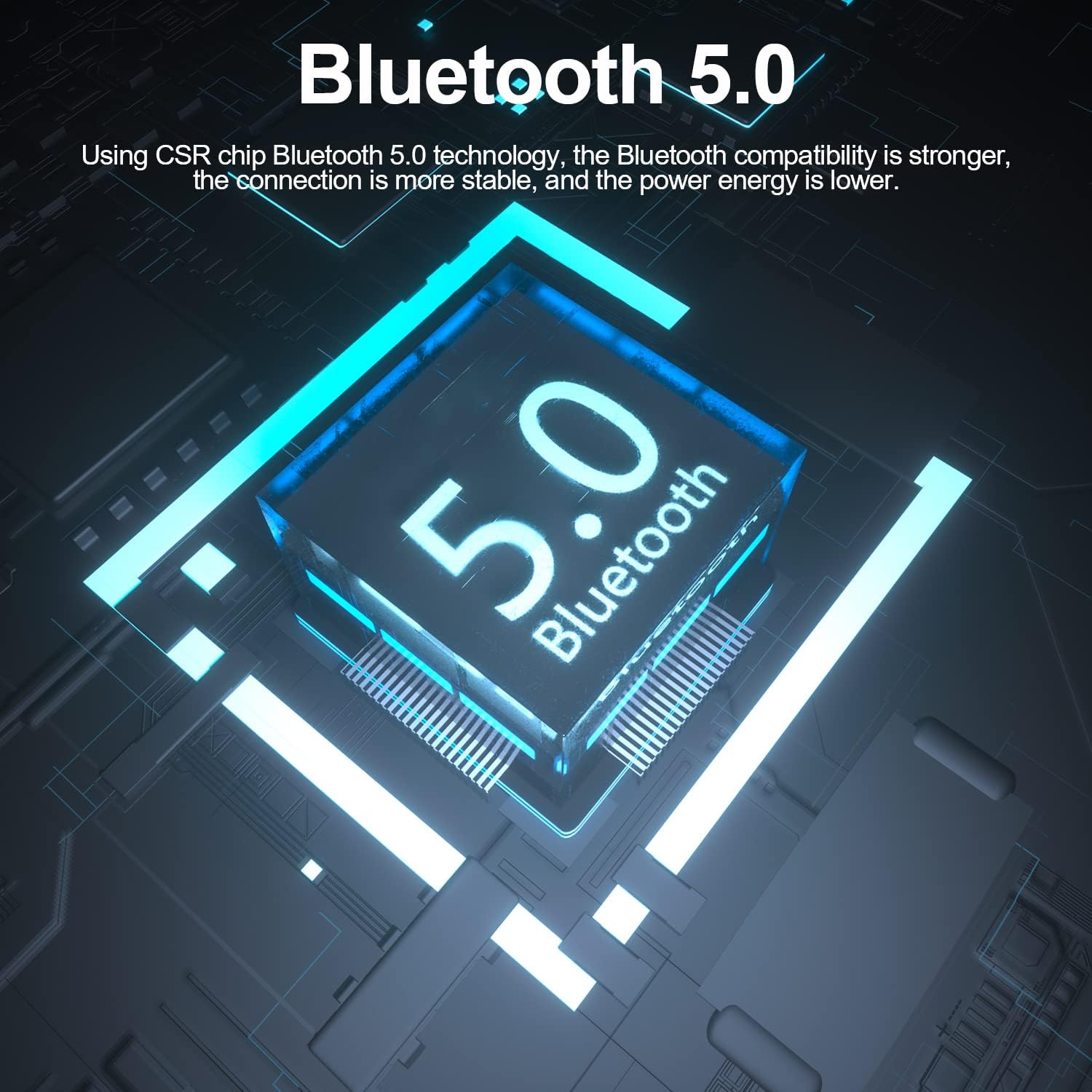
Image: The Fodsports F2 utilizes a Bluetooth 5.0 chip for stable and efficient wireless connections.

Image: Illustration of the CVC noise reduction technology in the Fodsports F2, showing how it clarifies call audio by reducing ambient noise.

Image: Exploded view of the Fodsports F2 speaker, highlighting its components for HiFi stereo sound quality.
Package Contents
Upon opening your Fodsports F2 package, please ensure all items are present:
- Fodsports F2 Intercom Unit
- Microphone (suitable for full-face and half-face helmets)
- 40mm Stereo Speakers
- USB Charging Cable
- Helmet Mounting Bracket (with detachable Velcro)
- User Manual (this document)
Setup and Installation
1. Charging the Device
Before first use, fully charge the Fodsports F2 unit. Connect the provided USB charging cable to the device's charging port and to a standard USB power source. The charging indicator will show the charging status. A full charge takes approximately 3 hours.

Image: The Fodsports F2 unit connected to a power bank via USB cable, illustrating that the device can be charged while in use.
2. Installing into Helmet
The F2 is designed for easy installation in most full-face, open-face, and half-helmets using its detachable Velcro design.
- Attach the Intercom Unit: Secure the F2 intercom unit to the side of your helmet using the provided mounting bracket and Velcro. Ensure it is firmly attached and does not obstruct your vision or helmet functionality.
- Position Speakers: Place the 40mm stereo speakers inside the helmet's ear pockets. Ensure they are aligned with your ears for optimal sound quality.
- Mount Microphone: Attach the microphone to a suitable position inside the helmet, ensuring it is close to your mouth but not directly in front to avoid wind noise. The flexible microphone arm allows for adjustment.
- Connect Cables: Connect the speaker and microphone cables to the corresponding ports on the F2 intercom unit. Route the cables neatly within the helmet padding to avoid discomfort or interference.
Operating Instructions
1. Power On/Off
- Power On: Press and hold the Power button for approximately 3 seconds until the indicator light illuminates and you hear a voice prompt.
- Power Off: Press and hold the Power button for approximately 3 seconds until the indicator light turns off and you hear a voice prompt.
2. Bluetooth Pairing with Mobile Phone
- Ensure the F2 unit is powered off.
- Press and hold the Power button for about 5-7 seconds until the indicator light flashes red and blue alternately, indicating pairing mode.
- On your mobile phone, enable Bluetooth and search for available devices.
- Select "Fodsports F2" from the list of devices.
- Once paired, the indicator light will flash blue slowly, and you will hear a confirmation tone.
3. Intercom Pairing (2 Riders)
To establish a 2-rider intercom connection:
- Ensure both F2 units are powered off.
- On both units, press and hold the Power button for about 5-7 seconds until the indicator lights flash red and blue alternately, entering pairing mode.
- Briefly press the Intercom button on one of the units. It will search for the other unit.
- Once connected, both units will show a slow blue light, and you will hear a confirmation tone.
4. Phone Call Functions
- Answer Call: Incoming calls will be automatically answered within 10 seconds if no action is taken. Alternatively, briefly press the Phone button to answer.
- Reject Call: Press and hold the Phone button for 2 seconds to reject an incoming call.
- Hang Up: Briefly press the Phone button during a call to end it.
- Last Number Redial: Double-press the Phone button to redial the last dialed number.
5. Music Playback
- Play/Pause: Briefly press the Play/Pause button to play or pause music.
- Volume Adjustment: Use the Volume Up (+) and Volume Down (-) buttons to adjust the audio level.
- Next Track: Press and hold the Volume Up (+) button for 2 seconds to skip to the next song.
- Previous Track: Press and hold the Volume Down (-) button for 2 seconds to go to the previous song.
6. Voice Command Activation
To activate your phone's voice assistant (e.g., Siri, Google Assistant), double-tap the 'A' key on the F2 unit.

Image: Diagram showing how to double-tap the 'A' key on the Fodsports F2 unit to activate voice commands like "Hey Siri" or "Hi Galaxy" for phone control.
Maintenance
- Cleaning: Wipe the unit with a soft, damp cloth. Do not use harsh chemicals or abrasive cleaners.
- Water Resistance: The F2 unit is IP67 waterproof. While it can withstand rain and splashes, avoid submerging it in water for extended periods. Ensure the charging port cover is securely closed when not charging.
- Storage: Store the device in a cool, dry place when not in use. Avoid extreme temperatures.
- Battery Care: To prolong battery life, avoid fully discharging the battery frequently. Charge the device regularly, even if not in use for long periods.
Troubleshooting
- Device does not power on:
- Ensure the battery is charged. Connect the device to a charger and try powering it on after a few minutes.
- Cannot pair with phone/intercom:
- Ensure the device is in pairing mode (red and blue flashing light). Make sure other Bluetooth devices are not interfering. Try restarting both the F2 unit and your phone/second F2 unit.
- No sound or low volume:
- Check the volume settings on both the F2 unit and your connected phone. Ensure speakers are correctly positioned and connected. Verify that the cables are securely plugged in.
- Intercom connection drops frequently:
- Ensure both units are within the 1000m range and have a clear line of sight. Obstacles can reduce range. Check for low battery on either unit.
- Poor call quality/excessive wind noise:
- Ensure the microphone is positioned correctly, close to your mouth but not directly exposed to strong airflow. The CVC noise reduction works best when the microphone is optimally placed.
Specifications
| Feature | Detail |
|---|---|
| Model | F2 |
| Bluetooth Version | 5.0 |
| Intercom Range | Up to 1000m (2 riders) |
| Battery Capacity | 400mAh |
| Intercom Time | 10 hours |
| Talk/Music Playback Time | Up to 12 hours |
| Standby Time | 300 hours |
| Charging Time | 3 hours |
| Noise Reduction Technology | CVC |
| Water Resistance Level | IP67 |
| Speaker Diameter | 40mm |
| Control Method | Voice, Buttons |
| Material | Plastic |
| Item Weight | 170 Grams |
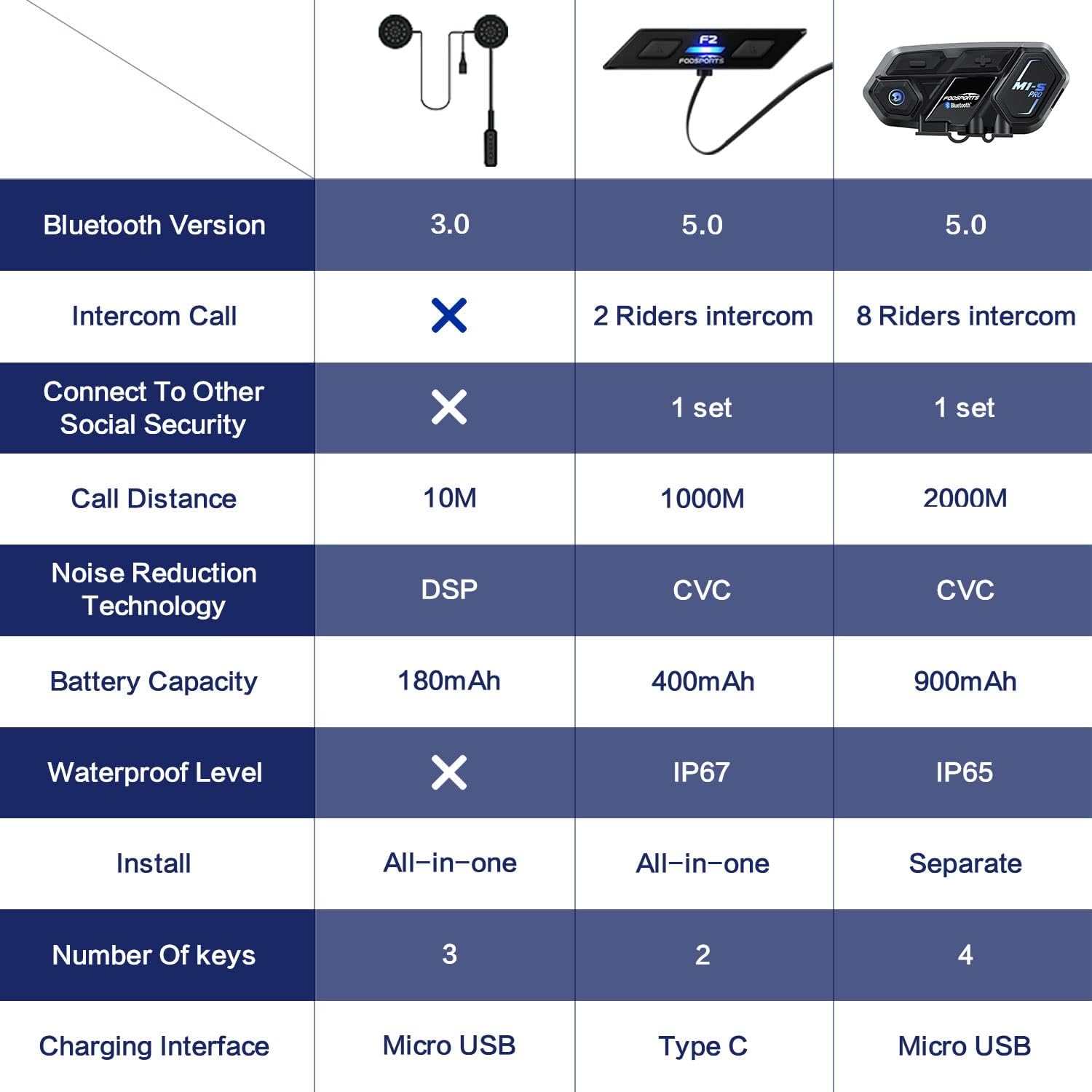
Image: A comparison table highlighting key specifications of the Fodsports F2 alongside other models, detailing Bluetooth version, intercom capabilities, battery, noise reduction, and waterproof level.
Warranty and Support
For warranty information, technical support, or any inquiries regarding your Fodsports F2 Motorcycle Helmet Intercom Headset, please contact Fodsports customer service through their official website or the retailer from whom you purchased the product. Please have your purchase receipt and product model number (F2) ready when contacting support.
Note: Specific warranty terms may vary by region and retailer.