
Taiahiro ML-981
Taiahiro Retro Typewriter Mechanical Keyboard User Manual
Model: ML-981 | Brand: Taiahiro
Introduction
Thank you for choosing the Taiahiro Retro Typewriter Mechanical Keyboard. This keyboard combines vintage aesthetics with modern functionality, offering versatile connectivity options and a unique typing experience. This manual provides detailed instructions for setting up, operating, maintaining, and troubleshooting your keyboard to ensure optimal performance.
Package Contents
- Taiahiro Retro Typewriter Mechanical Keyboard
- USB Cable
- User Manual (this document)
- Keycap Puller (may be included)
- Replacement Switches (may be included)
Product Overview
The Taiahiro ML-981 keyboard features 83 keys with a retro typewriter design, including round keycaps and functional rollers. It supports both wired and wireless connections, and includes adjustable RGB backlighting.

Figure 1: Top-down view of the Taiahiro Retro Typewriter Mechanical Keyboard, showcasing its round keycaps and vibrant RGB backlighting.
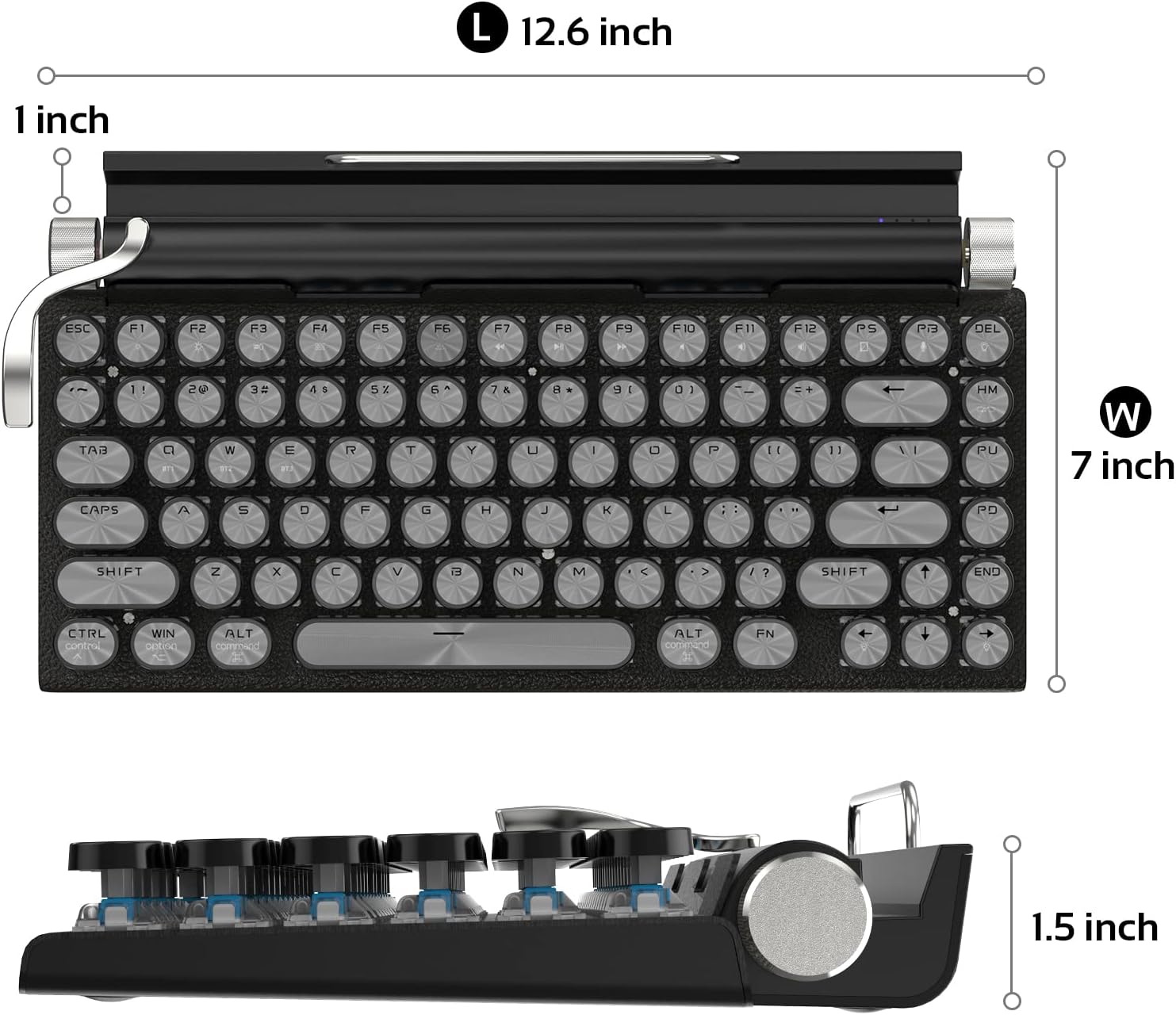
Figure 2: Diagram illustrating the dimensions of the keyboard: 12.6 inches (L), 7 inches (W), and 1.5 inches (H).
Setup
1. Charging the Keyboard
The keyboard is equipped with a 2,000mAh battery. Connect the provided USB-C cable to the keyboard's USB port and the other end to a power source (e.g., computer USB port, wall adapter). The charge indicator LED (LD4) will show solid red while charging and solid blue when fully charged. A flashing red light indicates low battery.
2. Wired Connection
To use the keyboard in wired mode, simply connect the USB-C cable from the keyboard to your computer's USB port. The keyboard will automatically switch to wired mode. The Bluetooth/Wired indicator LED (LD1) will show solid red.
3. Wireless Bluetooth Connection
The keyboard supports Bluetooth 5.0 and can store up to 3 devices. To connect via Bluetooth:
- Ensure the keyboard is powered on using the switch located on the back.
- Press and hold Fn + Z, Fn + X, or Fn + C for 3 seconds to enter pairing mode for the desired device slot. The Bluetooth/Wired indicator LED (LD1) will flash blue.
- On your device (tablet, laptop, phone), search for Bluetooth devices and select "ML-981".
- Once paired, the LD1 LED will become solid blue.
- To switch between paired devices, simply press Fn + Z, Fn + X, or Fn + C.

Figure 3: The keyboard supports both USB wired and Bluetooth 5.0 wireless connections, offering flexibility for various devices.

Figure 4: The keyboard's multi-device compatibility allows seamless switching between a desktop monitor, tablet, and smartphone.
Operating Instructions
1. Power On/Off
Use the physical switch on the back of the keyboard to turn it on or off.
2. Backlight Control
The keyboard features adjustable white LED backlights with 14 lighting modes.
- Lever (left side): Pull the lever to cycle through different white LED lighting modes.
- Left Roller: Adjusts the brightness of the LED lights.
- Fn + HM: Switches between different lighting modes.
- Fn + UP/DOWN: Adjusts backlight brightness levels.
- Fn + LEFT/RIGHT: Changes the speed of lighting effects.

Figure 5: The keyboard features stunning LED backlit modes, enhancing the typing experience with various lighting effects.
3. Volume Control
Use the Right Roller to adjust the system volume.
4. Function Keys (Hotkeys)
The keyboard includes various function key combinations for quick access to system features:
- Fn + F1: My Computer
- Fn + F2: Search
- Fn + F3: Calculator
- Fn + F4: Media Player
- Fn + F5: Previous Track
- Fn + F6: Next Track
- Fn + F7: Play/Pause
- Fn + F8: Stop
- Fn + F9: Mute
- Fn + F10: Volume Up
- Fn + F11: Volume Down
- Fn + F12: Keyboard Lock
- Fn + WIN: Windows Key Lock
- Fn + Ctrl: Right Ctrl
- Fn + R: Toggle Wired/Bluetooth mode
5. Tablet/Phone Slot
The keyboard features a built-in slot designed to hold tablets or smartphones, providing a convenient viewing angle while typing. Note that devices in thick protective cases may not fit.
Video 1: Official product video demonstrating the Taiahiro Retro Mechanical Keyboard's features, including its design, multi-device connectivity, and use with tablets and phones.
Maintenance
1. Cleaning
To clean your keyboard, gently wipe the surface with a soft, damp cloth. Avoid using harsh chemicals or abrasive materials. For dust and debris between keys, use compressed air.
2. Keycap and Switch Replacement
The keyboard features hot-swappable mechanical switches, allowing for easy replacement if a switch malfunctions. Use the provided keycap puller to carefully remove the keycap, then use a switch puller (not always included, but replacement switches are) to remove the switch. Insert the new switch and then the keycap, ensuring they are properly seated.

Figure 6: A close-up view demonstrating the process of replacing a keycap and its underlying mechanical switch on the keyboard.
Troubleshooting
| Problem | Possible Cause | Solution |
|---|---|---|
| Keyboard not responding (wired) | Loose cable connection; faulty USB port. | Ensure USB-C cable is securely connected. Try a different USB port or cable. |
| Keyboard not connecting (Bluetooth) | Keyboard not in pairing mode; device Bluetooth off; interference. | Ensure keyboard is in pairing mode (flashing blue LD1). Check device Bluetooth settings. Move closer to the device. Try re-pairing. |
| Backlight not working or dim | Backlight turned off; brightness set too low; low battery. | Use the lever or Fn+UP to increase brightness. Charge the keyboard. |
| Keys not registering or double-typing | Dust/debris under keycap; faulty switch. | Remove keycap and clean. If issue persists, replace the switch. |
| Tablet/phone does not fit in slot | Device too thick with case. | Remove the protective case from your device. |
Specifications
- Model: ML-981
- Connectivity: Bluetooth 5.0, USB-C Wired, 2.4Ghz (though 2.4Ghz not explicitly detailed in features, it's listed in specs)
- Number of Keys: 83
- Keycap Style: Retro Round
- Switch Type: Mechanical, Hot-swappable
- Battery: 2,000mAh Lithium Ion (included)
- Backlight: White LED with multiple modes
- Material: Metal (aluminum alloy metal electroplated wood grain mentioned in feature bullets)
- Compatibility: Windows 10/8/7/Vista/XP, macOS (10.10-10.14), Android
- Item Weight: 2.33 pounds
- Manufacturer: Taiahiro
Warranty Information
Please refer to the warranty card included with your purchase or contact Taiahiro customer support for specific warranty terms and conditions. Keep your proof of purchase for any warranty claims.
Customer Support
For further assistance, technical support, or inquiries regarding your Taiahiro Retro Typewriter Mechanical Keyboard, please visit the official Taiahiro website or contact their customer service department through the contact information provided on the product packaging or their website.
Related documentsML-981


Ask a question about this manual
Ask about setup, troubleshooting, compatibility, parts, safety, or missing instructions. Manuals+ will review the question and use this page’s manual context to help answer it.