1. Introduction
The MOOER Prime P1 is a compact, intelligent multi-effects processor designed for guitar, acoustic guitar, and bass. It integrates a wide range of effects, a tuner, metronome, drum machine, and looper, making it suitable for practice, recording, and live performances. Its portable design allows musicians to practice and perform without extensive equipment.

Image: The MOOER Prime P1 Multi-Effects Processor in Ivory White, showcasing its compact design.
2. Package Contents
Upon opening the package, verify that all items are present:
- 1x Prime P1 Multi-Effects Processor
- 1x Storage Bag
- 1x Charging Cable (USB-C)
- 1x Instruction Manual (this document)
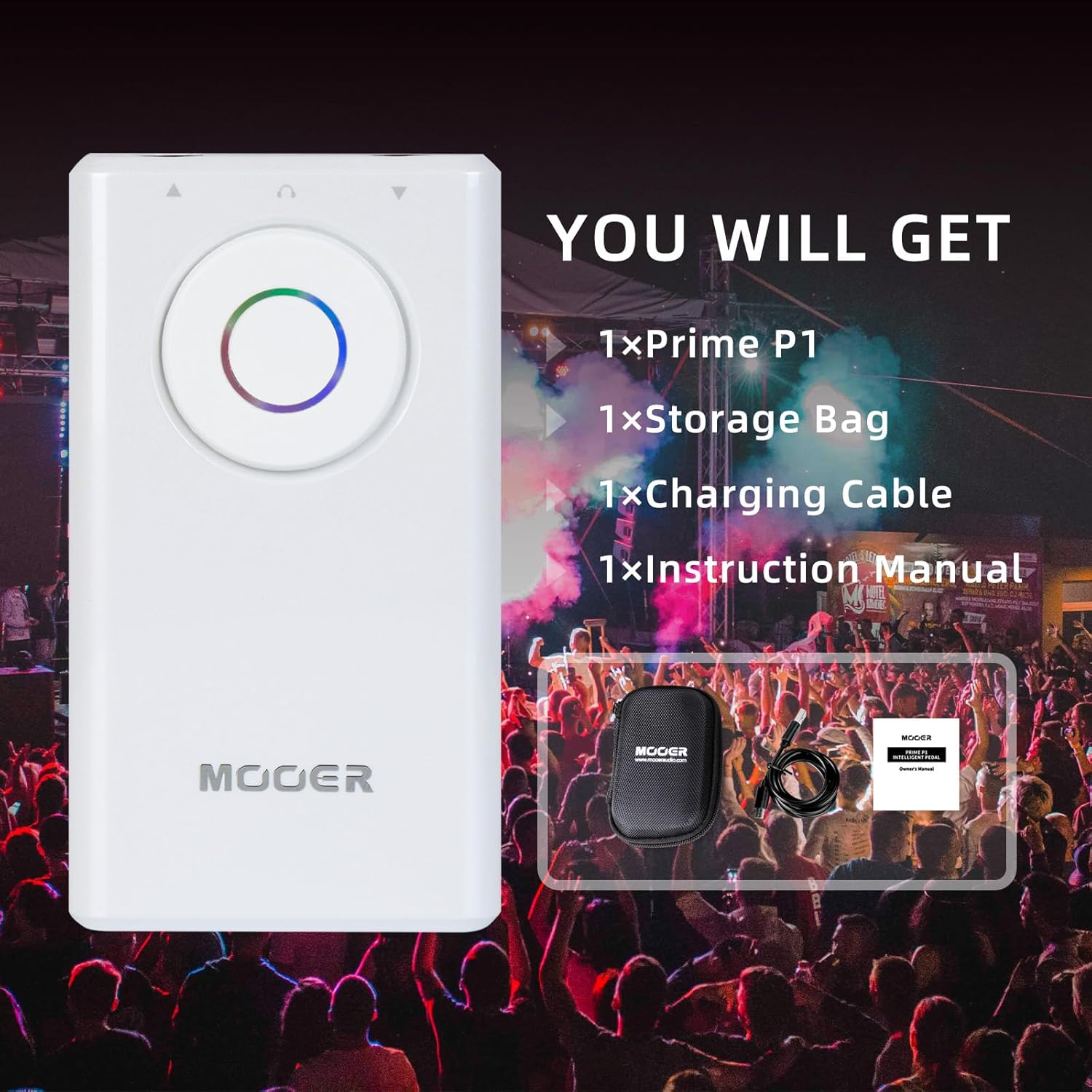
Image: The MOOER Prime P1 unit displayed with its included storage bag, USB-C charging cable, and instruction manual.
3. Setup
3.1 Charging the Device
The Prime P1 features a built-in Lithium Ion battery. Before initial use, ensure the device is fully charged. Connect the provided USB-C charging cable to the Prime P1 and a compatible USB power source (e.g., a mobile power bank or USB wall adapter). A full charge provides approximately 4.5 hours of operation.

Image: The MOOER Prime P1 connected via USB-C cable to a portable power bank for charging.
3.2 Connecting Your Instrument and Output Devices
The Prime P1 offers versatile connection options:
- Instrument Input: Connect your electric guitar, acoustic guitar, or bass to the input jack on the Prime P1.
- Headphone Output: For silent practice, connect headphones to the 3.5mm audio jack.
- Amplifier/PA Output: Connect the Prime P1 to an amplifier or PA system for live sound.
- USB-C: Use the USB-C port for charging, OTG recording to mobile devices, or connecting to a computer.
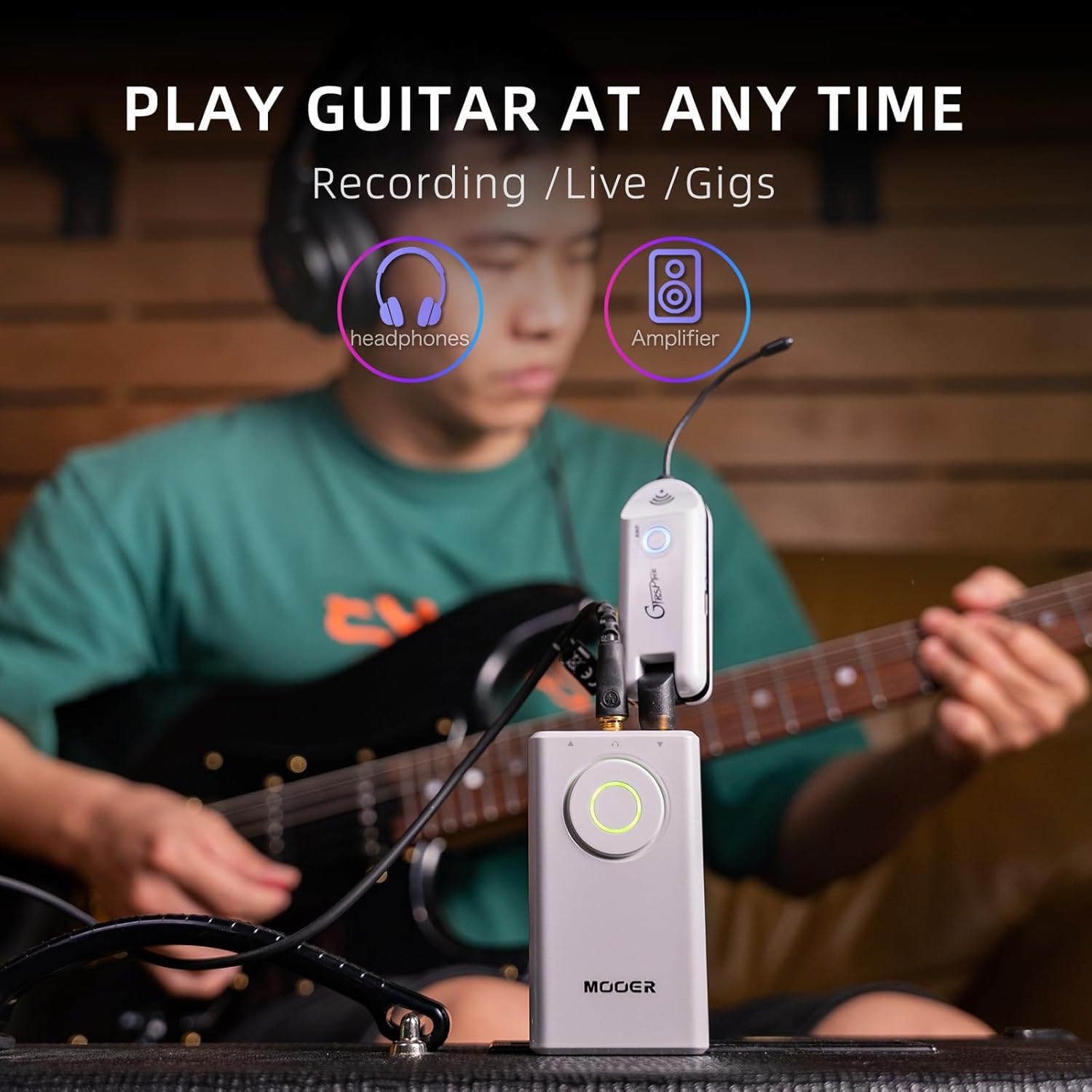
Image: A musician using the MOOER Prime P1, demonstrating connections to both headphones and an amplifier for practice or performance.
3.3 App Connection (Bluetooth)
The Prime P1 can be controlled via a dedicated mobile application. Download the MOOER Prime app from your device's app store. Enable Bluetooth on your mobile device and pair it with the Prime P1 for full control over effects, settings, and tools.

Image: The MOOER Prime P1 connected wirelessly to a smartphone and a wireless footswitch, illustrating app control and optional accessories.
4. Operating Instructions
4.1 Power On/Off
Press and hold the main circular button on the Prime P1 to power the device on or off.
4.2 Selecting Tones and Effects
The Prime P1 features a circular rotary button on its top surface. This button allows you to cycle through and select the four preset tones (A/B/C/D) within the current sound group. For more detailed effect editing and selection, use the MOOER Prime mobile application.
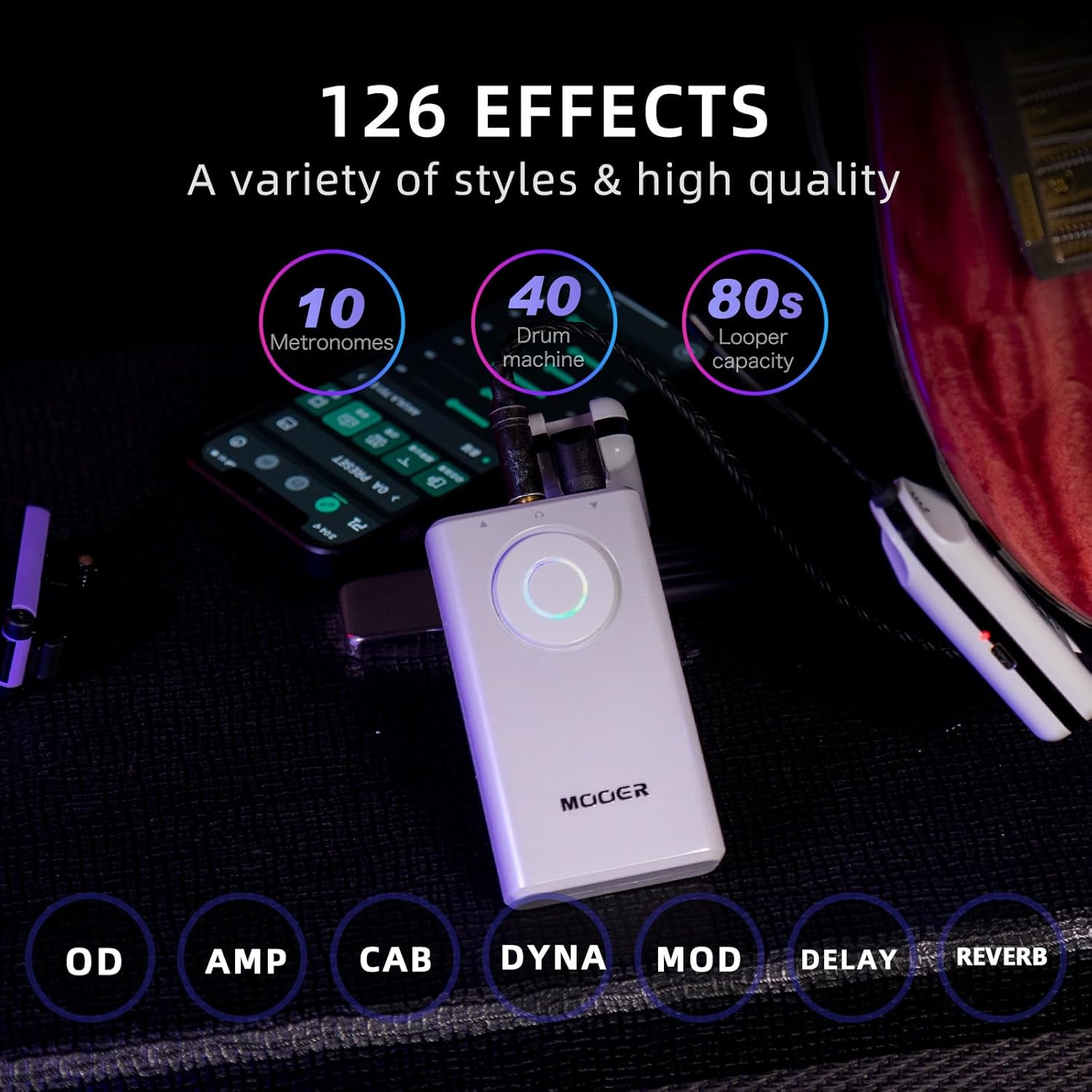
Image: The MOOER Prime P1 highlighting its 126 effects, categorized into Overdrive (OD), Amplifier (AMP), Cabinet (CAB), Dynamics (DYNA), Modulation (MOD), Delay, and Reverb.
4.3 Effect Types and Customization
The Prime P1 offers a comprehensive suite of effects tailored for different instruments:
- Electric Guitar: 7 effect types with a total of 126 distinct effects.
- Acoustic Guitar: 6 effect types.
- Bass: 10 effect types.
These effects include Overdrive, Amplifier simulations, Cabinet simulations, Dynamics, Modulation, Delay, and Reverb. The MOOER Prime app provides an interface to customize and arrange these effects in your signal chain.

Image: A visual representation of the MOOER Prime P1's built-in effects, categorized for Electric Guitar, Bass, and Acoustic Guitar, as seen within the mobile application interface.
4.4 Integrated Tools
The Prime P1 includes several useful tools accessible via the mobile application:
- Tuner: A built-in smart tuning meter for accurate instrument tuning.
- Metronome: 10 different metronome settings for rhythm practice.
- Drum Machine: 40 drum machine patterns to play along with.
- Looper: An 80-second looper capacity for creating and practicing phrases.
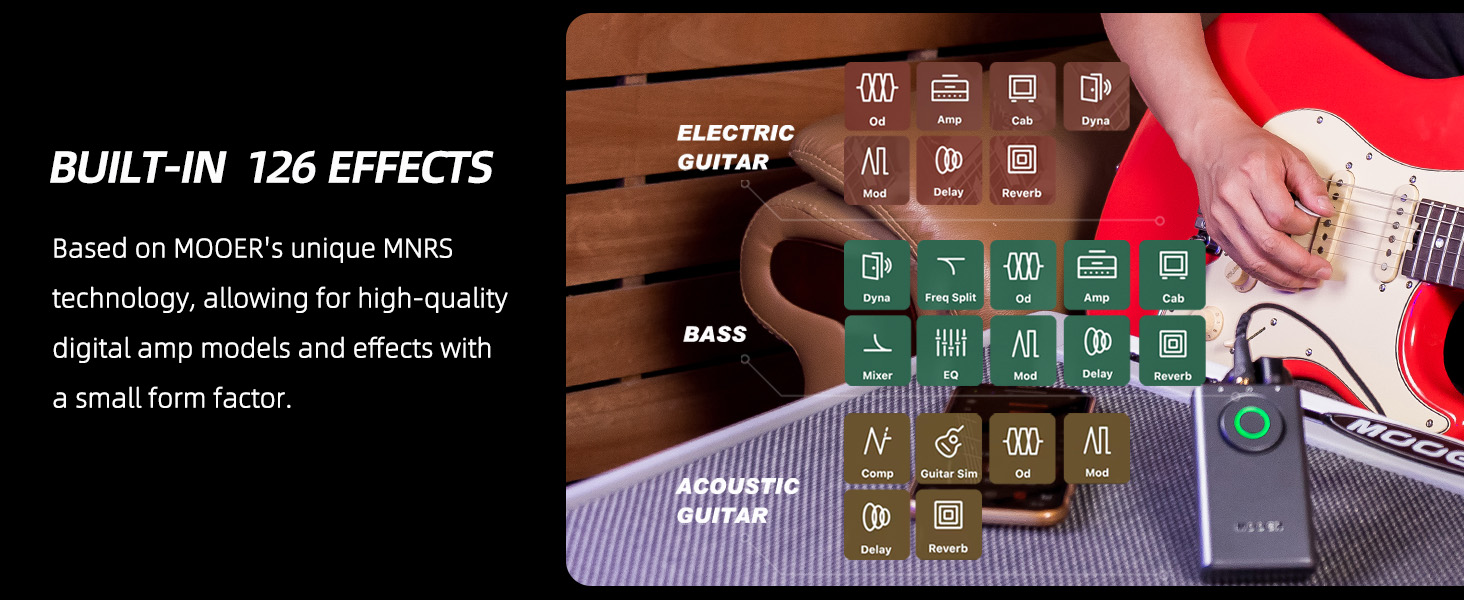
Image: A screenshot of the MOOER Prime mobile application interface, displaying the integrated tools section with options for Metronome, Drums, Tuner, and Looper.
4.5 OTG Recording and Cloud Tone Library
The OTG (On-The-Go) function allows direct connection to compatible mobile phones or tablets for audio/video recording. Additionally, the Prime P1 app provides access to a Cloud Tone Library, enabling users to share their custom tones and download tones created by others.
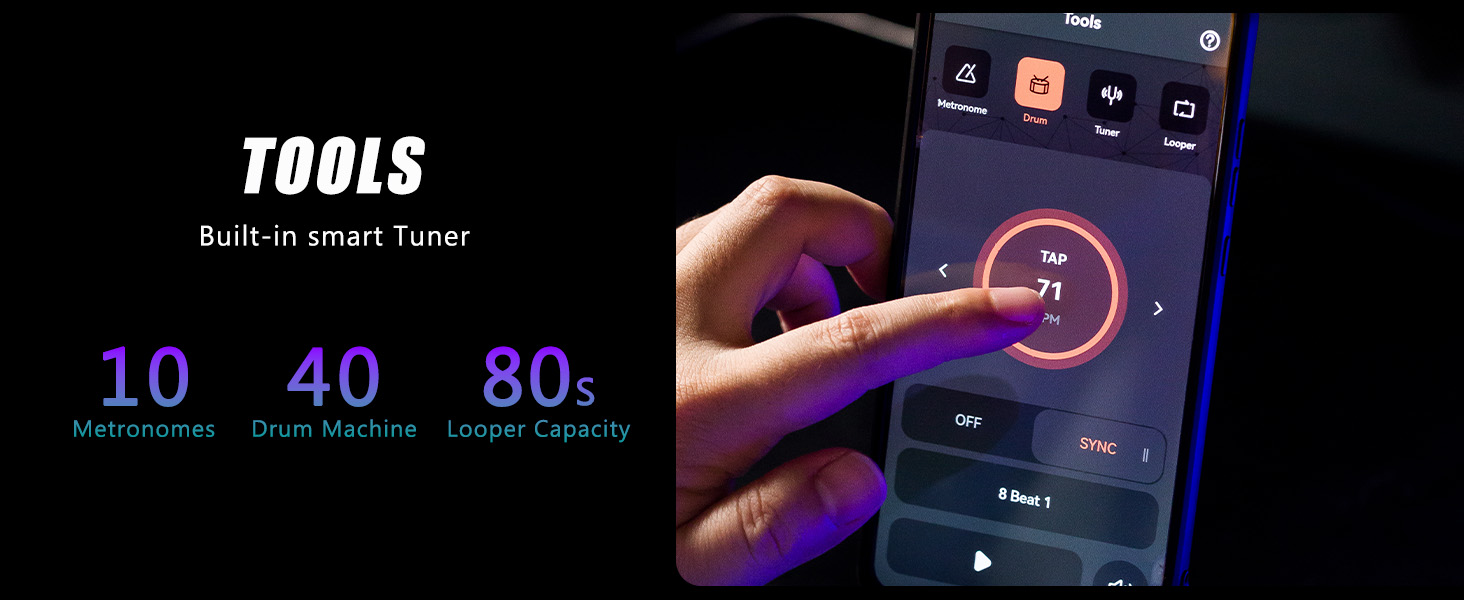
Image: The MOOER Prime app interface showcasing the Cloud Tone Library, where users can share and download various tones.
4.6 Usage Modes
The Prime P1 supports different operational modes for various scenarios:
Normal Mode

Image: Diagram illustrating the Normal Mode setup, connecting the Prime P1 to a guitar, headphones, a mixer, and a smartphone via Bluetooth.
Recording Mode

Image: Diagram illustrating the Recording Mode setup, connecting the Prime P1 to a guitar, headphones, and a smartphone for direct recording.
5. Maintenance
To ensure the longevity and optimal performance of your MOOER Prime P1, follow these guidelines:
- Cleaning: Use a soft, dry cloth to clean the exterior of the device. Avoid using abrasive cleaners or solvents.
- Storage: When not in use, store the Prime P1 in its provided storage bag to protect it from dust and physical damage. Store in a cool, dry place away from direct sunlight and extreme temperatures.
- Battery Care: For optimal battery life, avoid fully discharging the battery frequently. If storing for extended periods, charge the battery to approximately 50% every few months.
- Firmware Updates: Periodically check the MOOER website or app for firmware updates. Follow the instructions provided with the update carefully.
6. Troubleshooting
If you encounter issues with your Prime P1, refer to the following common problems and solutions:
| Problem | Possible Cause | Solution |
|---|---|---|
| Device does not power on. | Low or depleted battery. | Connect the device to a power source using the USB-C cable and allow it to charge for at least 30 minutes before attempting to power on again. |
| Device not charging / Flashing indicator. | Faulty charging cable or power adapter; device malfunction. | Try a different USB-C cable and a different power adapter. Ensure the connection is secure. If the issue persists, contact customer support. |
| No sound output. | Incorrect connections; volume too low; effect settings. | Verify all cables are securely connected. Check the volume levels on the Prime P1, your headphones/amplifier, and the connected app. Ensure effects are not bypassed or set to zero output. |
| App not connecting via Bluetooth. | Bluetooth disabled; device not in pairing mode; app issue. | Ensure Bluetooth is enabled on your mobile device. Restart both the Prime P1 and your mobile device. Try re-pairing the devices. Ensure the app is updated to the latest version. |
| Firmware update failed or bricked device. | Interruption during update; corrupted firmware file. | Important: Always ensure a stable power supply and connection during firmware updates. If a device becomes unresponsive after an update attempt, contact MOOER customer support immediately for assistance. Do not attempt further updates without guidance. |
7. Specifications
| Model Number | Prime P1 |
| Dimensions (L x W x H) | 3.27 x 1.65 x 1.22 inches (8.3 x 4.2 x 3.1 cm) |
| Item Weight | 1.05 pounds (approx. 476 grams) |
| Battery Type | 1 Lithium Ion battery (included) |
| Power Source | Battery Powered, Corded Electric (via USB-C) |
| Voltage | 9 Volts |
| Connector Type | 3.5mm Audio Jack, USB-C |
| Hardware Interface | Bluetooth |
| Signal Format | Analog |
| Effects Count | 126 (7 types for electric guitar, 6 for acoustic, 10 for bass) |
| Looper Capacity | 80 seconds |
| Metronomes | 10 patterns |
| Drum Machine | 40 patterns |
8. Warranty and Support
MOOER provides professional after-sales service for the Prime P1. For any product-related questions or assistance, please contact MOOER customer service. Inquiries will typically receive a response within 24 hours.
While specific warranty duration details are not provided in this manual, please retain your proof of purchase for any warranty claims. For the most current warranty information, refer to the official MOOER website or contact customer support directly.


