
1. Introduction
Thank you for choosing the Wiko T50 smartphone. This manual provides essential information on how to set up, operate, and maintain your device. Please read this manual carefully before using your Wiko T50 to ensure proper functionality and safety.
2. Safety Information
Always follow basic safety precautions when using your Wiko T50 to reduce the risk of injury, electric shock, fire, or damage to the device.
- Do not expose the device to extreme temperatures, direct sunlight, or high humidity.
- Use only Wiko-approved chargers and accessories.
- Avoid dropping or subjecting the device to severe impact.
- Do not attempt to disassemble or repair the device yourself. Refer to qualified service personnel.
- Keep the device away from pacemakers and other medical devices.
3. Package Contents
Ensure all items are present in your Wiko T50 package:
- Wiko T50 Smartphone
- Charger
- Lithium Polymer Battery (pre-installed or included)
- User Manual (this document)
4. Product Overview
Familiarize yourself with the physical features of your Wiko T50 smartphone.
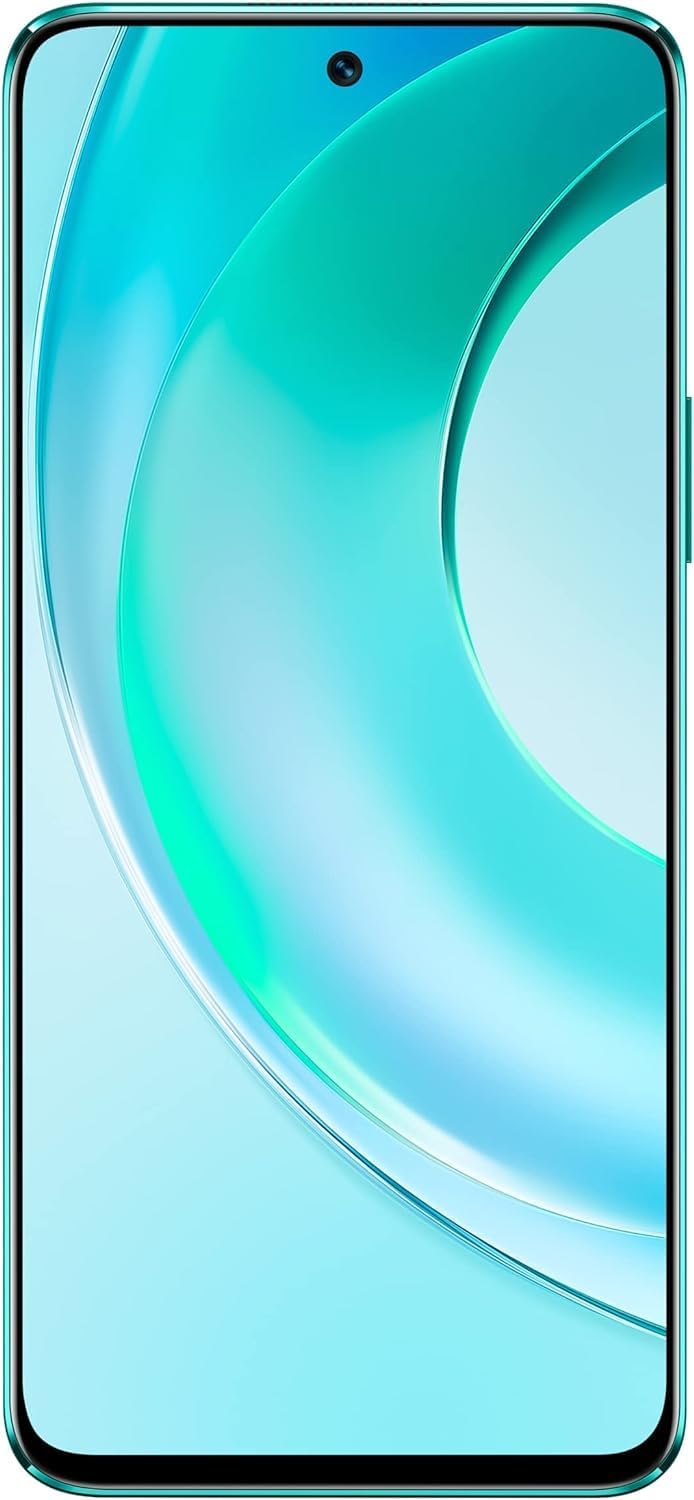
Figure 4.1: Front view of the Wiko T50 smartphone, showcasing its large display and front camera.

Figure 4.2: Rear view of the Wiko T50 smartphone in Aqua Green, highlighting the triple camera module and Wiko branding.

Figure 4.3: Right side view of the Wiko T50 smartphone, showing the power button and volume rocker.

Figure 4.4: Left side view of the Wiko T50 smartphone, showing the SIM tray.
Key Components:
- Display: 6.6-inch FHD+ borderless display for immersive viewing.
- Cameras: 64MP AI Triple Camera system on the rear, featuring a 120-degree ultra-wide angle lens. Front camera for selfies and video calls.
- Buttons: Power button and volume rocker located on the right side for easy access.
- Ports: USB port for charging and data transfer.
- SIM Tray: Dual SIM support for flexible connectivity.
5. Setup
5.1 Inserting SIM Cards
- Locate the SIM tray on the left side of the device.
- Use the provided SIM ejector tool to open the tray.
- Carefully place your Nano-SIM cards into the designated slots. Ensure the gold contacts are facing down.
- Gently push the SIM tray back into the slot until it clicks into place.
5.2 Charging the Battery
- Connect the charger to the USB port at the bottom of your Wiko T50.
- Plug the charger into a power outlet.
- The device supports 40W fast charging. The battery indicator on the screen will show charging progress.
- Once fully charged, disconnect the charger.
5.3 Powering On/Off
- To Power On: Press and hold the Power button on the right side until the Wiko logo appears.
- To Power Off: Press and hold the Power button, then select 'Power off' from the options on the screen.
6. Operating
6.1 Basic Navigation (Android 11.0)
- Touchscreen: Navigate the device using touch gestures such as tap, swipe, pinch-to-zoom.
- Home Screen: The central hub for your apps and widgets.
- Notifications: Swipe down from the top of the screen to view notifications and quick settings.
- App Drawer: Swipe up from the bottom of the screen to access all installed applications.
6.2 Camera Usage
Your Wiko T50 features a 64MP AI Triple Camera system.
- Open the Camera application from your home screen or app drawer.
- Select your desired mode (Photo, Video, Portrait, Pro, etc.).
- Tap the shutter button to capture a photo or start/stop recording a video.
- Switch between the main lens and the 120-degree ultra-wide lens for different perspectives.
6.3 Connectivity
- Wi-Fi: Go to Settings > Network & internet > Wi-Fi to connect to available Wi-Fi networks.
- Bluetooth: Go to Settings > Connected devices > Connection preferences > Bluetooth to pair with Bluetooth devices.
- Mobile Data (4G LTE): Ensure your SIM card is active and mobile data is enabled in Settings > Network & internet > Mobile network.
- USB: Connect your device to a computer using a USB cable for file transfer or charging.
7. Maintenance
- Cleaning: Use a soft, lint-free cloth to clean the screen and body of the device. Avoid using harsh chemicals or abrasive materials.
- Software Updates: Regularly check for and install software updates to ensure optimal performance and security. Go to Settings > System > System update.
- Battery Care: To prolong battery life, avoid fully discharging the battery frequently. Charge the device before the battery level drops too low.
- Storage Management: Periodically clear unnecessary files and apps to free up storage space and maintain device speed.
8. Troubleshooting
Here are solutions to common issues you might encounter:
| Problem | Solution |
|---|---|
| Device does not power on | Ensure the battery is charged. Connect the charger and wait a few minutes before attempting to power on again. |
| Battery drains quickly | Close unused apps, reduce screen brightness, disable Wi-Fi/Bluetooth when not in use. Check for background app activity. |
| Cannot connect to Wi-Fi | Restart your Wi-Fi router and the phone. Ensure you have entered the correct Wi-Fi password. |
| Apps are crashing or freezing | Restart the device. Clear the cache of the problematic app (Settings > Apps > [App Name] > Storage & cache > Clear cache). |
| No network signal | Ensure SIM card is properly inserted. Check if airplane mode is off. Try restarting the device. Contact your network provider if the issue persists. |
9. Specifications
Detailed technical specifications for the Wiko T50 smartphone:
| Feature | Specification |
|---|---|
| Model Name | T50 |
| Item Model Number | W-P861-03 |
| Operating System | Android 11.0 |
| Installed RAM Size | 6 GB |
| Memory Storage Capacity | 128 GB |
| CPU Model | Snapdragon |
| CPU Speed | 2 GHz |
| Screen Size | 6.6 inches |
| Resolution | 1080 x 2400 |
| Refresh Rate | 60 Hz |
| Color | Aqua Green |
| Battery Power Rating | 4000 mAh (unspecified rating) |
| Form Factor | Bar |
| Wireless Communication Technologies | Cellular |
| Connectivity Technologies | Bluetooth, Wi-Fi, USB |
| GPS | GLONASS |
| Other Camera Features | Rear |
| Device Interface_Primary | Microphone, Touchscreen |
| Item Weight | 260 g |
| Package Dimensions | 27.8 x 24.4 x 10.2 cm |
| Date First Available | May 15, 2022 |
10. Warranty and Support
Wiko provides a limited warranty for its products. Please refer to the warranty card included with your purchase for specific terms and conditions. For technical support, service, or further inquiries, please visit the official Wiko website or contact their customer service.
Keep your proof of purchase for warranty claims.


