
Spectra Projection Slider
Spectra Projection Slider Tray User Manual
Model: Slider
Introduction
The Spectra Projection Slider Tray is an innovative solution designed to optimize the placement of Ultra Short Throw (UST) laser projectors. This motorized sliding tray allows for precise adjustment of your projector's position, enabling you to achieve the perfect image size and alignment without the need for specialized furniture or constant manual repositioning. Its silent operation and robust construction ensure a seamless integration into any home theater or living room setup.

Figure 1: Spectra Projection Slider Tray with a UST projector.
Safety Information
- Read all instructions carefully before installation and operation.
- Do not attempt to disassemble or modify the unit. Refer all servicing to qualified personnel.
- Ensure the power supply is disconnected before performing any maintenance or installation.
- Keep hands and fingers clear of moving parts during operation.
- Do not exceed the maximum load capacity of 65 pounds.
- Install on a stable, level surface or securely mount using the provided brackets.
Package Contents
Verify that all components are present before beginning installation:
- Spectra Projection Slider Tray Unit
- Power Adapter
- Mounting Brackets (2)
- Mounting Hardware (screws, anchors)
- User Manual (this document)

Figure 2: Exploded view showing the internal mechanism and mounting brackets.
Setup
Follow these steps to properly set up your Spectra Projection Slider Tray:
- Choose Location: Select a stable, flat surface or cabinet where your UST projector will be placed. Ensure there is enough space for the slider to extend fully (up to 30.5 inches total length at max extension).
- Mounting (Optional): If securing the slider to a cabinet or wall, use the provided mounting brackets.
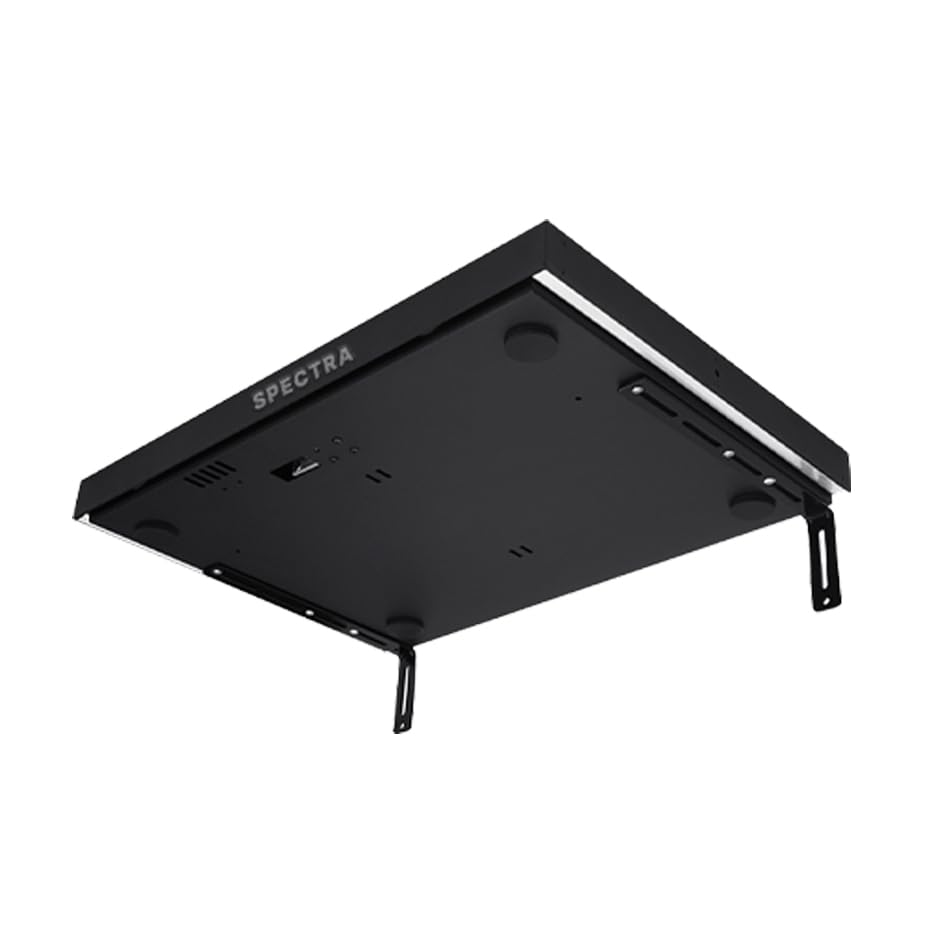
Figure 3: Underside of the slider tray with mounting brackets attached.
- Attach the brackets to the underside of the slider tray using the smaller screws.
- Position the slider on your desired surface. Mark the drilling points for the brackets on the surface.
- Drill pilot holes and secure the brackets to the surface using the larger screws and anchors if necessary.
- Place Projector: Carefully place your UST projector onto the Spectra Projection Slider Tray. Ensure it is centered and stable.
- Connect Power: Plug the power adapter into the slider tray's power input, then connect it to a standard electrical outlet.
- Cable Management: Route any projector cables (HDMI, power) neatly to avoid interference with the sliding mechanism.

Figure 4: Key dimensions of the Spectra Projection Slider Tray, including slider width (21"), slider length (15.75"), length at max extension (30.5"), and max wall bracket length (5.9").
Operating Instructions
The Spectra Projection Slider Tray is designed for automatic and precise positioning of your UST projector.
- Automatic Operation: The slider tray is equipped with a smart sensor that detects when your UST projector is powered on or off.
- When the projector is turned ON, the slider will automatically extend to your pre-set optimal throw distance.
- When the projector is turned OFF, the slider will automatically retract to its home position, allowing the projector to sit flush with your cabinet or wall.
- Adjusting Throw Distance: The slider's extension distance can be configured to match your desired image size (e.g., 100", 110", 120"). Refer to your projector's manual for specific throw distance requirements for different screen sizes. The slider's versatile travel distance allows adaptation to various setups.
- Manual Override (if applicable): Some models may include manual control buttons for fine-tuning or overriding the automatic function. Consult the specific product documentation for your model if manual controls are present.
Video 1: Demonstration of the Spectra Slider's automatic extension and retraction with a UST projector.

Figure 5: Illustrates how the Spectra Slider helps achieve various image sizes by adjusting the projector's distance from the screen.
Maintenance
The Spectra Projection Slider Tray requires minimal maintenance to ensure long-lasting performance:
- Cleaning: Use a soft, dry cloth to wipe down the exterior of the unit. Avoid abrasive cleaners or solvents.
- Mechanism: The internal brushless stepper motor is designed for silent and maintenance-free operation. Do not lubricate or attempt to clean internal moving parts.
- Ventilation: Ensure the area around the slider and projector is clear to allow for proper airflow and prevent overheating.
Troubleshooting
| Problem | Possible Cause | Solution |
|---|---|---|
| Slider does not move. | No power; Projector not detected; Obstruction. | Check power connection. Ensure projector is powered on. Remove any obstructions from the sliding path. |
| Slider moves erratically or not to correct position. | Incorrect sensor calibration; Loose projector. | Consult manufacturer support for recalibration instructions. Ensure projector is securely placed on the tray. |
| Noise during operation. | Obstruction; Internal issue. | Check for and remove any obstructions. If noise persists, contact customer support. |
Specifications
| Feature | Detail |
|---|---|
| Model Number | Slider |
| Brand | Spectra Projection |
| Material | Aluminum |
| Color | Black (Matte Finish) |
| Item Weight | 27 Pounds |
| Load Capacity | 65 Pounds |
| Package Dimensions | 24 x 19.5 x 5.5 inches |
| Slider Width | 21 inches |
| Slider Length (Retracted) | 15.75 inches |
| Length at Max Extension | 30.5 inches |
| Max Wall Bracket Length | 5.9 inches |
| Special Feature | Automatic positioning for optimal image size |
| UPC | 790910881997 |
Warranty and Support
For warranty information and technical support, please refer to the official Spectra Projection website or contact their customer service directly. Keep your purchase receipt as proof of purchase for warranty claims.
Manufacturer: Spectra Projection
Contact: Please visit www.spectraprojection.com for support resources.
Related documentsSlider


Ask a question about this manual
Ask about setup, troubleshooting, compatibility, parts, safety, or missing instructions. Manuals+ will review the question and use this page’s manual context to help answer it.