Introduction
This manual provides essential information for the setup, operation, and maintenance of your SteelSeries Apex 9 TKL Optical Gaming Keyboard. Please read these instructions carefully to ensure optimal performance and longevity of your device.
The SteelSeries Apex 9 TKL is a compact tenkeyless (TKL) gaming keyboard featuring OptiPoint optical switches, designed for high-speed performance and customization.
Package Contents
- SteelSeries Apex 9 TKL Keyboard
- Detachable USB-C to USB-A Cable
- Keycap Puller
- Switch Puller
- Documentation (this manual)
Setup
1. Connecting the Keyboard
- Locate the detachable USB-C to USB-A cable.
- Connect the USB-C end of the cable to the port on the back of the Apex 9 TKL keyboard.
- Connect the USB-A end of the cable to an available USB port on your computer.
- The keyboard will automatically be detected and configured by your operating system.
2. Software Installation (SteelSeries GG)
For full customization options, including RGB lighting, key remapping, and actuation point adjustment, download and install the SteelSeries GG software from the official SteelSeries website (steelseries.com/gg).
- Visit the SteelSeries website and navigate to the software download section.
- Download the SteelSeries GG installer for your operating system.
- Run the installer and follow the on-screen instructions.
- Once installed, launch SteelSeries GG to configure your Apex 9 TKL keyboard.

Image: The SteelSeries Apex 9 TKL keyboard, showcasing its compact design and vibrant RGB lighting, connected to a computer via its detachable USB-C cable.
Operating the Keyboard
Key Features and Functions
- OptiPoint Optical Switches: These switches utilize light for actuation, providing fast response times.
- 2-Point Actuation: Adjust the key actuation point between 1.0mm for rapid gaming inputs and 1.5mm for more deliberate typing. This setting is configurable via the SteelSeries GG software.
- Swappable Switches: The OptiPoint switches are hot-swappable, allowing for customization, replacement, or repair. Use the included switch puller for removal and installation.
- TKL Form Factor: The tenkeyless design removes the numeric keypad, providing more desk space for mouse movement.
- Double Shot PBT Keycaps: Durable keycaps designed for longevity and a consistent texture.
- RGB Customization: Per-key RGB lighting is fully customizable through the SteelSeries GG software.
- Rapid Tap: A feature that prioritizes the last key press in a selected pair for faster input, useful in competitive gaming scenarios. Requires the latest SteelSeries GG software update.

Image: Visual representation of the Apex 9 TKL's performance metrics, highlighting its 0.2ms response time and faster actuation compared to other optical keyboards.
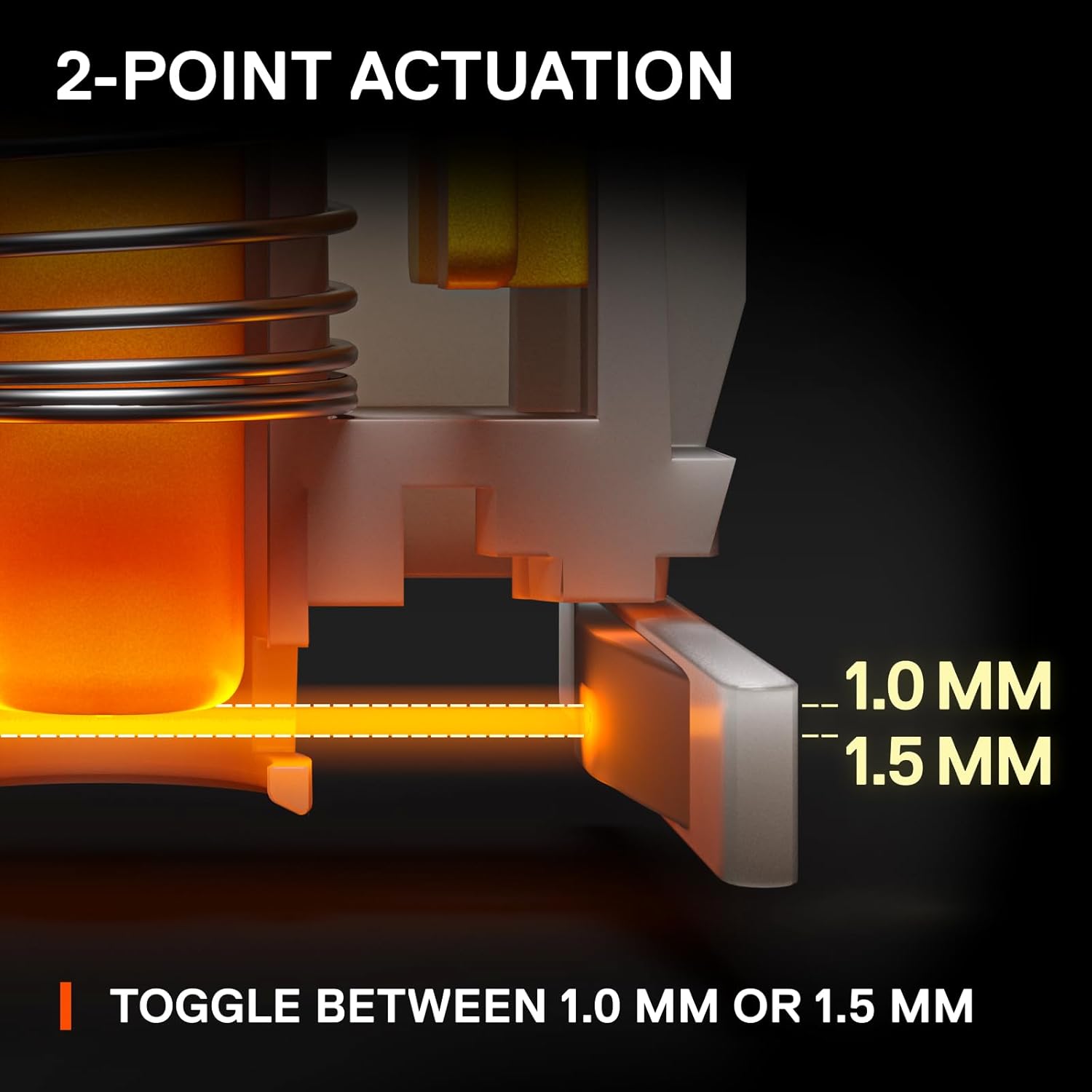
Image: An illustration detailing the adjustable 2-point actuation of the OptiPoint switches, allowing users to select between 1.0mm and 1.5mm actuation depths.

Image: A close-up view of the keyboard illustrating the process of swapping OptiPoint switches, with a keycap and switch partially removed.

Image: A diagram explaining the 'Rapid Tap' feature, comparing standard input with Rapid Tap enabled, demonstrating how it enhances responsiveness by prioritizing the last key press.
Maintenance
Cleaning the Keyboard
- Disconnect the keyboard from your computer before cleaning.
- Use a can of compressed air to remove dust and debris from between the keycaps.
- For surface cleaning, gently wipe the keycaps and frame with a soft, damp cloth. Avoid using harsh chemicals or abrasive materials.
- Ensure the keyboard is completely dry before reconnecting it to your computer.
Replacing Keycaps and Switches
The Apex 9 TKL features swappable OptiPoint switches and standard keycaps, allowing for easy replacement.
- Keycap Removal: Use the included keycap puller to gently lift keycaps straight up.
- Switch Removal: After removing the keycap, use the included switch puller to carefully grip the switch and pull it straight up.
- Installation: Align the new switch with the pins on the keyboard's PCB and press down firmly until it clicks into place. Then, press the new keycap onto the switch stem.

Image: An exploded view illustrating the durable construction of double shot PBT keycaps, highlighting their two-layer design for fade resistance.
Troubleshooting
- Keyboard Not Responding:
- Ensure the USB cable is securely connected to both the keyboard and the computer.
- Try connecting the keyboard to a different USB port on your computer.
- Restart your computer.
- Check if the keyboard works on another computer to rule out a system-specific issue.
- RGB Lighting Not Working/Incorrect:
- Ensure the SteelSeries GG software is installed and running.
- Check the lighting settings within the SteelSeries GG software.
- Update the keyboard firmware via SteelSeries GG.
- Keys Not Registering or Double-Typing:
- This could indicate a faulty switch. Use the switch puller to remove the affected switch and inspect it. If necessary, replace it with a new OptiPoint switch.
- Ensure the switch is fully seated in its socket.
- Clean any debris around the switch area.
- Software Issues (SteelSeries GG):
- Ensure your SteelSeries GG software is up to date.
- Try reinstalling the SteelSeries GG software.
- Consult the SteelSeries support website for known issues or updates.
Specifications
| Brand | SteelSeries |
| Model Number | 64847 |
| Keyboard Layout | Tenkeyless (TKL) |
| Switch Type | OptiPoint Optical Switches (Swappable) |
| Actuation Points | Adjustable 1.0mm / 1.5mm |
| Response Time | 0.2ms |
| Keycap Material | Double Shot PBT |
| Connectivity | USB-C (Detachable Cable) |
| Backlighting | Per-key RGB |
| Hardware Platform | PC |
| Dimensions (LxWxH) | 13.99 x 5.05 x 1.65 inches |
| Weight | 2.3 pounds |
Warranty Information
SteelSeries products are covered by a limited warranty. The specific terms and duration of the warranty may vary by region and product. For detailed warranty information, please refer to the official SteelSeries website or the warranty card included with your product.
Keep your proof of purchase for warranty claims.
Support
For further assistance, technical support, or to access the latest drivers and firmware updates, please visit the official SteelSeries support website:
You can also find FAQs, troubleshooting guides, and community forums on the support page.


