
1. Introduction
This manual provides detailed instructions for the setup, operation, and maintenance of your FoMaKo KN30A Pro NDI PTZ Camera. This camera is designed for professional video production and live streaming, featuring 30X optical zoom, advanced AI auto-tracking, and versatile connectivity options including NDI 6 & NDI HX3, HDMI, 3G-SDI, IP, and USB3.0.
Please read this manual thoroughly before using the product to ensure optimal performance and to prevent damage.
2. What's in the Box
Upon unboxing, verify that all the following items are included:
- FoMaKo AI Tracking NDI PTZ Camera (30x optical zoom)
- IR Remote Controller
- Wall Mount Bracket
- Ceiling Bracket
- USB Cable
- Power Adapter (12V 2A)
- User Manual (this document)
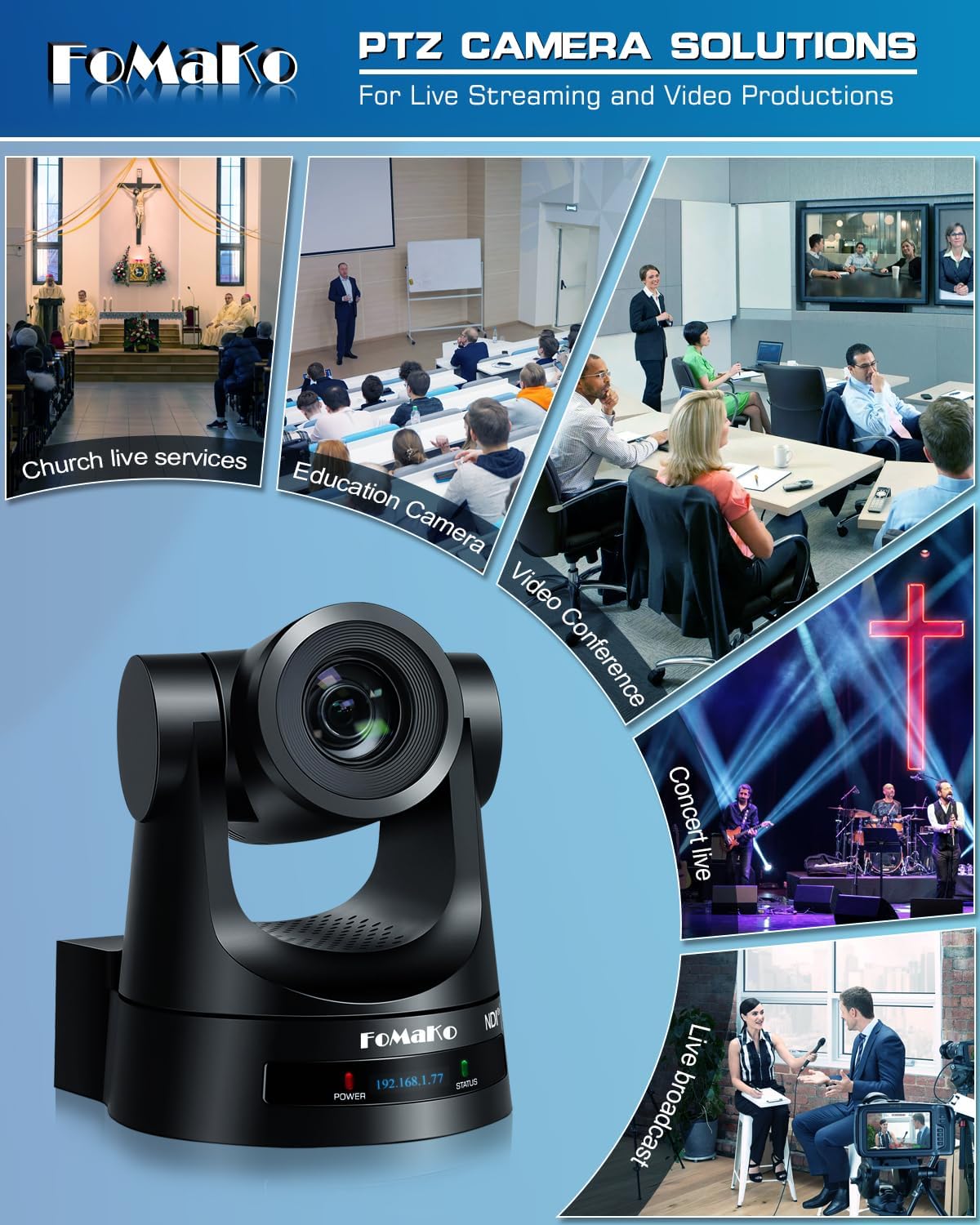
Image: Contents of the FoMaKo KN30A Pro NDI PTZ Camera box, including the camera, remote, cables, and mounting hardware.
3. Key Features
- 30x Optical Zoom: High-quality optical zoom for detailed capture from various distances.
- AI Auto-Tracking Gen 3: Advanced artificial intelligence for precise and customizable subject tracking.
- Official NDI 6 & NDI HX3 Certified: Ensures stable, high-quality video transmission over IP networks with low bandwidth support.
- Multiple Video Output Interfaces: Simultaneous 3G-SDI, HDMI, LAN/Ethernet, and USB3.0 outputs.
- PoE Support: Power over Ethernet for simplified installation and reduced cabling.
- H.264/H.265 Encoding: Efficient video compression for fluent and clear motion video.
- High SNR CMOS: Combined with 2D & 3D noise reduction for excellent low-light performance.
- Gear Transmission Structure: Provides accurate preset positioning and enhanced durability compared to belt-driven systems.
- Multiple Video Resolutions: Supports HD 1080p with formats like 1080P60/50, 1080P30/25, 720P60/50, 720P30/25.
- Wide Viewing Angle: 58.1-degree field of view.
- Extensive Control Options: IR Remote control, FoMaKo PTZ controller, webpage control, OBS/vMix PTZ plugin, StreamDeck control, and support for RS232/RS485, TCP/IP, RTSP, RTMP, VISCA OVER IP, VISCA, SRT protocols.

Image: Front view of the FoMaKo KN30A Pro NDI PTZ Camera, highlighting its sleek design and lens.

Image: The FoMaKo PTZ Camera demonstrating its 30X optical zoom capability, showing a wide shot and a zoomed-in detail of a speaker in a church setting.
4. Setup & Installation
4.1 Mounting Options
The FoMaKo KN30A Pro NDI PTZ Camera supports multiple installation methods to suit various environments:
- Wall Mount: Use the provided wall mount bracket for secure attachment to a vertical surface.
- Ceiling Mount: Utilize the ceiling bracket for inverted installation, often preferred for discreet placement.
- Tripod Mount: The camera can be mounted on a standard tripod for portable or temporary setups.

Image: A visual representation of the three primary installation methods: wall mount, tripod mount, and ceiling mount, with the camera shown in a church setting.
4.2 Power and Connectivity
The camera can be powered via the included 12V 2A power adapter or through Power over Ethernet (PoE) if connected to a PoE-enabled network switch. PoE simplifies installation by delivering both power and data over a single Ethernet cable.
Connect the camera to your network using an Ethernet cable for IP control and NDI streaming. For direct video output, use HDMI or 3G-SDI cables.

Image: The rear panel of the FoMaKo KN30A Pro NDI PTZ Camera, displaying various connectivity ports including RS232, 3G-SDI, HDMI, USB3.0, LAN (PoE), and DC12V power input.
Video: This video demonstrates the installation process for the FoMaKo PTZ Camera, covering physical mounting and initial connections.
5. Operating Instructions
5.1 Remote Control
The included IR remote controller allows for basic camera functions such as Pan, Tilt, Zoom, Focus, and preset recall. Up to 10 presets can be stored and recalled directly from the remote.
- Use the directional buttons for Pan and Tilt movements.
- Use the ZOOM + and ZOOM - buttons to adjust the optical zoom.
- Use the FOCUS + and FOCUS - buttons for manual focus adjustment.
- To save a preset: Position the camera, then press PRESET followed by a number (0-9).
- To recall a preset: Press the corresponding number (0-9).
- Press F2 to activate AI auto-tracking. Press F4 to switch tracking targets.

Image: The infrared remote control for the FoMaKo PTZ Camera, showing buttons for pan, tilt, zoom, focus, and preset functions.
Video: This video demonstrates the functions and usage of the FoMaKo PTZ Camera remote controller.
Video: This video explains how to adjust PTZ speed and preset speed settings on the FoMaKo PTZ Camera for smoother camera movements.
5.2 Web Interface Control
The camera features a web-based graphical user interface (GUI) for comprehensive control and configuration. Access the web interface by entering the camera's IP address into a web browser on a computer connected to the same network.
The web interface allows for:
- Real-time video preview.
- Advanced PTZ control (Pan, Tilt, Zoom, Focus).
- Preset management (up to 255 presets).
- Image and video settings adjustment (exposure, white balance, etc.).
- Network configuration.
- AI tracking mode customization.

Image: Screenshots of the FoMaKo PTZ Control App, showing both web and mobile versions of the interface for camera control.
6. AI Auto-Tracking (Gen 3)
The FoMaKo KN30A Pro features third-generation AI auto-tracking, providing enhanced accuracy and customization for following subjects. This function is ideal for presentations, lectures, and live events where a speaker or performer needs to remain in frame.
6.1 Activating AI Tracking
To activate AI tracking, press the F2 button on the IR remote control. The camera will automatically detect and track a human figure. To switch the tracking target, press F4.
6.2 Customizing Tracking Settings
Advanced AI tracking settings can be configured via the web interface. These include:
- Tracking Modes: Adjust how the camera tracks (e.g., full body, upper body, head).
- Tracking Sensitivity: Fine-tune the responsiveness of the tracking.
- Figure Size: Define the target size for tracking.
- AI-Track Speed: Control the speed of camera movements during tracking.
- Horizontal Tracking Only: Restrict tracking to horizontal movement.
- Lost Target Action: Define camera behavior if the tracked subject leaves the frame.

Image: The FoMaKo PTZ Camera actively tracking a person in a church, with a green box indicating the tracked subject.
Video: This video demonstrates the fast auto-focus and AI auto-tracking capabilities of the FoMaKo PTZ Camera with 30X optical zoom.
7. Connectivity & NDI
The FoMaKo KN30A Pro is an Official NDI 6 & NDI HX3 Certified camera, offering robust and flexible connectivity for professional live streaming and video production workflows.
7.1 NDI Technology
NDI (Network Device Interface) allows for high-quality, low-latency video transmission over standard IP networks. NDI 6 and NDI HX3 certification ensures compatibility and optimal performance, even in environments with limited bandwidth.
The camera is compatible with popular live streaming software and platforms including vMix, OBS, Propresenter, StreamYards, Streamlabs, Wirecast, and Zoom. It also supports Mac and Windows operating systems.
Video: An overview of the FoMaKo NDI PTZ Camera and its NDI capabilities.
Video: This video explains the advantages of NDI technology, NDI tools, and usage guidelines for the FoMaKo PTZ Camera.
7.2 Video Output Interfaces
The camera provides simultaneous video output through:
- 3G-SDI: For professional broadcast applications, compatible with Blackmagicdesign ATEM switchers.
- HDMI: High-definition video output for monitors and capture devices.
- LAN/Ethernet: For NDI streaming, IP control, and PoE power.
- USB3.0: For direct connection to computers for use as a webcam or for capture.
Video: This video illustrates the live streaming system connection setup for the FoMaKo PTZ Camera.
8. Specifications
| Feature | Detail |
|---|---|
| Brand | FoMaKo |
| Model Number | KN30A |
| Optical Zoom | 30x |
| Digital Zoom | 10x |
| AI Tracking | Gen 3 AI Auto-Tracking |
| Connectivity Technology | NDI, LAN, HDMI, 3G-SDI, USB3.0 |
| Video Capture Resolution | 1080p (1080P60/50, 1080P30/25, 720P60/50, 720P30/25) |
| Photo Sensor Technology | CMOS (1/2.8-inch) |
| Viewing Angle | 58.1 degrees |
| Supported Protocols | TCP/IP, RTSP, RTMP, VISCA OVER IP, VISCA, SRT, NDI 6, NDI HX3 |
| Control Interface | RS232/RS485, IR Remote, Web Interface |
| Power Supply | DC 12V 2A or PoE |
| Item Weight | 1.29 kg |
| Dimensions (D x W x H) | 6.93"D x 5.63"W x 6.3"H |
9. Troubleshooting
If you encounter issues with your FoMaKo KN30A Pro NDI PTZ Camera, please refer to the following common troubleshooting steps:
- No Power: Ensure the power adapter is securely connected and plugged into a working outlet, or that the PoE connection is active and functional.
- No Video Output:
- Check all video cables (HDMI, SDI, Ethernet) for secure connections.
- Verify the input selection on your display or capture device.
- Confirm network settings for NDI/IP streaming via the web interface.
- Camera Not Responding to Control:
- For IR remote, ensure line of sight and fresh batteries.
- For IP control, verify the camera's IP address and network connectivity.
- Check RS232/RS485 cable connections and protocol settings.
- Auto-Tracking Issues:
- Ensure adequate lighting in the environment.
- Adjust tracking sensitivity and mode settings in the web interface.
- Avoid cluttered backgrounds that may confuse the AI.
For further assistance, please contact FoMaKo customer support with your order ID.
10. Warranty & Support
FoMaKo is committed to providing high-quality products and excellent customer service.
- 3-Year Limited Warranty: Shop with confidence.
- 30-Day No-Questions-Asked Money-Back Guarantee: Risk-free purchase.
- Free Online Training: Get started easily.
- 24/7 Expert Assistance: Responses within 24 hours (please include your Order ID).
- Enjoy our lifetime customer technical support. Your satisfaction is our priority.
For support, please reach out to FoMaKo directly. Providing your order ID will help expedite the support process.

Image: FoMaKo customer support representative ready to assist, symbolizing the available technical support and warranty services.


