
1. Introduction
This manual provides essential information for setting up, operating, maintaining, and troubleshooting your Lenovo ThinkCentre M720q Tiny Desktop. This compact and powerful computer is designed for various tasks, offering robust performance in a small form factor.

Figure 1: Angled view of the Lenovo ThinkCentre M720q Tiny Desktop.
2. Setup
2.1 Unpacking and Contents
Carefully unpack your ThinkCentre M720q Tiny Desktop and verify that all components are present:
- Lenovo ThinkCentre M720q Tiny Desktop
- Wireless Keyboard
- Wireless Mouse
- Power Adapter and Cord
2.2 Connecting Peripherals
Connect your monitor, keyboard, and mouse to the appropriate ports on the desktop.
- Monitor: Connect your monitor to the HDMI port on the rear of the desktop. An additional DisplayPort is also available for multi-monitor setups.
- Wireless Keyboard and Mouse: Insert the USB receiver for the wireless keyboard and mouse into any available USB port. The front panel offers USB 3.1 and USB-C ports for easy access.
- Network: For a wired connection, connect an Ethernet cable to the RJ-45 port on the rear. For wireless connectivity, ensure the Wi-Fi antenna (if external) is connected or that the internal Wi-Fi 6E is enabled.
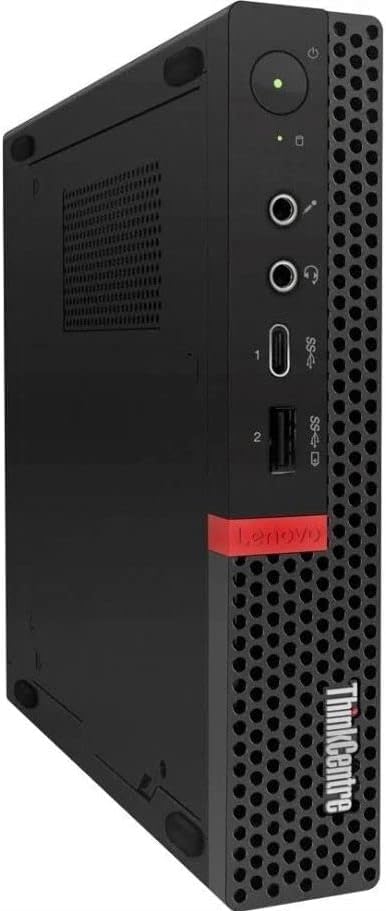
Figure 2: Front panel ports including USB 3.1, USB-C, and audio jacks.

Figure 3: Rear panel ports including HDMI, DisplayPort, Ethernet, and USB ports.
2.3 Power Connection and Initial Boot
Once all peripherals are connected:
- Connect the power adapter to the desktop's power input port.
- Plug the power cord into a wall outlet.
- Press the power button located on the front panel of the desktop. The system will boot up, and you should see the Windows 11 Pro operating system load.
3. Operating Instructions
3.1 Windows 11 Pro
Your ThinkCentre M720q Tiny Desktop comes pre-installed with Windows 11 Pro (64-bit). Follow the on-screen prompts for initial setup, including user account creation and network configuration.
3.2 Connectivity
- Wi-Fi 6E: Connect to high-speed wireless networks using the integrated AX210 Wi-Fi 6E adapter. Access network settings via the Windows taskbar.
- Bluetooth 5.2: Pair Bluetooth-enabled devices such as headphones or speakers through Windows Bluetooth settings.
- USB Ports: Utilize the multiple USB 3.1 and USB-C ports for connecting external drives, printers, and other peripherals.
- Dual Monitor Support: The desktop supports dual monitors via its HDMI and DisplayPort outputs, allowing for extended desktop space.
4. Maintenance
4.1 General Care
- Keep the desktop in a clean, dry environment, away from direct sunlight and heat sources.
- Ensure proper ventilation by not blocking the air vents on the chassis.
- Regularly clean the exterior with a soft, dry cloth. Avoid liquid cleaners directly on the device.
4.2 Software Updates
Regularly check for and install Windows updates to ensure system security and performance. Lenovo may also provide driver updates through their support website.
5. Troubleshooting
This section addresses common issues you might encounter.
5.1 No Display on Monitor
- Ensure the monitor is powered on and correctly connected to the desktop's HDMI or DisplayPort.
- Verify the monitor's input source is set to the correct port (HDMI/DisplayPort).
- Try connecting the desktop to a different monitor or using a different cable to rule out faulty components.
5.2 Wireless Connectivity Issues
- Check if Wi-Fi and Bluetooth are enabled in Windows settings.
- Restart your wireless router/access point.
- Ensure the desktop is within range of your wireless network.
5.3 System Not Powering On
- Verify that the power adapter is securely connected to both the desktop and a working electrical outlet.
- Test the outlet with another device to confirm it has power.
- Ensure the power button is fully pressed.
6. Specifications
| Feature | Description |
|---|---|
| Brand | Lenovo |
| Model | ThinkCentre M720q Tiny |
| Operating System | Windows 11 Pro (64-bit) |
| CPU | Intel Core i5-8500T (2.1 GHz, up to 3.5 GHz, 6 Cores, 6 Threads, 9MB Cache) |
| RAM | 16GB DDR4 (2666 MHz) |
| Storage | 256GB NVMe SSD |
| Graphics | Intel UHD Graphics 630 (Integrated) |
| Front Ports | 2x USB 3.1, 1x USB 3.1 Gen 1 Type-C, Audio Jacks |
| Rear Ports | 2x USB 3.1, 1x HDMI, 1x DisplayPort, 1x RJ-45 Ethernet |
| Wireless Connectivity | Wi-Fi 6E (AX210), Bluetooth 5.2 |
| Dimensions (H x W x D) | 7.2 x 1.4 x 7 inches |
| Weight | 7 Pounds |
7. Warranty and Support
7.1 Warranty Information
This Lenovo ThinkCentre M720q Tiny Desktop comes with a 90-day warranty. This warranty covers defects in materials and workmanship under normal use during the warranty period.
7.2 Technical Support
For technical assistance or warranty claims, please refer to the contact information provided by your reseller or the Amazon Renewed program. Ensure you have your product's serial number and purchase details available when contacting support.