
CHIQ L24G5W
CHiQ 24-inch HD Ready LED TV User Manual
Model: L24G5W
1. Product Overview
This manual provides detailed instructions for the setup, operation, and maintenance of your CHiQ 24-inch HD Ready LED TV. Designed for versatile use as both a television and a monitor, this device features a triple tuner, USB media player, and Dolby Audio for an enhanced viewing and listening experience.
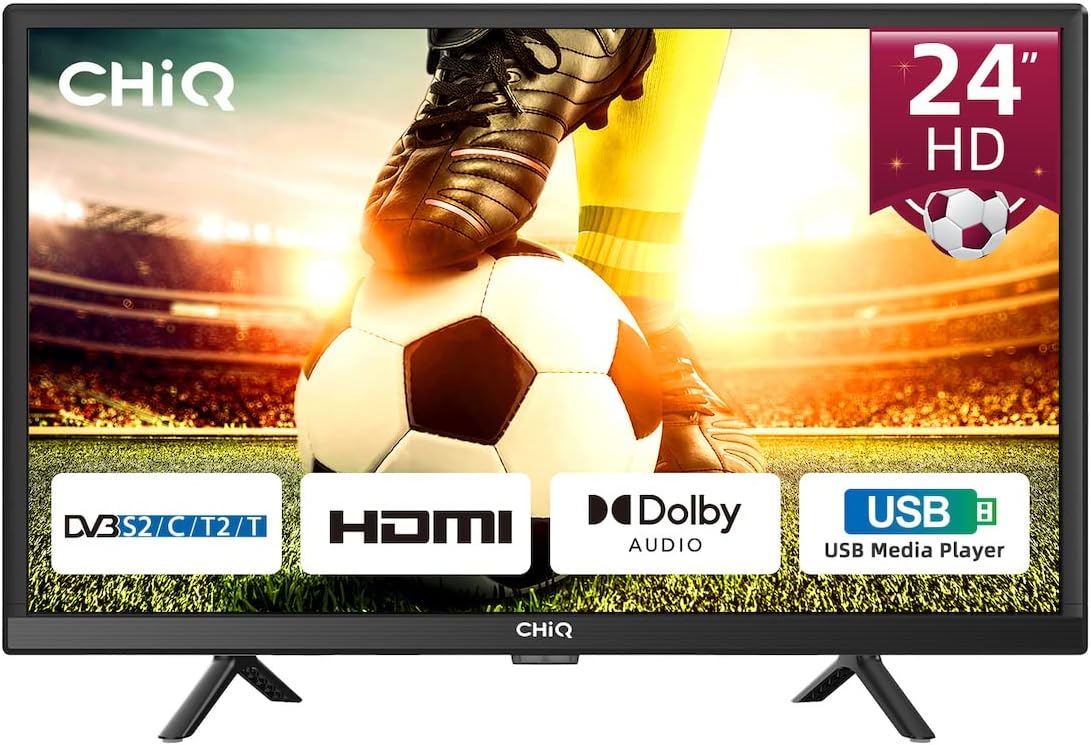
Front view of the CHiQ 24-inch HD Ready LED TV, highlighting its key features such as Triple Tuner, HDMI, Dolby Audio, and USB Media Player.
Key Features:
- 24-inch HD Ready LED Display: Provides clear and vibrant visuals for an immersive experience.
- Dolby Audio: Enhances sound quality for a rich audio experience.
- H.265/HEVC Support: Efficient video compression for high-quality streaming and playback.
- USB Media Player: Allows playback of various media files directly from a USB drive.
- Triple Tuner (DVB-T/T2/C/S2): Integrated tuners for receiving terrestrial, cable, and satellite broadcasts without an external receiver.
- Multiple Connectivity Options: Includes HDMI, USB, Headphone, CI, and RF ports for versatile connections.
- Hotel Mode: Specialized settings for use in hospitality environments.
- Dual Use Functionality: Can be used as both a television and a computer monitor.
2. Setup and Installation
2.1 Unpacking
Carefully remove the TV from its packaging. Ensure all components are present:
- CHiQ 24-inch LED TV
- Remote Control
- Power Cable
- Stand Base and Screws
- User Manual (this document)
2.2 Stand Installation
Place the TV screen-down on a soft, flat surface to prevent scratches. Align the stand bases with the corresponding slots on the bottom of the TV. Secure the stands using the provided screws.
2.3 Connecting Devices
The CHiQ TV offers various connection ports for your external devices. Refer to the image below for port identification.

Rear view of the CHiQ TV displaying available connection ports: USB, HDMI, AV IN, and RF.
- HDMI: Connect Blu-ray players, gaming consoles, laptops, or streaming devices.
- USB: Insert USB drives for media playback.
- RF (Antenna/Cable): Connect your antenna or cable TV signal.
- AV IN: Connect older devices using composite video and audio cables.
- Headphone: Connect headphones for private listening.

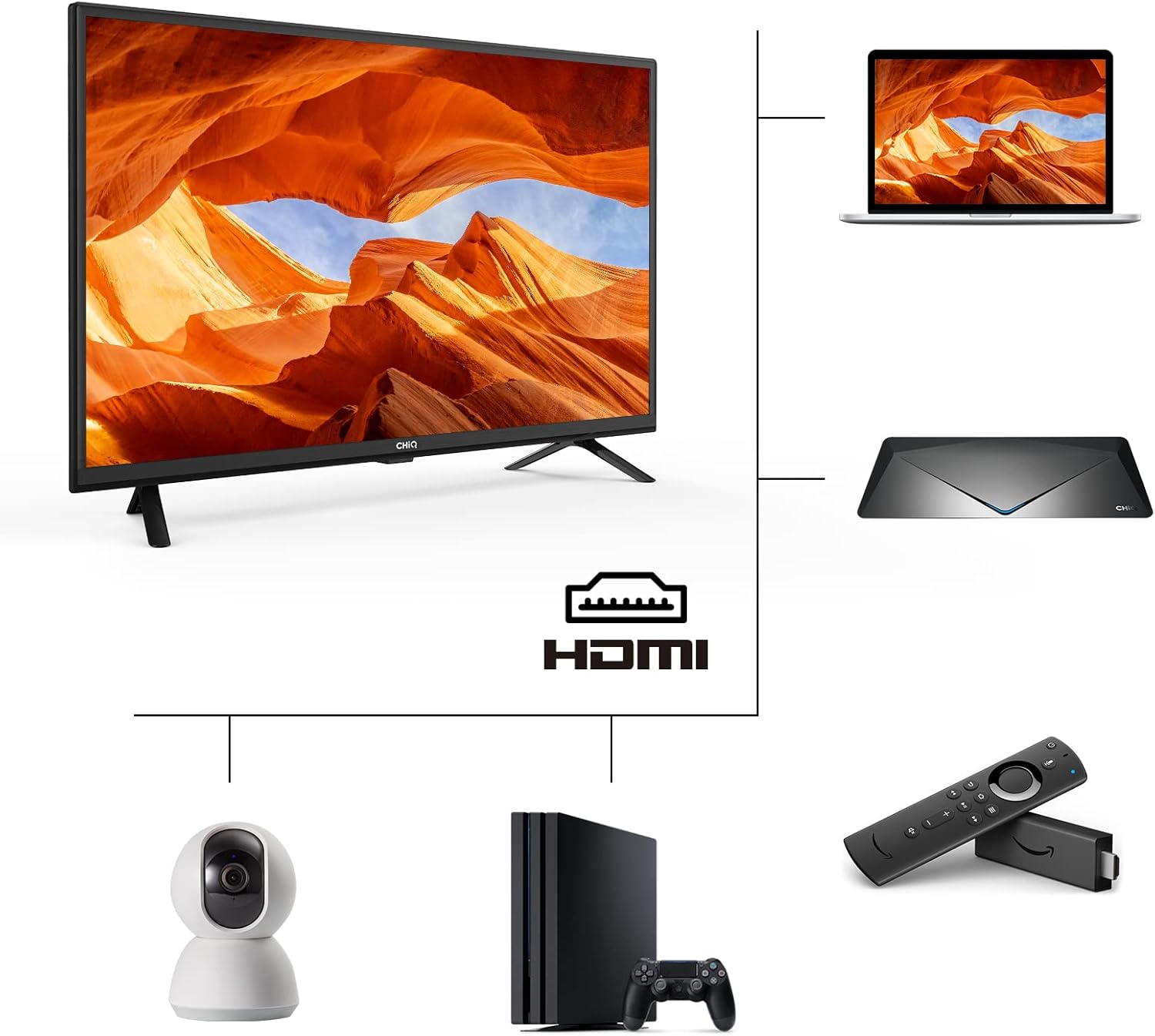
Illustration of various devices connecting to the TV via HDMI, including a laptop, a gaming console, and a streaming media player.
2.4 Power On
After connecting all necessary cables, plug the power cable into a wall outlet. Press the power button on the remote control or on the TV itself to turn on the device.
3. Operating Instructions
3.1 Initial Setup Wizard
Upon first power-on, the TV will guide you through an initial setup wizard. This includes language selection, country/region, and channel scanning.
3.2 Channel Scanning (Triple Tuner)
The integrated triple tuner supports DVB-T/T2 (terrestrial), DVB-C (cable), and DVB-S2 (satellite) signals. Navigate to the "Channel" or "Tuner" settings in the menu to perform an automatic or manual channel scan. Ensure your antenna or satellite dish is properly connected.
The DVB-T2 tuner allows reception of digital terrestrial broadcasts, suitable for various content including live events.
3.3 Input Source Selection
Press the "Source" or "Input" button on your remote control to switch between connected devices (e.g., HDMI 1, HDMI 2, AV, TV).
3.4 USB Media Player
Insert a USB flash drive into the USB port. The TV will typically prompt you to open the media player. You can browse and play supported video, audio, and image files. The TV supports H.265/HEVC for efficient video playback.

Visual comparison demonstrating the enhanced efficiency and quality of H.265 (HEVC) video compression compared to H.264 (AVC).
3.5 Audio Settings (Dolby Audio)
Your CHiQ TV is equipped with Dolby Audio technology for superior sound. Access the "Sound" or "Audio" settings in the menu to adjust modes (e.g., Standard, Music, Movie), equalizer settings, and surround sound options.

The Dolby Digital Plus technology enhances telepresence and stereo sound, providing a cinema-like visual experience.
3.6 Display Settings
Adjust picture settings such as brightness, contrast, color, and sharpness to optimize your viewing experience. The TV supports 16.7 million colors for rich and accurate reproduction.

The display is capable of reproducing 16.7 million colors, ensuring vibrant and lifelike images.
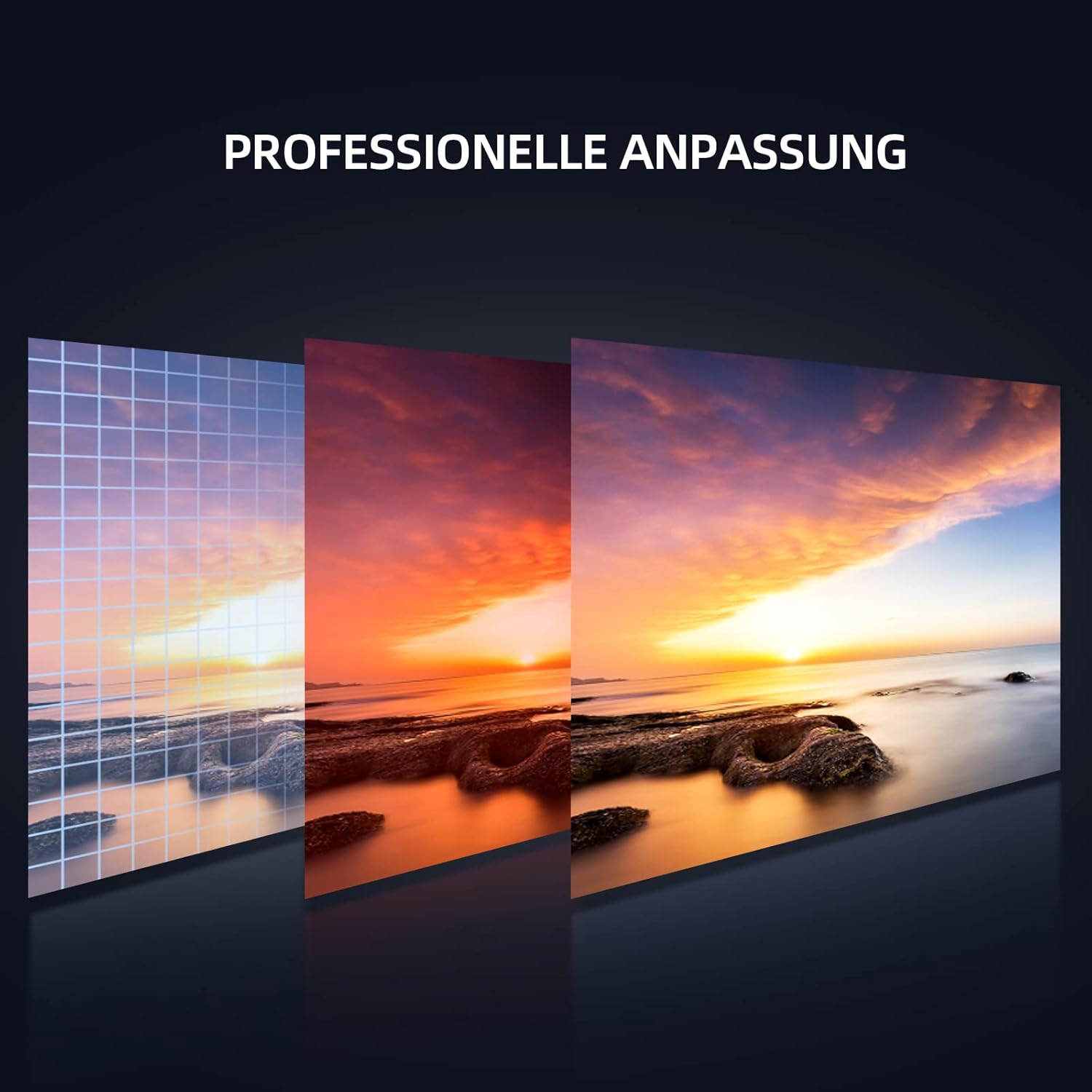
The TV features professional picture adjustment capabilities to fine-tune image quality.
3.7 Hotel Mode
For hospitality environments, the Hotel Mode allows for advanced control over TV settings, including volume limits, default channels, and input restrictions. Consult the on-screen menu for Hotel Mode activation and configuration.
3.8 Dual Use (Monitor Functionality)
This TV can serve as a computer monitor. Connect your PC or laptop via HDMI. Adjust display settings on your computer to extend or duplicate your desktop to the TV screen.

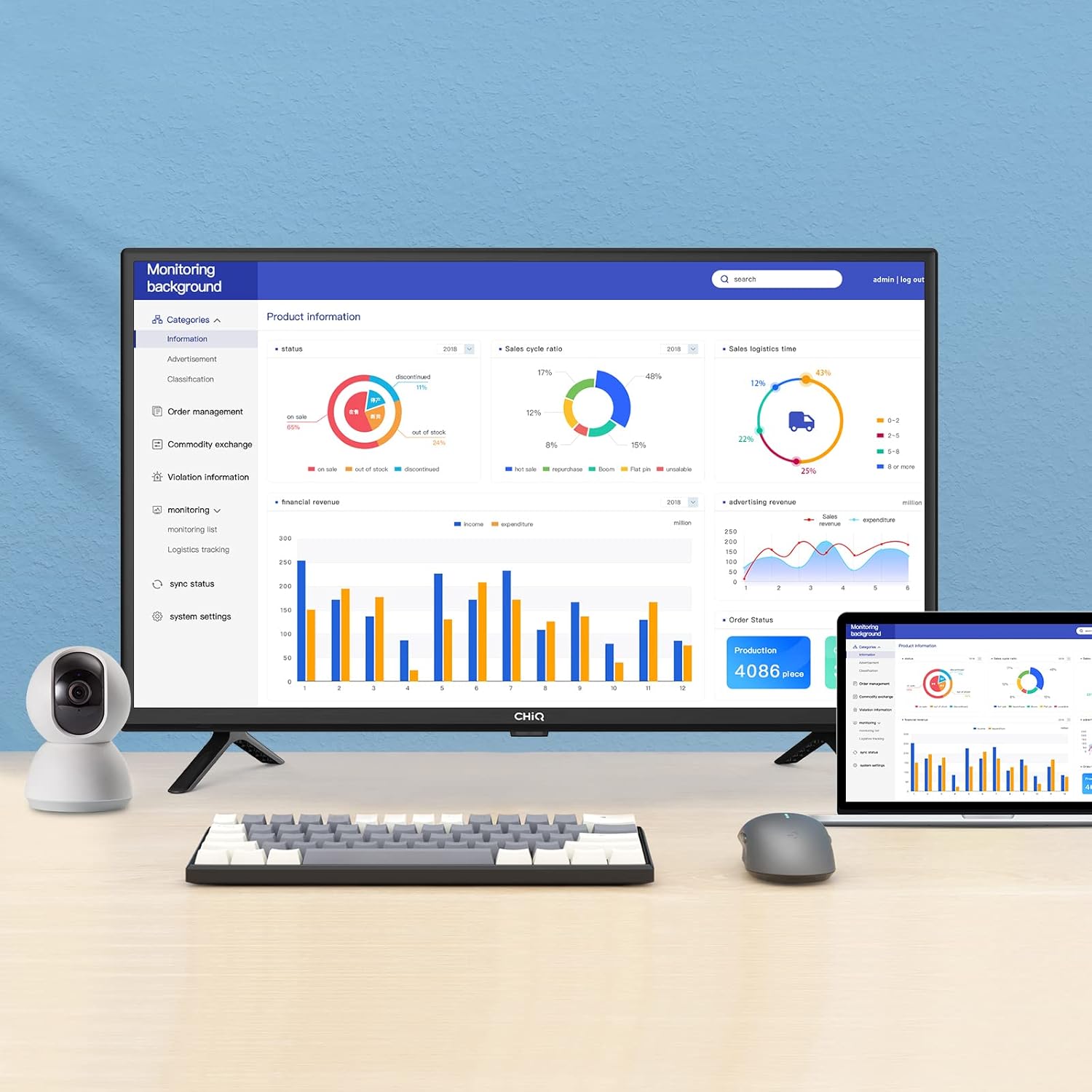
The CHiQ TV can function as a versatile monitor, suitable for displaying data, presentations, or extending your desktop.
4. Maintenance and Care
4.1 Cleaning the Screen
Gently wipe the screen with a soft, lint-free cloth. For stubborn marks, slightly dampen the cloth with water or a specialized screen cleaner. Avoid using abrasive cleaners or spraying liquid directly onto the screen.
4.2 Cleaning the Cabinet
Wipe the TV cabinet with a soft, dry cloth. Do not use strong detergents or solvents as they may damage the finish.
4.3 General Care
- Do not block ventilation openings.
- Keep the TV away from direct sunlight, heat sources, and excessive dust.
- Avoid placing heavy objects on top of the TV.
- Unplug the TV during lightning storms or when unused for extended periods.
5. Troubleshooting
If you encounter issues with your CHiQ TV, refer to the following common problems and solutions:
| Problem | Possible Cause | Solution |
|---|---|---|
| No power | Power cable disconnected; no power from outlet. | Check power cable connection; test outlet with another device. |
| No picture, but sound is present | Incorrect input source selected; backlight issue. | Press "Source" button to select correct input; contact support if backlight issue persists. |
| No sound, but picture is present | Volume muted or too low; incorrect audio output settings. | Unmute volume or increase level; check audio settings in menu. |
| "No Signal" message | Antenna/cable/HDMI cable disconnected; incorrect input source. | Ensure cables are securely connected; select correct input source. |
| Remote control not working | Batteries depleted or incorrectly inserted; obstruction. | Replace batteries (2 AAA required); ensure no obstruction between remote and TV. |
If the problem persists after trying these solutions, please contact CHiQ customer support.
6. Specifications
Detailed technical specifications for the CHiQ L24G5W TV:
| Feature | Detail |
|---|---|
| Model Number | L24G5W |
| Screen Size | 24 inches (60 cm) |
| Display Type | HD Ready LED |
| Product Dimensions (W x D x H) | 55.3 x 14.4 x 37 cm |
| Weight | 3.44 Kilograms |
| Refresh Rate | 60 Hz |
| Connectivity Technology | HDMI, USB |
| Audio Output Mode | Surround (Dolby Audio) |
| Power Consumption (On-mode) | 21 KW (Note: This value seems unusually high, likely a typo in source data. Typical TV consumption is in Watts.) |
| Batteries Required | 2 AAA batteries (for remote control) |
EU Energy Label for the CHiQ L24G5W TV, indicating its energy efficiency class E and consumption of 17 kWh/1000h.
For more detailed product information, refer to the EPREL database: https://eprel.ec.europa.eu/qr/1220846

Dimensional drawing of the CHiQ TV, showing measurements of 553mm width, 370mm height, and 144mm depth.
7. Warranty and Support
CHiQ products are designed for reliability and performance. In the unlikely event that you experience an issue, please refer to the warranty information provided with your purchase documentation.
For technical support, troubleshooting assistance, or warranty claims, please visit the official CHiQ website or contact their customer service department. Contact details can typically be found on the CHiQ brand website or in your product's packaging.
You can also visit the CHiQ store on Amazon for more information and support: CHiQ Amazon Store
Related documentsL24G5W


Ask a question about this manual
Ask about setup, troubleshooting, compatibility, parts, safety, or missing instructions. Manuals+ will review the question and use this page’s manual context to help answer it.