1. Introduction
Thank you for choosing the Z-Edge UG34W 34-inch Gaming Monitor. This ultrawide monitor is designed to provide an immersive gaming and multimedia experience with its high refresh rate, fast response time, and WQHD resolution. This manual provides essential information for setting up, operating, maintaining, and troubleshooting your new monitor. Please read this manual thoroughly before use and retain it for future reference.

Image: The Z-Edge UG34W 34-inch Ultrawide IPS Gaming Monitor, showcasing its sleek design and wide display.
2. Safety Information
Please observe the following safety precautions to ensure safe and optimal performance of your monitor:
- Do not expose the monitor to rain, moisture, or extreme temperatures.
- Ensure proper ventilation around the monitor to prevent overheating.
- Use only the power adapter and cables provided by the manufacturer.
- Avoid placing heavy objects on the power cord.
- Do not attempt to disassemble or repair the monitor yourself. Refer all servicing to qualified personnel.
- Clean the monitor screen and casing with a soft, lint-free cloth. Avoid using abrasive cleaners or solvents.
3. Package Contents
Verify that all items are present in your package:
- Z-Edge UG34W 34-inch Gaming Monitor
- Monitor Stand (Base and Neck)
- Power Adapter and Power Cable
- DisplayPort (DP) Cable
- HDMI Cable
- User Manual
- Warranty Card

Image: Contents of the Z-Edge UG34W monitor package, including the monitor, stand, cables, and documentation.
4. Setup
4.1 Assembling the Stand
- Carefully remove the monitor and stand components from the packaging.
- Attach the stand neck to the monitor panel by aligning the mounting points and securing with screws (if applicable).
- Attach the stand base to the stand neck, ensuring it is firmly secured.
- Place the assembled monitor on a stable, flat surface.
4.2 VESA Mounting
The monitor supports VESA mount 100x100mm for alternative mounting solutions (e.g., wall mount, monitor arm). Remove the stand before attaching a VESA-compatible mount.

Image: Diagram illustrating the ergonomic design of the monitor, including VESA mount compatibility, tilt, height adjustment, and swivel capabilities.
4.3 Connecting to a Device
Connect your computer or other video source to the monitor using the appropriate cable. The UG34W monitor features multiple input ports:
- DisplayPort (DP) x2: Supports up to 165Hz refresh rate at 3440x1440 resolution.
- HDMI x1: Supports up to 100Hz refresh rate at 3440x1440 resolution.
- Audio Out: For connecting external speakers or headphones.
- DC 24V: Power input.
Ensure the power cable is connected to the monitor and a power outlet.

Image: Rear view of the monitor highlighting its various input ports, including DisplayPort, HDMI, USB, Audio Out, and power input.
5. Operating the Monitor
5.1 Power On/Off
Press the power button located on the monitor to turn it on or off. The power indicator light will illuminate when the monitor is active.
5.2 On-Screen Display (OSD) Menu
The OSD menu allows you to adjust various monitor settings. Use the control buttons (usually located on the back or bottom of the monitor) to navigate the menu. Common settings include:
- Picture Settings: Brightness, Contrast, Sharpness, Color Temperature.
- Input Select: Choose between DisplayPort and HDMI inputs.
- Display Settings: Aspect Ratio, HDR mode.
- OSD Settings: OSD Language, OSD Timeout.
- Game Settings: FreeSync, Response Time (OD), Crosshair.
5.3 Refresh Rate and Response Time
The Z-Edge UG34W supports a 165Hz refresh rate and 1ms response time (MPRT) for smooth and fluid visuals, especially crucial for fast-paced gaming. Ensure your graphics card and display settings are configured to utilize these capabilities.
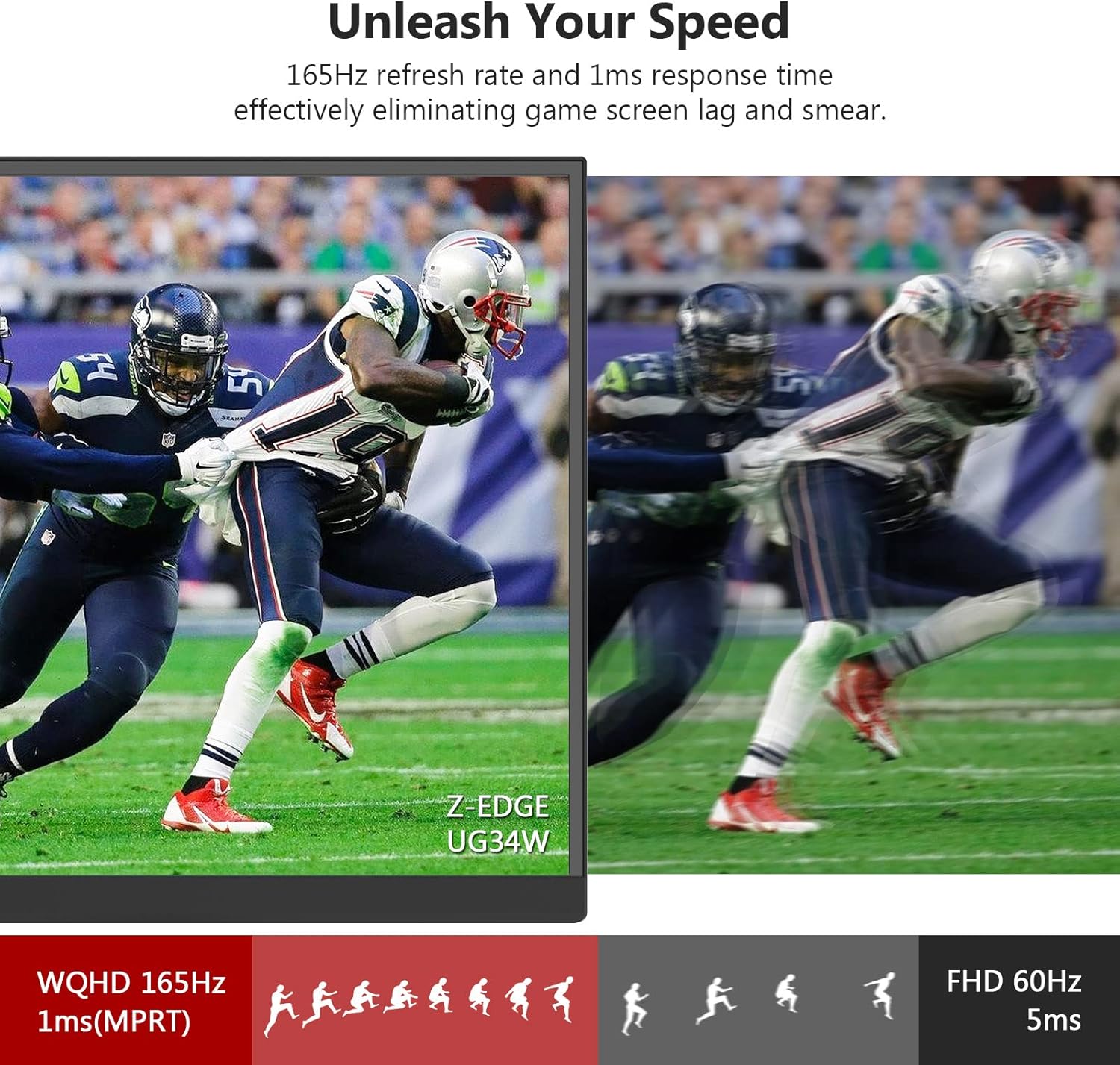
Image: Visual comparison demonstrating the difference in motion clarity between 165Hz/1ms and 60Hz/5ms, highlighting reduced blur with higher refresh rates.
5.4 AMD FreeSync Technology
This monitor features AMD FreeSync technology, which synchronizes the monitor's refresh rate with your AMD graphics card's frame rate. This eliminates screen tearing and stuttering, providing a smoother gaming experience. Enable FreeSync in both your monitor's OSD menu and your graphics card's control panel.

Image: A visual representation showing the effect of AMD FreeSync, with a clear image when FreeSync is ON compared to a torn image when it is OFF.
5.5 Picture-by-Picture (PBP) and Picture-in-Picture (PIP) Modes
The UG34W supports PBP and PIP modes, allowing you to display content from two different sources simultaneously. This is ideal for multitasking or viewing multiple applications at once.
- PBP (Picture-by-Picture): Divides the screen into two halves, displaying content from two sources side-by-side.
- PIP (Picture-in-Picture): Displays content from a secondary source in a smaller window overlaid on the main display.
These modes can be configured via the OSD menu.

Image: Visual examples of Picture-by-Picture (PBP) and Picture-in-Picture (PIP) modes, demonstrating how two different sources can be displayed simultaneously on the monitor.
5.6 Ultrawide Panoramic View
The 21:9 aspect ratio provides a wider field of view compared to traditional 16:9 screens, enhancing immersion in games and productivity in applications. This wider perspective can offer a strategic advantage in certain game genres.

Image: A visual comparison showing the expanded field of view offered by the 21:9 ultrawide aspect ratio compared to a standard 16:9 display.
6. Maintenance
6.1 Cleaning the Monitor
- Always unplug the monitor from the power outlet before cleaning.
- Use a soft, dry, lint-free cloth to gently wipe the screen and casing.
- For stubborn marks, lightly dampen the cloth with water or a mild, non-abrasive screen cleaner. Do not spray liquid directly onto the screen.
- Avoid using benzene, thinner, ammonia-based cleaners, or abrasive materials, as these can damage the monitor's surface.
6.2 Storage
If storing the monitor for an extended period, disconnect all cables and store it in a cool, dry place, preferably in its original packaging to protect it from dust and physical damage.
7. Troubleshooting
If you encounter issues with your monitor, refer to the following common problems and solutions:
| Problem | Possible Cause | Solution |
|---|---|---|
| No image on screen | Monitor not powered on; Incorrect input selected; Loose video cable. | Ensure power cable is connected and monitor is on; Select correct input source via OSD; Check video cable connections. |
| Image is blurry or distorted | Incorrect resolution or refresh rate; Graphics driver issue. | Set display resolution to 3440x1440 and refresh rate to 165Hz (if supported by GPU); Update graphics drivers. |
| Screen flickering or tearing | FreeSync not enabled or incompatible; Cable issue. | Enable FreeSync in OSD and GPU settings; Try a different DisplayPort cable. |
| No sound from audio out | Volume too low; Incorrect audio output selected on PC. | Increase volume on connected device; Select monitor's audio output in PC sound settings. |
| Dead pixels | Manufacturing defect. | Refer to warranty policy for pixel defect guidelines. |
8. Specifications
| Feature | Specification |
|---|---|
| Model | UG34W |
| Screen Size | 34 inches |
| Panel Type | IPS |
| Resolution | 3440 x 1440 (WQHD) |
| Aspect Ratio | 21:9 |
| Refresh Rate | 165Hz (DisplayPort), 100Hz (HDMI) |
| Response Time | 1ms (MPRT) |
| Adaptive Sync | AMD FreeSync Technology |
| Connectivity | 2x DisplayPort 1.4, 1x HDMI 2.0, 1x USB, 1x Audio Out, 1x DC 24V Power Input |
| VESA Compatibility | 100mm x 100mm |
| Product Dimensions (LxWxH) | 32.2 x 0.7 x 17.9 inches (without stand) |
| Item Weight | 18.16 pounds |
9. Warranty and Support
Z-Edge provides a limited warranty for this product. Please refer to the warranty card included in your package for detailed terms and conditions, including warranty period and coverage. For technical support, troubleshooting assistance, or warranty claims, please visit the official Z-Edge website or contact their customer service department. Keep your purchase receipt as proof of purchase for warranty purposes.
Official Z-Edge Store: https://www.amazon.com/stores/ZZ-EDGE/page/75EDBB3B-E589-4C9B-BE49-343237ECC72A


