
1. Introduction
This manual provides detailed instructions for the setup, operation, and maintenance of your Bewinner X50 Live Sound Card. The X50 is a versatile external sound card designed for live streaming, DJ mixing, and PC recording, offering a range of sound effects and control features.

Figure 1: Bewinner X50 Live Sound Card Overview.
Video 1: Overview of the X50 Live Sound Card features and design.
2. Key Features
- Superior Sound Effects: Supports 12 types of warm sound effects and one-touch mute for clear, stable, and rounded sound quality.
- Professional Reverb Adjustment: Knob design for reverb control, enhancing sound depth and dimension.
- Multifunctionality: Includes high and low pitch adjustment, voice change function, and optimized voice effects.
- Smart Control (Intelligent Evasion Mode): Automatically lowers backing track volume when speaking and raises it when silent.
- Dual Ports: Designed for two-person live broadcasts and simultaneous streaming on two platforms.

Figure 2: Dual voice port design for multi-user and multi-platform streaming.
3. Setup Guide
Follow these steps to connect your Bewinner X50 Live Sound Card to your devices.
3.1 Connecting to Power
Connect the provided USB charging cable to the "Charging 5V=1A" port on the sound card and to a 5V USB power adapter (not included) or a computer USB port.
3.2 Connecting Microphones and Headphones
- Plug your condenser microphones into the "Condenser mic1" and "Condenser mic2" ports.
- Connect your headset or earphones to the "Headset" or "Accompany Earphone" ports for monitoring audio.
3.3 Connecting to PC or Mobile Device
- For PC connection or OTG live streaming, use the "OTG/PC Live" port with the appropriate cable.
- The sound card is compatible with most mobile phones and computers, supporting 99% of live singing software applications.

Figure 3: Rear view of the X50 Live Sound Card with port labels.

Figure 4: Connection diagram for various devices.
4. Operating Instructions
Familiarize yourself with the controls and functions of your X50 Live Sound Card.
4.1 Main Controls
- Mic + / - Knob: Adjusts microphone input volume.
- Monitor + / - Knob: Adjusts monitoring output volume (for headphones).
- Accompany + / - Knob: Adjusts backing track volume.
- Record + / - Knob: Adjusts recording volume.
- Treble + / - Knob: Adjusts high-frequency audio.
- Bass + / - Knob: Adjusts low-frequency audio.
- Reverb + / - Knob: Adjusts the intensity of the reverb effect.

Figure 5: Reverb adjustment knob for sound enhancement.
4.2 Sound Effects and Modes
The X50 features various buttons for instant sound effects and live modes:
- Preset Effects: Buttons for "Cheer", "Din", "9277", "Kiss", "Gunshot", "Yell", "Laughter", "PUBG", "Dindin", "Awesome", "Giggle", "Applause". Press to activate.
- Voice Change Functions: Buttons for "Electric voice", "Female voice", "Male voice", "Baby voice".
- Special Functions:
- MUTE: One-touch mute for microphone input.
- Denoise: Reduces background noise.
- Intelligent Dodging (Ducking): Automatically lowers backing track volume when you speak.
- Host, PRO, Recording studio, POP, MC, BT, Internal play, Elimination: Various live modes and functions for different scenarios.

Figure 6: Preset sound effects buttons.

Figure 7: Intelligent dodging feature for dynamic audio mixing.
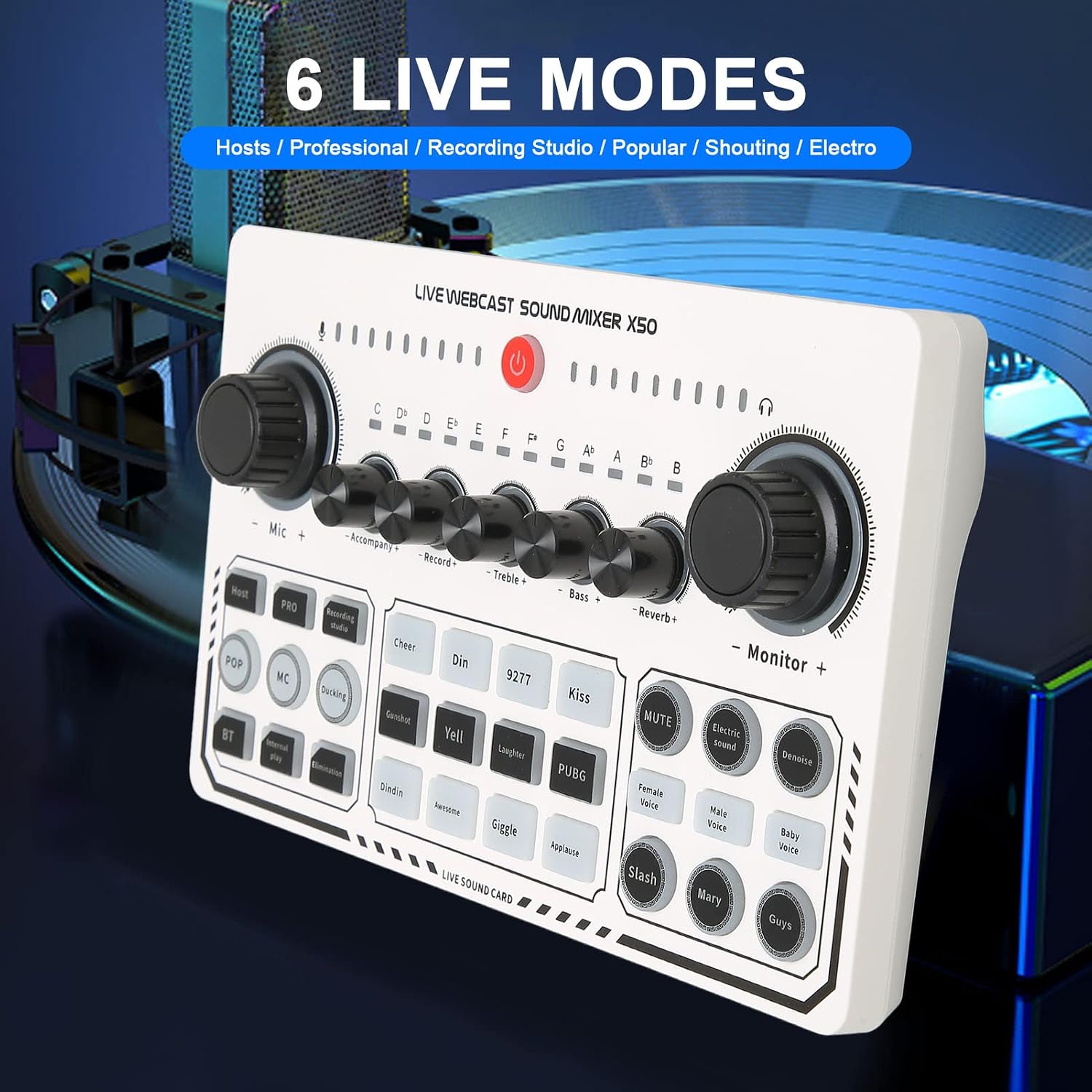
Figure 8: Various live modes for different streaming needs.
5. Maintenance
To ensure the longevity and optimal performance of your Bewinner X50 Live Sound Card, follow these maintenance guidelines:
- Cleaning: Use a soft, dry cloth to wipe the surface of the sound card. Avoid using liquid cleaners or abrasive materials, as they may damage the device.
- Storage: Store the sound card in a cool, dry place away from direct sunlight, extreme temperatures, and high humidity.
- Handling: Handle the device with care to prevent drops or impacts that could damage internal components.
- Cable Management: Ensure cables are not bent sharply or tangled, which can lead to damage over time.
6. Troubleshooting
If you encounter issues with your Bewinner X50 Live Sound Card, refer to the following common problems and solutions:
| Problem | Possible Cause | Solution |
|---|---|---|
| No sound output from headphones. | Headphones not properly connected, monitor volume too low, incorrect audio output selected on computer. | Ensure headphones are fully plugged into the "Headset" or "Accompany Earphone" port. Increase the "Monitor" knob. Check your computer's sound settings to ensure the X50 is selected as the output device. |
| Microphone not picking up sound. | Microphone not connected, mic volume too low, MUTE button activated, incorrect input selected. | Verify microphone connection to "Condenser mic1" or "Condenser mic2". Increase the "Mic" knob. Ensure the MUTE button is not active. Check computer's sound input settings. |
| Distorted or unclear sound. | Volume levels too high (clipping), faulty cable, interference. | Adjust volume knobs (Mic, Accompany, Record) to avoid peaking. Try different cables. Ensure the sound card is away from other electronic devices that might cause interference. |
| Sound card not recognized by computer. | Incorrect USB port, driver issue, faulty cable. | Try a different USB port on your computer. Ensure the "OTG/PC Live" cable is securely connected. Restart your computer. No specific drivers are mentioned, so it should be plug-and-play. |
7. Specifications
| Feature | Detail |
|---|---|
| Brand | Bewinner |
| Model Number | X50 |
| Number of Channels | 2 |
| Connectivity Technology | USB |
| Power Source | Battery Powered |
| Frequency | 44100 hertz |
| Output Connector Type | Auxiliary |
| Audio Input | USB |
| Voltage | 5 volts |
| Item Weight | 0.45 kg |

Figure 9: Detailed view of product specifications and ports.
8. Warranty and Support
Bewinner is committed to providing quality products. For any product-related inquiries, technical support, or warranty claims, please refer to the contact information provided with your purchase or visit the official Bewinner website. Please retain your proof of purchase for warranty purposes.