
1. Introduction
The UMLIFE STC-1000 is a versatile digital temperature controller designed for precise temperature management in various applications. This device features a clear LED display, NTC 10K thermistor sensor, and dual relay outputs for both heating and cooling control. This manual provides detailed instructions for installation, operation, and maintenance to ensure optimal performance and longevity of your temperature controller.
2. Product Overview
2.1 Key Features
- Digital LED display for clear temperature readings.
- Wide temperature measurement and control range: -50°C to 99°C.
- High control accuracy of 0.1°C.
- Dual relay output for simultaneous heating and cooling control.
- Waterproof NTC 10K thermistor sensor for reliable measurements in various environments.
- Temperature calibration function.
- Delay start protection for cooling control.
- ABS flame-retardant shell for enhanced safety.
2.2 Components and Display
Familiarize yourself with the main components and display interface of the STC-1000 controller.

Figure 1: Front panel of the STC-1000 controller showing the digital display, power switch, UP button, Setting button, and DOWN button.
- Digital Display Window: Shows current temperature and parameter settings.
- Power Switch: Turns the device on or off.
- UP Button (▲): Increases values or navigates menus.
- DOWN Button (▼): Decreases values or navigates menus.
- Setting Button (S): Enters parameter setting mode.
- Cool Indicator: Illuminates when cooling relay is active.
- Heat Indicator: Illuminates when heating relay is active.

Figure 2: Physical dimensions of the STC-1000 controller and the included 1-meter NTC 10K waterproof sensor probe.
3. Specifications
| Parameter | Value |
|---|---|
| Model | STC-1000 |
| Temperature Measurement Range | -50°C to 99°C |
| Temperature Control Range | -50°C to 110°C |
| Measurement Accuracy | ±0.2°C |
| Resolution | 0.1°C |
| Control Accuracy | ±0.1°C |
| Sensor | NTC 10K L=1M waterproof probe |
| Power Supply | DC 12V |
| Power Consumption | <3W |
| Relay Contact Capacity | Cool (10A/220VAC), Heat (10A/220VAC) |
| Ambient Temperature | 0°C to 60°C |
| Storage Temperature | -30°C to 75°C |
| Relative Humidity | 20-84% |
| Mounting Size | 71mm x 29mm |
| Product Dimensions | 75mm x 34.5mm x 85mm |
| Item Weight | 7 ounces (approx. 198g) |
| Material | Acrylonitrile Butadiene Styrene (ABS) |
4. Setup and Installation
Important Safety Notice: Installation should be performed by qualified personnel. Ensure power is disconnected before wiring to prevent electric shock. Strictly distinguish between power supply, sensor, and relay interfaces. Maintain proper distance between sensor down-lead and power wires to avoid interference.
4.1 Wiring Diagram
Refer to the following diagram for correct wiring connections. This model operates on DC 12V power supply.
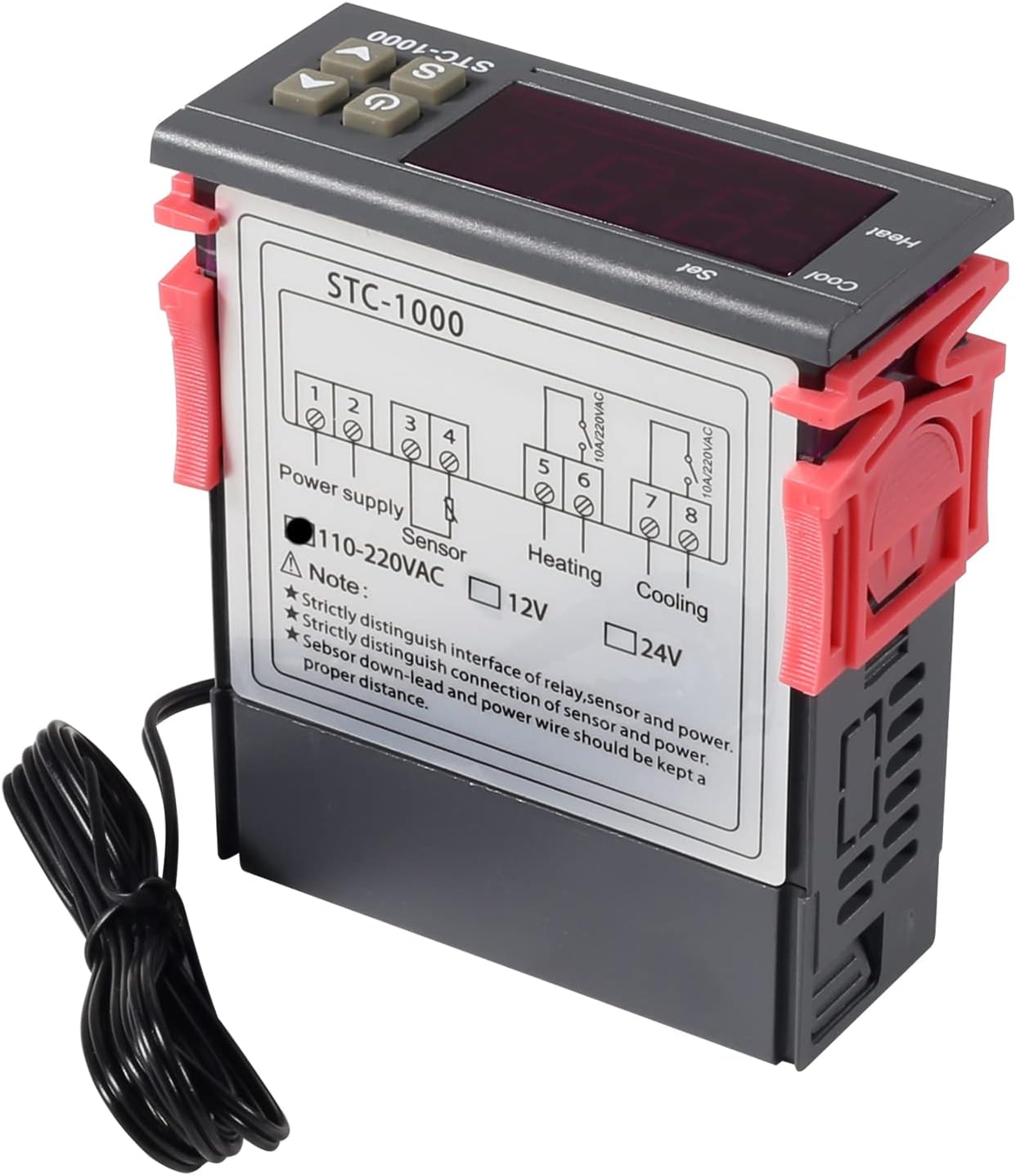
Figure 3: Wiring diagram for the STC-1000 12V temperature controller. Connections are for power supply, NTC sensor, heating relay, and cooling relay.
- Terminals 1 & 2: Power Supply (DC 12V).
- Terminals 3 & 4: NTC Sensor connection.
- Terminals 5 & 6: Heating Relay Output (Connect to heating device).
- Terminals 7 & 8: Cooling Relay Output (Connect to cooling device).
Ensure all connections are secure and insulated. Verify the power supply voltage matches the controller's requirement (DC 12V for this model).
4.2 Mounting
The STC-1000 is designed for panel mounting. Cut an opening of 71mm x 29mm in your panel. Insert the controller and secure it using the provided clips or mounting brackets.
5. Operating Instructions
The STC-1000 operates in Celsius only. It cannot be switched to Fahrenheit.
5.1 Power On/Off
- Press the Power Switch button (marked with ⏻) to turn the controller on or off.
5.2 Setting Temperature Parameters
The controller has two main temperature settings: the Set Temperature (ST) and the Difference Temperature (DT), also known as hysteresis.
- To view the Set Temperature (ST): Briefly press the Setting (S) button. The display will show the current set temperature.
- To modify the Set Temperature (ST):
- Press and hold the Setting (S) button for approximately 3 seconds until the display flashes.
- Use the UP (▲) or DOWN (▼) buttons to adjust the desired set temperature.
- Press the Power Switch button to save the setting and exit, or wait for 10 seconds for it to save automatically.
5.3 Advanced Parameter Settings (F1-F4)
To access and modify advanced parameters:
- Press and hold the Setting (S) button for approximately 3 seconds until the display flashes.
- While the display is flashing, press the Setting (S) button again (do not hold) to cycle through parameters F1, F2, F3, F4.
- Use the UP (▲) or DOWN (▼) buttons to adjust the value of the selected parameter.
- Press the Power Switch button to save the setting and exit, or wait for 10 seconds for it to save automatically.
| Parameter | Description | Range | Default |
|---|---|---|---|
| F1 | Difference Temperature (Hysteresis): The difference between the set temperature and the temperature at which the relay switches off. | 0.3°C to 10°C | 2.0°C |
| F2 | Highest Set Point Limit: Limits the maximum adjustable set temperature. | Set Temp to 110°C | 110°C |
| F3 | Lowest Set Point Limit: Limits the minimum adjustable set temperature. | -50°C to Set Temp | -50°C |
| F4 | Temperature Calibration: Adjusts the temperature reading to match a known accurate thermometer. | -10°C to 10°C | 0.0°C |
5.4 Heating and Cooling Modes
The STC-1000 automatically switches between heating and cooling based on the set temperature (ST) and difference temperature (DT).
- Cooling Mode: If the current temperature is higher than (ST + DT), the cooling relay activates. It deactivates when the temperature drops to ST.
- Heating Mode: If the current temperature is lower than (ST - DT), the heating relay activates. It deactivates when the temperature rises to ST.
6. Maintenance
- Cleaning: Wipe the controller's surface with a soft, dry cloth. Do not use abrasive cleaners or solvents.
- Sensor Care: Ensure the NTC sensor probe is clean and free from debris. While waterproof, avoid unnecessary physical damage to the probe or cable.
- Connections: Periodically check wiring connections for tightness and signs of corrosion.
- Environment: Operate the controller within the specified ambient temperature and humidity ranges to ensure optimal performance and lifespan.
7. Troubleshooting
| Problem | Possible Cause | Solution |
|---|---|---|
| Display shows "EE" | Sensor error or open circuit. | Check sensor connection. Replace sensor if damaged. |
| Display shows "HHH" | Temperature exceeds upper limit of measurement range. | Ensure the environment temperature is within the sensor's range (-50°C to 99°C). |
| Display shows "LLL" | Temperature falls below lower limit of measurement range. | Ensure the environment temperature is within the sensor's range (-50°C to 99°C). |
| Controller not powering on | No power supply or incorrect voltage. | Check power connections and ensure DC 12V is supplied. |
| Heating/Cooling not activating | Incorrect temperature settings (ST, DT), wiring error, or device malfunction. | Verify ST and DT settings. Check heating/cooling device wiring. Ensure the device is within operating parameters. |
8. Warranty and Support
UMLIFE products are manufactured to high-quality standards. For warranty information or technical support, please contact UMLIFE customer service through your purchase platform or visit the official UMLIFE website. Please have your product model (STC-1000 12V) and purchase details ready when contacting support.
For further assistance, you may also refer to the UMLIFE Store on Amazon.