
1. Product Overview
The WAVLINK UMD05 4K USB-C Docking Station is a versatile 13-in-1 solution designed to expand the connectivity of your USB-C enabled laptop or device. It transforms your workstation by providing multiple display outputs, high-speed data transfer ports, network connectivity, and power delivery, making it ideal for office, travel, or remote work environments.

Image 1.1: The WAVLINK 4K USB-C Docking Station, showcasing its sleek design and compact form factor.
2. Key Features
- 13-in-1 Connectivity: Equipped with 3x USB 3.0 ports, 2x 4K HDMI ports, 1x DisplayPort, 1x Gigabit Ethernet port, 1x upstream USB-C port, DC power input, SD/Micro SD card reader, 3.5mm audio jack, and a BC1.2 fast charging port.
- 4K Ultra HD Triple Display: Supports single display output up to 3840x2160@60Hz, dual displays up to 2560x1440@60Hz, and triple displays up to 1920x1080@60Hz (depending on host device's HBR3 DP1.4 source). Lower resolutions apply for HBR3 DP1.2 sources.
- 100W Power Delivery: Provides up to 100W of charging power to your laptop via the USB-C upstream port, with an additional 30W for charging phones and powering other ports.
- Fast Data Transfer: Gigabit Ethernet ensures stable and fast wired network connections. USB 3.0 ports offer data sync speeds up to 5Gbps, 10 times faster than USB 2.0. SD/Micro SD slots work simultaneously at speeds up to 104MB/s.
- Wide Compatibility: Compatible with Thunderbolt 3/4 laptops and devices featuring a full-featured USB-C port that supports charging and video output (DisplayPort Alternate Mode). Supports Windows 11/10/8.1/8/7/XP/Vista, Mac OS 10.X or above, Linux, Chrome, Android, HarmonyOS, and iPadOS.

Image 2.1: Detailed view of the 13-in-1 port configuration on the WAVLINK Docking Station, highlighting each port's function and capabilities.

Image 2.2: Illustration of the 100W power delivery feature, showing the docking station charging a laptop and a smartphone simultaneously.
3. Package Contents
Please ensure all items are present in the package:
- 1 x WAVLINK USB-C Docking Station
- 1 x USB-C to C Cable
- 1 x AC Power Cable
- 1 x 130W Power Adapter (US-Spec)
- 1 x Quick Start Guide

Image 3.1: All components included in the WAVLINK Docking Station package, laid out for verification.
4. Setup Guide
4.1 Initial Connection
- Connect the 130W Power Adapter to the DC-in port on the docking station and plug it into a power outlet.
- Connect the provided USB-C to C cable from the "Computer" port on the docking station to a full-featured USB-C port on your laptop.
- Connect your external monitors to the HDMI and/or DisplayPort outputs on the docking station.
- Connect any USB peripherals (keyboard, mouse, external drives) to the available USB 3.0 ports.
- For wired network access, connect an Ethernet cable to the Gigabit Ethernet port.
- Insert SD or Micro SD cards into their respective slots as needed.
- Connect headphones or a microphone to the 3.5mm audio jack.
4.2 Display Configuration (Windows vs. Mac OS)
The docking station supports various display modes, but behavior differs between Windows and Mac OS:
- Windows Systems: Support both Mirror (SST) and Extend (MST) modes, allowing for triple display setups.
- Mac OS Systems: Only support Mirror mode and non-mirror mode without triple display. In non-mirror mode, external monitors will display the same content, but it will be different from the laptop screen. Intel/M1/M2 based Macs can only extend to one additional monitor, with others mirroring.
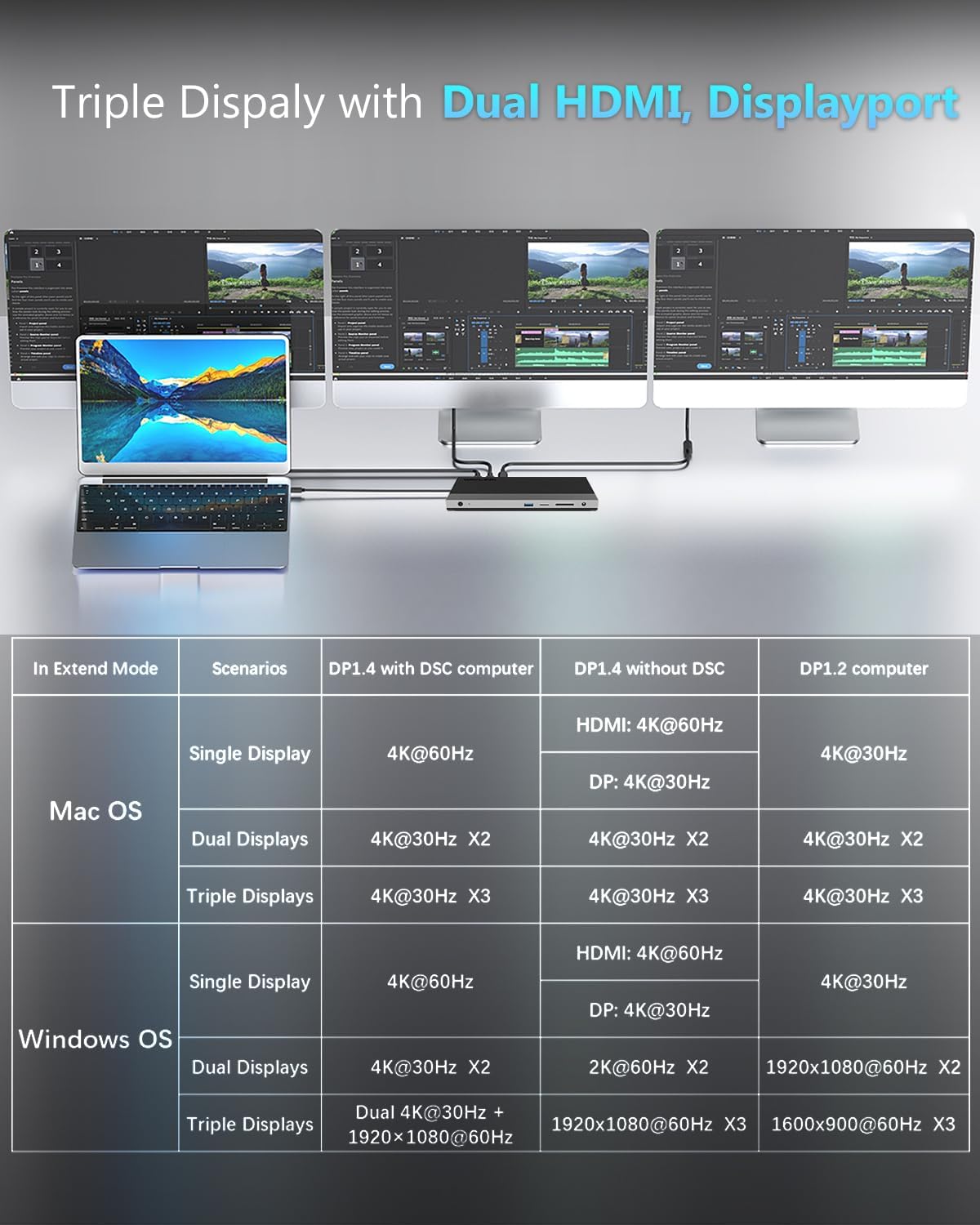
Image 4.1: Table detailing supported display resolutions for single, dual, and triple monitor setups on Mac OS and Windows OS, based on DP version.
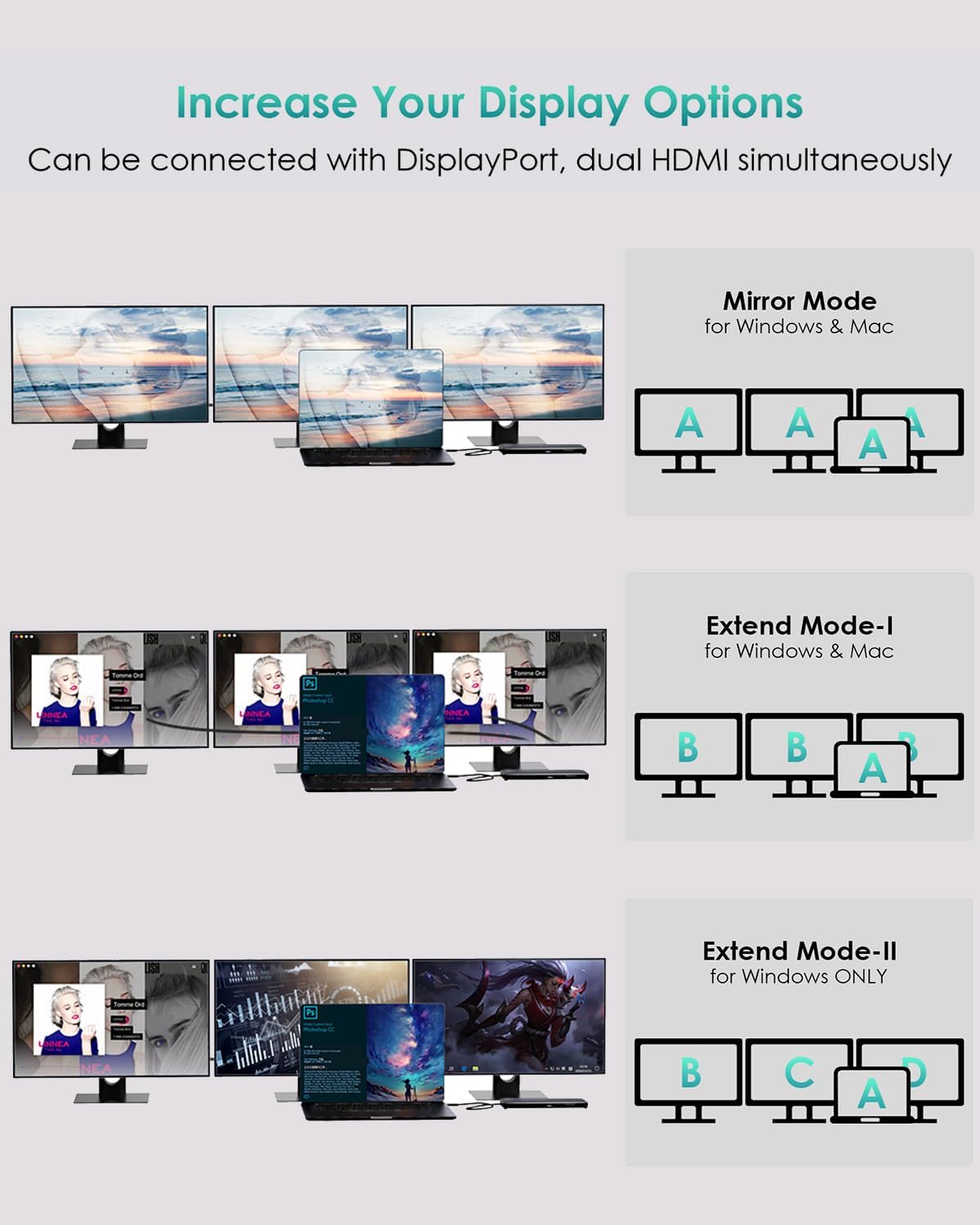
Image 4.2: Visual representation of Mirror Mode and Extend Modes (I & II) for Windows and Mac OS, illustrating how screens are configured.
5. Operating Instructions
Once connected, the WAVLINK UMD05 docking station operates on a plug-and-play basis for most functions. Your operating system should automatically detect the connected displays and peripherals.
5.1 Power Button
Press the power button on the front of the docking station to turn it on or off. A blue LED indicator will illuminate when the device is powered on.
5.2 Utilizing USB Ports
The three USB 3.0 ports on the rear and one on the front (with BC 1.2 fast charging) can be used to connect various USB devices such as external hard drives, USB flash drives, keyboards, and mice. The BC 1.2 port is suitable for fast charging compatible smartphones.

Image 5.1: Depiction of the 5Gbps data transfer capability of the USB 3.0 ports, showing various devices connected.
5.3 Card Reader Functionality
The integrated SD and Micro SD card slots allow for direct access to memory cards, supporting high-speed transfers up to 104MB/s. Both slots can be used simultaneously.

Image 5.2: The 2-in-1 audio mic jack and SD/TF card slots in use, demonstrating connectivity for headphones and memory cards.
6. Specifications
| Feature | Specification |
|---|---|
| Model Number | UMD05 |
| Ports | 3x USB 3.0, 2x HDMI, 1x DisplayPort, 1x Gigabit Ethernet, 1x Upstream USB-C, 1x DC-in, 1x SD Card, 1x Micro SD Card, 1x 3.5mm Audio Jack |
| Video Output | Up to 4K@60Hz (single), 2560x1440@60Hz (dual), 1920x1080@60Hz (triple) |
| Power Delivery | 100W to host laptop |
| Data Transfer Speed (USB 3.0) | Up to 5Gbps |
| Ethernet Speed | 1000Mbps (Gigabit) |
| Card Reader Speed | Up to 104MB/s |
| Compatible Operating Systems | Windows 11/10/8.1/8/7/XP/Vista, Mac OS 10.X+, Linux, Chrome, Android, HarmonyOS, iPadOS |
| Item Weight | 2.62 pounds |
| Package Dimensions | 10.59 x 5.08 x 2.91 inches |
7. Troubleshooting
7.1 Display Issues
If your external monitors are not displaying correctly or at all, consider the following:
- Verify USB-C Port Capability: Ensure your laptop's USB-C port supports video output (DisplayPort Alternate Mode) and power delivery. Not all USB-C ports have full functionality.
- Step 1: Check the model of your laptop, usually found on a label on the back.
- Step 2: Search for "[brand] + [model number] + manual" on Google to find your laptop's specifications.
- Step 3: In the manual, check the Type-C specification. Look for mentions of "power delivery" (for charging) and "supports display" or "DisplayPort Alternate Mode" (for video output). If it only states "bandwidth", the port might not support video output and charging.
- Driver Updates: Ensure your laptop's graphics drivers and USB-C drivers are up to date. Visit your laptop manufacturer's official website for the latest drivers.
- Cable Connections: Double-check all cable connections between the docking station, monitors, and laptop. Ensure they are securely plugged in.
- Power Supply: Confirm the docking station is receiving adequate power from the 130W power adapter.
- Mac OS Specifics: Remember that Mac OS has limitations on extended displays. Intel/M1/M2 based Macs typically only extend to one monitor, with others mirroring.

Image 7.1: Guide on how to verify if your laptop's USB-C port supports video output and charging, including steps to check specifications.
8. Maintenance
To ensure the longevity and optimal performance of your WAVLINK Docking Station, follow these maintenance guidelines:
- Cleaning: Use a soft, dry cloth to clean the exterior of the docking station. Avoid using liquid cleaners or aerosols, as they may damage the device.
- Ventilation: Ensure the docking station is placed in a well-ventilated area to prevent overheating. Do not block the ventilation openings.
- Storage: When not in use for extended periods, store the docking station in a cool, dry place away from direct sunlight and extreme temperatures.
- Handle with Care: Avoid dropping or subjecting the device to strong impacts, which can damage internal components.
9. Support & Warranty
For technical support or warranty inquiries, please contact WAVLINK customer service:
- Phone: +1 8889730883 (Monday - Friday, 9 AM - 6 PM UTC-5)
- Online: You can also reach out via Amazon Message.
- Drivers: Find the purchased product model on the official WAVLINK website (www.wavlink.com) to download necessary drivers.
WAVLINK provides a standard warranty for its products. Please refer to the warranty information included with your purchase or visit the official WAVLINK website for details regarding terms and conditions.

Image 9.1: Visual representation of customer support options, including phone number and website for driver downloads.