
SteelSeries 61631
SteelSeries Arctis Nova 3 Multi-Platform Gaming Headset
Instruction Manual
1. Introduction
This manual provides comprehensive instructions for the setup, operation, maintenance, and troubleshooting of your SteelSeries Arctis Nova 3 Multi-Platform Gaming Headset. Please read this manual thoroughly before using the product to ensure optimal performance and longevity.
The Arctis Nova 3 headset features the custom-designed Nova Acoustic System with High Fidelity Drivers, 360° Spatial Audio, and a 10-band Parametric EQ. It includes an AI-powered noise-cancelling ClearCast Gen 2 microphone and dynamic RGB lighting. Designed for multi-platform compatibility, it connects via USB-C to PC, PlayStation, Xbox Series X|S, Switch, and mobile devices.
2. Product Overview
2.1 Package Contents
- SteelSeries Arctis Nova 3 Gaming Headset
- USB-C to USB-C Cable
- USB-C to USB-A Adapter Cable
- USB-C to 3.5mm Audio Cable
- Documentation (this manual)
2.2 Headset Components
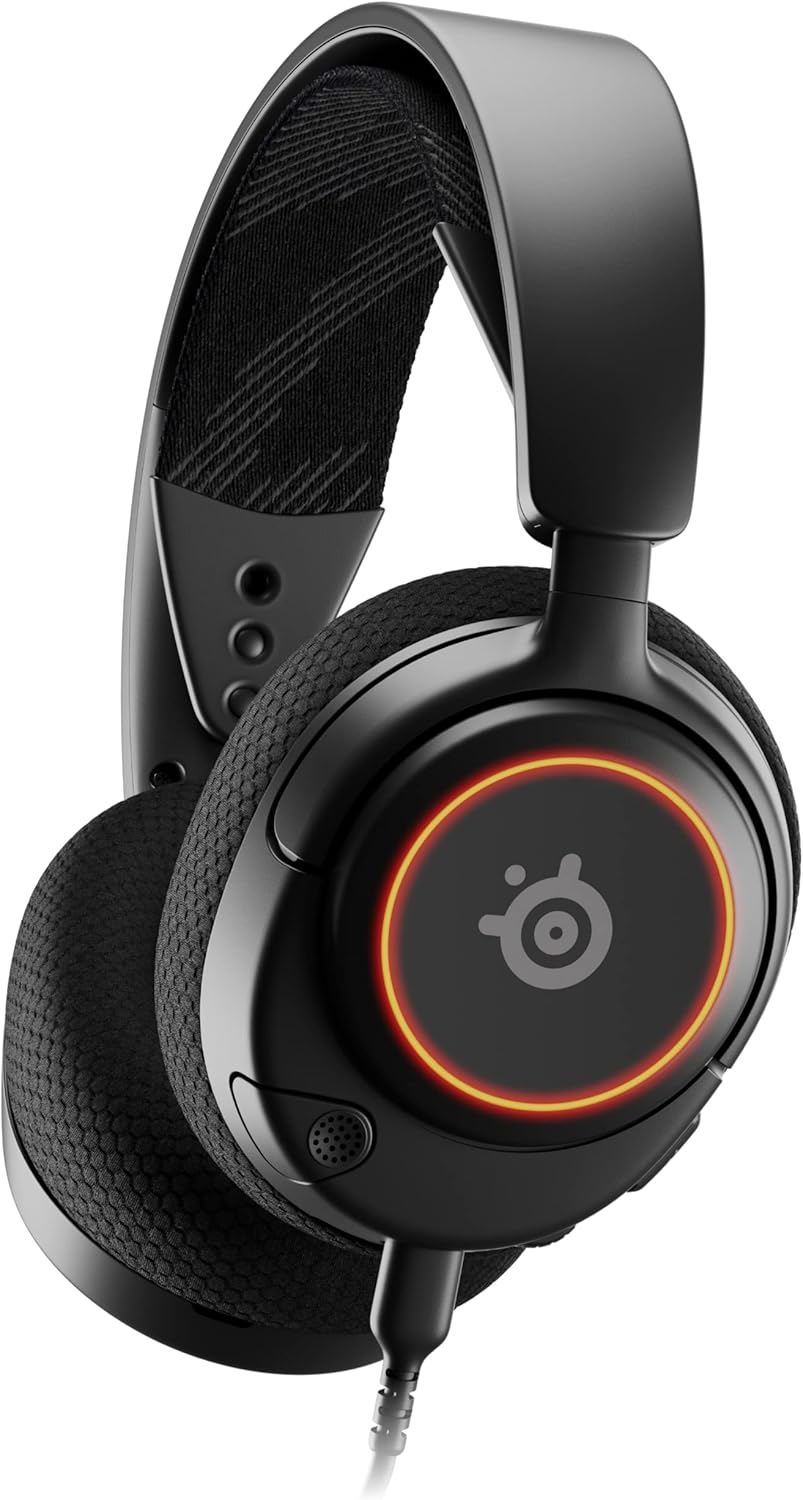
Figure 1: Front view of the Arctis Nova 3 headset.

Figure 2: Key features of the Arctis Nova 3, including ComfortMAX System, 360° Spatial Audio, Dual-Zone RGB, Nova Acoustic System, ClearCast Gen 2 AI-Powered Noise-Cancelling Mic, and Multi-Platform Support.
- ComfortMAX System: Features height-adjusting, rotating earcups with AirWeave Memory Foam cushions and a stretchy band for comfortable wear.
- ClearCast Gen 2 Mic: AI-powered noise-cancelling microphone, fully retractable into the earcup.
- Dual-Zone RGB Lighting: Customizable 16.8 million color options on the earcups.
- Nova Acoustic System: Custom-designed with High Fidelity Drivers for superior sound.
- Controls: Volume wheel and microphone mute switch located on the earcup.
- Connectivity Port: USB-C port for various cable connections.
3. Setup
3.1 Connecting the Headset
The Arctis Nova 3 offers versatile connectivity options:
- USB-C Connection: Use the provided USB-C to USB-C cable to connect directly to devices with a USB-C port (e.g., PC, PlayStation 5, Nintendo Switch, mobile devices).
- USB-A Connection: For devices with only USB-A ports, use the USB-C to USB-A adapter cable. Connect the USB-C end to the headset and the USB-A end to your device.
- 3.5mm Audio Connection: For devices requiring a 3.5mm audio jack (e.g., Xbox controllers, older consoles, some mobile devices), use the USB-C to 3.5mm audio cable. Connect the USB-C end to the headset and the 3.5mm jack to your device.
Video 1: Product Overview demonstrating various connectivity options and features of the Arctis Nova 3 headset.
Video 2: A 360-degree view of the Arctis Nova 3 Black headset, showcasing its design and features from all angles.
3.2 Adjusting the Fit
The ComfortMAX System allows for personalized fit:
- Headband Adjustment: The elastic suspension band can be adjusted to different lengths using the three holes on each side of the headband, ensuring a comfortable fit that distributes weight evenly.
- Earcup Rotation: The earcups can rotate 90 degrees, allowing the headset to lay flat for storage or comfortable resting around the neck.

Figure 3: The adjustable headband and rotating earcups of the Arctis Nova 3 for a personalized and comfortable fit.

Figure 4: The super lightweight design (253g) of the Arctis Nova 3 with memory foam earcup cushions for extended comfort.
4. Operating Instructions
4.1 Audio Controls
- Volume Wheel: Rotate the wheel on the left earcup up or down to adjust the headset's audio volume.
- Microphone Mute Switch: Slide the switch on the left earcup to mute or unmute the ClearCast Gen 2 microphone. An orange indicator will be visible when muted.
4.2 Microphone Usage
- Extend/Retract: The ClearCast Gen 2 microphone is fully retractable. Gently pull it out from the left earcup for use and push it back in for storage.
- Positioning: Position the microphone approximately 1-2 inches from your mouth for optimal voice clarity.

Figure 5: The ClearCast Gen 2 mic, which silences background noise and fully retracts into the earcup.
4.3 RGB Lighting Customization (PC Only)
Dynamic RGB lighting can be customized via the SteelSeries Engine software on PC. This allows for 16.8 million color options and reactive lighting effects.

Figure 6: Customizable PrismSync RGB lighting with 16.8 million colors on the Arctis Nova 3 headset.
5. Maintenance
- Cleaning: Use a soft, dry cloth to clean the headset. Avoid abrasive cleaners or solvents.
- Storage: Store the headset in a cool, dry place away from direct sunlight and extreme temperatures.
- Cable Care: Avoid sharp bends or excessive pulling on the cables to prevent damage.
6. Troubleshooting
| Problem | Possible Cause | Solution |
|---|---|---|
| No audio from headset | Incorrect connection, low volume, muted device. | Ensure cables are securely connected. Check headset volume wheel and device audio settings. Confirm device is not muted. |
| Microphone not working | Microphone muted, incorrect input device selected, mic not extended. | Check microphone mute switch (orange indicator means muted). Ensure microphone is fully extended. Verify correct input device is selected in your system's sound settings. |
| RGB lighting not working (PC) | Software issue, incorrect USB connection. | Ensure SteelSeries Engine software is installed and updated. Confirm headset is connected via USB-C or USB-A (RGB not supported via 3.5mm). |
| Discomfort during use | Improper fit. | Adjust the elastic headband and earcup positions for optimal comfort. |
7. Specifications
| Feature | Detail |
|---|---|
| Model Name | SteelSeries Arctis Nova 3 Multi-Platform Gaming Headset |
| Model Number | 61631 |
| Connectivity Technology | USB-C (includes USB-A and 3.5mm adapters) |
| Audio Driver Type | Dynamic Driver (Nova Acoustic System) |
| Frequency Response | 20-22000 Hz |
| Impedance | 36 Ohm |
| Microphone | ClearCast Gen 2 AI-Powered Noise-Cancelling, Retractable |
| Spatial Audio | 360° Spatial Audio (compatible with Tempest 3D Audio for PS5 / Microsoft Spatial Sound) |
| Weight | 8.3 ounces (approx. 235g) |
| Dimensions (LxWxH) | 7.32 x 6.82 x 3.47 inches |
| Material | Foam, Aluminum |
| RGB Lighting | Dynamic 16.8 million color options (PrismSync RGB) |
| Compatible Devices | PC, PlayStation 5|4, Xbox Series X|S, Switch, Mobile |
8. Warranty and Support
For warranty information and technical support, please visit the official SteelSeries website or contact their customer service. Keep your proof of purchase for warranty claims.
Official SteelSeries Website: SteelSeries Store on Amazon
Related documents61631


Ask a question about this manual
Ask about setup, troubleshooting, compatibility, parts, safety, or missing instructions. Manuals+ will review the question and use this page’s manual context to help answer it.