
1. Introduction
This manual provides essential information for setting up, operating, and maintaining your HP ProDesk 400 G5 SFF Desktop Computer. Please read these instructions carefully before using your device to ensure optimal performance and longevity.
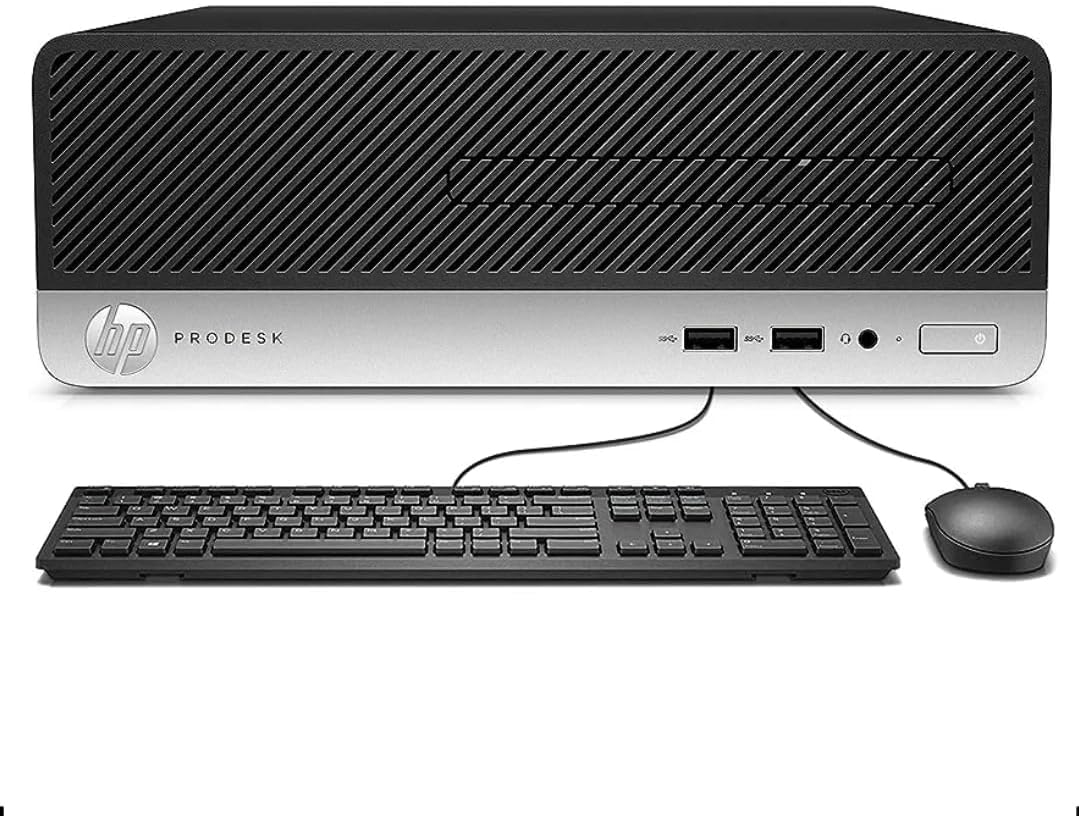
Figure 1: HP ProDesk 400 G5 SFF Desktop Computer.
2. What's in the Box
Verify that all items are present in the packaging:
- HP ProDesk 400 G5 SFF Desktop Computer
- USB Keyboard
- USB Mouse
- USB WiFi Adapter
- USB Bluetooth Adapter
- AC Power Adapter
3. Setup
Follow these steps to set up your HP ProDesk 400 G5 SFF Desktop Computer:
- Unpack the System: Carefully remove the computer and all accessories from the packaging.
- Connect Peripherals:
- Connect the USB Keyboard and USB Mouse to any available USB ports on the computer.
- Connect your monitor(s) to the DisplayPort or VGA ports on the rear of the computer.
- If using a wired network, connect an Ethernet cable to the RJ-45 port.
- Plug in the USB WiFi adapter and USB Bluetooth adapter to available USB ports.
- Connect Power: Plug the AC power adapter into the power input on the rear of the computer, then plug the other end into a wall outlet.
- Power On: Press the power button on the front of the computer to turn it on.

Figure 2: Example of a typical office setup with the HP ProDesk 400 G5 SFF Desktop.
4. Operating Instructions
Your HP ProDesk 400 G5 SFF comes with Windows 11 Pro pre-installed. Follow the on-screen prompts for initial setup of the operating system.
4.1. Power On/Off
- To Power On: Press the power button located on the front panel.
- To Shut Down: Click the Start button in Windows, then select Power > Shut down.
- To Restart: Click the Start button in Windows, then select Power > Restart.
4.2. Connecting to the Internet
- Wired Connection: If an Ethernet cable is connected, the system should automatically detect the network.
- Wireless Connection (Wi-Fi): Ensure the USB WiFi adapter is connected. In Windows, click the network icon in the taskbar, select your Wi-Fi network, enter the password, and click Connect.
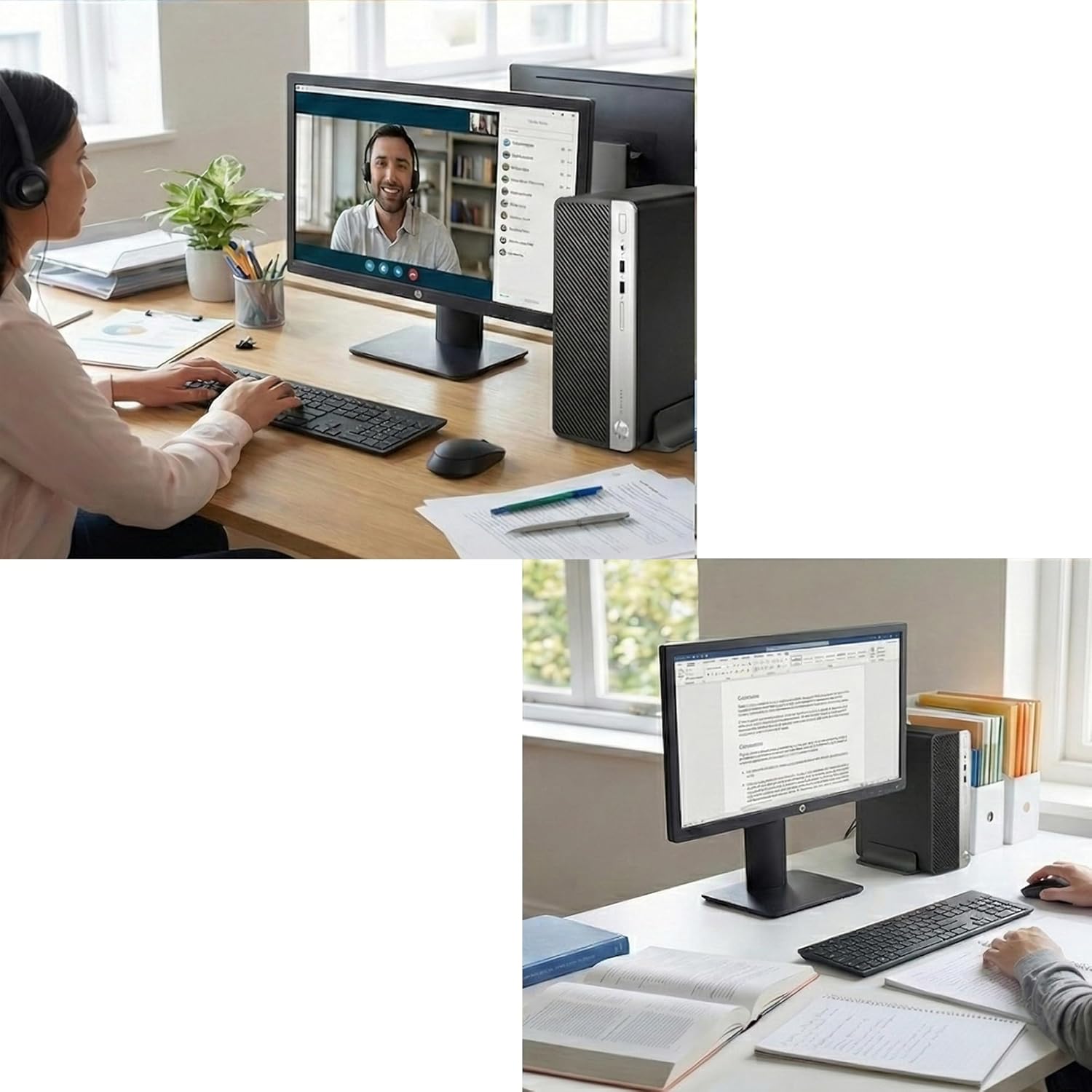
Figure 3: The HP ProDesk 400 G5 SFF Desktop supports various business applications, including video conferencing.
5. Ports and Connectivity
The HP ProDesk 400 G5 SFF offers a comprehensive set of ports for various peripherals and displays.
5.1. Front Ports
- 1x Headset connector (audio in/out)
- 2x USB 3.1 Gen 1 ports
- 2x USB 3.1 Gen 2 Type-A ports (15 W charging support)
- 1x USB 3.1 Gen 2 Type-C port (15 W charging support)
5.2. Rear Ports
- 1x Audio-in port
- 1x Audio-out port
- 2x DisplayPort 1.2
- 1x VGA port
- 1x RJ-45 Ethernet port
- 2x USB 3.1 Gen 1 ports
- 4x USB 2.0 ports
- 1x Power connector

Figure 4: Front and rear views of the HP ProDesk 400 G5 SFF, highlighting port locations.

Figure 5: Detailed diagram illustrating the rear ports including DisplayPort, VGA, USB, Ethernet, and audio connections.
Video 1: A short demonstration of the various ports available on the HP ProDesk 400 G5 SFF Desktop. This video provides a visual guide to connecting peripherals.
6. Specifications
| Feature | Detail |
|---|---|
| Brand | HP |
| Model Name | PRODESK 400G5 SFF |
| Operating System | Windows 11 Pro |
| CPU Model | Intel Core i5-8500 |
| CPU Speed | 3 GHz (up to 4.1 GHz Max) |
| RAM Memory Installed | 16 GB DDR4 |
| RAM Memory Maximum Size | 32 GB |
| Memory Storage Capacity | 256 GB SSD |
| Graphics Coprocessor | Intel UHD Graphics 630 (Integrated) |
| Video Output | DisplayPort, VGA |
| Wireless Technology | Wi-Fi (802.11ac), Bluetooth |
| Item Dimensions (L x W x H) | 11.65 x 3.7 x 10.6 inches |
| Item Weight | 10.2 Pounds |

Figure 6: Physical dimensions of the HP ProDesk 400 G5 SFF Desktop.
7. Maintenance
Regular maintenance helps ensure the longevity and performance of your desktop computer.
- Keep it Clean: Regularly dust the exterior of the computer and ensure air vents are clear to prevent overheating. Use compressed air to clean internal components if comfortable, ensuring the system is powered off and unplugged.
- Software Updates: Keep your Windows operating system and drivers updated to the latest versions for security and performance improvements.
- Data Backup: Periodically back up important data to an external drive or cloud storage to prevent data loss.
- Avoid Liquids: Keep liquids away from the computer to prevent accidental spills and damage.
8. Troubleshooting
If you encounter issues with your HP ProDesk 400 G5 SFF, refer to the following common troubleshooting steps:
- No Power: Ensure the power cable is securely connected to both the computer and the wall outlet. Test the outlet with another device.
- No Display: Check that the monitor is powered on and correctly connected to the computer's DisplayPort or VGA port. Try a different cable or monitor if available.
- Peripheral Not Working: Ensure USB devices (keyboard, mouse, WiFi/Bluetooth adapters) are securely plugged into a working USB port. Try a different USB port.
- Slow Performance: Close unnecessary applications. Check for malware or viruses. Ensure sufficient free space on the SSD.
- No Internet Connection: For Wi-Fi, ensure the USB WiFi adapter is installed and connected to a network. For wired, check the Ethernet cable connection and router status.
For more complex issues, consult HP's official support resources or a qualified technician.
9. Warranty and Support
This Certified Refurbished product is tested and certified to look and work like new. The refurbishing process includes functionality testing, basic cleaning, inspection, and repackaging. The product ships with all relevant accessories and a minimum 91-day warranty.
For warranty claims or technical support, please contact your retailer or refer to the documentation provided with your purchase for specific support channels.


