
1. Introduction
This manual provides essential information for the safe and efficient use of your Acer Aspire 5 A515-47-R3Y6 Slim Laptop. The Acer Aspire 5 is designed for productivity and multimedia, featuring an AMD Ryzen 5000 Series Processor with Radeon graphics, a 15.6" Full HD IPS display, and Windows 11 Home. Please read this manual thoroughly before operating your device.
Key Features:
- Processor: AMD Ryzen 5 5625U with Zen 3 Core Architecture for efficient multitasking.
- Display: 15.6" Full HD IPS display with narrow bezels for clear visuals.
- Cooling: Dual fans and copper thermal pipes for optimized heat management.
- Memory & Storage: 8GB DDR4 RAM and 512GB NVMe SSD.
- Audio: Acer Purified.Voice technology for clear communication.
- Connectivity: Wi-Fi 6, Bluetooth 5.2, Gigabit Ethernet, USB Type-C, USB 3.2 Gen 1, HDMI 2.1.
- Operating System: Windows 11 Home.
2. What's in the Box
Upon opening your Acer Aspire 5 A515-47-R3Y6 package, please ensure all the following items are present:
- Acer Aspire 5 Laptop
- AC Adapter
- Power Cord
If any items are missing or damaged, please contact your retailer or Acer customer support immediately.
3. Product Overview
Front View

This image shows the Acer Aspire 5 laptop from the front, with the lid open and the screen displaying the Windows 11 desktop. The narrow bezels around the 15.6-inch Full HD IPS display are visible, along with the Acer logo below the screen and the keyboard and touchpad.
Display Features
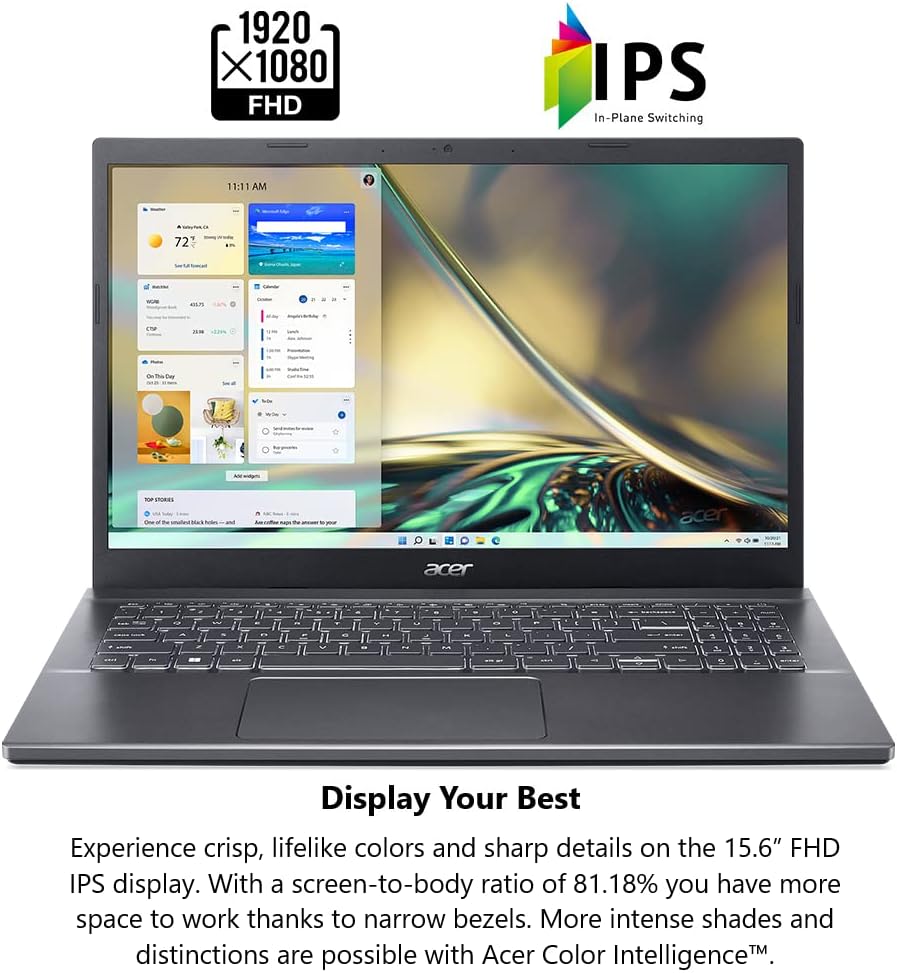
The laptop features a 15.6-inch Full HD (1920x1080) IPS display. IPS (In-Plane Switching) technology provides wide viewing angles and accurate color reproduction, enhancing the visual experience for various tasks.
Left Side Ports

The left side of the laptop houses several essential ports: the power input for the AC adapter, an Ethernet (RJ-45) port for wired network connections, an HDMI 2.1 port for external displays, two USB 3.2 Gen 1 Type-A ports, and a versatile USB 3.2 Gen 2 Type-C port with DisplayPort over USB Type-C and USB Charging capabilities.
Right Side Ports

On the right side, you will find a headphone/speaker/line-out jack for audio peripherals, one USB 3.2 Gen 1 Type-A port (with power-off charging support), and a security lock slot to help protect your device from theft.
Keyboard and Touchpad

The laptop features a full-size backlit keyboard for comfortable typing in various lighting conditions, including a numeric keypad. Below the keyboard is a large, responsive touchpad for precise navigation and multi-touch gestures.
Cooling System
The Acer Aspire 5 incorporates an advanced cooling system with dual fans and dual copper thermal pipes. This design helps to efficiently dissipate heat, maintaining optimal performance during demanding tasks. The system supports multiple cooling modes, which can be adjusted for silent operation, normal use, or performance-intensive scenarios.
4. Setup
4.1 Initial Power On
- Unpack the laptop and all accessories from the box.
- Connect the AC adapter to the laptop's power input port (located on the left side).
- Plug the power cord into a wall outlet.
- Open the laptop lid and press the power button, typically located above the keyboard or on the side.
- Follow the on-screen instructions to complete the Windows 11 initial setup, including language selection, network connection, and user account creation.
4.2 Connecting to a Network
- Wi-Fi: During Windows setup or later, click the Wi-Fi icon in the taskbar, select your desired network, enter the password, and click Connect.
- Wired (Ethernet): Connect an Ethernet cable from your router or modem to the Ethernet port on the left side of the laptop. The connection should be established automatically.
5. Operating Instructions
5.1 Using the Keyboard and Touchpad
- Backlit Keyboard: Press Fn + F9 (or the key with the backlight icon) to toggle the keyboard backlight on/off or adjust its brightness.
- Function Keys: The F1-F12 keys have secondary functions (e.g., volume, brightness). Press the Fn key simultaneously with the desired function key to activate its secondary function.
- Touchpad Gestures: The touchpad supports multi-touch gestures for scrolling, zooming, and navigating Windows 11. Refer to Windows settings for customization.
5.2 Connecting External Devices
- USB Devices: Connect USB drives, mice, keyboards, or other peripherals to the available USB Type-A or Type-C ports.
- External Display: Use the HDMI port or a compatible USB-C adapter/cable to connect an external monitor or projector. Press Windows key + P to manage display modes.
- Audio: Plug headphones or external speakers into the 3.5mm audio jack.
5.3 Power Management
- Charging: Always use the provided AC adapter for charging. The battery indicator light will show charging status.
- Sleep Mode: Close the lid or press the power button briefly to put the laptop into sleep mode.
- Shut Down: Click the Start button, then Power, and select "Shut down" to properly turn off the laptop.
6. Maintenance
6.1 Cleaning Your Laptop
- Screen: Use a soft, lint-free cloth lightly dampened with water or a screen cleaner. Do not spray liquid directly onto the screen.
- Keyboard and Chassis: Use a soft, dry cloth. For stubborn dirt, a slightly damp cloth with mild soap solution can be used, ensuring no liquid enters openings.
- Ventilation: Periodically check and clean the ventilation openings to prevent dust buildup, which can affect cooling performance. Use compressed air if necessary.
6.2 Battery Care
- Avoid fully discharging the battery frequently.
- Store the laptop in a cool, dry place if not used for extended periods.
- Do not expose the battery to extreme temperatures.
6.3 Software Updates
- Regularly check for Windows updates through Settings > Windows Update.
- Visit the official Acer support website for driver and BIOS updates specific to your model.
7. Troubleshooting
| Problem | Possible Solution |
|---|---|
| Laptop does not power on. |
|
| Screen is blank or black. |
|
| Wi-Fi connection issues. |
|
| Laptop is running slow. |
|
8. Specifications
| Feature | Detail |
|---|---|
| Model Name | A515-47-R3Y6 |
| Item Model Number | NX.K82AA.001 |
| Operating System | Windows 11 Home |
| Processor | AMD Ryzen 5 5625U Hexa-Core (up to 4.3 GHz) |
| RAM | 8 GB DDR4 |
| Storage | 512 GB NVMe SSD |
| Graphics | Integrated AMD Radeon Graphics |
| Screen Size | 15.6 inches |
| Screen Resolution | 1920 x 1080 pixels (Full HD IPS) |
| Wireless Connectivity | 802.11ax Wi-Fi 6, Bluetooth 5.2 |
| Ports |
|
| Item Weight | 3.9 pounds (approx. 1.77 kg) |
| Product Dimensions (LxWxH) | 14.29 x 9.36 x 0.7 inches (approx. 36.3 x 23.8 x 1.78 cm) |
| Color | Gray |
| Batteries | 1 Lithium Ion battery (included) |
9. Warranty and Support
Your Acer Aspire 5 A515-47-R3Y6 laptop comes with a standard manufacturer's warranty. Please refer to the warranty card included in your product packaging for specific terms and conditions, including warranty duration and coverage details.
For technical support, driver downloads, or service inquiries, please visit the official Acer support website or contact Acer customer service. You can typically find contact information and support resources on the Acer website: www.acer.com/support.
When contacting support, please have your laptop's serial number and model name (A515-47-R3Y6) ready. The serial number is usually located on a sticker on the bottom of the laptop.