1. Introduction
This manual provides detailed instructions for setting up, operating, maintaining, and troubleshooting your MINISFORUM EliteMini TH50 Mini PC. Please read this manual thoroughly before using the product to ensure proper functionality and longevity.

Image 1.1: The MINISFORUM EliteMini TH50 Mini PC, a compact desktop computer.
2. Package Contents
Verify that all items listed below are present in your package:
- 1x MINISFORUM TH50 Mini PC
- 1x HDMI Cable
- 1x Mounting Bracket
- 1x US Power Adapter
- 1x Manual (this document)

Image 2.1: Contents included in the MINISFORUM TH50 Mini PC package.
3. Product Overview
The MINISFORUM EliteMini TH50 is a high-performance mini PC designed for various applications, from office work to multimedia consumption and light gaming. It features an 11th Gen Intel Core i5-11320H processor and Intel Iris Xe Graphics.
3.1 Front and Rear Ports
Familiarize yourself with the available ports on your Mini PC:

Image 3.1: Diagram illustrating the front and rear ports of the TH50 Mini PC.
- Front Ports: Power Button, 3.5mm Audio Jack, USB 3.1 Port x2, USB 4 (Thunderbolt 4 compatible, 8K@60Hz)
- Rear Ports: USB 2.0 Port x2, USB 3.1 Port x2, RJ45 2.5 Gigabit Ethernet Port x2, DisplayPort, HDMI Port, Kensington Lock, DC 19V Power Input
3.2 Internal Components
The TH50 Mini PC features onboard LPDDR4 16GB RAM and a 512GB PCIe SSD. It also supports additional storage expansion.

Image 3.2: Exploded view showing the internal components, including RAM, SSD, and HDD slots.
4. Setup Guide
Follow these steps to set up your MINISFORUM EliteMini TH50 Mini PC:
- Connect to a Display: Connect your monitor(s) to the Mini PC using an HDMI, DisplayPort, or USB-C cable. The TH50 supports up to three displays simultaneously.
- Connect Peripherals: Plug in your keyboard, mouse, and any other USB devices into the available USB ports.
- Connect to Network: For wired internet, connect an Ethernet cable to one of the 2.5G RJ45 ports. For wireless internet, ensure your Wi-Fi network is available.
- Connect Power: Plug the US Power Adapter into the DC 19V input port on the Mini PC, then plug the adapter into a power outlet.
- Power On: Press the power button on the front of the Mini PC.

Image 4.1: A typical desktop setup showing the Mini PC connected to a monitor and peripherals.
4.1 Mounting the Mini PC
The included mounting bracket allows you to attach the Mini PC to the back of a VESA-compatible monitor or to a wall.
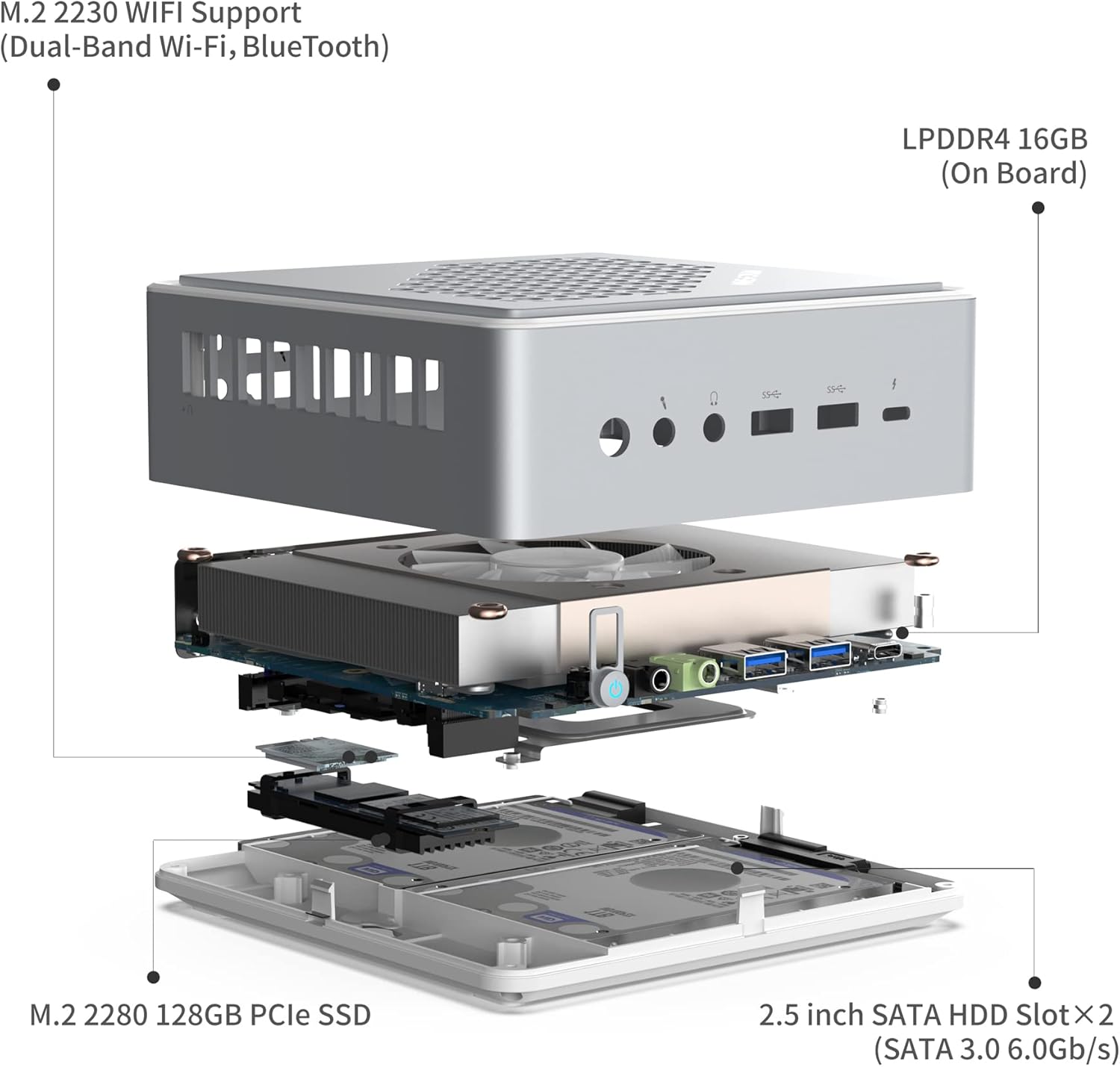
Image 4.2: The MINISFORUM TH50 Mini PC mounted on the back of a television using the provided bracket.
To mount the device:
- Attach the mounting bracket to the Mini PC using the provided screws.
- Secure the bracket to the VESA holes on your monitor or to a suitable wall surface.
- Slide the Mini PC onto the mounted bracket.
5. Operating Instructions
5.1 Initial Boot and Windows 11
Upon first power-on, the system will guide you through the Windows 11 setup process. Follow the on-screen prompts to configure your language, region, network, and user account.
Ensure your internet connection is active during setup to download necessary updates and drivers.
5.2 Connecting to Wi-Fi
If not using a wired connection, connect to Wi-Fi:
- Click the Wi-Fi icon in the system tray.
- Select your desired network from the list.
- Enter the network password and click "Connect".
5.3 Multi-Display Setup
The Mini PC supports up to three displays via HDMI, DisplayPort, and the USB-C (Thunderbolt 4) port. To configure multiple displays:
- Connect all desired monitors to the respective ports.
- Right-click on the desktop and select "Display settings".
- Arrange your displays and choose your preferred display mode (e.g., Extend, Duplicate).

Image 5.1: Example of a multi-display setup, demonstrating enhanced work efficiency.
6. Maintenance
6.1 Cleaning
- Use a soft, dry cloth to clean the exterior of the Mini PC.
- For dust accumulation in vents, use compressed air. Ensure the device is powered off before cleaning.
- Avoid using liquid cleaners directly on the device.
6.2 Software Updates
Regularly update your Windows operating system and drivers to ensure optimal performance and security.
- Windows Updates: Go to Settings > Windows Update and check for updates.
- Driver Updates: Visit the MINISFORUM official website for the latest drivers for your TH50 model.
6.3 Storage Expansion
The TH50 Mini PC supports additional storage:
- M.2 2280 PCIe SSD: Up to 2TB (512GB pre-installed).
- 2x 2.5 inch SATA HDD Slot: Up to 2TB each (SATA 3.0 6.0Gb/s).
Refer to the detailed instructions on the MINISFORUM support website for guidance on installing additional storage devices.
7. Troubleshooting
| Problem | Possible Cause | Solution |
|---|---|---|
| No power/Does not turn on | Power adapter not connected, faulty power outlet, power button issue. |
|
| No display on monitor | Incorrect cable connection, monitor input not selected, display driver issue. |
|
| Wi-Fi connection issues | Outdated Wi-Fi drivers, router issues, interference. |
|
| Slow performance | Too many background applications, insufficient RAM/storage, overheating. |
|
8. Specifications
| Feature | Detail |
|---|---|
| Model | TH50 |
| Processor | 11th Gen Intel Core i5-11320H (up to 4.5 GHz) |
| Graphics | Intel Iris Xe Graphics Eligible (up to 1.35GHz) |
| RAM | 16GB LPDDR4 (onboard) |
| Internal Storage | 512GB PCIe SSD (M.2 2280) |
| Storage Expansion | 2x 2.5 inch SATA HDD slot (up to 2TB each) |
| Operating System | Windows 11 |
| Video Output | HDMI (4K@60Hz), DisplayPort (8K@60Hz), USB-C (8K@60Hz) |
| Networking | 2x 2.5G RJ45 Ethernet, Dual-Band Wi-Fi (802.11ac), Bluetooth 5 |
| USB Ports | 2x USB 3.1 (front), 2x USB 3.1 (rear), 2x USB 2.0 (rear), 1x USB-C (Thunderbolt 4 compatible) |
| Audio | 3.5mm Audio Jack |
| Dimensions | 5.87 x 5.91 x 2.2 inches |
9. Video Demonstration
Watch the official product video for a visual overview of the MINISFORUM EliteMini TH50 Mini PC's features and capabilities.
Video 9.1: Official MINISFORUM EliteMini TH50 Windows 11 Pro Mini PC overview.
10. Warranty and Support
10.1 Warranty Information
MINISFORUM products typically come with a standard manufacturer's warranty. Please refer to the warranty card included in your package or visit the official MINISFORUM website for detailed warranty terms and conditions specific to your region.
10.2 Technical Support
If you encounter any issues that cannot be resolved using the troubleshooting guide, or require further assistance, please contact MINISFORUM technical support.
- Official Website: www.minisforum.com (Check for support section or contact page)
- Email Support: Refer to the product packaging or official website for specific support email addresses.
When contacting support, please have your product model (TH50) and purchase information ready.


