
1. Introduction
This manual provides comprehensive instructions for the installation, operation, and maintenance of your REVODATA 5MP POE Starlight IP Camera, model I706-P-FC-HS. This camera is designed for indoor security surveillance, offering high-resolution imaging, full-color night vision, and flexible power options. Please read this manual thoroughly before using the product to ensure proper setup and functionality.
2. Package Contents
Verify that all items listed below are included in your package. If any items are missing or damaged, please contact customer support.
- Camera x 1
- Screws set x 1
- User Manual x 1

Image: Contents of the product package, showing the camera, user manual, and mounting screws.
3. Product Overview
3.1 Key Features
- 5MP HD Image: Equipped with a 1/3-inch 5.0 megapixel CMOS sensor, providing clear and smooth video at up to 25 frames per second.
- Full Color Starlight Night Vision: Offers 24-hour color monitoring, presenting color images even in low-light environments.
- Mini 4mm Lens: Compact design with a 4mm lens, suitable for discreet installation.
- POE Support: Supports 48V 802.3af Power Over Ethernet (POE) for simplified wiring, or can be powered by a 12V 2A power supply (not included) as a non-POE network camera.
- H.265/H.264 Compression: Utilizes advanced video compression to save storage space and bandwidth.
- Motion Detection: Features motion detection with alarm notification capabilities.
- P2P Remote View: Allows remote viewing and playback of surveillance footage via mobile clients (iOS, Android) using the "Linklemo" app or VMS software for Windows computers.
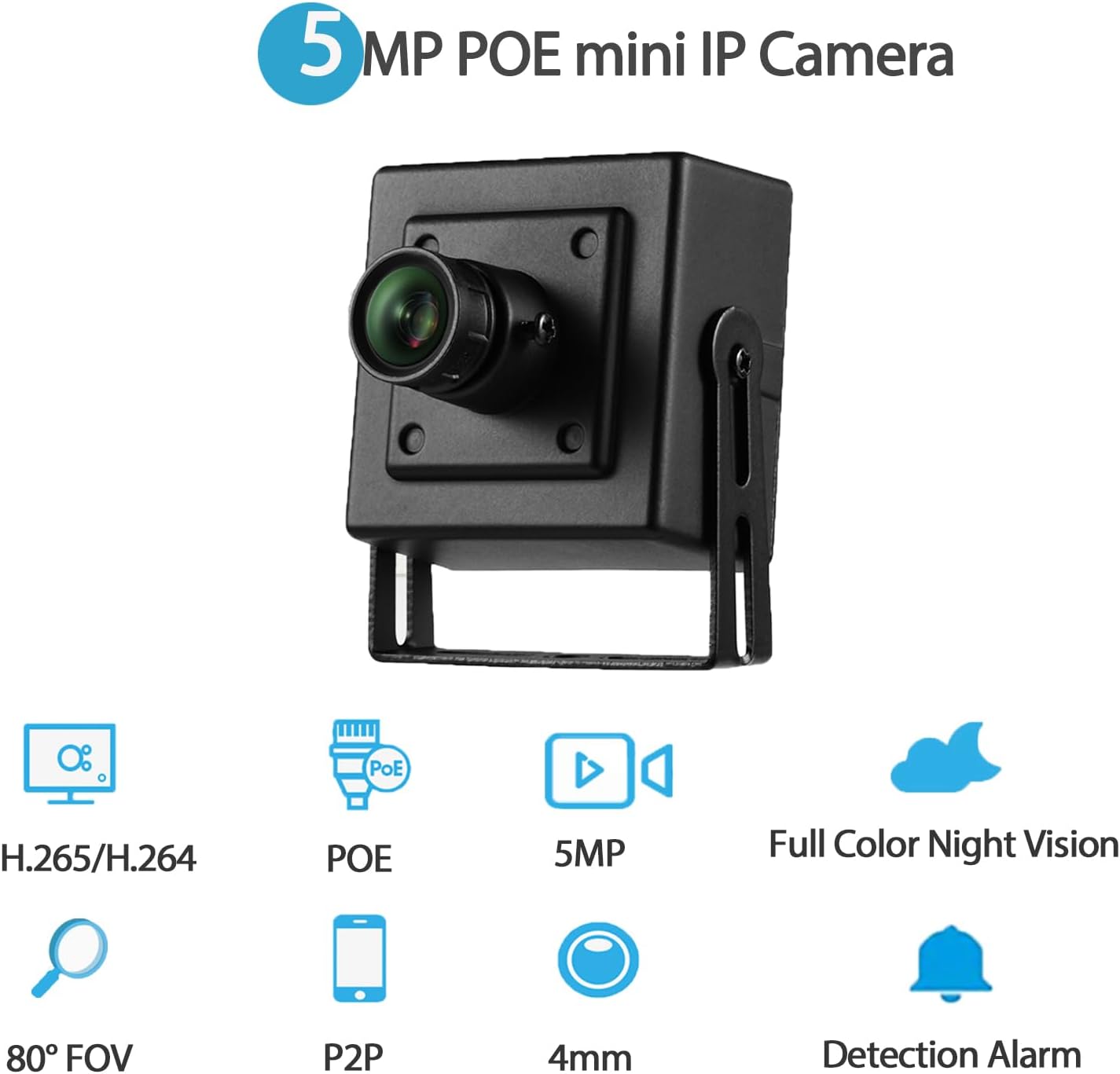
Image: Overview of the camera's main features, including 5MP resolution, POE, full-color night vision, and motion detection.
3.2 Camera Components
- Metal Shell: Durable housing for the camera.
- 4mm Lens: Fixed focal length lens for a wide field of view.
- Mounting Brackets: Adjustable brackets for flexible installation.
- Screw Hole: For secure mounting.
- RJ45 Port: For Ethernet connection and POE power (48V version).
- DC Power Port: Auxiliary power input (supports 12V 2A).
Image: Detailed view of the camera's physical components and dimensions.
4. Setup Instructions
4.1 Physical Installation
- Choose a Location: Select an indoor location that provides the desired viewing angle and is within reach of an Ethernet cable. The camera is suitable for various indoor environments such as bedrooms, garages, living rooms, offices, and study rooms.
- Mount the Camera: Use the included screws and mounting brackets to securely attach the camera to a wall or other suitable surface. Adjust the bracket to achieve the optimal camera orientation.
4.2 Powering the Camera
The camera supports two power options:
- Power Over Ethernet (POE): Connect an Ethernet cable from a 48V 802.3af POE-enabled switch or NVR directly to the camera's RJ45 port. This method provides both power and data connectivity through a single cable.
- Auxiliary DC Power: If POE is not available, connect a 12V 2A DC power adapter (not included) to the camera's DC power port. An Ethernet cable will still be required for data transmission.

Image: Illustration of POE connectivity, simplifying power and data wiring.
4.3 Network Connection
Connect the camera to your local network using an Ethernet cable plugged into the RJ45 port. Ensure your network provides internet access for remote viewing features.
5. Operating Instructions
5.1 Software Installation
To view and manage your camera, install the appropriate software:
- Mobile App: Download and install the "Linklemo" app from the App Store (iOS) or Google Play Store (Android).
- PC Software: For Windows computers, use the VMS software. Note that VMS software is not available for MAC OS or Linux.
5.2 Remote Viewing (P2P)
The camera supports P2P (Peer-to-Peer) cloud functionality, allowing you to view live footage and playback recordings remotely from your mobile device or computer.
- Open the "Linklemo" app or VMS software.
- Follow the on-screen instructions to add your camera using its unique ID or QR code.
- Once added, you can access the camera's live feed and recorded data from anywhere with an internet connection.

Image: Examples of remote viewing through the Linklemo mobile app and VMS desktop software.

Image: P2P remote viewing on multiple devices.
5.3 Motion Detection Setup
The camera can be configured to detect motion and send alerts.
- Access the camera settings through the "Linklemo" app or VMS software.
- Navigate to the motion detection settings.
- Enable motion detection and configure sensitivity, detection zones, and notification preferences (e.g., push notifications to your phone).

Image: Motion detection alarm notification on a smartphone.
5.4 Night Vision Modes
The camera features full-color starlight night vision, providing clear color images even in very low light conditions (minimum illumination: 0.01Lux @(F1.2,AGC ON)).

Image: Full-color night vision capability in a low-light outdoor setting.

Image: Real picture comparison of day and night vision.
6. Maintenance
- Cleaning: Gently wipe the camera lens and body with a soft, dry cloth. Avoid using harsh chemicals or abrasive materials that could damage the camera.
- Firmware Updates: Periodically check the manufacturer's website or the "Linklemo" app for available firmware updates to ensure optimal performance and security.
- Cable Management: Ensure all cables are securely connected and not exposed to potential damage or interference.
7. Troubleshooting
| Problem | Possible Cause | Solution |
|---|---|---|
| No image/video feed | No power; Network connection issue; Incorrect software settings. | Check power supply (POE or 12V adapter). Verify Ethernet cable connection. Ensure camera is added correctly in Linklemo app/VMS. |
| Poor image quality | Dirty lens; Insufficient lighting; Network bandwidth issues. | Clean the camera lens. Ensure adequate lighting for optimal performance. Check network speed and reduce video quality settings if necessary. |
| Motion detection not working | Settings not configured; Sensitivity too low; Network issues preventing notifications. | Verify motion detection is enabled and configured in the app/software. Adjust sensitivity. Check network connectivity for notifications. |
| Cannot connect remotely | No internet access; P2P service issues; Firewall restrictions. | Ensure the camera and your viewing device have internet access. Check P2P status in the app. Configure router/firewall to allow camera traffic if necessary. |
8. Specifications
| Model Name | I706-P-FC-HS |
| Video Capture Resolution | 5 MP (2560x1920) |
| Lens | 4mm |
| Frame Rate | 25fps |
| Night Vision | Full Color Starlight Night Vision (Min illumination: 0.01Lux @(F1.2,AGC ON)) |
| Video Compression | H.265/H.264 |
| Connectivity | Ethernet (LAN) |
| Power Source | 48V 802.3af POE or 12V 2A DC (adapter not included) |
| Controller Type | Android, iOS, Windows |
| Mounting Type | Wall Mount |
| Indoor/Outdoor Usage | Indoor |
| Field Of View | 80 Degrees |
| Material | Metal |
| Product Dimensions | 1.77 x 1.57 x 2.09 inches |
| Item Weight | 6.4 ounces |
| International Protection Rating | IP67 (Note: Product description states Indoor/Outdoor Usage: Indoor, but IP67 rating suggests outdoor capability. Follow manufacturer's primary recommendation for indoor use.) |
9. Warranty and Support
For warranty information and technical support, please refer to the official REVODATA website or contact their customer service directly. Details are typically provided on the product packaging or the manufacturer's official support channels.
Manufacturer: REVODATA
