1. Product Overview
The THIRDREALITY ZigBee Smart Button is a versatile wireless remote control designed to integrate with your smart home ecosystem. Utilizing the ZigBee 3.0 standard, it offers low power consumption and stable connectivity. This smart button provides three distinct control settings—Pressed, Double Pressed, and Held—allowing you to manage various smart devices or activate predefined scenes with a single action.

Image 1.1: Front view of the THIRDREALITY ZigBee Smart Button.
Its compact and wireless design allows for flexible placement, either by sticking it to a wall with double-sided tape, attaching it to a metallic surface with magnetic strips, or simply placing it on a surface. A Zigbee hub is required for operation and is sold separately.
2. Specifications
| Feature | Detail |
|---|---|
| Manufacturer | Third Reality, Inc |
| Model Number | 850001595575 |
| Connectivity | ZigBee 3.0 Standard |
| Power Source | 2 AAA Batteries (required, not included) |
| Battery Life | Up to 3 years (normal use) |
| Operating Temperature | 0-45 Degrees Celsius |
| Dimensions | 1.01 x 0.52 x 3.52 inches |
| Item Weight | 1.44 ounces |
| Material | Plastic |
| Color | White |

Image 2.1: Key specifications of the Smart Button.
3. Setup
3.1. Battery Installation
The Smart Button requires 2 AAA batteries. To install, open the battery compartment, insert the batteries according to the polarity markings, and close the compartment securely.
3.2. Mounting Options
The Smart Button offers flexible mounting:
- Adhesive Mounting: Use the provided double-sided tape to stick the button to a clean, flat surface.
- Magnetic Mounting: Attach the button to metallic surfaces like a refrigerator using the included magnetic strips.
- Placement: Simply place the button on any convenient surface.

Image 3.1: Example of the Smart Button mounted on a refrigerator.

Image 3.2: Various installation methods for the Smart Button.
3.3. Pairing with a Zigbee Hub
The THIRDREALITY ZigBee Smart Button requires a compatible Zigbee hub (sold separately) to function within your smart home system. Compatible hubs include SmartThings, Aeotec, Hubitat, Home Assistant, and Third Reality Smart Hub. For Apple HomeKit integration, the Smart Bridge MZ1 (sold separately) is required.
Follow the specific pairing instructions provided by your Zigbee hub manufacturer. Generally, this involves putting your hub into pairing mode and then activating the pairing mode on the Smart Button (refer to the button's specific pairing sequence, usually a long press on the button itself).
3.3.1. Connecting to Home Assistant (ZHA)
Video 3.1: Instructions on how to connect the Smart Button to Home Assistant using ZHA.
3.3.2. Connecting to Apple Home (via Matter & Smart Bridge MZ1)
Video 3.2: Guide for connecting the Smart Button to Apple Home using Matter via the Smart Bridge MZ1.
3.3.3. Connecting to Homey
Video 3.3: Instructions for connecting the Smart Button to Homey.
3.3.4. Connecting to Alexa
Video 3.4: Guide for connecting the Smart Button to Alexa.
3.3.5. Connecting to Hubitat
Video 3.5: Instructions for connecting the Smart Button to Hubitat.
4. Operating Instructions
The Smart Button offers three programmable control settings:
- Pressed: A single, quick press of the button.
- Double Pressed: Two quick presses of the button in succession.
- Held: Press and hold the button for a few seconds.
Each setting can be assigned to control individual smart devices or activate complex smart home scenes through your connected Zigbee hub. For example, a single press could turn on lights, a double press could activate a fan, and a long press could turn off all devices in a room.
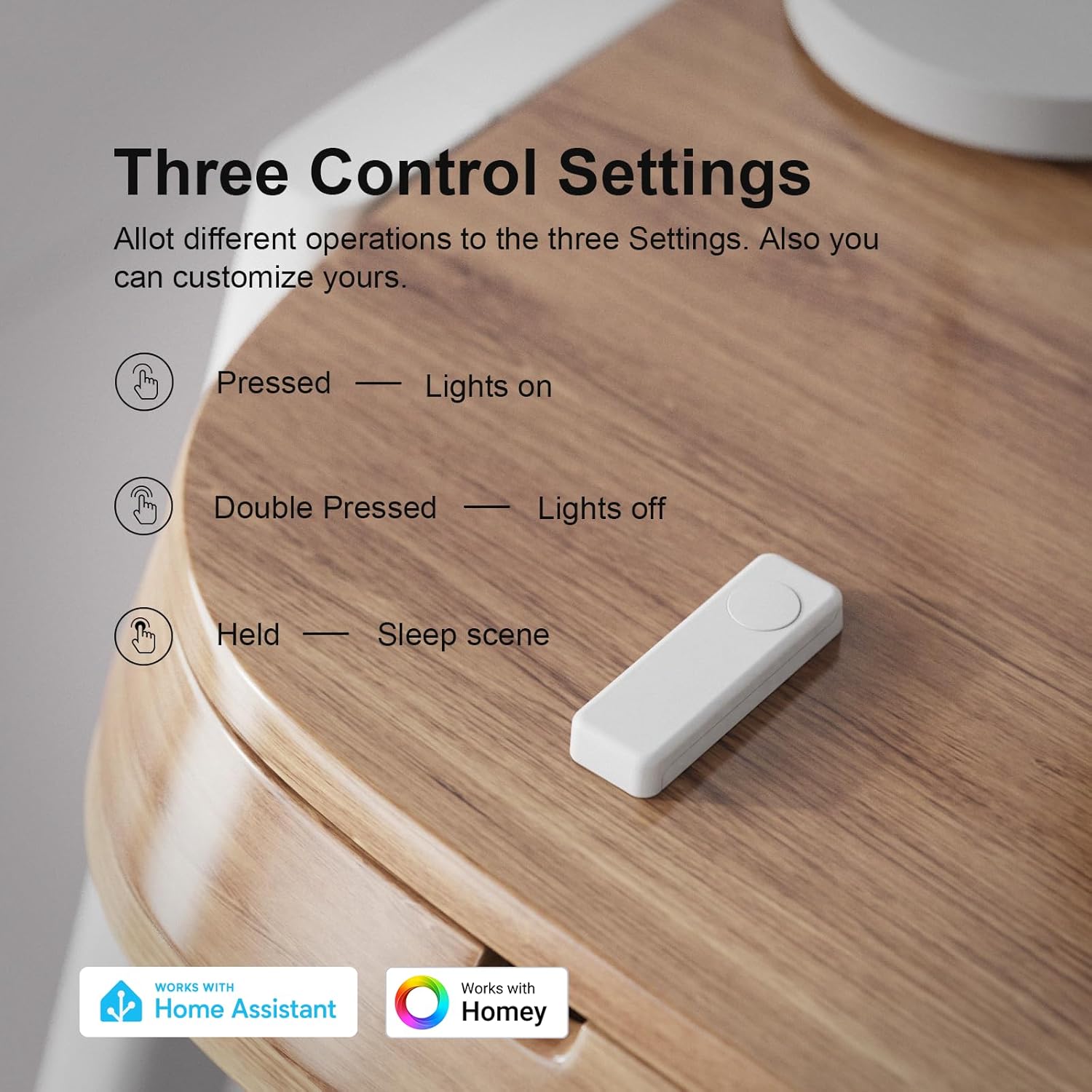
Image 4.1: Illustration of the three programmable control settings.

Image 4.2: The Smart Button can simplify control of a group of connected smart devices.
4.1. Scene Control
You can configure your Smart Button to trigger specific scenes. For instance, a 'movie night' scene could dim lights and close smart blinds with one press, while a 'goodnight' scene could turn off all lights before bed.
4.1.1. Easy to Use Wireless Smart Button
Video 4.3: Demonstration of the THIRDREALITY Wireless Smart Button's ease of use.
4.1.2. Smart Button with THIRDREALITY Smart Bridge MZ1
Video 4.4: Exploring additional functionalities of the Smart Button when paired with the THIRDREALITY Smart Bridge MZ1.
5. Maintenance
5.1. Battery Replacement
The Smart Button is powered by 2 AAA batteries, offering a battery life of up to 3 years under normal usage. When the battery level is low, your connected Zigbee hub or smart home app may provide a notification. Replace the batteries promptly to ensure continuous operation.
- Open the battery compartment on the side of the device.
- Remove the old AAA batteries.
- Insert new AAA batteries, ensuring correct polarity.
- Close the battery compartment securely.

Image 5.1: The Smart Button uses 2 AAA batteries for up to 3 years of operation.
6. Troubleshooting
- Device not responding: Check battery level and ensure the device is within range of your Zigbee hub. Verify the hub is online and functioning correctly.
- Pairing issues: Ensure your Zigbee hub is in pairing mode. Reset the Smart Button (refer to specific reset instructions, usually a long press) and attempt pairing again. Confirm your phone's Bluetooth is on and connected to a stable 2.4GHz Wi-Fi network if using a bridge for setup.
- Delayed response: This can sometimes occur due to network congestion or distance from the Zigbee hub. Consider adding Zigbee repeaters to strengthen your network.
- Firmware updates: Ensure your Smart Button's firmware is up to date through your smart home app or the THIRDREALITY app, especially if experiencing new issues.
7. Warranty and Support
For warranty information and technical support, please refer to the documentation included with your product or visit the official THIRDREALITY website. You can also contact customer service through the Third Reality, Inc. seller page on Amazon.


