
1. Introduction
This manual provides detailed instructions for the installation, operation, and maintenance of your AMprime Android 13 Car Radio Stereo. Please read this manual thoroughly before using the product to ensure proper function and safety.
The AMprime Car Radio Stereo features an Android 13 system with 2GB RAM and 64GB ROM, a 9-inch touchscreen, Wireless Carplay, Android Auto, GPS navigation, Wi-Fi, Bluetooth, FM/RDS radio, steering wheel control (SWC) support, and rear camera input.
2. Product Overview and Compatibility
This car radio stereo is designed for Mazda 3 models from 2009 to 2013. Ensure your vehicle's center console matches the provided images for proper fitment.

Image 2.1: Product compatibility with Mazda 3 models. Please verify the shape of your vehicle's center console, especially the circled parts, against the image to ensure correct fitment for 2009-2013 models.
3. Package Contents
Verify that all items listed below are included in your package:

Image 3.1: Included accessories and components for the car radio stereo. This includes the main unit, various cables (power, USB, RCA), GPS antenna, Canbus, microphone, AHD rear camera, user manual, and installation tools.
- Main Head Unit (9-inch touchscreen)
- Power Cable Harness
- Original USB Cable
- Canbus Decoder
- GPS Antenna
- RCA Cable Set
- AHD Rear Camera
- Microphone
- USB Cable
- User Manual
- Installation Tools
4. Installation Guide
4.1 General Installation Notes
- Professional installation is recommended.
- Disconnect the vehicle's battery before starting installation.
- Refer to your vehicle's service manual or online resources for instructions on removing the original radio and dashboard trim.
- Ensure all cables are securely connected to prevent loose connections.
4.2 Wiring Diagram for Rear Camera
The following video demonstrates the wiring process for the backup camera. Ensure correct connections for proper functionality.
Video 4.1: This video illustrates the wiring method for the backup camera. It shows how to connect the video cable, power cable, and the BACK line to the positive pole of the car's reversing light. This ensures the rear view image displays automatically when reversing.
Important Note for Mazda 3 with Amplifier: If your original car has an amplifier, you need to cut a port in the red ACC line and connect the original amplifier control line to this red ACC wire. This step is crucial for sound output.
5. Operating Instructions
5.1 Wireless CarPlay & Android Auto Connection
This unit supports both Wireless CarPlay and Wireless Android Auto. Follow the steps below to connect your smartphone.

Image 5.1: Display of Apple CarPlay and Android Auto interfaces on the car radio screen, showing common applications and voice command prompts for navigation, music, and messaging.
Wireless CarPlay/Android Auto Connection Steps:
- On your smartphone, enable Bluetooth and Wi-Fi.
- On the car radio, navigate to the Bluetooth settings and ensure it is discoverable.
- Pair your smartphone with the car radio via Bluetooth. The device name on the car radio is typically "CarBT". Enter the PIN (usually "0000") if prompted.
- Once Bluetooth is connected, open the "ZLINK" application on the car radio.
- The ZLINK app will attempt to connect to CarPlay or Android Auto. Follow any on-screen prompts on your phone to allow the connection.
- If the connection is not successful, ensure your phone's personal hotspot is enabled and the car radio is connected to it via Wi-Fi. Then, restart the ZLINK application.
Video 5.2: This video demonstrates the wireless CarPlay and Android Auto connection process, including Bluetooth pairing and using the ZLINK application. It also shows how to manually connect to Wi-Fi if the initial connection fails.
Note: CarPlay and Android Auto functions cannot be used simultaneously.
5.2 GPS Navigation & Wi-Fi
The unit has built-in GPS navigation. You can download offline maps from the Play Store. With a Wi-Fi connection, you can use online maps and access various online services.

Image 5.3: The car radio's display showing integrated GPS navigation and Wi-Fi connectivity, allowing for online maps and access to internet-dependent applications.
5.3 FM/RDS Radio & Bluetooth
Enjoy FM/RDS radio with 18 preset stations for traffic, news, and weather. Connect your phone via Bluetooth for hands-free calling and audio streaming.

Image 5.4: The car radio's FM/RDS interface for radio listening and the Bluetooth interface for hands-free phone calls, demonstrating the unit's audio and communication features.
5.4 Rear Camera Input
The unit supports AHD high-definition camera image input. When connected, the rear view image will automatically display when the vehicle is in reverse gear. You can switch between CVBS and AHD modes in the settings if needed.

Image 5.5: The car radio's display showing the rear camera input with dynamic parking lines, providing visual assistance for reversing and parking maneuvers.
Setting SD/HD Mode for Rear Camera:
- Go to Settings > Factory Settings (password: 8888).
- Select Reversing Camera Settings.
- Choose between SD or HD mode.
- If switching to SD mode from HD, you may need to cut the small white wire on the camera cable. If switching to HD mode from SD, ensure this wire is connected.
- Restart the unit for changes to take effect.
5.5 Steering Wheel Controls (SWC)
The unit supports original car steering wheel remote control buttons. This allows for convenient control of radio functions while driving. Programming may be required for some buttons.
5.6 Split Screen Functionality
The split-screen feature allows you to run two applications simultaneously, such as navigation and music playback.
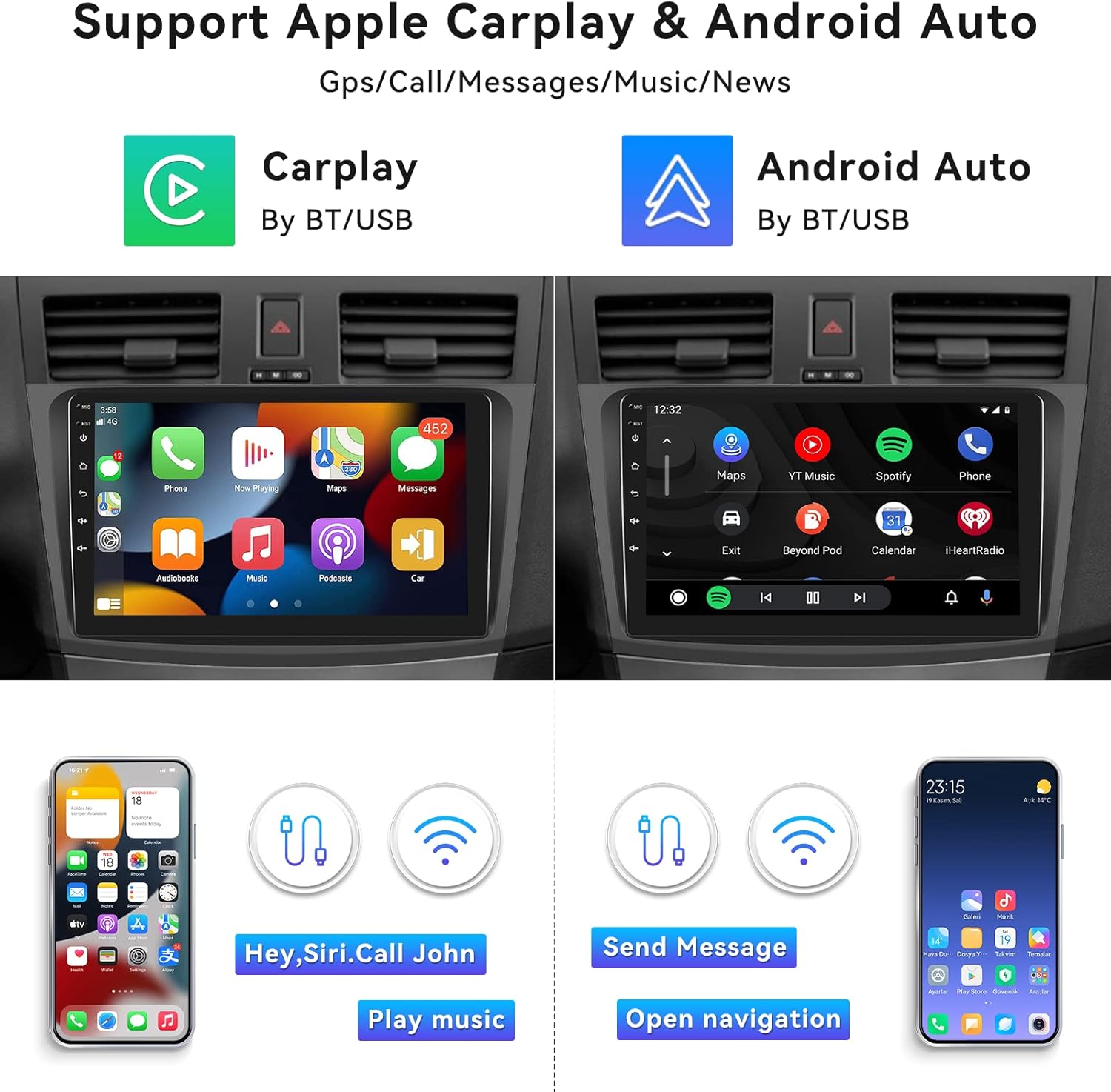
Image 5.6: The car radio's split-screen feature, displaying a navigation map on one side and a music player on the other, enabling multitasking while driving.
5.7 Mirror Link
The Mirror Link function allows you to mirror your smartphone's screen onto the car radio display. This supports both iPhone and Android devices.

Image 5.7: The Mirror Link feature, allowing the display of a smartphone screen (both iPhone and Android) to be mirrored onto the car radio unit.
6. Troubleshooting
- No Sound: If there is no sound after installation, especially with an original BOSE amplifier, ensure the AMP-CONT cable is connected to the ACC cable.
- Bluetooth/CarPlay/Android Auto Connection Issues: Ensure Bluetooth is enabled on both devices. If issues persist, try restarting the Bluetooth on the head unit or manually connecting to the car's Wi-Fi hotspot.
- Steering Wheel Controls Not Fully Functional: Some steering wheel buttons may require programming. Refer to the unit's settings for SWC programming options.
- Unit Not Turning Off with Ignition: Verify the wiring of the red ACC wire to the vehicle's ignition wire. Incorrect wiring can lead to battery drain.
- Slow Performance/Lag: Ensure sufficient free storage space. Close unnecessary background applications.
- Backup Camera Not Displaying: Check all camera wiring connections. Ensure the BACK line is correctly connected to the positive pole of the reversing light. Verify the camera mode (SD/AHD) in the factory settings.
7. Specifications
| Feature | Detail |
|---|---|
| Operating System | Android 13 |
| Memory/Storage | 2GB RAM + 64GB ROM |
| Display Size | 9 Inches |
| Connectivity | USB, Wi-Fi, Bluetooth |
| Special Features | Wireless Carplay & Android Auto, GPS Navigation, FM/RDS, Rear Camera Input, HiFi, SWC, Touchscreen, EQ |
| Audio Output Mode | Stereo |
| Map Type | Road (Offline navigation via Play Store) |
| Product Dimensions | 11.42 x 6.89 x 2.95 inches |
| Item Weight | 3.19 pounds |
8. Warranty and Support
For warranty information and technical support, please refer to the contact details provided with your purchase or visit the AMprime official website.
For online customer support and instructions, you may contact: AmprimeTechSupport@yeah.net

Image 8.1: AMprime customer support contact information for assistance with product inquiries and troubleshooting.