Introduction
This manual provides comprehensive instructions for the setup, operation, maintenance, and troubleshooting of your Moistenland WiFi Water Timer. Please read this manual carefully before using the product to ensure proper functionality and longevity. This smart water timer system is designed to automate your garden watering, offering remote control and flexible scheduling via a mobile application.
Package Contents
- 1 x Moistenland WiFi Water Timer
- 1 x WiFi Hub with Socket
- 1 x User Manual (this document)

Figure 1: Moistenland WiFi Water Timer system components, including the timer, WiFi hub, and mobile application interface.
Product Overview
The Moistenland WiFi Water Timer system consists of two primary components: the water timer unit and the WiFi hub. The water timer connects directly to your outdoor faucet and hose, while the WiFi hub plugs into a standard power outlet and connects to your home's 2.4GHz WiFi network. This hub acts as a bridge, enabling remote control of the water timer via the Tuya app.

Figure 2: Dimensions of the Moistenland WiFi Water Timer unit.
Setup Instructions
1. Battery Installation (Water Timer)
The water timer requires two AA alkaline batteries for operation. Ensure the battery compartment is clean and dry before installation.
- Locate the battery compartment on the back of the water timer.
- Open the battery cover.
- Insert two new AA alkaline batteries, observing the correct polarity (+/-).
- Securely close the battery cover, ensuring it is tightly sealed to maintain the IP54 waterproof rating. The timer features double shields for battery case protection.

Figure 3: Battery installation and waterproof sealing of the water timer.
2. WiFi Hub Setup and App Pairing
The WiFi hub connects the water timer to your home network, enabling remote control. The system supports expansion up to 32 Bluetooth water timers with a single WiFi hub.
- Download the Tuya App: Search for "Tuya Smart" in your mobile device's app store (iOS or Android) and install it.
- Plug in the WiFi Hub: Insert the WiFi hub into a standard power outlet within range of your 2.4GHz WiFi network.
- Enter Pairing Mode: Long press the button on the WiFi hub until the blue and purple lights blink alternately.
- Add Device in App: Open the Tuya app, click the "+" button to auto-scan for the gateway device, or select "Add Manually" and choose "Bluetooth WiFi Gateway".
- Connect to WiFi: Follow the in-app instructions to connect the gateway to your 2.4GHz WiFi network. Note: The system only supports 2.4GHz WiFi.
- Pair Water Timer: Once the WiFi hub is connected, ensure your water timer has batteries installed and is within Bluetooth range of the hub. In the Tuya app, navigate to the Bluetooth gateway's settings dashboard and add the water timer(s) to make them WiFi enabled.

Figure 4: Step-by-step guide for setting up the WiFi hub and connecting it to the Tuya app.

Figure 5: Remote connectivity enabled by the WiFi hub.
3. Physical Installation (Water Timer)
Once paired, install the water timer to your outdoor faucet.
- Screw the top connector of the water timer onto your outdoor faucet. Ensure a tight, leak-free connection.
- Connect your garden hose or irrigation system to the bottom outlet of the water timer.
- Ensure the timer is positioned vertically and securely.

Figure 6: Water timer connected to a faucet and hose, ready for operation.
Operating Instructions
The Moistenland WiFi Water Timer offers flexible control options through the Tuya app, manual operation, and voice commands.
1. Setting Watering Schedules via Tuya App
The Tuya app allows you to create and manage up to 20 separate watering schedules.
- Normal Schedule: Set specific start times and irrigation durations for daily, weekly, or specific day watering.
- Cycle & Soak: Implement advanced watering cycles with run times and soak times, ideal for efficient water absorption and preventing runoff.


Figure 7: Examples of Normal and Cycle & Soak watering schedules in the Tuya app.
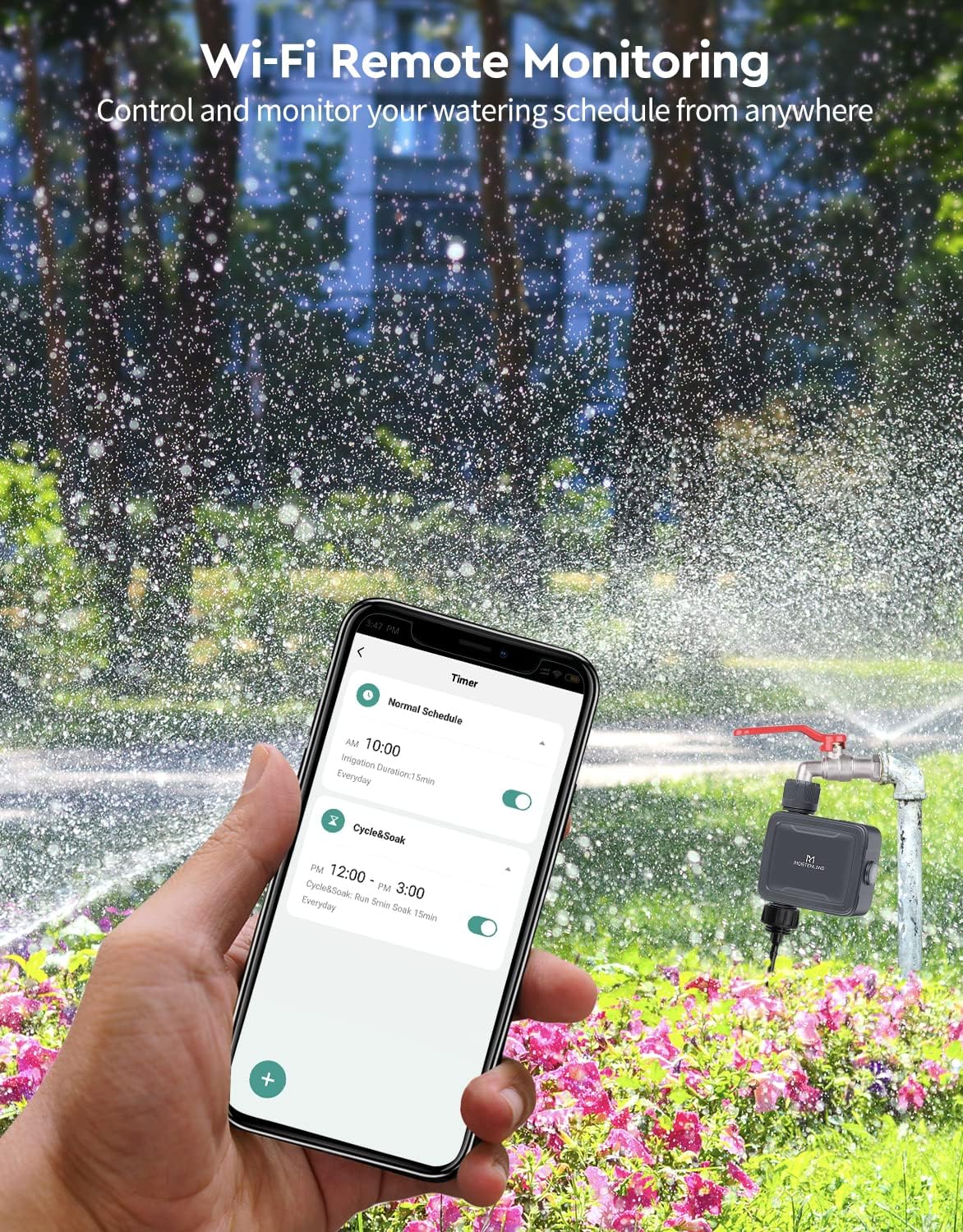
Figure 8: Remote monitoring and control of watering schedules via the Tuya app.
2. Manual Watering
You can initiate watering manually without disrupting existing programmed schedules.
- On-Device Button: Press the button on the water timer unit to start manual watering.
- In-App Control: Click the manual watering button within the Tuya app. You can set the duration for manual watering (e.g., 1 minute to 24 hours).

Figure 9: Manual watering options for the Moistenland WiFi Water Timer.
3. Rain Delay Function
The smart timer can automatically skip watering schedules based on local weather forecasts, or you can manually set a rain delay.
- Automatic Rain Delay: The timer can use local weather data to automatically skip watering on rainy or snowy days.
- Manual Rain Delay: Within the Tuya app, you can manually set a delay for 24, 48, or 72 hours.

Figure 10: Rain delay options to conserve water.
4. Voice Control & Family Sharing
- Voice Control: The WiFi irrigation timer is compatible with Amazon Alexa and Google Assistant. Integrate it with your smart home system for convenient voice commands.
- Family Sharing: You can add family members to the Tuya app and share home irrigation management, allowing multiple users to control the timer.
5. Expanding Your System
The Moistenland system is expandable. A single WiFi hub can support up to 32 Bluetooth water timers, allowing you to manage multiple watering zones from one central point in the app.

Figure 11: Building a smart irrigation system with multiple timers linked to one gateway.
Maintenance
- Battery Replacement: The water timer requires two ALKALINE AA batteries, which typically last for 12 months or more. Replace batteries when the low battery indicator appears in the app or on the device.
- Waterproofing: The timer is IP54 waterproof. Ensure the battery cover is always securely closed to prevent water ingress. Avoid submerging the device.
- Winter Storage: In regions with freezing temperatures, disconnect the water timer from the faucet and store it indoors in a dry, frost-free location during winter months to prevent damage from freezing water.
- Cleaning: Periodically clean the exterior of the timer with a damp cloth. Do not use harsh chemicals or abrasive cleaners.
Troubleshooting
| Problem | Possible Cause | Solution |
|---|---|---|
| Timer not connecting to WiFi Hub/App |
|
|
| Low battery notifications despite new batteries |
|
|
| Scheduled watering not occurring or incorrect |
|
|
| Water leakage from connections |
|
|
Specifications
| Brand | Moistenland |
| Model Number | M-WK-02 |
| Material | High-quality ABS Plastic with Anti-UV Coating |
| Product Dimensions | 13 x 4.7 x 14.2 cm (5.1 x 1.85 x 5.6 inches) |
| Item Weight | 330 g (0.73 lbs) |
| Waterproof Rating | IP54 |
| Battery Type | 2 x AA Alkaline Batteries (not included) |
| Wireless Connectivity | 2.4GHz WiFi (via Hub), Bluetooth (Timer to Hub) |
| App Compatibility | Tuya Smart App (iOS/Android) |
| Voice Control Compatibility | Amazon Alexa, Google Assistant |
| Max Timers per Hub | Up to 32 Bluetooth water timers |
Warranty and Support
For warranty information and technical support, please refer to the official Moistenland website or contact their customer service directly. Contact details are typically provided on the product packaging or within the Tuya Smart app's support section.
Manufacturer: Moistenland
Place of Business: +86 139 2376 6580