1. Introduction
This manual provides detailed instructions for the setup, operation, and maintenance of your X88 TX3 Mini Android 10.0 TV Box. Please read this manual carefully before using the device to ensure optimal performance and longevity.
The TX3 Mini Android TV Box features a fast and powerful Android 10.0 operating system, offering better compatibility with various software, games, and applications. It is equipped with 2GB RAM and 16GB ROM for smooth performance and ample storage, expandable via a micro SD card. Experience 4K visual feasts with its Amlogic processor supporting 4K video decoding and HDR media profiles, delivering crisp details and rich colors. Powered by an Amlogic Quad core A53 processor, it ensures ultra-fast reaction speed for your favorite apps, videos, and games. The device also supports 2.4GHz WiFi and H.265 hardware decoding for efficient bandwidth usage and improved image quality.

Image 1.1: The TX3 Mini Android TV Box and its included remote control.
2. Package Contents
Before proceeding with the setup, please verify that all items listed below are included in your package:
- TX3 Mini Android TV Box
- Remote Control
- Power Adapter
- HDMI Cable
- User Manual

Image 2.1: All components included in the TX3 Mini Android TV Box package: the TV box, remote, power adapter, HDMI cable, and user manual.
3. Setup Guide
Follow these steps to set up your TX3 Mini Android TV Box:
- Connect to TV: Connect the HDMI cable from the HDMI port on the TV Box to an available HDMI input on your television. If your TV does not have an HDMI port, you can use an AV cable (not included) to connect to the AV port.
- Connect Power: Plug the power adapter into the DC 5V port on the TV Box, then plug the other end into a wall outlet. The device will automatically power on.
- Connect to Network: For internet access, connect an Ethernet cable to the LAN port on the TV Box, or connect wirelessly via Wi-Fi through the settings menu after initial boot-up.
- Select Input: Turn on your TV and select the correct HDMI or AV input source using your TV's remote control.

Image 3.1: Connection options for the TX3 Mini Android TV Box, illustrating both HDMI and AV outputs for compatibility with various television models.
4. Operating Instructions
4.1 Basic Navigation
Use the included remote control to navigate the Android interface. The directional pad (up, down, left, right) moves the cursor, and the 'OK' button confirms selections. The 'Back' button returns to the previous screen, and the 'Home' button takes you to the main launcher.
4.2 Network Configuration
To connect to Wi-Fi:
- Go to 'Settings' from the home screen.
- Select 'Network & Internet'.
- Choose 'Wi-Fi' and select your desired network from the list.
- Enter the password if prompted and select 'Connect'.
4.3 App Installation and Usage
The TX3 Mini comes with pre-installed apps. You can download more applications from the Google Play Store. Ensure you have a Google account logged in to access the Play Store.
4.4 Screen Mirroring (Miracast, DLNA, Airplay)
The device supports various screen mirroring protocols, allowing you to cast content from your mobile devices to your TV. Look for dedicated apps or settings within the Android interface for Miracast, DLNA, or Airplay functionality.
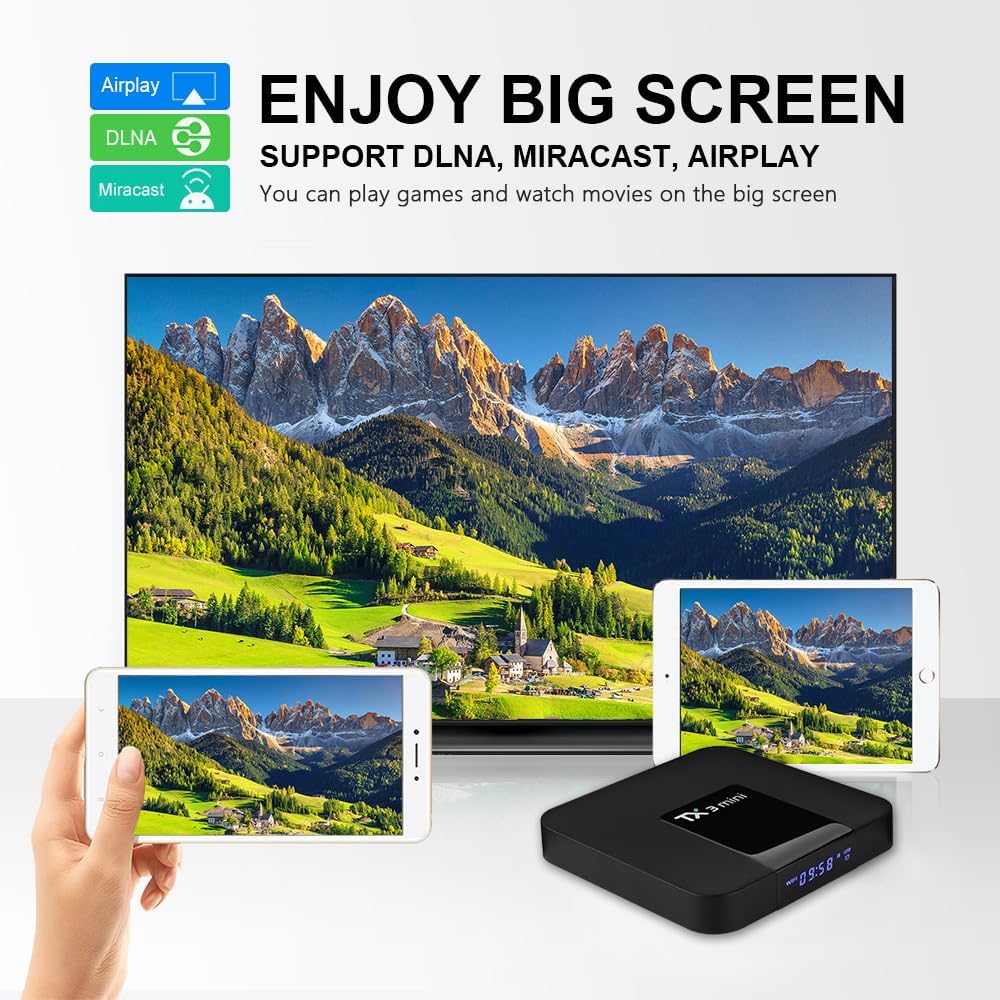
Image 4.1: The TX3 Mini Android TV Box supports Airplay, DLNA, and Miracast, enabling users to enjoy content from their mobile devices on a larger screen.
5. Maintenance
To ensure the longevity and optimal performance of your TX3 Mini Android TV Box, consider the following maintenance tips:
- Cleaning: Use a soft, dry cloth to clean the device. Avoid liquid cleaners or abrasive materials.
- Ventilation: Ensure the device is placed in a well-ventilated area to prevent overheating. Do not cover ventilation openings.
- Software Updates: Periodically check for system updates in the 'Settings' menu to ensure you have the latest features and security patches.
- Power Cycle: If the device becomes unresponsive, disconnect the power adapter for 10 seconds and then reconnect it to perform a power cycle.
6. Troubleshooting
If you encounter issues with your TX3 Mini Android TV Box, refer to the following common problems and solutions:
- No Power:
- Ensure the power adapter is securely connected to the device and a working power outlet.
- Try a different power outlet.
- No Picture on TV:
- Verify the HDMI or AV cable is correctly connected to both the TV Box and the TV.
- Ensure your TV is set to the correct input source (e.g., HDMI 1, AV).
- Try a different HDMI cable or TV input port.
- No Internet Connection:
- For Wi-Fi, check if the Wi-Fi is enabled in settings and if the password is correct.
- For Ethernet, ensure the cable is securely connected and your router is working.
- Restart your router and the TV Box.
- Remote Control Not Working:
- Replace the batteries in the remote control.
- Ensure there are no obstructions between the remote and the TV Box's IR receiver.
- System Freezing or Slow Performance:
- Close unused applications running in the background.
- Clear cache for problematic applications in 'Settings > Apps'.
- Consider a factory reset if issues persist (backup important data first).
7. Specifications
Below are the technical specifications for the TX3 Mini Android TV Box:
| Feature | Detail |
|---|---|
| Brand | X88 |
| Model Name | TX3MINI-16GB |
| Operating System | Android 10.0 |
| Processor | Amlogic Quad Core A53 (2.0 GHz) |
| GPU | Mali 450MP3 |
| RAM | 2GB DDR |
| ROM | 16GB eMMC Flash (Expandable via Micro SD up to 64GB) |
| Connectivity | 2.4GHz WiFi, Ethernet (10/100M, RJ-45), USB |
| Video Output | HDMI 2.0 (4K@60fps), AV |
| Resolution | Supports 4K (3840x2160) |
| Special Features | Miracast, HDR, 3D Denoise, H.265 Decoding |
| Supported Internet Services | Skype, Google Play Store, YouTube, Browser, Netflix etc. |
| Color | Black |
| Product Dimensions | 4.33 x 4.33 x 0.94 inches |
| Item Weight | 10.4 ounces |

Quad Core Processor
2.4G/5G WiFi Support

3D Visual Experience

Bluetooth 4.2

Image 7.1: The TX3 Mini Android TV Box supports HD 2.0 and 4K*2K display for Super HD video playback.

Image 7.2: Visual comparison demonstrating the enhanced color and contrast of HDR (High Dynamic Range) output from the TX3 Mini compared to standard SDR (Standard Dynamic Range).

Image 7.3: Illustration of the 3D Denoise feature, showing a clearer image on the right side with denoising applied, compared to the left side without it.

Image 7.4: Comparison showing the difference in network performance between 2.4G and 5G WiFi, indicating faster and more stable connectivity with 5G.

Image 7.5: Visual comparison of video playback, demonstrating improved stability and reduced blur with the anti-shake feature enabled on the right side.
8. Warranty and Support
For warranty information and customer support, please refer to the documentation provided with your purchase or contact the seller directly. The product is verified by Transparency, with each item having a unique code for verification before shipping.


