
1. Product Overview
The johgee Bluetooth Water Timer is designed to automate your garden watering system, providing convenience and efficiency. This smart device connects to your garden hose faucet and can be controlled via a Bluetooth-enabled application on your smartphone (Android or iOS).
Key features include:
- APP Smart Control: Program and manage watering schedules remotely via the "Tuya Smart" app within Bluetooth range.
- Bluetooth Connectivity: Automatic reconnection to your device once paired, ensuring continuous operation.
- Rainy Mode: Automatically skips scheduled watering during rainy weather to conserve water.
- Two Watering Modes: Supports Timed Irrigation and Cyclic Irrigation for flexible scheduling.
- Durable Design: Constructed from PC+UV silicone material with an IPX5 waterproof rating for outdoor use.
This manual provides detailed instructions for installation, operation, maintenance, and troubleshooting to help you get the most out of your water timer.

Image 1.1: The johgee Bluetooth Water Timer installed and actively watering a lawn.
2. Setup and Installation
2.1 Package Contents
Before installation, ensure all components are present:
- johgee Bluetooth Water Timer
- User Manual
- 3/4 inch fitting (pre-installed or included)
- 1/2 inch adapter (for EU-type faucets, if applicable)
- 5mm O-ring (for sealing)
- Quick Connector (for hose attachment)
2.2 Battery Installation
- Locate the battery compartment on the back of the water timer.
- Open the battery compartment cover.
- Insert two (2) AA alkaline batteries (not included), ensuring correct polarity (+/-).
- Close the battery compartment cover securely to maintain the waterproof seal.
2.3 Connecting to Faucet
The water timer is designed for standard 3/4 inch garden hose faucets. An adapter is provided for 1/2 inch EU-type faucets.
- Ensure the faucet is turned off.
- If your faucet is a 1/2 inch EU-type, first screw the 1/2 inch adapter onto the faucet, ensuring the 5mm O-ring is in place for a tight seal.
- Screw the water timer's 3/4 inch rotating connector onto your faucet (or the 1/2 inch adapter). Tighten it as much as possible by hand to prevent leaks. Do not overtighten with tools.
- Attach your garden hose to the quick connector at the bottom of the water timer.
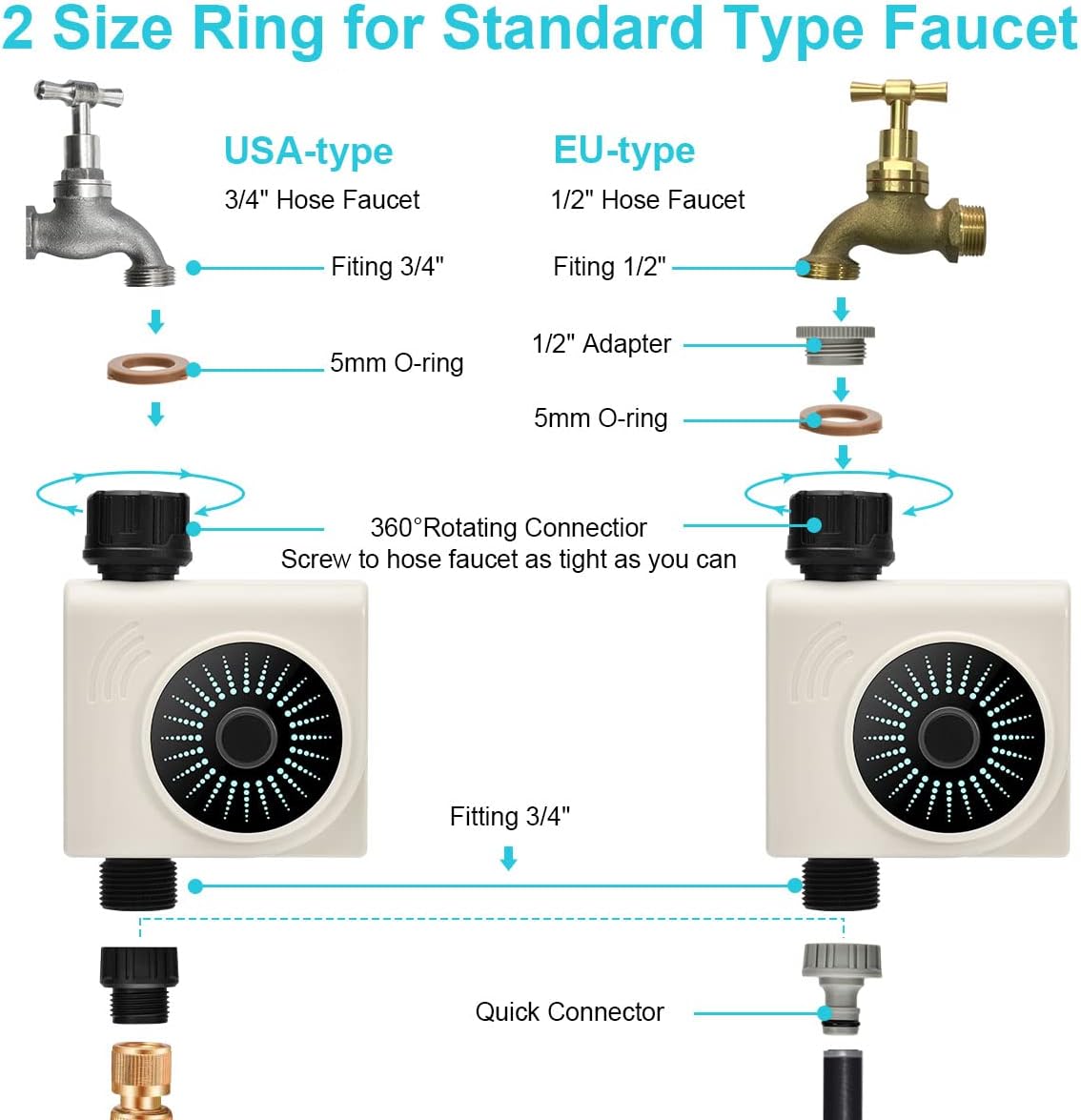
Image 2.1: Connection diagram for different faucet types.
2.4 App Download and Pairing
- Download the "Tuya Smart" app from the App Store (iOS) or Google Play Store (Android).
- Register or log in to your Tuya Smart account.
- Ensure your smartphone's Bluetooth is enabled and you are within 49.2 feet (15 meters) of the water timer in an open area without interference.
- Open the Tuya Smart app. The app should automatically detect the new device. If not, tap the "+" icon to add a device and select the water timer from the list of discoverable Bluetooth devices.
- Follow the on-screen prompts to complete the pairing process.

Image 2.2: Controlling the water timer via the Tuya Smart app.
3. Operating Instructions
Once paired, you can control and program your johgee Bluetooth Water Timer using the Tuya Smart app.
3.1 Timed Irrigation Mode
This mode allows you to set specific start times and durations for watering.
- In the Tuya Smart app, navigate to the water timer's control interface.
- Select "Timed Irrigation" or a similar option.
- Set the desired start time, watering duration (e.g., minutes), and frequency (e.g., daily, specific days of the week).
- Save your settings. The timer will execute the program automatically.

Image 3.1: App interface for setting timed irrigation schedules.
3.2 Cyclic Irrigation Mode
Cyclic irrigation allows you to set a watering interval within a specific period, useful for deep watering or new plantings.
- From the app's control interface, select "Cyclic Irrigation."
- Define the start and end times for the cycle.
- Set the watering duration (how long it waters each time).
- Set the soaking time (the interval between watering sessions within the cycle).
- Save your settings.
3.3 Manual Control
You can manually start or stop watering at any time without affecting your programmed schedules.
- In the app, locate the manual control option (often a large "Open" or "Close" button).
- Tap "Open" to start watering immediately.
- Tap "Close" to stop watering.

Image 3.2: Manual watering function in the app.
3.4 Rainy Mode
Activate Rainy Mode to temporarily suspend all watering schedules when rain is detected or expected.
- In the app, locate the "Rainy Mode" toggle switch.
- Toggle it ON to activate. The timer will not execute any programmed watering while Rainy Mode is active.
- Toggle it OFF to resume normal scheduled watering.
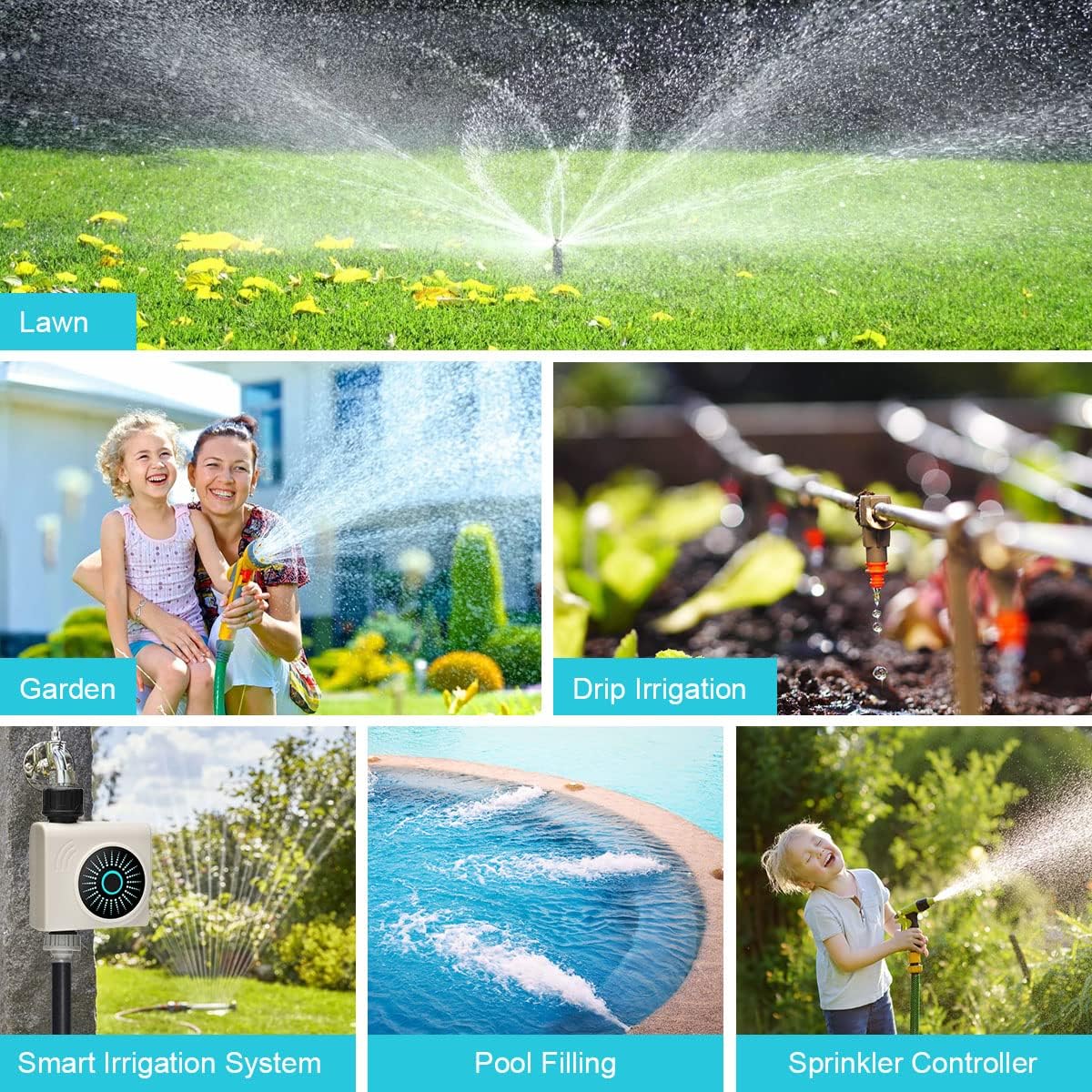
Image 3.3: Rainy Mode activated, preventing watering during rainfall.
4. Maintenance
4.1 Cleaning
Periodically inspect and clean the water timer to ensure optimal performance.
- Filter Screen: The inlet of the water timer contains a filter screen to prevent debris from entering. Regularly remove and rinse this screen under running water to clear any accumulated particles.
- Exterior: Wipe the exterior of the timer with a damp cloth to remove dirt or mineral deposits. Do not use abrasive cleaners.
4.2 Battery Replacement
Replace batteries when the app indicates low battery or if the timer stops responding. Always use fresh alkaline batteries.
- Turn off the faucet and detach the water timer.
- Open the battery compartment.
- Remove old batteries and dispose of them according to local regulations.
- Insert new AA alkaline batteries, observing correct polarity.
- Securely close the battery compartment.
4.3 Winterization
Before the first frost, remove the water timer from the faucet and store it indoors in a dry, protected area. Freezing temperatures can damage the internal components and seals.
5. Troubleshooting
- No Water Flow:
- Ensure the faucet is fully open.
- Check if the filter screen is clogged (refer to Section 4.1).
- Verify that the watering schedule is active and not paused by Rainy Mode.
- Check battery level in the app; replace batteries if low.
- App Cannot Connect to Timer:
- Ensure Bluetooth is enabled on your smartphone.
- Move closer to the water timer (within 49.2 feet / 15 meters).
- Check battery level of the timer.
- Restart the Tuya Smart app.
- If issues persist, try unpairing and re-pairing the device in the app.
- Timer Leaks at Faucet Connection:
- Ensure the connection is hand-tightened securely.
- Check if the O-ring is properly seated and not damaged. Replace if necessary.
- Verify that the correct adapter (if applicable) is used for your faucet type.
- Scheduled Watering Not Occurring:
- Confirm that the schedule is correctly set and saved in the app.
- Check if Rainy Mode is active.
- Ensure the timer has sufficient battery power.
6. Specifications
| Specification | Detail |
|---|---|
| Brand | johgee |
| Model Number | 611B |
| Material | PC + UV Silicone |
| Item Weight | 422 Grams |
| Waterproof Rating | IPX5 |
| Faucet Compatibility | 3/4 inch (with 1/2 inch adapter for EU-type) |
| Connectivity | Bluetooth |
| Bluetooth Range | Up to 49.2 ft (15m) in open area |
| Power Source | 2 x AA Alkaline Batteries (not included) |
7. Warranty and Support
7.1 Warranty Information
The johgee Bluetooth Water Timer is covered by a manufacturer's warranty against defects in materials and workmanship. Please refer to the product packaging or the official johgee website for specific warranty terms and duration.
7.2 Customer Support
For technical assistance, troubleshooting, or warranty claims, please contact johgee customer support through the following channels:
- Online: Visit the official johgee website for FAQs and support contact forms.
- Email: Refer to your product packaging or warranty card for the support email address.
- Retailer: Contact the retailer from whom you purchased the product for assistance.
When contacting support, please have your product model number (611B) and purchase information readily available.


