Introduction
This manual provides comprehensive instructions for the ZQDDBA 4K Foldable Mini Drone. Designed for both adults and beginners, this drone features automatic obstacle avoidance, a foldable body, and a 4K camera, offering an immersive aerial photography experience. Please read this manual thoroughly before operating the drone to ensure safe and optimal performance.

Image: The ZQDDBA 4K Foldable Mini Drone, showcasing its compact design, remote control, and included VR glasses.
Package Contents
Before you begin, ensure all items listed below are present in your package:
- Drone x 1
- Remote control x 1
- Body Battery x 3
- Replacement Fan Blades x 4
- Blade guard x 4
- Screwdriver x 1
- USB charging cable x 1
- Portable Storage Bag x 1
- Manual x 1
- VR glasses x 1
Setup Guide
1. Unfolding the Drone
The ZQDDBA drone features a foldable design for portability. Gently unfold the arms of the drone until they click into place. Ensure all four arms are fully extended before flight.
Video: Demonstrates the compact and light design of the drone, including how to unfold its body and arms for flight preparation.
2. Battery Installation and Charging
Insert the modular lithium battery into the designated slot on the drone's body. Ensure it is securely latched. To charge, connect the battery to the USB charging cable and plug it into a compatible USB power source. The battery indicator lights will show charging status.
3. Remote Control Preparation
Install 3 AA batteries (not included) into the remote control. Extend the phone holder on the remote control if you plan to use your smartphone for FPV (First Person View) or advanced controls via the companion app.
4. App Installation (Optional but Recommended)
For real-time aerial photography viewing, advanced flight modes, and gravity sensing control, download the official ZQDDBA drone app from your smartphone's app store. Follow the in-app instructions to connect your drone to your device via Wi-Fi.
Operating Instructions
1. Power On and Pairing
Place the drone on a flat, level surface. Power on the drone, then power on the remote control. The drone and remote will automatically pair. Wait for the indicator lights to stabilize, indicating a successful connection.
2. One-Button Take-Off and Landing
Press the one-button take-off button on the remote control, and the drone will automatically ascend to a stable hovering height. To land, press the one-button landing button, and the drone will descend and land gently.
Video: Illustrates the one-button take-off and landing features, showing the drone ascending and descending smoothly.
3. Intelligent Obstacle Avoidance
The drone is equipped with a multi-directional intelligent obstacle avoidance system, simplifying operation and enhancing safety. This system helps the drone detect and avoid obstacles from the front, left, and right directions.

Image: A visual representation of the drone's Infrared Obstacle Avoidance System, highlighting its ability to sense and avoid collisions.
4. Camera Operation (4K HD Dual Camera)
The drone features a 4K front lens and a bottom HD lens, allowing for high-definition imaging and flexible shooting perspectives. The front camera supports 90-degree free adjustment.

Image: Close-up view of the drone's 4K Dual Camera System, illustrating the adjustable front lens and the bottom HD lens.
Gesture Photo and Video Recording
Utilize gesture controls for convenient photo taking and video recording. Refer to the app or remote control instructions for specific gestures.
Video: Demonstrates gesture photo taking and gesture video recording features, showing a user interacting with the drone for media capture.
50x Zoom
The drone's camera supports 50x zoom, allowing for detailed capture of distant views without fear of high-altitude limitations.

Image: An aerial view showing the drone's 50x zoom capability, focusing on distant subjects like surfers on waves.
5. VR Glasses Experience
For an immersive aerial photography experience, connect the drone to the included VR glasses. This provides a first-person view of the drone's flight.
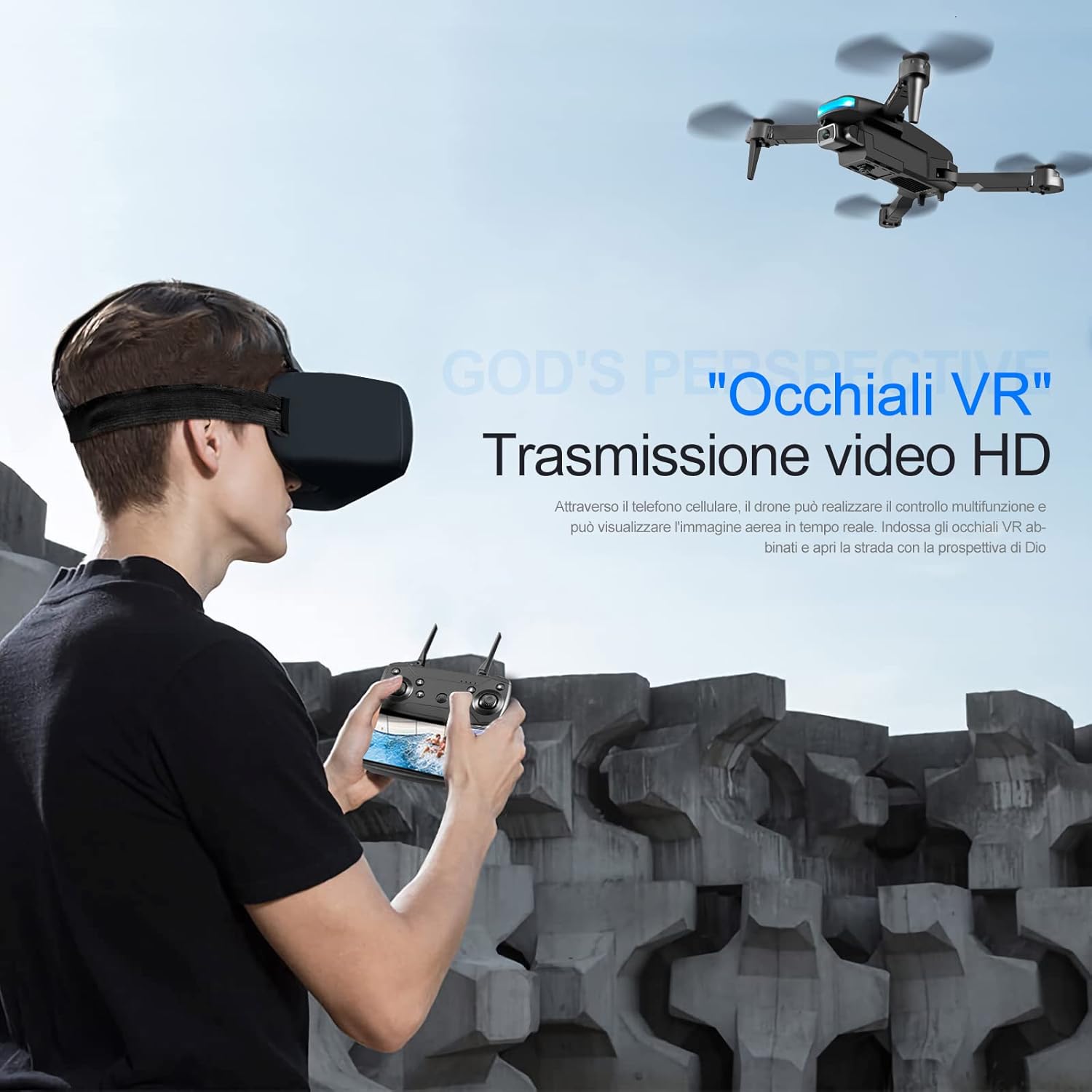
Image: A user wearing VR glasses, demonstrating the immersive experience of controlling the drone with real-time video transmission.
6. Gravity Sensing Flight System
Experience deep flight control with the gravity sensing flight system, allowing for intuitive control by tilting your smartphone.
Video: Shows the gravity sensing feature, where the drone responds to the tilt of the user's smartphone.
7. Trajectory Flight
Plan your flight path by drawing a trajectory on your smartphone screen, and the drone will automatically follow the designated route.
8. Constant Air Pressure Hovering
The drone maintains a stable altitude thanks to its constant air pressure system, making it easier for beginners to control and capture steady footage.
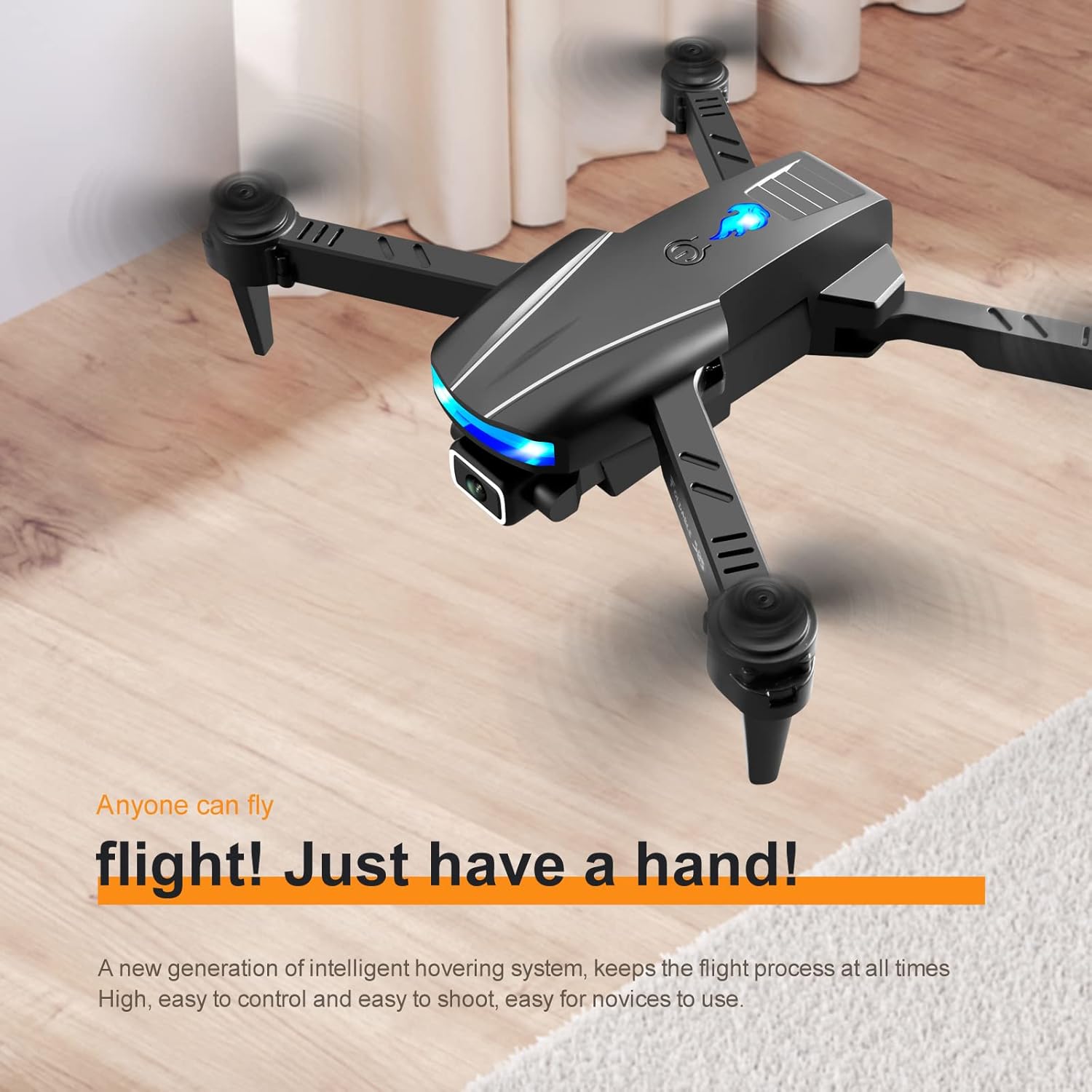
Image: The drone hovering indoors, illustrating its intelligent hovering system that keeps the flight process stable and easy to control.
Maintenance
1. Cleaning
Regularly wipe the drone's body and propellers with a soft, dry cloth to remove dust and debris. Avoid using harsh chemicals or excessive moisture.
2. Battery Care
To prolong battery life, avoid overcharging or completely draining the batteries. Store batteries in a cool, dry place when not in use. If storing for extended periods, charge them to about 50% capacity.
3. Propeller Replacement
If propellers are damaged or bent, replace them immediately using the provided replacement fan blades and screwdriver. Ensure the correct propeller (A or B) is installed on the corresponding motor.
4. Storage
When not in use, fold the drone and store it in the portable storage bag to protect it from damage and dust.
Troubleshooting
| Problem | Possible Cause | Solution |
|---|---|---|
| Drone does not power on | Battery not charged or improperly installed. | Ensure battery is fully charged and correctly inserted. |
| Drone does not respond to remote control | Not paired or out of range. | Re-pair the drone and remote. Ensure you are within the 100-meter flight distance. |
| Unstable flight/Drifting | Not calibrated or strong wind interference. | Perform gyroscope calibration. Fly in calm conditions. |
| Camera not recording/poor quality | SD card issues or low light. | Ensure SD card is inserted and formatted. Check lighting conditions. |
| Obstacle avoidance not working | Sensors obstructed or feature disabled. | Clean sensors. Ensure obstacle avoidance is active in settings. |
For more detailed troubleshooting steps, please refer to the full manual or contact customer support.
Specifications
| Feature | Detail |
|---|---|
| Product Name | Three-sided obstacle avoidance drone |
| Brand | ZQDDBA |
| Model Name | ZQDDBA |
| Dimensions (Folded) | 13 x 7 x 4 cm (5.12"L x 2.76"W x 1.57"H) |
| Dimensions (Expanded) | 25 x 20 x 4 cm (9.84"L x 7.87"W x 1.57"H) |
| Flight System | Intelligent hovering / Three-sided obstacle avoidance |
| Lens Parameters | 4K front lens + bottom HD lens |
| Video Capture Resolution | 4K UHD 2160p |
| Video Capture Format | MP4 |
| Body Battery | Modular Lithium Battery |
| Battery Life | Approximately 15 minutes |
| Flight Distance | Approximately 100 meters |
| Connectivity Technology | Wi-Fi |
| Control Type | Remote Control, App Control (Gravity Sensing) |
| Skill Level | Beginner |
| Material | Nylon, Plastic |
Warranty and Support
For information regarding product warranty, please refer to the warranty card included in your package or contact the manufacturer directly. Keep your proof of purchase for any warranty claims.
For technical support or inquiries, please visit the official ZQDDBA website or contact their customer service department through the contact information provided with your product documentation.