
Haloview BT7
Haloview BT7 Wireless RV Backup Camera System User Manual
1. Introduction
This manual provides comprehensive instructions for the Haloview BT7 Wireless RV Backup Camera System. This system is designed to enhance safety and convenience for various vehicles, including RVs, travel trailers, trucks, campers, vans, and pickups. It features a 7-inch monitor, a 1080P Full HD camera with DVR recording capabilities, and full-color night vision.

Figure 1.1: Haloview BT7 Wireless RV Backup Camera System components.
2. Product Overview
2.1 Package Contents
The Haloview BT7 system typically includes the following items:
- BT7 Monitor (7-inch LCD digital monitor)
- BTC128 Camera (Wireless FHD 1080P camera)
- Gasket
- Center mount bracket
- Camera conversion cable
- BMW connector adaptor
- Pairing Cable
- Cigarette Lighter power adapter
- Sun Shield for monitor

Figure 2.1: Included components of the Haloview BT7 system.
2.2 Key Features
- 7-inch LCD Digital Monitor: High-resolution display with built-in DVR for real-time recording and video playback.
- 1080P FHD Video Recording: Seamless recording at 30fps.
- Wide Voltage Input: Supports 10-32V power supply.
- Multi-Camera Support: Capable of supporting up to 4 wireless cameras.
- Wide Viewing Angle: 120° camera lens for broad coverage.
- Extended Wireless Range: Line of sight range up to 984 feet (300 meters).
- Low Latency: New-generation wireless technology minimizes lag and interference.
- Vehicle Compatibility: Suitable for vehicles up to 65ft, including RVs, travel trailers, trucks, campers, vans, pickups, tractors, fifth wheels, and motorhomes.
- Recording Formats: Supports 4-channel composite and single-channel recording in AVI format.
- Full-Color Dim-Light Night Vision: Powerful image sensors provide full-color images in low-light conditions.
- Night Vision Fill Lights: Can be activated/deactivated remotely via the monitor.
- IP69K Waterproof Camera: Durable and resistant to high-pressure, high-temperature water jets.
- Ultra-High Brightness Display: Ensures clear visibility even in bright daylight.
- 6-Layer Optical Lenses: High-definition optical lenses for superior image clarity.

Figure 2.2: The camera features an IP69K waterproof rating for durability.

Figure 2.3: The camera provides full-color images in dim-light conditions.

Figure 2.4: The camera utilizes 6-layer ultra high definition optical lenses.
3. Setup
3.1 Camera Installation
- Mounting Location: Choose a central location at the rear of your vehicle for optimal viewing. For Furrion pre-wired RVs, utilize the existing wiring and mounting points with the provided adapter cable.
- Secure Mounting: Use the gasket and mounting bracket to securely attach the camera. Ensure the camera is angled correctly for your desired field of view.
- Power Connection: Connect the camera to a 10-32V power source. For pre-wired systems, connect the camera conversion cable to the existing Furrion cable connector. Ensure proper polarity.
3.2 Monitor Installation
- Mounting: Attach the monitor to a suitable location in your vehicle's cabin using the center mount bracket. Ensure it does not obstruct your view while driving.
- Power Connection: Plug the cigarette lighter power adapter into your vehicle's 12V accessory outlet and connect it to the monitor.
3.3 System Pairing
The camera and monitor are typically pre-paired from the factory. If pairing is lost or you are adding additional cameras, follow these steps:
- Power on the monitor and camera.
- Access the monitor's menu and navigate to the pairing option.
- Follow the on-screen prompts to initiate pairing. You may need to use the provided pairing cable or press a button on the camera (refer to specific camera instructions if available).
- Once paired, the camera's video feed will appear on the monitor.

Figure 3.1: Wireless transmission range and compatible vehicle types.
4. Operating Instructions
4.1 Monitor Controls
The monitor features several buttons for navigation and control:
- 'S' Button: Selects channels or confirms selections.
- '+' / '-' Buttons: Adjusts settings, navigates menus, or zooms.
- 'M' Button: Enters the main menu.
- Power Button: Turns the monitor on/off.
4.2 Video Recording (DVR)
The monitor has a built-in DVR function. Insert a Micro-SD/TF card (not included) into the designated slot on the monitor to enable recording.
- Recording Resolution: Records in 1080P at 30fps.
- Recording Modes: Supports 4-channel composite and single-channel recording.
- Playback: Access recorded videos through the monitor's menu.

Figure 4.1: Monitor with Micro-SD/TF card slot for DVR functionality.
4.3 Night Vision
The camera is equipped with Full-Color Dim-Light Night Vision, providing clear, colored images even in low-light conditions. Integrated fill lights can be remotely controlled via the monitor to enhance visibility in extremely dark environments.
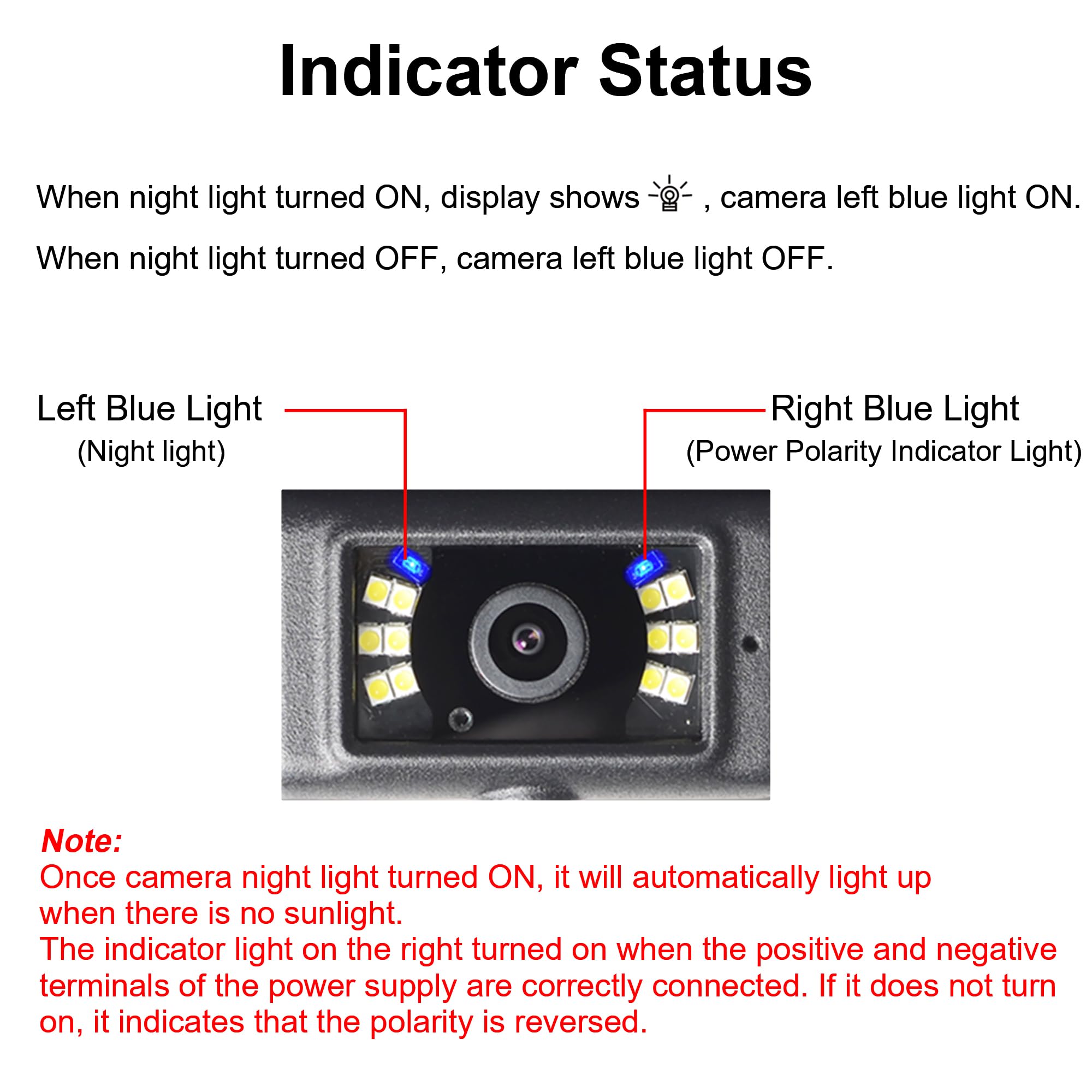
Figure 4.2: Camera indicator status for night light and power polarity.
4.4 Display Settings
- Image Flip: Adjust the image orientation (horizontal/vertical flip) through the monitor settings to match your mounting preference.
- Parking Lines: Enable and customize parking assist lines for easier maneuvering.
- Split Mode: If multiple cameras are connected, the monitor supports various split-screen views to display feeds simultaneously.

Figure 4.3: Monitor image flip options.

Figure 4.4: Adjustable parking assist lines on the monitor.

Figure 4.5: Split mode options for multi-camera viewing.
5. Maintenance
- Cleaning: Regularly clean the camera lens and monitor screen with a soft, damp cloth. Avoid abrasive cleaners.
- Cable Inspection: Periodically check all cables and connections for wear, damage, or loose fittings.
- Firmware Updates: Check the Haloview website for any available firmware updates for optimal performance.
- Storage: When not in use for extended periods, store the system in a cool, dry place.
6. Troubleshooting
| Problem | Possible Cause | Solution |
|---|---|---|
| No signal on monitor | Camera not powered, camera not paired, signal interference, damaged cable. | Check power connections to camera and monitor. Re-pair the camera (refer to Section 3.3). Ensure no large metallic objects are blocking the signal path. Inspect cables for damage. |
| Poor image quality | Dirty lens, low light, signal interference. | Clean the camera lens. Ensure adequate lighting or activate night vision fill lights. Reduce sources of wireless interference. |
| Monitor not turning on | No power, faulty power adapter. | Check the cigarette lighter connection. Ensure the vehicle's accessory outlet is active. Try a different power source if available. |
| Recording not working | No Micro-SD/TF card, card full, card error. | Insert a compatible Micro-SD/TF card. Format the card via the monitor menu. Replace the card if it is faulty. |
7. Specifications
| Feature | Detail |
|---|---|
| Product Dimensions | 11.02 x 9.06 x 4.33 inches |
| Item Weight | 3.41 pounds |
| Display Technology | LCD |
| Other Display Features | Wireless |
| What's in the Box | A camera and a monitor (and accessories listed in Section 2.1) |
| Manufacturer | Haloview |
| Screen Size | 7 Inches |
| Compatible Devices | Haloview systems |
| Installation Type | Surface Mount |
| Voltage | 10-32 Volts |
| Optical Sensor Technology | CMOS |
| Lens Type | Wide viewing angle |
| Real Angle of View | 120 Degrees |
| Connector Type | DC |
8. Warranty and Support
For warranty information, technical support, or service inquiries, please contact Haloview customer support directly. Refer to the official Haloview website or your purchase documentation for the most current contact details and warranty terms.
Haloview Official Store: Visit the Haloview Store on Amazon
Related documentsBT7


Ask a question about this manual
Ask about setup, troubleshooting, compatibility, parts, safety, or missing instructions. Manuals+ will review the question and use this page’s manual context to help answer it.