
1. Introduction
This manual provides detailed instructions for the installation, operation, and maintenance of your Reobiux Outdoor WiFi PTZ 1080P Surveillance Camera, Model A8H. Please read this manual thoroughly before using the product to ensure proper functionality and safety.
2. Product Overview and Components
The Reobiux A8H is a 1080P Full HD outdoor PTZ (Pan-Tilt-Zoom) surveillance camera designed for comprehensive home or office security. It features automatic human tracking, color night vision up to 30 meters, two-way audio communication, and sound/light alarms. The camera is rated IP66 for weather resistance.
2.1 Package Contents
- Camera Body
- Power Cord
- Power Adapter
- Network Cable (short)
- Mounting Screws and Wall Plugs
- User Manual
2.2 Camera Diagram

Figure 1: Front view of the Reobiux A8H camera, showing the lens, LED lights, and dual antennas. A smartphone screen displays the camera's live view with pan and tilt controls.

Figure 2: The Reobiux A8H camera mounted on a wall, illustrating its 355-degree pan and 90-degree tilt capabilities for wide area coverage. A hand holding a smartphone shows the live feed with directional controls.
3. Setup
3.1 Physical Installation
- Choose a Location: Select a suitable outdoor location that provides the desired viewing angle and is within range of your 2.4 GHz Wi-Fi network or has access to an Ethernet cable. Ensure the camera is mounted securely and is protected from direct impact.
- Mount the Camera: Use the provided mounting screws and wall plugs to securely attach the camera to a wall or ceiling.
- Connect Power: Connect the power cord to the camera and then to the power adapter. Plug the adapter into a power outlet. The camera will power on and initiate its self-test.
3.2 Network Connection
The Reobiux A8H camera supports both Wi-Fi (2.4 GHz only) and Ethernet connections.

Figure 3: Illustration of network connection options: 1. Wireless (2.4 GHz WiFi) via router, 2. Wired (LAN cable) via router, and 3. AP Hotspot for direct connection to a mobile device.
- Wi-Fi Connection:
- Ensure your router is broadcasting a 2.4 GHz Wi-Fi signal.
- Proceed to section 3.3 for app installation and configuration. The app will guide you through connecting the camera to your Wi-Fi network.
- Ethernet Connection:
- Connect one end of the provided Ethernet cable to the camera's Ethernet port and the other end to your router or network switch.
- The camera will automatically establish a wired network connection.
3.3 App Installation and Configuration (iCSee App)
- Download the App: Search for "iCSee" in your mobile device's app store (Google Play Store for Android or Apple App Store for iOS) or scan the QR code provided in the quick start guide.
- Register/Log In: Open the iCSee app and follow the on-screen instructions to register a new account or log in if you already have one.
- Add Device: Tap the "+" icon to add a new device. Select "Add Camera" or "WiFi Camera".
- Follow In-App Instructions: The app will guide you through the process of connecting your camera to your network. This typically involves selecting your Wi-Fi network, entering the password, and allowing the camera to scan a QR code displayed on your phone screen or listening for an audio prompt.
- Set Camera Password: Create a strong password for your camera to ensure security.
- Name Your Camera: Assign a recognizable name to your camera (e.g., "Front Door Camera", "Backyard Camera").
4. Operating Instructions
4.1 Live View
Once the camera is successfully added to the iCSee app, you can tap on its name to access the live video feed. From the live view interface, you can:
- View real-time video.
- Take snapshots.
- Record video manually.
- Access playback of recorded footage.
4.2 PTZ Control (Pan, Tilt, Zoom)
The camera offers 355° horizontal pan and 90° vertical tilt. You can control the camera's movement directly from the iCSee app.
Figure 4: Control the camera's pan (horizontal) and tilt (vertical) movements directly from the mobile application to adjust the viewing angle.
- In the live view, use the directional controls (usually a joystick-like interface) to move the camera lens.
- The camera also supports 4X digital zoom. Pinch-to-zoom on the live feed to magnify the image.
4.3 Two-Way Audio
The built-in microphone and speaker allow for real-time two-way communication.

Figure 5: The camera's two-way audio function enables communication with visitors or delivery personnel through the mobile app.
- Tap the microphone icon in the app to speak through the camera's speaker.
- Tap the speaker icon to listen to audio from the camera's surroundings.
4.4 Motion Detection & Alerts
The camera features intelligent human detection and automatic tracking to reduce false alarms.
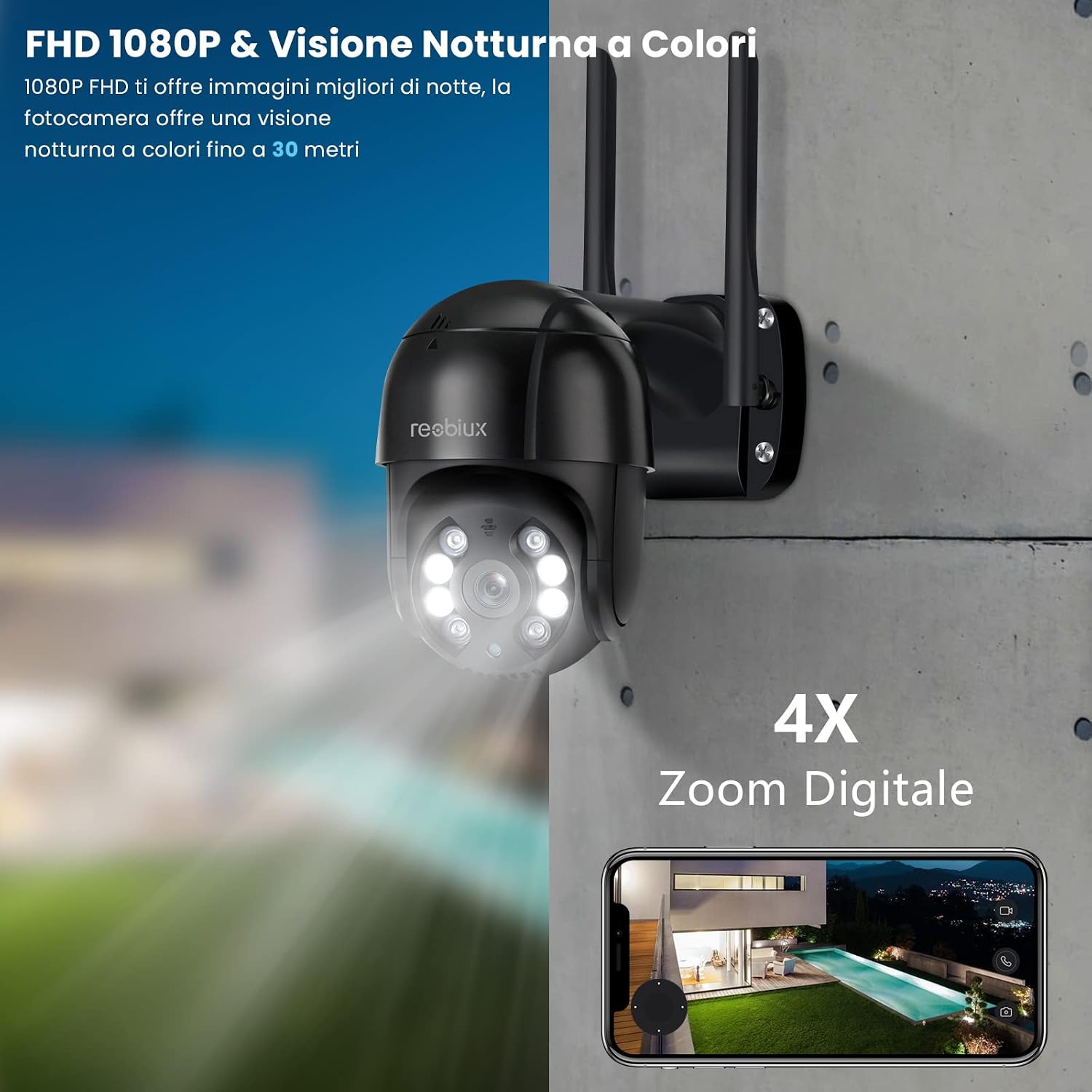
Figure 6: The intelligent human detection feature accurately identifies human figures, minimizing false alarms from pets or other non-human movements.

Figure 7: When motion is detected, the camera triggers a sound and light alarm, and sends real-time notifications to your mobile device.
- Enable Motion Detection: In the app settings, navigate to "Alarm Settings" or "Motion Detection" to enable and configure sensitivity levels.
- Human Detection: The camera can differentiate between human shapes and other moving objects, reducing false alerts from rain, leaves, or animals.
- Automatic Tracking: When a human is detected, the camera will automatically pan and tilt to follow their movement.
- Sound and Light Alarm: Upon detection, the camera can emit an audible alarm and flash its white lights to deter intruders.
- Notifications: Receive instant push notifications on your mobile device when an event is triggered.
4.5 Night Vision
The camera provides clear vision even in complete darkness, offering both infrared and full-color night vision modes.

Figure 8: The camera's 1080P FHD resolution combined with integrated infrared and white lights provides clear color night vision up to 30 meters.
- Infrared Night Vision: Automatically activates in low-light conditions, providing black and white video.
- Color Night Vision: Utilizes built-in white lights to provide full-color video at night, similar to daytime footage, up to 30 meters. This mode can be configured in the app.
4.6 Recording and Storage
The camera supports local storage via a Micro SD card and cloud storage options.

Figure 9: The camera supports both local storage via an SD card (slot shown) and optional cloud storage for recorded video footage.
- Micro SD Card: Insert a Micro SD card (up to 128GB, not included) into the designated slot on the camera. The camera will automatically begin recording based on your settings (continuous, event-triggered).
- Cloud Storage: The iCSee app offers optional cloud storage services for secure backup of your recordings. Refer to the app for subscription details.
- Playback: Access recorded footage via the "Playback" section in the iCSee app.
5. Maintenance
- Cleaning: Regularly clean the camera lens with a soft, dry cloth to ensure clear image quality. Do not use harsh chemicals or abrasive materials.
- Firmware Updates: Check the iCSee app periodically for firmware updates. Keeping your camera's firmware updated ensures optimal performance and security.
- Power Supply: Ensure the power adapter and cable are in good condition and free from damage.
- Network Connection: Verify your Wi-Fi signal strength or Ethernet connection regularly to prevent interruptions in service.
6. Troubleshooting
| Problem | Possible Cause | Solution |
|---|---|---|
| Camera offline | No power, weak Wi-Fi signal, network issue. | Check power connection. Ensure camera is within Wi-Fi range (2.4 GHz). Restart router and camera. Try Ethernet connection if available. |
| Cannot connect to Wi-Fi | Incorrect Wi-Fi password, 5 GHz network, camera too far from router. | Verify Wi-Fi password. Ensure you are connecting to a 2.4 GHz network. Move camera closer to the router or use a Wi-Fi extender. |
| No motion detection alerts | Motion detection disabled, sensitivity too low, app notifications off. | Enable motion detection in app settings. Adjust sensitivity. Check phone notification settings for the iCSee app. |
| Poor image quality at night | Lens obstruction, night vision mode not optimal. | Clean the camera lens. Ensure there are no obstructions. Check night vision settings in the app (e.g., switch to color night vision if desired). |
| Two-way audio not working | Microphone/speaker muted in app, volume too low. | Check microphone and speaker icons in the live view interface to ensure they are not muted. Adjust volume settings on your phone. |
7. Specifications
| Feature | Detail |
|---|---|
| Model Number | A8H (ZRSC-A8H-EU) |
| Video Recording Resolution | 1080p Full HD (2 MP Effective Video Resolution) |
| Pan/Tilt Angle | 355° Horizontal Pan, 90° Vertical Tilt |
| Night Vision | Infrared and Color Night Vision (up to 30m) |
| Digital Zoom | 4X |
| Audio | Two-Way Audio (Built-in Microphone and Speaker) |
| Connectivity | Wi-Fi (2.4 GHz only), Ethernet |
| Wireless Technology | Wi-Fi/Ethernet (Dual 5dBi Antennas) |
| Weather Resistance | IP66 Waterproof |
| Storage Options | Micro SD Card (up to 128GB), Cloud Storage (subscription required) |
| Power Input | 12 Volts DC, 5 Watts |
| Material | Plastic |
| Dimensions (L x W x H) | 19.5 x 16.5 x 11 cm |
| Weight | 680 grams |
| Compatible Devices | iOS, Android, Amazon Alexa |
| Controller Type | iCSee App |
8. Warranty and Support
Reobiux is committed to providing quality products and customer satisfaction. For warranty information and technical support, please refer to the contact details provided in your product packaging or visit the official Reobiux website. Please retain your proof of purchase for warranty claims.
For app-related issues, please consult the help section within the iCSee application.