
1. Introduction
This user manual provides detailed instructions for the installation, operation, maintenance, and troubleshooting of your REVODATA 5MP POE IP Indoor Security Camera. Please read this manual thoroughly before using the product to ensure proper functionality and safety. This camera is designed for indoor surveillance, offering high-resolution video, invisible IR night vision, and Power over Ethernet (POE) capability for simplified installation.
2. Safety Information
- Ensure the camera is installed in a stable location to prevent falling.
- Do not expose the camera to extreme temperatures, humidity, or dust.
- Use only the specified power supply (48V POE or 12V 2A DC adapter, not included) to avoid damage.
- Avoid direct exposure of the lens to strong light sources, as this may damage the image sensor.
- Do not attempt to disassemble or modify the camera. Refer all servicing to qualified personnel.
- Keep the camera away from strong electromagnetic interference.
3. Package Contents
Verify that all items listed below are included in your package:
- REVODATA 5MP POE IP Indoor Security Camera (IPIR-M-P-HS) x 1
- Screws Set x 1
- User Manual x 1

Figure 3.1: Package Contents Diagram. This image illustrates the camera, user manual, screws, and the product packaging.
4. Product Overview
The REVODATA IPIR-M-P-HS is a compact 5MP POE IP camera designed to blend into indoor environments, often resembling a motion sensor. It features a 3.7mm lens, 940nm invisible IR LEDs for discreet night vision, and supports H.265/H.264 video compression for efficient storage.

Figure 4.1: Front view of the REVODATA IPIR-M-P-HS camera. The camera is white with a rectangular shape, featuring a recessed area at the top and a small lens at the bottom center, designed to appear like a standard motion detector.
4.1 Key Features
- 5MP (2880x1616P) Ultra HD Resolution: Provides clear and detailed images at 25 frames per second.
- 3.7mm Lens: Offers an approximate 80-degree viewing angle.
- 940nm Invisible IR LEDs: Equipped with 18pcs 940nm LED boards for night vision that is invisible to the naked eye, ensuring discreet operation.
- POE (Power Over Ethernet) Support: Simplifies installation by allowing power and data transmission over a single Ethernet cable (IEEE 802.3af standard).
- H.265/H.264 Dual Encoding: Reduces bandwidth and storage requirements by up to 50% compared to H.264.
- Motion Detection: Records only when motion is detected, optimizing storage usage.
- P2P Remote View: Access live and recorded video remotely via the Linklemo mobile app (iOS/Android) or VMS software (Windows).

Figure 4.2: Key Features Overview. This graphic summarizes the camera's main capabilities, including its 5MP resolution, invisible night vision, POE support, and remote viewing.

Figure 4.3: Resolution Comparison. This image demonstrates the superior detail captured by the 5MP resolution compared to 1080P, highlighting the clarity for identifying objects or individuals.
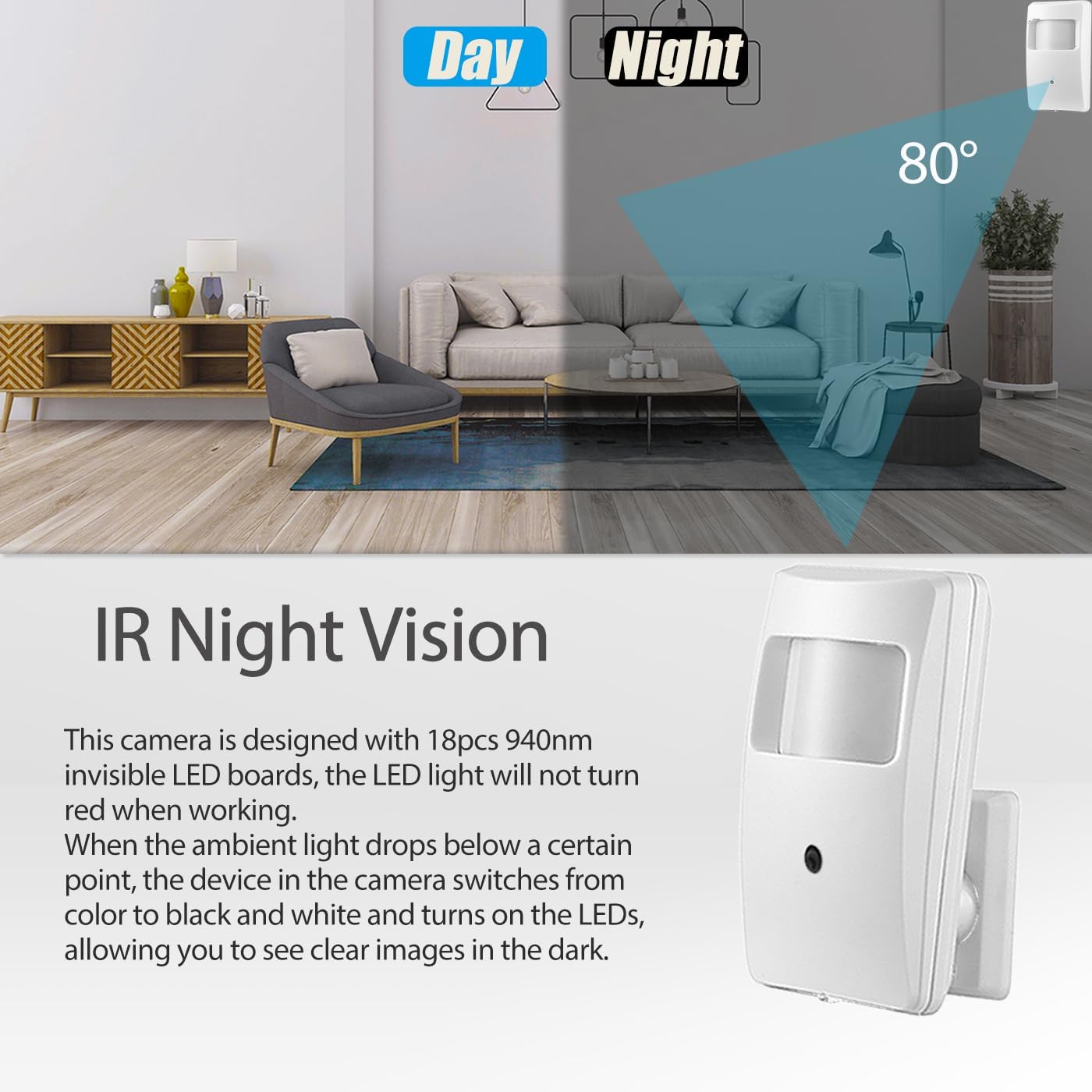
Figure 4.4: IR Night Vision. This visual explains how the camera's 940nm invisible LEDs provide clear images in complete darkness without emitting visible light, ensuring covert surveillance.
5. Setup
5.1 Physical Installation
- Choose a Location: Select an indoor location that provides the desired viewing angle and is within reach of an Ethernet cable for POE. The camera is designed for ceiling or wall mounting.
- Mounting: Use the included screws to securely mount the camera to a wall or ceiling. Ensure the camera is oriented correctly to capture the intended area.
- Connect Ethernet Cable: Connect a standard Ethernet cable from your POE switch or POE injector to the camera's RJ45 port. If not using POE, connect a 12V 2A DC power adapter (not included) to the auxiliary power connector and an Ethernet cable to the RJ45 port for data.

Figure 5.1: POE Connection. This image highlights the simplicity of Power over Ethernet, where a single cable provides both power and data to the camera, reducing wiring complexity.
5.2 Network Configuration
The camera is designed to be plug-and-play with most POE-enabled networks. It will obtain an IP address automatically via DHCP. For advanced configurations or if your network does not use DHCP, you may need to use the VMS software to manually set the IP address.
5.3 Software/App Installation
- Mobile App (Linklemo): Download the "Linklemo" app from the App Store (iOS) or Google Play Store (Android). Follow the in-app instructions to add your camera using its unique ID or by scanning a QR code (if available on the camera or packaging).
- VMS Software (Windows): For Windows computers, install the VMS software. This software allows for more comprehensive management, including live viewing, recording, playback, and advanced camera settings. (Note: VMS software is not available for MAC OS or Linux).
6. Operating Instructions
6.1 Accessing the Camera
Once the camera is connected to your network and the app/software is installed, you can access the camera feed:
- Via Linklemo App: Open the Linklemo app, select your added camera, and tap to view the live feed.
- Via VMS Software: Launch the VMS software on your Windows PC. Add the camera to the device list (usually by auto-discovery or manual IP entry) and then select it for live viewing.

Figure 6.1: Remote Viewing Interfaces. This image shows how the camera feed can be accessed and viewed through both the Linklemo mobile application and the VMS desktop software.
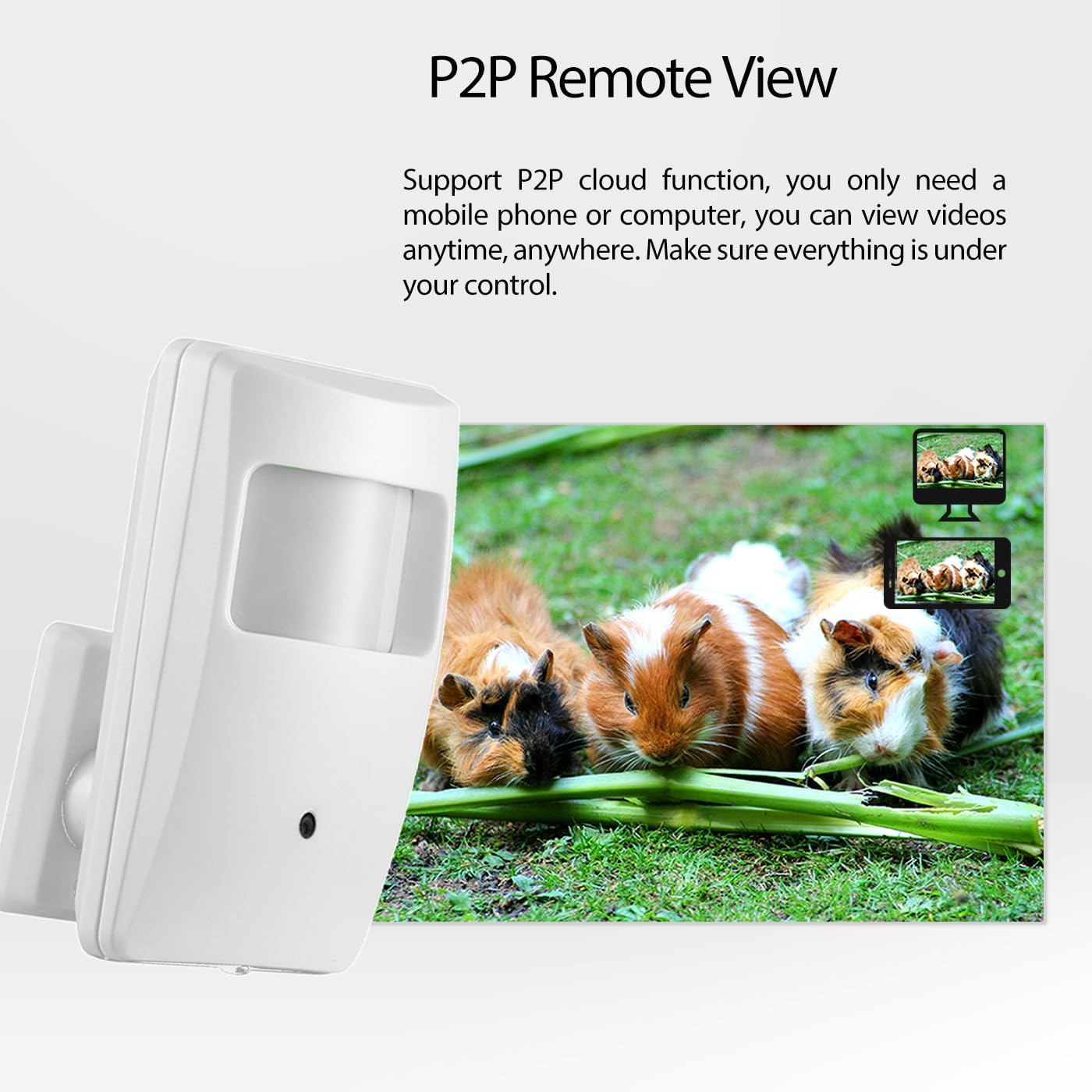
Figure 6.2: P2P Remote View. This graphic demonstrates the ability to view your camera's live feed from anywhere using a mobile phone or computer, ensuring constant monitoring.
6.2 Motion Detection
The camera supports motion detection, which can trigger recording and send alerts. To configure motion detection:
- Access the camera settings through the Linklemo app or VMS software.
- Navigate to the "Motion Detection" or "Alarm" settings.
- Enable motion detection and adjust sensitivity as needed.
- Configure alert notifications (e.g., email alarm function).
- Important Note: If you experience issues with "human detection" or unwanted blue boxes appearing around detected persons, you may need to disable this feature. In the VMS software, navigate to Configure > Alarm Manager > Human detect and uncheck Show Human setting, then click Save.
6.3 Night Vision Operation
The camera automatically switches to night vision mode when ambient light levels drop. The 940nm invisible IR LEDs will activate, providing clear black and white images in low-light or no-light conditions. The LEDs do not emit a visible red glow, ensuring discreet operation.

Figure 6.3: Day and Night Real Picture Comparison. This image illustrates the camera's performance in both well-lit daytime conditions and complete darkness, showcasing its effective night vision capabilities.
7. Maintenance
- Cleaning: Use a soft, dry cloth to clean the camera lens and body. Do not use harsh chemicals or abrasive cleaners.
- Firmware Updates: Periodically check the manufacturer's website or the Linklemo app for available firmware updates. Keeping your camera's firmware up-to-date ensures optimal performance and security.
- Environmental Conditions: Ensure the camera operates within its specified temperature and humidity ranges to prolong its lifespan.
8. Troubleshooting
If you encounter issues with your REVODATA camera, refer to the following common problems and solutions:
| Problem | Possible Cause | Solution |
|---|---|---|
| No image/camera offline | No power; Network connection issue; Incorrect IP address. | Ensure POE switch/injector is active or 12V power adapter is connected. Check Ethernet cable connection. Verify camera's IP address is correct and accessible on the network. |
| Poor image quality/Pixelation | Insufficient bandwidth; Incorrect video stream settings; Dirty lens. | Check network bandwidth. Adjust video stream settings (e.g., lower resolution or frame rate) in VMS software. Clean the camera lens with a soft cloth. |
| Motion detection not working or too sensitive | Motion detection disabled; Sensitivity too low/high; Incorrect detection area. | Enable motion detection in settings. Adjust sensitivity levels. Define the detection area accurately. |
| Cannot connect to camera via app/software | Incorrect camera ID/password; Network firewall blocking connection; App/software outdated. | Double-check camera ID and password. Ensure your network firewall allows communication with the camera. Update the Linklemo app or VMS software to the latest version. |
| Camera is not wireless/Wi-Fi | Misunderstanding of product features. | This camera model (IPIR-M-P-HS) is a wired POE IP camera and does not support wireless (Wi-Fi) connectivity. An Ethernet cable connection is required for both power and data. |
| Difficulty configuring with NVR | NVR compatibility issues; Incorrect NVR settings. | Ensure your NVR supports ONVIF protocol or is compatible with REVODATA cameras. Refer to your NVR's manual for adding IP cameras. Use the VMS software to configure camera network settings if needed. |
9. Specifications
| Feature | Specification |
|---|---|
| Model Name | IPIR-M-P-HS |
| Resolution | 5MP (2880x1616P) |
| Lens | 3.7mm |
| Viewing Angle | 80 Degrees |
| Night Vision | 940nm Invisible IR LEDs, 10 Meters Range |
| Power Source | POE (Power over Ethernet) 48V, or 12V 2A DC (adapter not included) |
| Connectivity | Ethernet (LAN) |
| Video Compression | H.265/H.264 |
| Frame Rate | 25 fps |
| Minimum Illumination | 0.01Lux @(F1.2,AGC ON) |
| Motion Detection | Supported, with Email alarm function |
| Compatible Devices | Smartphone (iOS, Android), Windows PC |
| Material | Plastic |
| Dimensions (L x W x H) | 2.5 x 1.1 x 4.1 inches |
| Item Weight | 6.3 ounces |
| Operating Temperature | Up to 60 Degrees Celsius |
| IP Rating | IP65 |
10. Warranty and Support
For detailed warranty information, please refer to the product's purchase terms and conditions. For technical support or further assistance, please contact REVODATA customer service through the platform where you purchased the product or visit the official REVODATA website.
An official User Manual (PDF) is also available for download: Download User Manual (PDF)


