
MOKiN 16-in-1 Dual HDMI+DP+VGA+Ethernet
MOKiN 16-in-1 USB C Docking Station User Manual
Model: 16-in-1 Dual HDMI+DP+VGA+Ethernet
1. Introduction
This manual provides detailed instructions for the MOKiN 16-in-1 USB C Docking Station. Please read this manual carefully before using the product to ensure proper setup, operation, and maintenance. Retain this manual for future reference.

Image 1.1: MOKiN 16-in-1 USB C Docking Station and included cables.
2. Package Contents
Please verify that all items are present in the package:
- MOKiN 16-in-1 USB C Docking Station
- USB-C to USB-C Cable
- User Manual
3. Product Overview
The MOKiN 16-in-1 USB C Docking Station offers extensive connectivity options for your laptop. Familiarize yourself with the various ports and their functions:

Image 3.1: Detailed diagram of the docking station's ports and their labels.
Port Descriptions:
- USB-C PD3.0 (100W Input): Connect your laptop's power adapter here to provide up to 87W power delivery to your laptop.
- USB-C (Host): Connects to your laptop's USB-C port.
- USB 3.1 (10Gbps): High-speed data transfer port.
- USB 3.0 (5Gbps): Two ports for connecting USB devices with fast data transfer.
- USB 2.0 (480Mbps): Two ports for connecting peripherals like keyboards, mice, or printers.
- Audio/Mic (3.5mm): Combined audio input/output jack for headphones or speakers.
- SD/TF Card Slots: Supports simultaneous reading of SD and Micro SD cards.
- RJ45 Gigabit Ethernet: Provides a stable wired network connection up to 1000 Mbps.
- DisplayPort (DP): Video output port, supports up to 4K@60Hz.
- HDMI 1: Video output port, supports up to 4K@60Hz.
- HDMI 2: Video output port, supports up to 4K@60Hz.
- VGA: Video output port, supports up to 1080P@60Hz.
4. Setup Guide
Follow these steps to connect your MOKiN Docking Station to your laptop and external displays:
- Connect to Laptop: Use the provided USB-C to USB-C cable to connect the docking station's 'USB-C (Host)' port to a full-function USB-C or Thunderbolt 3/4 port on your laptop.
- Connect Power (Optional but Recommended): If your laptop requires charging or if you are connecting multiple power-intensive devices, connect your laptop's original USB-C power adapter to the 'USB-C PD3.0' port on the docking station. The docking station supports up to 100W input, providing up to 87W to your laptop.
- Connect Displays: Connect your external monitors to the HDMI 1, HDMI 2, DisplayPort, and/or VGA ports on the docking station using appropriate cables.
- Connect Peripherals: Plug in your USB devices (keyboard, mouse, external drives) into the USB 3.1, USB 3.0, or USB 2.0 ports. Insert SD or TF cards into their respective slots.
- Connect Network: For a stable wired internet connection, connect an Ethernet cable from your router/modem to the RJ45 Gigabit Ethernet port.
- Connect Audio: If desired, connect headphones or speakers to the 3.5mm Audio/Mic jack.
The docking station is plug-and-play for most Windows and macOS systems. Drivers are typically not required.
5. Operating Modes and Display Configuration
The MOKiN Docking Station supports various display configurations, including single, dual, triple, and quadruple monitor setups. The maximum resolution and refresh rate depend on the number of connected displays and your laptop's capabilities.
Display Modes:
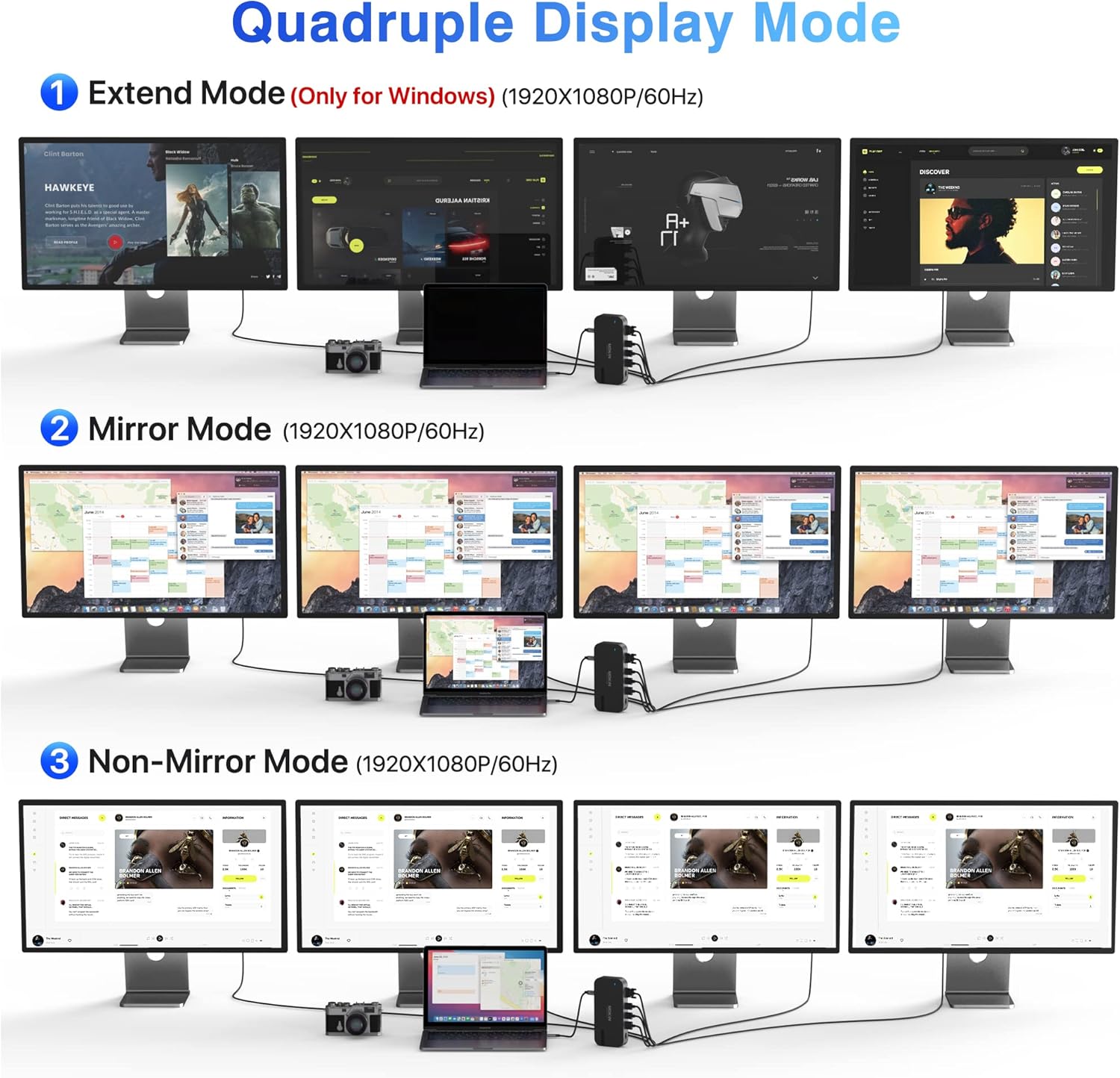
Image 5.1: Visual representation of Extend, Mirror, and Non-Mirror display modes.
- Extend Mode (Windows Only for Quadruple Display): Each connected monitor displays a different desktop, expanding your workspace.
- Mirror Mode: All connected monitors display the same content as your laptop's screen.
- Non-Mirror Mode: External monitors display the same content, but different from your laptop's screen.
Multi-Monitor Support:
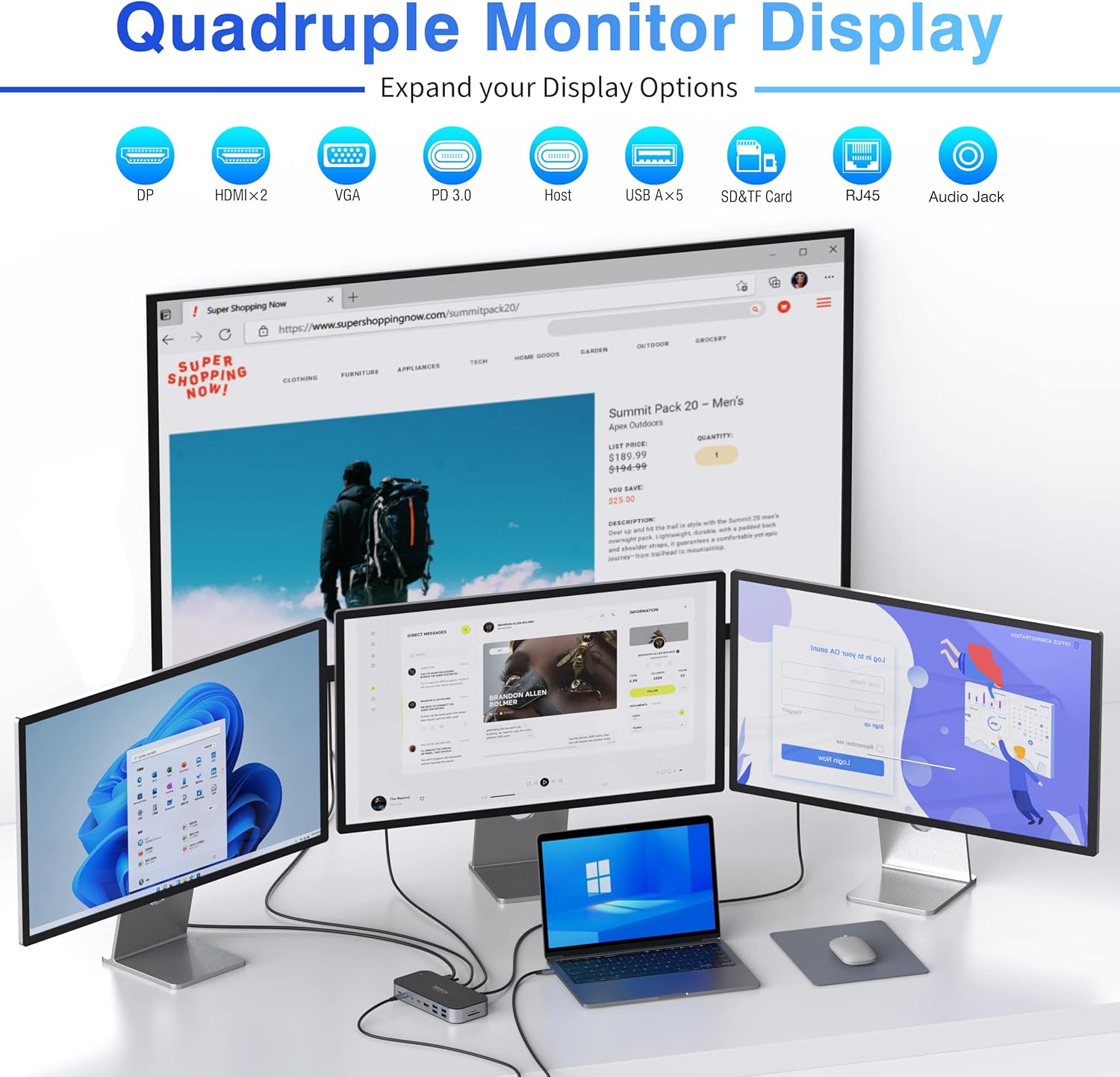
Image 5.2: A laptop connected to the docking station, driving four external monitors in an extended desktop configuration.
- Dual Display: Supports resolutions up to 3840x2160@30Hz.
- Triple/Quadruple Display: Supports resolutions up to 1920x1080@30Hz.
Note: macOS and ChromeOS do not support the expansion of multiple distinct displays. They typically support mirror mode or a single extended display.
Data Transfer and Network:
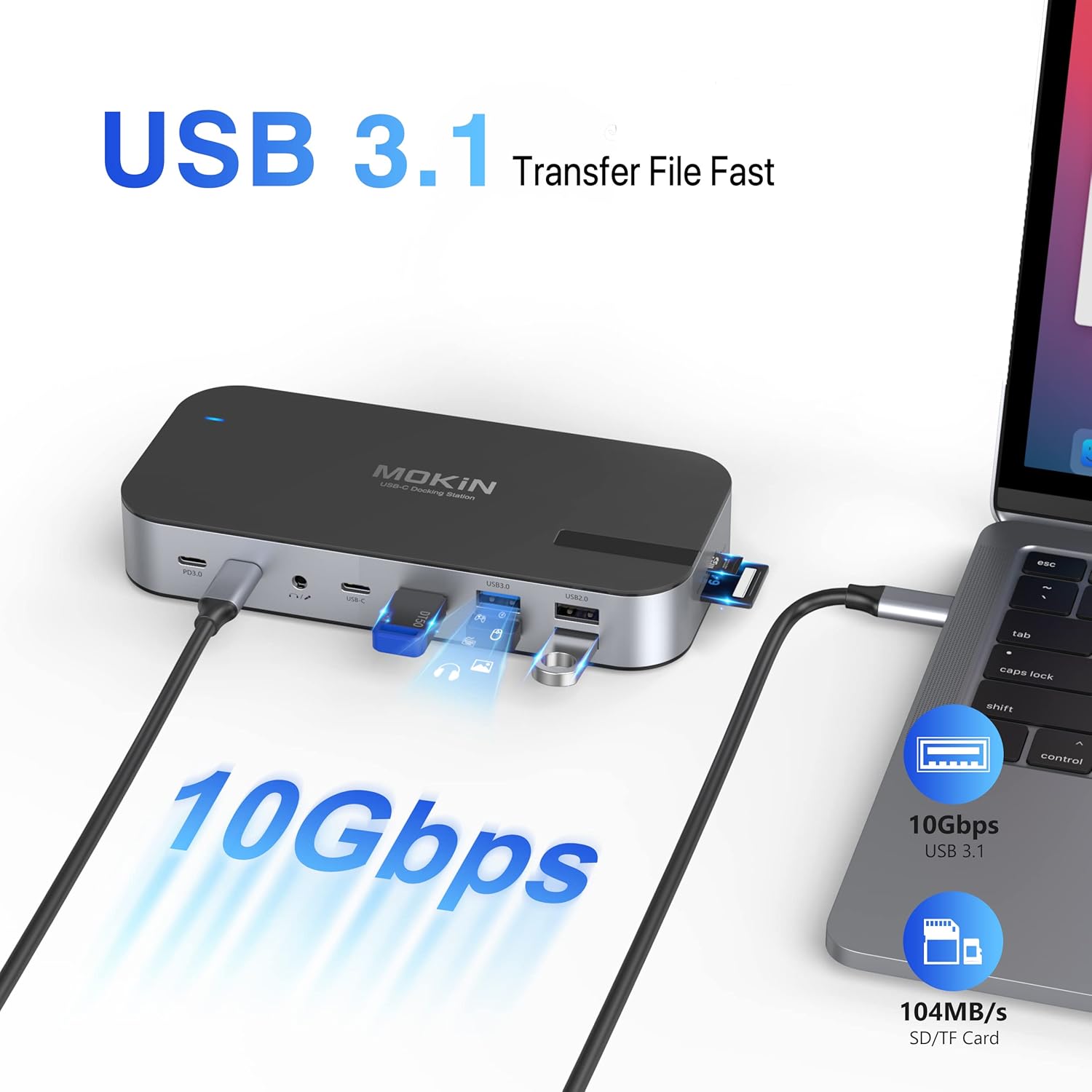
Image 5.3: Illustration of high-speed data transfer via the USB 3.1 port.
The docking station features a USB 3.1 port with transfer speeds up to 10 Gbps, ideal for connecting high-speed external storage. Two USB 3.0 ports offer speeds up to 5 Gbps, and two USB 2.0 ports are suitable for standard peripherals. The integrated SD and TF card slots allow for simultaneous access to files from both card types.
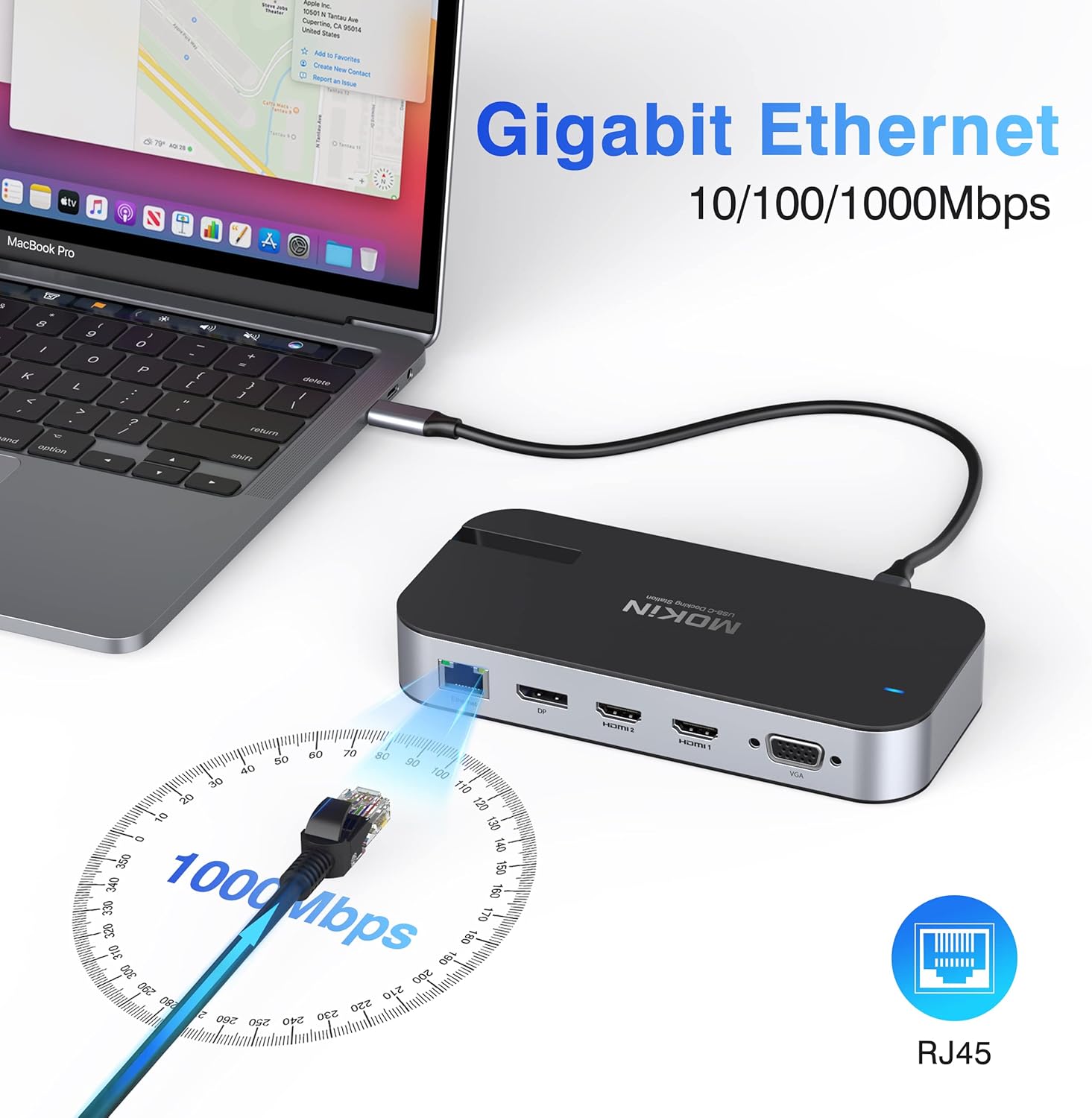
Image 5.4: Representation of the Gigabit Ethernet port providing a 1000 Mbps wired connection.
The RJ45 Gigabit Ethernet port ensures a stable and fast wired internet connection, supporting speeds up to 1000 Mbps, which is beneficial for online gaming, streaming, and large file transfers.
Audio Connection:
The 3.5mm Audio/Mic 2-in-1 socket allows you to connect headphones, speakers, or a headset for audio playback and voice communication simultaneously.
6. Power Delivery
The docking station's USB-C PD3.0 port supports power input up to 100W. When you connect your laptop's power adapter to this port, the docking station can deliver up to 87W of power to your connected laptop, ensuring it remains charged during use. This feature is crucial for maintaining laptop battery levels, especially when running multiple external displays and peripherals.

Image 6.1: Diagram showing 100W power input to the dock and 85W output to the laptop for charging.
7. Compatibility
This docking station is compatible with laptops equipped with a full-function USB-C port or a Thunderbolt 3/4 port. It supports various operating systems, including Windows and macOS. Specific compatibility may vary depending on your laptop's manufacturer (e.g., Dell, Lenovo, HP, Microsoft Surface) and its USB-C port capabilities.
8. Specifications
| Feature | Detail |
|---|---|
| Model | 16-in-1 Dual HDMI+DP+VGA+Ethernet |
| Host Connection | USB-C (Full-function or Thunderbolt 3/4) |
| Video Outputs | 2x HDMI (4K@60Hz), 1x DisplayPort (4K@60Hz), 1x VGA (1080P@60Hz) |
| USB Data Ports | 1x USB 3.1 (10Gbps), 2x USB 3.0 (5Gbps), 2x USB 2.0 (480Mbps) |
| Card Reader | SD and TF (supports simultaneous read) |
| Ethernet | RJ45 Gigabit Ethernet (10/100/1000 Mbps) |
| Audio | 3.5mm Audio/Mic 2-in-1 Jack |
| Power Delivery | USB-C PD3.0 Input (up to 100W), Output to laptop (up to 87W) |
| Operating Systems | Windows, macOS |
9. Troubleshooting
If you encounter issues with your MOKiN Docking Station, please refer to the following common problems and solutions:
- No Display Output:
- Ensure the USB-C host cable is securely connected to both the docking station and your laptop's full-function USB-C or Thunderbolt port.
- Verify that display cables (HDMI, DP, VGA) are firmly connected to both the docking station and the monitors.
- Check your laptop's display settings to ensure external monitors are detected and configured (e.g., Extend, Duplicate).
- Try connecting one monitor at a time to isolate the issue.
- Restart your laptop.
- No Power Delivery to Laptop:
- Ensure your laptop's original USB-C power adapter is connected to the docking station's 'USB-C PD3.0' port.
- Verify that your laptop supports USB-C Power Delivery.
- USB Devices Not Working:
- Reconnect the USB device.
- Try a different USB port on the docking station.
- Ensure the docking station is receiving sufficient power, especially for power-intensive USB devices.
- Ethernet Connection Issues:
- Check if the Ethernet cable is securely connected to both the docking station and your router/modem.
- Verify network settings on your laptop.
- Ensure your router/modem is functioning correctly.
- Audio Not Working:
- Ensure headphones/speakers are properly plugged into the 3.5mm audio jack.
- Check your laptop's audio output settings to ensure the docking station's audio device is selected.
10. Care and Maintenance
To ensure the longevity and optimal performance of your MOKiN Docking Station, follow these guidelines:
- Keep the device away from water, moisture, and extreme temperatures.
- Avoid dropping or subjecting the device to strong impacts.
- Clean the device with a soft, dry cloth. Do not use liquid cleaners or aerosols.
- Store the docking station in a cool, dry place when not in use.
- Do not attempt to disassemble or repair the device yourself. Refer to qualified service personnel.
11. Warranty and Support
MOKiN products are designed for reliability and performance. For warranty information, technical support, or service inquiries, please refer to the contact details provided on the MOKiN official website or your purchase documentation. Please have your product model and purchase details ready when contacting support.
Related documents16-in-1 Dual HDMI+DP+VGA+Ethernet


Ask a question about this manual
Ask about setup, troubleshooting, compatibility, parts, safety, or missing instructions. Manuals+ will review the question and use this page’s manual context to help answer it.