
Introduction
This manual provides detailed instructions for the installation, operation, and maintenance of your REVODATA I708-P-HS 5MP Mini POE IP Camera. Please read this manual thoroughly before using the product to ensure proper functionality and safety.

Image: The camera is suitable for various indoor environments such as living rooms, offices, and for monitoring pets or babies.
Setup
1. Package Contents
Verify that all items are present in the package:
- Camera x 1
- Screws set x 1
- User Manual x 1

Image: The camera, a set of mounting screws, and the user manual are included in the package.
2. Physical Installation
The REVODATA I708-P-HS camera features a compact design and an adjustable mounting bracket for versatile placement. It is designed for indoor use.
- Dimensions: 19.44 x 1.62 x 2.1 inches
- Mounting Type: Wall Mount
- Material: Metal

Image: The compact design of the camera, highlighting its small size for discreet installation.
Image: A diagram showing the camera's dimensions, screw holes, adjustable mounting bracket, and RJ45 port with auxiliary power input.
3. Power and Network Connection
The camera supports both Power over Ethernet (PoE) and a standard 12V 2A DC power supply.
- PoE Connection: Connect an Ethernet cable from a PoE-enabled switch or NVR to the camera's RJ45 port. This provides both power and data.
- DC Power Connection: If PoE is not available, connect a 12V 2A DC power adapter (not included) to the auxiliary power interface and an Ethernet cable to the RJ45 port for data.

Image: A visual representation of a PoE cable connecting to the camera, demonstrating the Power over Ethernet feature.

Image: The camera connected to an NVR (Network Video Recorder) via an Ethernet cable, illustrating a typical setup.
Operating Instructions
1. Software Installation and Initial Configuration
The camera can be managed via VMS software for Windows computers or the "Linklemo" mobile application for iOS and Android devices. The camera's default username is admin and the default password is 123456. It is recommended to change the default password immediately after initial setup.
Video: This video demonstrates how to connect the camera to VMS software, access the browser web interface, and set up the smartphone application for remote viewing. It covers logging in with default credentials (admin/admin for VMS, admin/123456 for web interface) and navigating basic settings.
For VMS software, the default username is admin and the default password is admin. For the web interface, the default username is admin and the default password is 123456. Ensure you locate the camera's dynamic IP address using the VMS software to access the web interface.
2. Remote Viewing
The camera supports P2P (Peer-to-Peer) viewing, allowing remote access from your smartphone or computer. Use the "Linklemo" app for mobile devices or VMS software for Windows to view live feeds and playback recordings.

Image: Screenshots showing the camera feed accessible via the Linklemo mobile application and VMS desktop software.
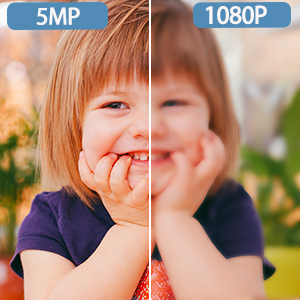
Image: A mobile phone screen showing the live camera feed through the Linklemo application, demonstrating remote access.
3. Motion Detection and Alerts
The camera features motion detection capabilities. When motion is detected, the camera can trigger recordings and send alarm messages to your smartphone via the Linklemo app.

Image: A smartphone displaying a "Human body detected" notification from the Linklemo app, indicating motion detection functionality.

Image: A visual representation of motion detection, with a red overlay indicating the detected movement of a person in a room.
4. Night Vision
Equipped with 10 invisible 940nm infrared LEDs, the camera provides clear night vision without emitting visible red light. When ambient light levels drop, the camera automatically switches to black and white mode and activates the infrared LEDs.

Image: A split image demonstrating the camera's day vision (color) and night vision (black and white) capabilities, highlighting the 75-degree field of view.

Image: A side-by-side comparison of actual footage captured by the camera during daytime and nighttime, showing the clarity of both modes.

Image: A visual showing the camera's night vision range of 10 meters, powered by 10 invisible LEDs, with a day/night transition effect.
Maintenance
Regular maintenance ensures optimal performance and longevity of your camera.
- Cleaning: Gently wipe the camera lens and body with a soft, dry cloth. Avoid abrasive cleaners or solvents.
- Firmware Updates: Periodically check the manufacturer's website or the VMS software for available firmware updates to enhance features and security.
- Environmental Conditions: Ensure the camera operates within its specified temperature range (up to 60°C). While the camera has an IP67 rating, it is primarily designed for indoor use.
Troubleshooting
If you encounter issues with your camera, refer to the following common solutions:
- Camera Not Connecting:
- Verify the Ethernet cable connection.
- Ensure the camera is receiving power (either via PoE or DC adapter).
- Check network settings. The camera may have a default static IP (e.g., 192.168.1.21) or obtain one via DHCP. Use the VMS software's IP search function to find the camera on your network.
- Confirm that the default username (admin) and password (admin for VMS, 123456 for web interface) are entered correctly.
- No Live Video/Image Issues:
- Ensure your network bandwidth is sufficient.
- Check the camera's image settings in the VMS software or web interface.
- If using a browser, ensure necessary plugins are installed or try a different browser.
- Motion Detection Not Working:
- Verify motion detection settings are enabled in the camera's configuration.
- Adjust sensitivity levels as needed.
- Ensure notification settings are correctly configured in the Linklemo app.
Specifications
Key technical specifications for the REVODATA I708-P-HS 5MP Mini POE IP Camera:

Image: A visual comparison demonstrating the enhanced clarity and detail of 5MP resolution compared to 1080P.
| Feature | Detail |
|---|---|
| Model Name | I708-P-HS |
| Video Capture Resolution | 5 MP (2880*1616P) |
| Image Sensor | 1/3 inch CMOS |
| Lens | 3.6mm |
| Viewing Angle | 75 Degrees |
| Night Vision | 10pcs 940nm Invisible LED, 5-10m range |
| Connectivity | Ethernet (PoE 802.3af or 12V 2A DC) |
| Video Compression | H.265/H.264 |
| Frame Rate | 25 fps |
| Motion Detection | Supported, with Email Alarm function |
| Compatible Devices | Android, iOS (Linklemo App), Windows (VMS Software) |
| Indoor/Outdoor Usage | Indoor (IP67 rating) |
| Power Source | Corded Electric (PoE or 12V DC) |
| Voltage | 48 Volts (PoE) |
| Wattage | 15 watts |
| Operating Temperature | Up to 60 Degrees Celsius |
| Item Weight | 7.2 ounces |
Warranty and Support
For product support, please contact REVODATA customer service. Information regarding extended protection plans is available through your retailer.
- Manufacturer: REVODATA
- Protection Plans: Optional 2-Year or 3-Year protection plans may be available for purchase separately.


